Sign In Another Way on Windows 11 Lock Screen

- 33 steps
- Needs administrator rights
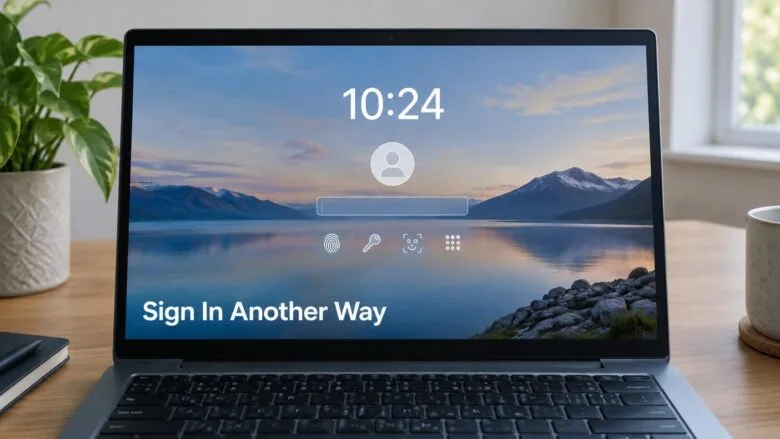
Sign-in options on the Windows 11 lock screen let you pick a different way to log in, such as a PIN, face, fingerprint, or security key. To use one, dismiss the lock screen, then select Sign-in options under the password or PIN box and choose the method you want.
The choices you see depend on what you set up for your account. If the Sign-in options link is missing, or your method isn’t listed, a setting or a hardware limit is usually the cause. The sections below go through each one.
This page also shows how to switch to another user account on the same PC. It covers getting back in when you’ve forgotten your PIN or password, too.
To sign in another way on Windows 11, dismiss the lock screen by pressing any key or clicking the mouse, then select Sign-in options under the password or PIN box. Choose the icon for the method you want, such as PIN, face, fingerprint, or security key. The options you see depend on what is set up on your account.
Sign in another way from the 🪟 Windows 11 lock screen
The lock screen is the picture with the clock. The Sign-in options link is on the sign-in screen behind it, so dismiss the lock screen first. These steps need no administrator rights.
- Dismiss the lock screen by pressing any key, clicking the mouse or swiping up on a touchscreen. The sign-in screen appears with your account name and a box for your PIN or password.
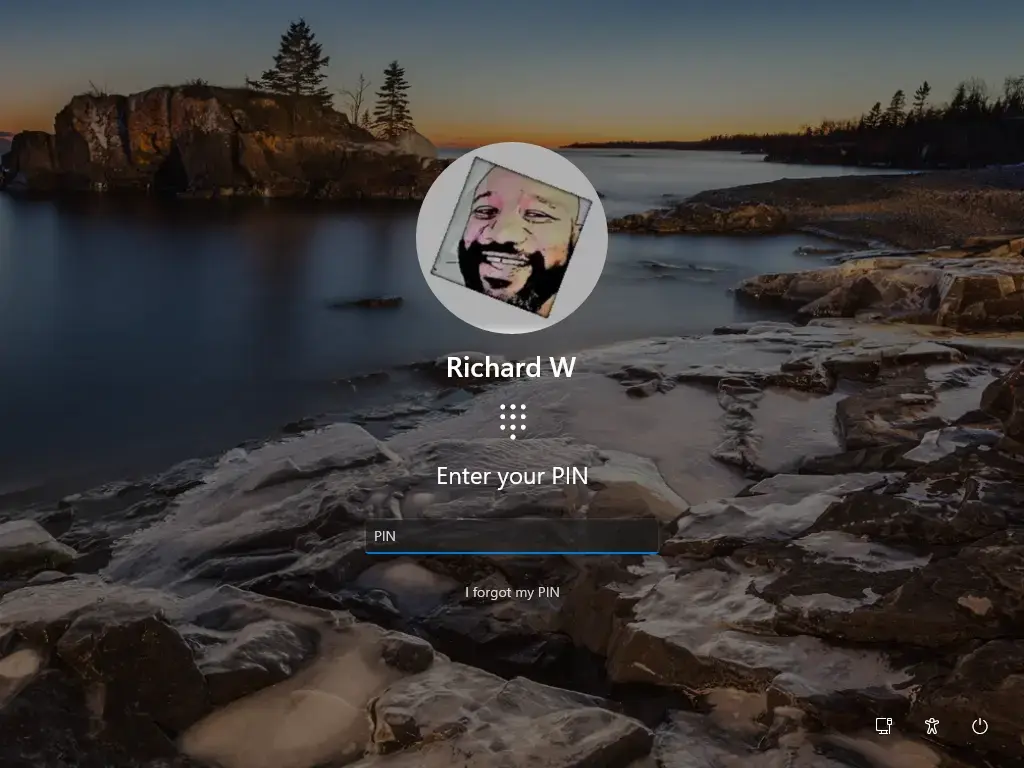
- Select Sign-in options, the link below the box. A row of small icons appears, one for each method available on this account.
- Select the icon for the method you want. Move the mouse pointer over an icon to see its name. The box changes to match your choice.
- Sign in using that method. For a PIN or password, type it and press Enter. For face or fingerprint, look at the camera or touch the reader. For a security key, insert it and touch it.
If you use the keyboard, press Tab until Sign-in options is highlighted, then press Enter.
If you can’t sign in with the method you picked, repeat steps 2 and 3 and choose another one. Your choice only applies to this sign-in. Windows may offer a different default next time.
Which sign-in options you can see
Windows only lists methods that are set up on the account and supported by the hardware. Here is what each icon means.
- Windows Hello Face signs you in with a camera. Windows Hello is the Windows feature for signing in with your face, fingerprint or PIN instead of a password. Face sign-in needs a compatible infrared camera (one that uses infrared light to see your face, even in dim light).
- Windows Hello Fingerprint signs you in with a fingerprint reader. It needs a reader built into the device or plugged in.
- Windows Hello PIN is a short code you choose. The PIN stays on this device and works only here.
- Security key is a physical key, such as a USB key or an NFC (near-field communication, a short-range wireless link) key that supports FIDO2 (an industry standard for passwordless sign-in). You must register it first.
- Password is the password of your Microsoft account or local account.
- Picture password is a set of gestures on a photo. It only appears on builds that still offer it, and only if you set it up earlier. If you don’t see it, your version doesn’t list it.
Sign in with a different account instead
This is a different task. Use it when the problem isn’t the method but the account: another person’s profile is showing, or you need to use a second account on the PC.
- Dismiss the lock screen so the sign-in screen appears.
- Look at the bottom-left corner of the screen. Every account on the PC is listed there by name or picture.
- Select the account you want. The sign-in box updates to show that account’s name.
- Select Sign-in options if you want a different method for that account, then sign in as in the steps above.
If the account you want isn’t listed, Windows may only be showing the last user. Select Other user if it appears, and type the account’s email address or user name. On some PCs, the account you need doesn’t exist on this device. An administrator has to add it.
If the sign-in option you want is missing
Most missing options come down to settings or hardware. Find the case that matches what you see.
The Sign-in options link doesn’t appear
The link usually shows only when the account has more than one method available. If the account has just a password, Windows has nothing to offer. Sign in with the password, then set up more methods using the steps in the next section.
If you see the link on one account but not another, they are set up differently. Each account on the PC has its own methods.
Face or fingerprint isn’t listed
Windows Hello face and fingerprint need two things: supported hardware and a completed setup. Check each one.
- If the PC has no infrared camera or fingerprint reader, the option never appears. A standard webcam doesn’t support Windows Hello face sign-in.
- If the hardware is there but you never set up face or fingerprint sign-in, set it up in Settings. See the section below.
- If it worked before and stopped, the camera or reader may have lost its driver. Open Device Manager, look for the camera or biometric device (the hardware that reads your face or fingerprint), and check for a warning icon. Reinstalling the driver from your PC maker’s support page often fixes it.
PIN isn’t listed
Windows can offer a PIN only after you create one. If the account has never had one, only the password shows. Sign in with the password, then add a PIN in Settings.
On a work or school PC, your organization can block PINs or Windows Hello entirely. If the option is missing and you can’t add it, contact your IT team. Your organization manages this setting, so you can’t change it yourself.
Password isn’t listed on a Microsoft account
Windows 11 has a setting that hides the password option for Microsoft accounts. If you see only PIN, face, fingerprint or security key, this is the likely cause. It needs an account you can already sign in to, so use a PIN or biometric method to get in first.
- Sign in with any method that works.
- Open Settings Accounts Sign-in options.
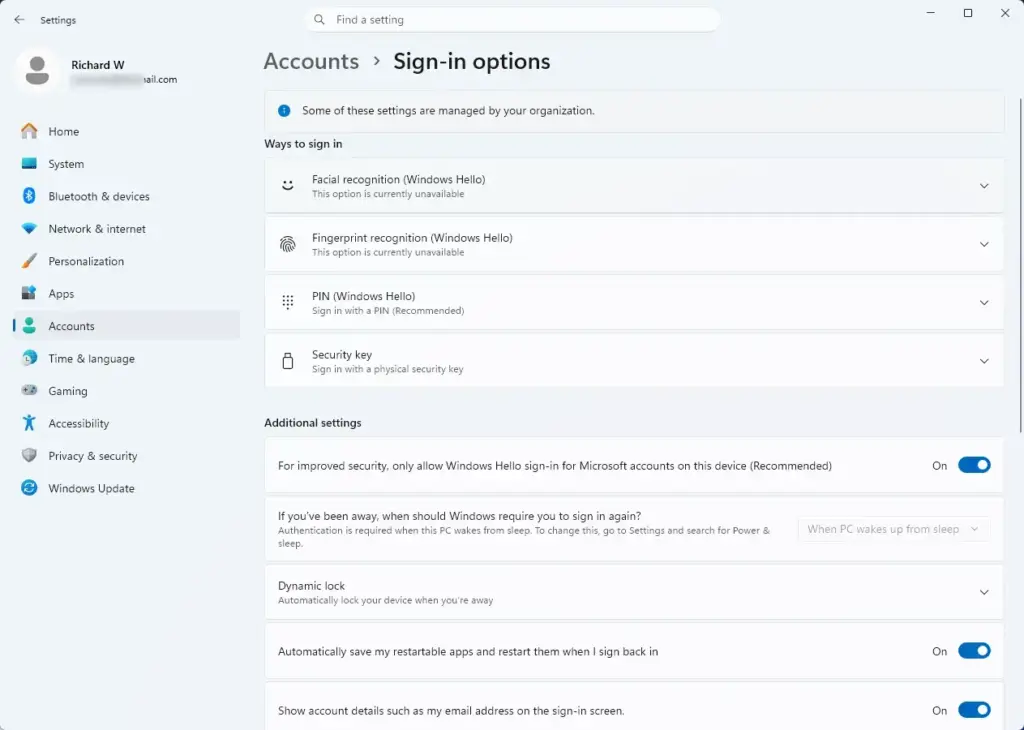
Settings › Accounts › Sign-in options - Find the toggle that begins For improved security, only allow Windows Hello sign-in for Microsoft accounts on this device.
- Set the toggle to Off. This allows password sign-in again.
- Lock the PC with Win+L and open Sign-in options again. If the password icon is still missing, sign out or restart and check again.
To undo this, set the toggle back to On. The password option disappears from the sign-in screen again.
The wording of this setting has changed between Windows 11 releases. If you don’t see it, look for a similar toggle on the same page that mentions Windows Hello and Microsoft accounts. If neither is there, your account may be local, or your organization may control it.
Security key isn’t listed
Register the key with your account first, or its icon won’t appear on the sign-in screen. Registration happens in Settings Accounts Sign-in options > Security key. A key that has never been registered won’t appear on the sign-in screen. An unsupported key won’t register at all. Check that your key supports FIDO2 sign-in for Windows.
Only the password works in Safe Mode
Set up another way to sign in before you need it
Do this while you can still sign in. Having two methods means a broken fingerprint reader or a forgotten PIN doesn’t lock you out. None of these steps needs administrator rights.
- Open Settings Accounts Sign-in options. Windows lists every method it can set up on this device.
- Select PIN (Windows Hello) to expand it, then select Set up. Windows asks for your account password to confirm it’s you.
- Type a PIN in both boxes and select OK. Select Include letters and symbols first if you want more than numbers. The PIN is now available on the sign-in screen.
- Select Facial recognition (Windows Hello) if it appears, then select Set up and Get started. Enter your PIN when asked, then follow the on-screen prompts and look at the camera until it finishes.
- Select Fingerprint recognition (Windows Hello) if it appears, then select Set up and Get started. Enter your PIN, then touch the reader repeatedly as the prompts ask. Add a second finger as a spare.
- Select Security key if you own a FIDO2 key, then select Manage and follow the prompts to register it.
Windows Hello face and fingerprint rely on a PIN as their backup. If you set up either before a PIN, Windows asks you to create one in the same flow.
If an option shows a message that it is unavailable, or doesn’t appear on the page, that method isn’t supported on this device or is blocked by policy.
If you forgot your PIN or password
You can reset a forgotten PIN from the sign-in screen. Forgetting a password depends on the account type.
Reset a forgotten PIN
Use this if you only remember setting up a PIN. It needs an internet connection for Microsoft accounts.
- On the sign-in screen, select I forgot my PIN. The link sits below the PIN box. If you don’t see it, enter a wrong PIN once.
- Verify your identity when Windows asks. For a Microsoft account, enter your account password, then a security code sent to your email or phone if requested.
- Select Continue.
- Type a new PIN in both boxes and select OK. Windows signs you in with the new PIN.
Reset a forgotten Microsoft account password
You reset a Microsoft account password online, not on the PC. Use another device with a browser.
- Go to the Microsoft account password reset page on another device. Search for “Microsoft account reset password” if you don’t have the address saved.
- Enter the email address, phone number or Skype name for the account.
- Select a way to receive a security code and enter the code when it arrives.
- Type a new password and confirm it.
- Return to the locked PC and sign in with the new password. The PC must be online. If it isn’t, it may still accept your old password until it connects.
Reset a forgotten local account password
If you set security questions for the local account, Windows shows a Reset password link after a failed password attempt. Select it and answer the questions to set a new password.
This step requires administrator privileges. Resetting another user’s password this way permanently removes their saved credentials and any files encrypted with Encrypting File System (EFS, a Windows feature that encrypts individual files). Back up what you can first, because this can’t be undone.
- Sign in with the administrator account.
- Open Control Panel User Accounts Manage another account.
- Select the local account that is locked out.
- Select Change the password, type the new password and confirm it.
- Select Change password. The locked account now accepts the new password.
If you prefer the command line, this also works for local accounts only. Right-click the Start button, select Terminal (Admin), and run the command below. Replace USERNAME with the account name.
net user USERNAME *Windows prompts you for a new password twice. The characters don’t show as you type. This method won’t change a Microsoft account password.
Make Windows offer your preferred method first
Windows decides the default method on its own. It usually picks the last method you used successfully, so signing in with your preferred method a few times tends to make it the default. There is no setting that lets you pin a specific method as the default.
To stop a method from appearing, remove it. Open Settings Accounts Sign-in options, expand the method, and select Remove. For a PIN, Windows may ask for your password first. To bring the method back, run through the setup steps above again.
What to do next
If the method you need still doesn’t show on the sign-in screen, check Settings Accounts Sign-in options while signed in. Anything missing from that page isn’t supported on this device or is blocked by your organization. After a major Windows update or a camera or fingerprint driver reinstall, face and fingerprint can drop off the list. Set them up again from the same page.
Frequently asked questions
How to change 🪟 Windows 11 sign-in screen background?
The sign-in screen uses the same picture as your lock screen, so change it there. Open Settings, select Personalization, then Lock screen. Under Personalize your lock screen, choose Picture or Slideshow and pick a new image. Windows 11 has no separate setting for the sign-in background.
How do I lock my Windows screen after inactivity?
Open Settings, select Accounts, then Sign-in options. Under Additional settings, set the option asking when Windows should require you to sign in again after you've been away to a short time, such as 1 minute. To lock the screen right away, press Win+L.
How do I disable password login in 🪟 Windows 11?
Windows 11 has no single switch that turns off password sign-in. Instead, open Settings, select Accounts, then Sign-in options, and set up a PIN or Windows Hello face or fingerprint. Then use that method to sign in. Your password stays as a backup, which is the safer choice.
How to make Windows skip login screen?
Use this only on a private computer, because anyone with physical access can then open it without a password. Press Win+R to open Run, type netplwiz, and press Enter. Clear Users must enter a user name and password to use this computer, select OK, and enter your password to confirm.
Still have a question?
Answered by AI from this guide. Good questions may be added to this page — please don't include personal details.
Did this guide fix your problem?

About the Author
Richard
Tech Writer, IT Professional
Richard is a writer at Geek Rewind who turns complex IT tasks into clear, step-by-step guides. He draws on years of hands-on experience in system administration and enterprise IT operations, focusing on Windows, Linux and WordPress: the problems people actually run into, and the fixes that work. His server and WordPress guides come from systems he runs himself. Richard builds and maintains the platform behind Geek Rewind, from its Ubuntu servers and Nginx configuration to its custom WordPress plugins. Many new tutorials start with readers' questions, and he's always glad to answer them in the comments.
No comments yet — be the first to share your thoughts!