How to Turn On Windows Hello Anti-Spoofing in Windows 11

Windows Hello anti-spoofing is a security feature in Windows 11 that stops anyone from unlocking your PC with a printed photo, a digital image, or a fake mask. It makes facial recognition much safer by checking that a real, live person is in front of the camera.
Turning it on takes less than two minutes in the Settings app . There are two other ways, Group Policy and the Registry, which are covered below. Once it is active, the camera rejects flat or fake faces and your sign-in is harder to trick. You need Windows Hello face sign-in already set up and a compatible camera.
Open Settings , click Accounts, select Sign-in options, expand Facial recognition (Windows Hello), then check the box next to Enhanced facial recognition protection. Restart if prompted and test face sign-in to confirm it works.
What Is Anti-Spoofing?
Windows Hello anti-spoofing is a built-in security feature. It prevents unauthorized people from unlocking your computer with a printed photo or a 3D mask. When it is on, Windows Hello facial recognition checks for depth and liveness before it grants access.
Windows Hello face sign-in works best with an infrared (IR) camera. On some older cameras, turning on enhanced anti-spoofing can cause sign-in errors or camera failures. If your device does not support the feature, you may not see the option at all.
If face sign-in stops working after you enable it, choose Sign-in options on the lock screen and sign in with your PIN or password. Then turn the setting off again using the same method you used to turn it on.
How to Turn On or Off Anti-Spoofing Using Windows Settings
- Open the Settings app. You can use either of these ways:
- Click the Start menu and select Settings, or
- Press
Windows key + Ion your keyboard.
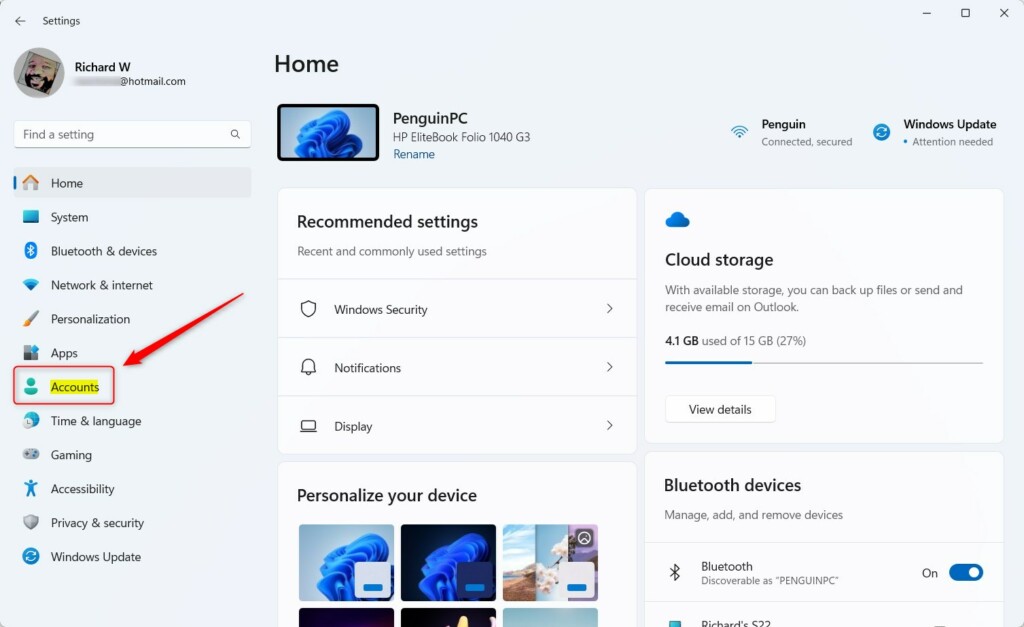
- Click Accounts in the left-side menu. The account options appear on the right.
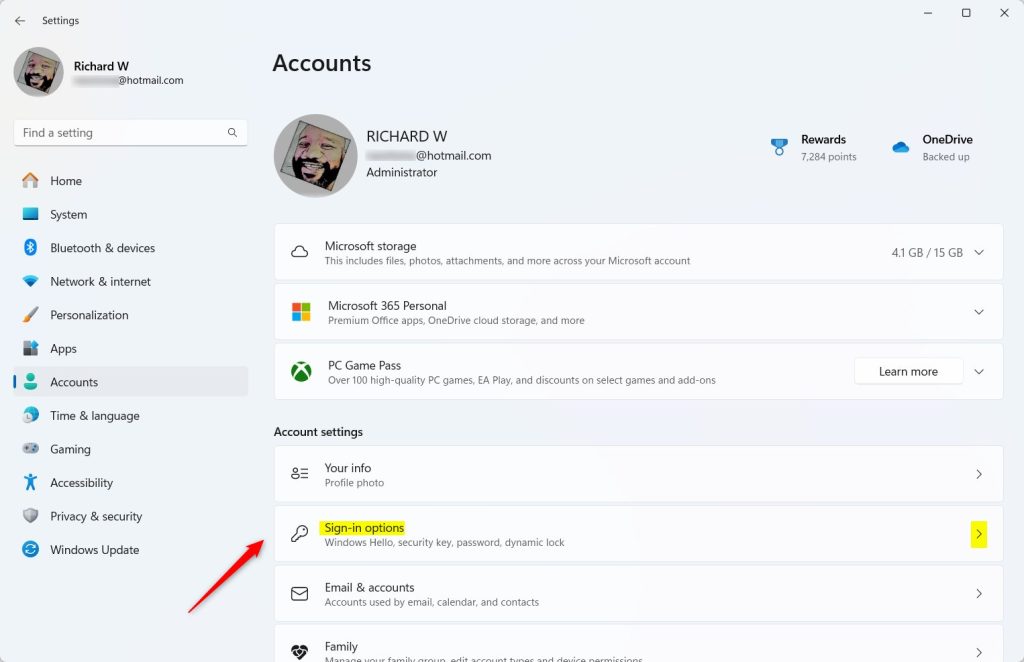
- Click Sign-in options on the right. You will see a list of ways to sign in, such as facial recognition, fingerprint, PIN and password.
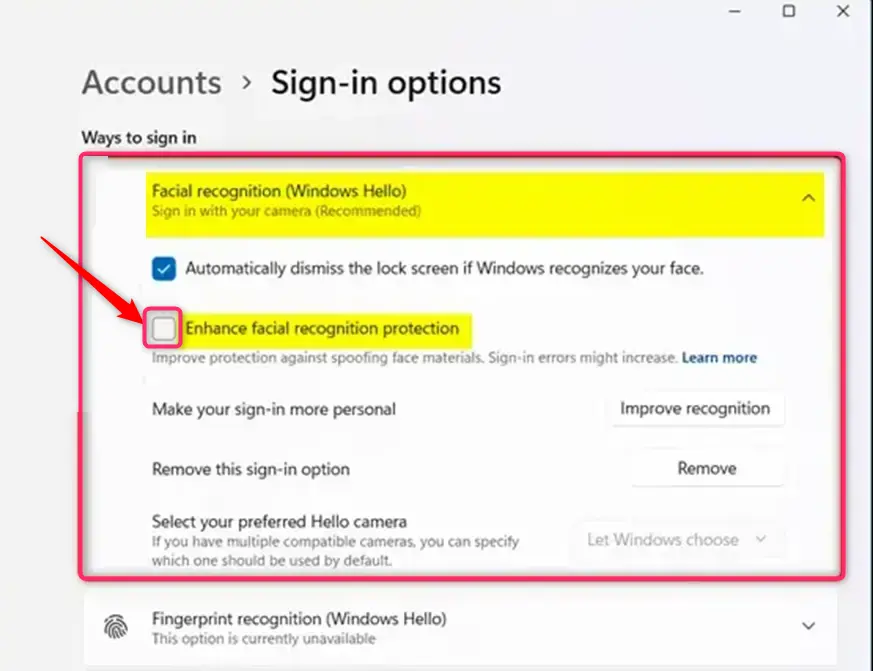
- Find Facial recognition (Windows Hello) and click it to expand it. If it is missing or greyed out, your PC has no compatible camera, or Windows Hello face has not been set up yet.
- Check or uncheck the box next to “Enhanced facial recognition protection” to turn anti-spoofing on or off. Checked means on. If you do not see this box, the camera or driver on your PC probably does not support it.
- Click Restart now if your PC asks you to restart. If it does not ask, the change is already in effect. Lock your PC with the Win+L and test face sign-in to confirm it still works.
You can turn on Windows Hello anti-spoofing in Windows 11 from the Settings app, in the Accounts section. This is the fastest and safest method, and you do not need any advanced system tools. It also works on both Windows 11 Home and Pro. Open Settings, select Sign-in options, expand the facial recognition section, and check the box for the protection setting.
Click Accounts in the left-side menu of the Settings app.
Select Sign-in options, then find Facial recognition (Windows Hello) in the list and expand it to see the anti-spoofing checkbox.
How to Turn On or Off Anti-Spoofing Using Group Policy Editor (For Advanced Users)
Advanced users can manage Windows Hello anti-spoofing with the Local Group Policy Editor, a tool for configuring system settings in Windows. This method lets you enforce the facial features policy on a local machine. It is helpful if the standard Settings page is restricted or you want the setting applied by policy.
The Local Group Policy Editor is only included in Windows 11 Pro, Enterprise and Education. It is not available on Windows 11 Home, so Home users should use the Settings or Registry method instead. You also need to be signed in as an administrator.
- Open the Local Group Policy Editor:
- Type "Edit group policy" in the Start menu search and open it. The Local Group Policy Editor window opens with a folder tree on the left.
- Navigate to this folder path in the left pane:
Computer Configuration > Administrative Templates > Windows Components > Biometrics > Facial Features - In the right pane, double-click Configure enhanced anti-spoofing. A settings window for the policy opens.
- Select one of these options:
- Enabled – to turn on anti-spoofing.
- Disabled – to turn it off.
- Not Configured – the default, same as off. Choose this to undo a policy you set earlier.
- Click OK to save. If face sign-in does not behave as expected afterward, restart the PC so the policy is fully applied.
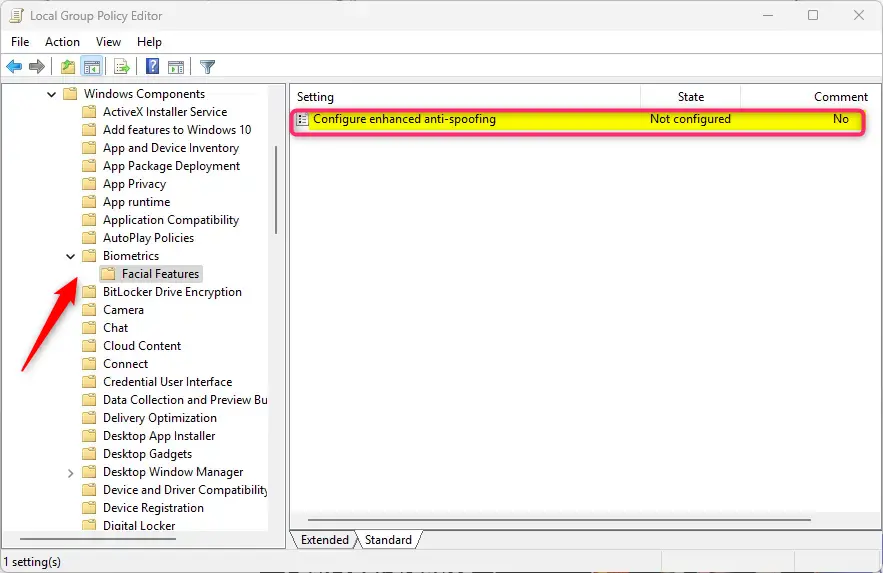
Open the Local Group Policy Editor from the Start menu search, then browse the folder tree to the biometrics policy folder.
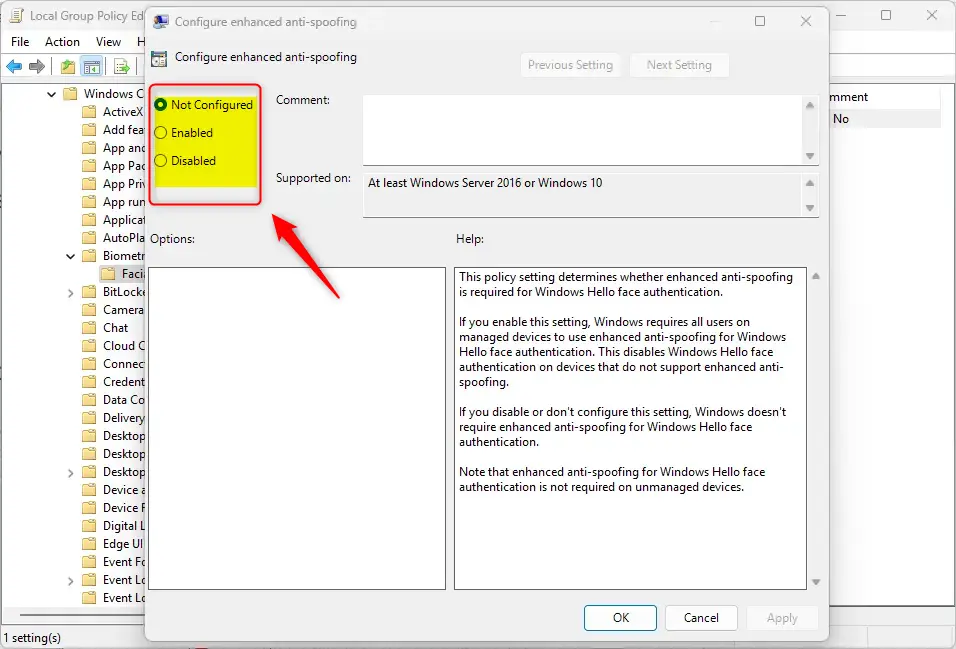
Double-click the anti-spoofing policy, choose Enabled to turn it on, and click OK to save.
How to Turn On or Off Anti-Spoofing Using Registry Editor (Advanced Users Only)
You can also configure Windows Hello anti-spoofing in the Windows Registry, a hierarchical database that stores low-level operating system settings. Use this method if you prefer to edit system keys directly, or if you are on Windows 11 Home and want a policy-style setting. It works on all editions.
Back up the registry before you make any changes, because incorrect edits can cause system instability. In Registry Editor, choose File Export to save a copy. You also need to be signed in as an administrator and approve the User Account Control prompt.
- Open the Registry Editor:
- Press
Windows key + R, typeregedit, and pressEnter. Click Yes if a User Account Control prompt appears.
- Press
- Go to this folder:
HKEY_LOCAL_MACHINE\SOFTWARE\Policies\Microsoft\Biometrics\Facial Features - If the FacialFeatures folder does not exist, right-click Biometrics, choose New Key, and name the new key FacialFeatures.
- Right-click an empty area inside FacialFeatures, choose New DWORD (32-bit) Value, and name it EnhancedAntiSpoofing. The new value appears in the right pane.
- Double-click EnhancedAntiSpoofing and set its value data to:
1to turn on anti-spoofing0to turn it off
- Click OK and close the Registry Editor.
- Restart your PC to apply the changes. To undo the change later, set the value back to the "off" number, or delete the EnhancedAntiSpoofing value, and restart again.
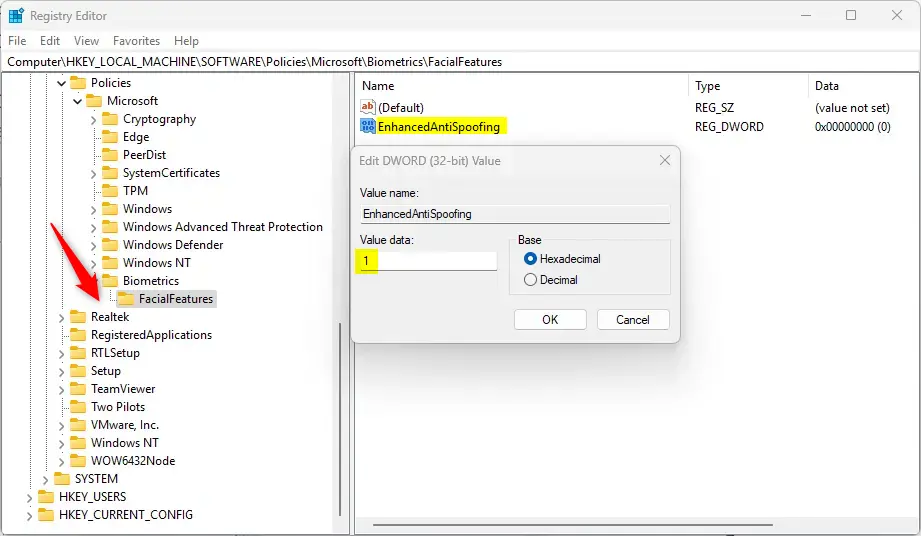
Create the EnhancedAntiSpoofing DWORD value in the FacialFeatures key, set its value, click OK, and restart your PC.
Summary
- Better Security: Anti-spoofing helps protect your Windows Hello face sign-in from fake attempts such as photos and masks.
- Multiple Ways to Change: You can turn it on or off using Settings, the Group Policy Editor (Pro, Enterprise and Education only), or the Registry Editor.
- Possible Sign-in Issues: Turning it on may cause occasional sign-in problems on some devices. Keep your PIN or password handy as a fallback.
- Be Careful: Always back up your system or registry before making big changes.
- Check Compatibility: Make sure your device supports enhanced anti-spoofing to use it well. If the option is missing in Settings, your camera likely does not support it.
Windows Hello anti-spoofing adds an extra layer of biometric security by blocking fake login attempts with photos, but it can occasionally cause hardware recognition issues. You can turn this protection on or off using the Settings app, the Local Group Policy Editor, or the Registry Editor, depending on your Windows edition and preference. Start with Settings, since it is the simplest and works on every edition. Keep a system backup ready before you change advanced policies or registry keys.
Explore these guides for more Windows Hello tips:
Have a question about this guide?
Answered by AI from this guide. Good questions may be added to this page — please don't include personal details.
Did this guide fix your problem?

About the Author
Richard
Tech Writer, IT Professional
Richard is a writer at Geek Rewind who turns complex IT tasks into clear, step-by-step guides. He draws on years of hands-on experience in system administration and enterprise IT operations, focusing on Windows, Linux and WordPress: the problems people actually run into, and the fixes that work. His server and WordPress guides come from systems he runs himself. Richard builds and maintains the platform behind Geek Rewind, from its Ubuntu servers and Nginx configuration to its custom WordPress plugins. Many new tutorials start with readers' questions, and he's always glad to answer them in the comments.
No comments yet — be the first to share your thoughts!