How to Export All Copilot Activity History for Microsoft Account

Copilot keeps a record of what you type and the replies it gives you. You can download that record as a CSV file, which is a plain-text table you can open in Excel or Notepad. The download includes all of your activity history, and you get it from your Microsoft account privacy dashboard.
To export your Copilot activity history, open the Manage your Copilot activity history page in your Microsoft account privacy dashboard and sign in if prompted. Under Copilot apps, Copilot in Microsoft 365 apps, or Copilot in Windows apps, select the matching Export all activity history link. Choose a folder such as Desktop, type a file name, and select Save to get a CSV file.
Copilot works a little differently depending on the account you sign in with. A work or school account gets a licensed version with enterprise data protection, which covers company data. A personal account gets a version for individuals, with or without a Microsoft 365 Personal, Family, or Premium subscription.
Activity history means every prompt you type in Copilot and every AI-generated reply you get back. Use the steps below to export all of it at once.
- Open the Manage your Copilot activity history page for your Microsoft account privacy dashboard.
- Sign in with your Microsoft account if you aren’t already signed in.
- Choose which activity history to export. Pick the link for the activity you want to export, then continue to the next step.
- Under Copilot apps, select the Export all activity history link.
- Under Copilot in Microsoft 365 apps, select either the Export all Copilot in Microsoft 365 apps activity history link or the Export all Copilot Chat activity history link.
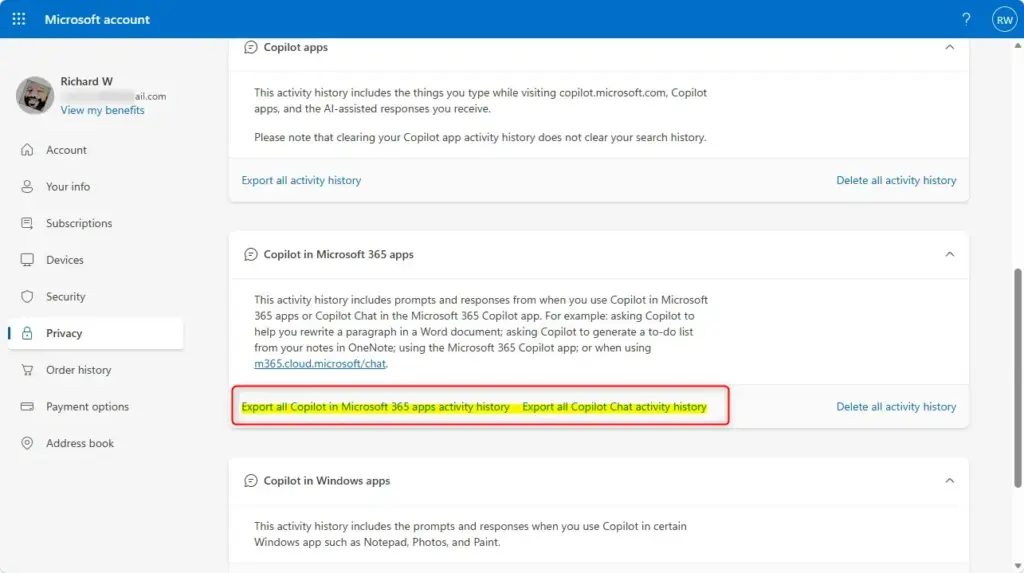
Copilot - Under Copilot in Windows apps, select the Export all activity history link.
- Browse to the folder where you want to save the CSV file, such as Desktop.
- Type a name for the CSV file.
- Select Save.
What to do next
Your CSV file is now in the folder you picked, with the name you gave it.
Have a question about this guide?
Answered by AI from this guide. Good questions may be added to this page — please don't include personal details.
Did this guide fix your problem?

About the Author
Richard
Tech Writer, IT Professional
Richard is a writer at Geek Rewind who turns complex IT tasks into clear, step-by-step guides. He draws on years of hands-on experience in system administration and enterprise IT operations, focusing on Windows, Linux and WordPress: the problems people actually run into, and the fixes that work. His server and WordPress guides come from systems he runs himself. Richard builds and maintains the platform behind Geek Rewind, from its Ubuntu servers and Nginx configuration to its custom WordPress plugins. Many new tutorials start with readers' questions, and he's always glad to answer them in the comments.
No comments yet — be the first to share your thoughts!