Prevent Copilot from Using Its Memory from Previous Conversations and Bing Activity in Microsoft Edge

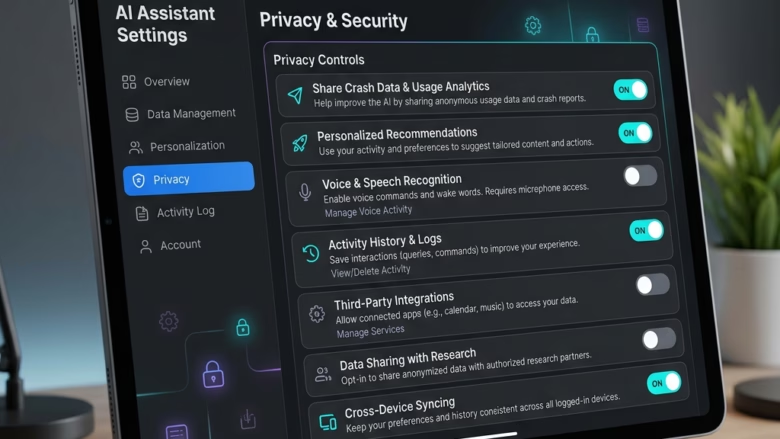
Copilot memory in Microsoft Edge is a browser feature that saves your past chats and web searches so it can personalize its answers. You can stop it with a few changes in the Copilot privacy settings. No restart is needed, and you can reverse every change later.
The short version: turn off the Web assistance and Improve Copilot switches in Microsoft Edge. This clears your past data and stops the browser from saving new history. Copilot then stops drawing on your previous conversations and Bing activity each time you ask a question.
Edge updates often, and Microsoft renames and moves Copilot options from time to time. The labels below match the screenshots in this tutorial. If yours differ slightly, look for the closest match under the Copilot privacy settings.
Disable Copilot memory in Microsoft Edge by opening the Copilot sidebar, clicking the three-dot menu icon, selecting Settings, then turning off the Context clues and Personalization and memory switches in the Privacy section. Changes save immediately, and Copilot stops using your previous conversations and Bing activity.
Open Copilot in Edge
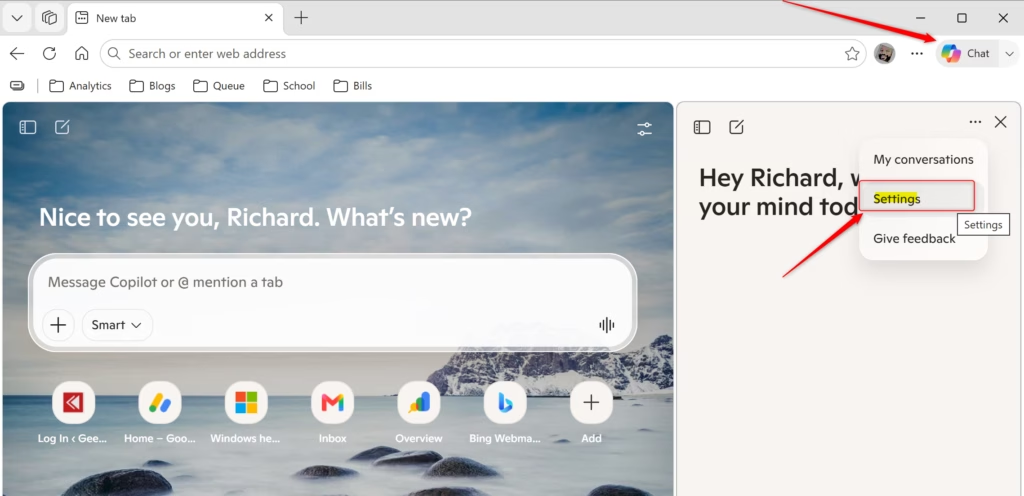
Start by opening the Copilot sidebar.
- Open Microsoft Edge.
- Find the Copilot icon in the top-right corner of the browser window and click it.
The Copilot sidebar should now open on the right side of the window. If you don’t see the icon, Copilot may be turned off or hidden in your Edge version, or it may be managed by your organization on a work or school PC.
Access the Copilot Menu
With the sidebar open, look for the More menu icon, which is three dots .... It sits near the top or bottom of the sidebar, depending on your Edge version.
- Locate the three-dot icon in the sidebar.
- Click it to open the More menu.
Go to Settings
- Select Settings from the More menu.
The Copilot settings should now open inside Edge. These settings belong to Copilot, so don't confuse them with the main Edge settings page.
Find the Privacy Section
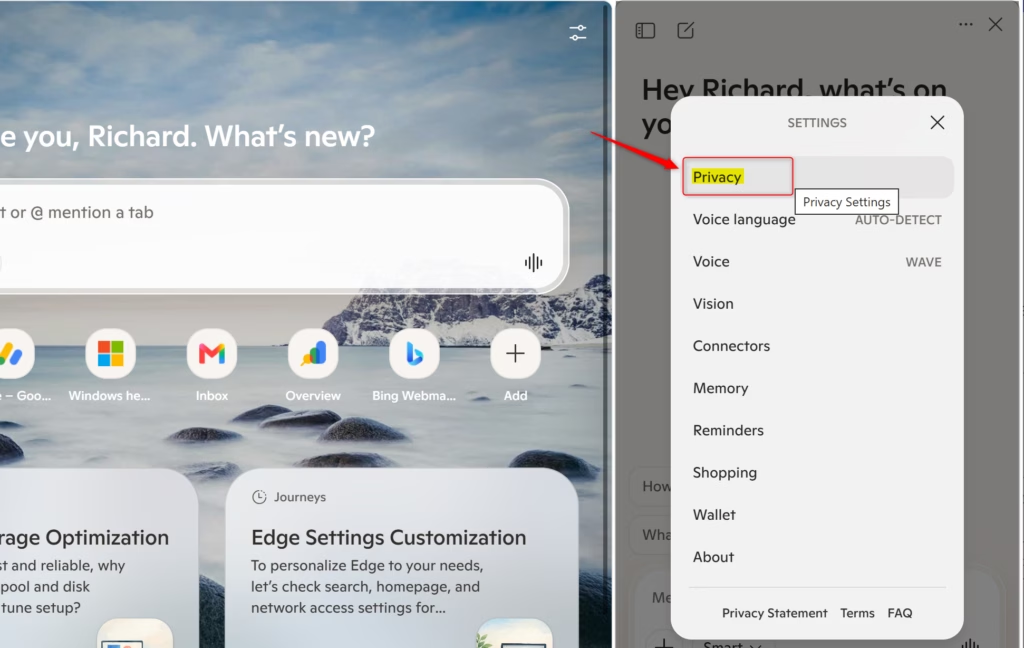
The controls you need are in the privacy part of these settings.
- Locate the Privacy section in the Copilot settings.
- Open it if it is collapsed, so the switches are visible.
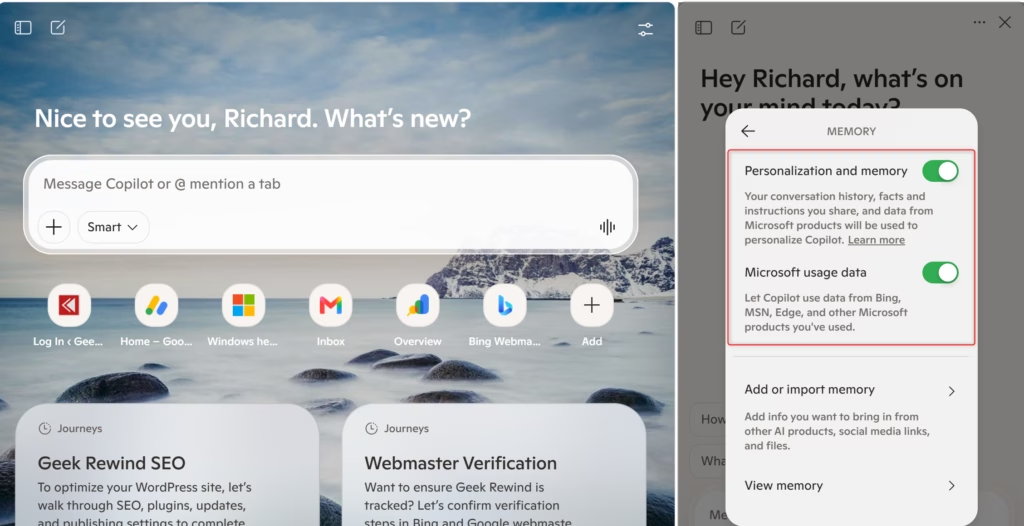
Manage Personalization and Memory
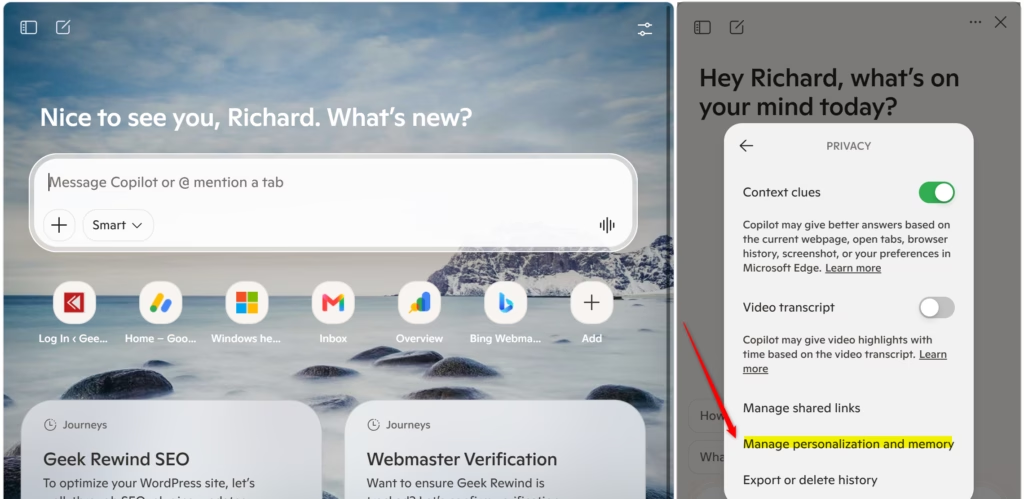
Copilot then stops saving details from your past chats and browsing activity. Every new conversation starts fresh, without your previous preferences or history.
- Find the personalization switches in the Privacy section.
- Turn each one off, so the switch is no longer in the on position.
Once they are off, new chats start fresh. Copilot no longer reads previous information or inferred preferences.
To undo this later, return to the same place and turn the switches back on. Memory only builds up again from that point.
Save Your Changes
Depending on your Edge version, the related options may be labeled Web assistance and Improve Copilot.
Changes save immediately when you toggle a switch. There is no save button to click, and you don't need to restart Edge.
To check your work, close the sidebar, reopen it and go back to the privacy settings. The switches should still be off.
Reference:
https://support.microsoft.com/en-us/microsoft-copilot/getting-started-with-copilot-in-microsoft-edge
Summary
Turning off Copilot memory improves your privacy. Copilot stops storing details about your past chats and Bing search history, and every new conversation begins with a clean slate. It can't use your older interactions or inferred habits to shape its answers.
Clearing Copilot's memory also means it no longer uses past chat information or browsing history. It doesn't remember previous interactions, which helps protect your data. The trade-off is less personalized answers, so if you miss that, turn the switches back on.
Was this guide helpful?

About the Author
Richard
Tech Writer, IT Professional
Richard is a writer at Geek Rewind who turns complex IT tasks into clear, step-by-step guides. He draws on years of hands-on experience in system administration and enterprise IT operations, focusing on Windows, Linux and WordPress: the problems people actually run into, and the fixes that work. His server and WordPress guides come from systems he runs himself. Richard builds and maintains the platform behind Geek Rewind, from its Ubuntu servers and Nginx configuration to its custom WordPress plugins. Many new tutorials start with readers' questions, and he's always glad to answer them in the comments.



No comments yet — be the first to share your thoughts!