How to Remove Mobile Devices from Your Microsoft Account on Windows 11

Removing a mobile device from your Microsoft account on Windows 11 clears out old phones and tablets that still sync your personal data and take up space on your profile. Microsoft links up to 10 devices to a single account for file sharing and app syncing, so old hardware builds up fast when you upgrade.
Cleaning up the list takes less than two minutes. Sign in to your Microsoft account online, choose the device you want to remove, and click remove to cut off its access. You do not need admin rights on the PC for this, only the sign-in for the Microsoft account. It works the same on Windows 11 Home and Pro.
Open Settings and go to Bluetooth & devices, then select Mobile devices. Click Manage devices, find the device you want to remove under My devices, expand it, and click Remove from account. Confirm the removal.
Why Connect Your Phone to 🪟 Windows 11?
Connecting your phone to Windows 11 lets you read text messages, view phone notifications, and transfer files from your computer screen. The built-in Phone Link app handles these daily mobile tasks, so you don’t have to keep picking up your phone while you work on your PC.
Phone Link is also why old phones linger in your account. Each phone you pair can stay in the list long after you stop using it. The main features are listed below.
- Move files between your phone and computer quickly
- Send and receive text messages from your PC
- See phone notifications right on your computer
Learn more about linking your phone to Windows 11.
How to Remove a Mobile Device from Your Microsoft Account on 🪟 Windows 11
To remove mobile devices from your Microsoft account on Windows 11, open the Settings app and go to your account page to unlink old phones or tablets. Clearing out unneeded hardware keeps your device list accurate and stops your account from filling up with gear you no longer use.
Before you start, make sure you are signed in to the PC with the same Microsoft account the phone was linked to. If you use a local account, the Mobile devices options may be missing or limited, because they depend on a Microsoft account. The steps below follow the screenshots in order.
- Open Settings : Click the Start menu (the Windows icon at the bottom-left corner) and choose Settings. Or press the Win+I to open Settings right away.

Wait for each page to finish loading before you continue. If a page looks empty, refresh it or sign in again.
- Go to Bluetooth & devices: In the Settings window, click Bluetooth & devices on the left side.

Check the device name against the phone or tablet you want to remove. If you have several phones from the same maker, the model name or last-active date helps you pick the right one.
- Select Mobile devices: On the right side, click on the Mobile devices tile to open it.
- Click Manage devices: Below the option that says “Allow this PC to access your mobile device,” click the Manage devices button.

If an option is greyed out or you can’t find the device, refresh the page or sign out and back in. A device that hasn’t connected for a long time may take longer to show up.
- Remove the device: Under My devices, find the mobile device you want to remove. Click to expand it, then click the Remove from account button. Click Remove to confirm.
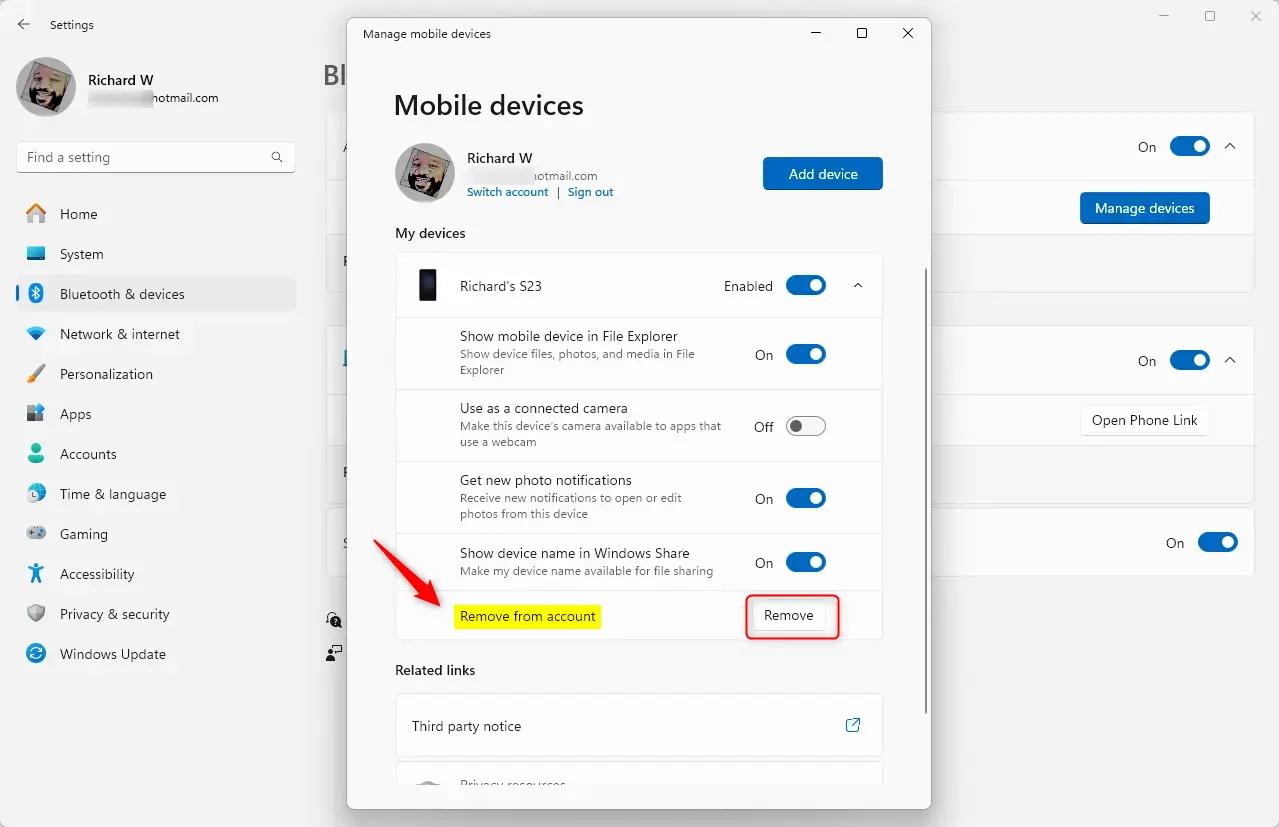
Confirm the device is gone from the list. If it still appears, refresh the page. You can undo the change by pairing the phone with Phone Link again, which adds it back to your account.
The unlinking process severs the tie between the mobile hardware and the Microsoft account on Windows 11. Revoking access stops connected services from running on that device, which strengthens your overall security. This matters most for a phone you’ve sold, lost, or given away. Anyone holding it can no longer sync with your PC through that link. No restart is needed on the PC.
Summary
Managing your linked phones on Windows 11 takes a few clicks once the system is up to date. Open the Settings app, go to Bluetooth & devices, and select Mobile devices to review and clean up the hardware connected to your Microsoft account at any time. If Mobile devices is missing, install the latest Windows updates under Settings Windows Update and check again.
From this page you can control the following.
- Make sure your Windows 11 is updated to use the latest features.
- Use the Settings app and go to Bluetooth & devices Mobile devices to manage your linked phones or tablets.
- Simply expand your device list and remove any devices you no longer use.
- This helps keep your device list organized and your account secure.
If you want to learn more about device management or adding new devices, the guides below give detailed instructions. They help you control your connected hardware and understand the linking process before you add a new phone.
How to create a Microsoft account
Have a question about this guide?
Answered by AI from this guide. Good questions may be added to this page — please don't include personal details.
Did this guide fix your problem?

About the Author
Richard
Tech Writer, IT Professional
Richard is a writer at Geek Rewind who turns complex IT tasks into clear, step-by-step guides. He draws on years of hands-on experience in system administration and enterprise IT operations, focusing on Windows, Linux and WordPress: the problems people actually run into, and the fixes that work. His server and WordPress guides come from systems he runs himself. Richard builds and maintains the platform behind Geek Rewind, from its Ubuntu servers and Nginx configuration to its custom WordPress plugins. Many new tutorials start with readers' questions, and he's always glad to answer them in the comments.
No comments yet — be the first to share your thoughts!