How to Add Phone Link to Windows 11 Start Menu


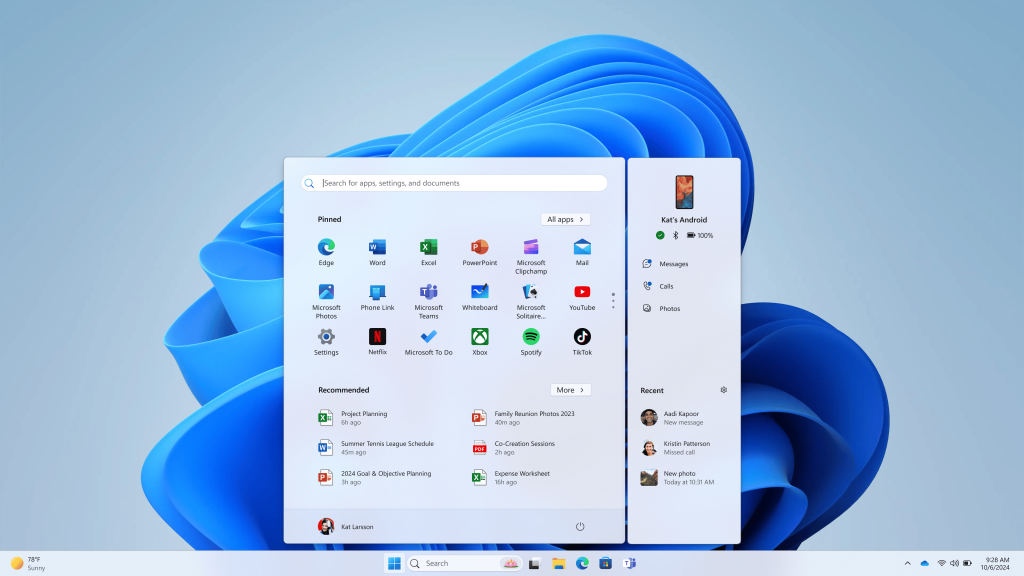
Phone Link is the Microsoft app that connects your Android phone or iPhone to your PC. It lets you read texts, view photos and take calls on your computer screen. Windows 11 version 22H2 and newer include a shortcut for it that you can show in the Start menu .
With the shortcut in Start, you don’t have to dig through the full app list every time your phone buzzes. The change takes a few seconds in Settings. If your build doesn’t offer the setting, there is a Registry Editor method further down.
Open Settings , go to Personalization Start, and switch on Show mobile device in Start. Your phone then appears as a shortcut in the Start menu , with no restart needed. This works on Windows 11 version 22H2 and newer. If the option is missing, the Registry Editor method sets IsEnabled to 1 under the Companions key.
Add or Remove Phone Link from the Start Menu
The first method uses the Settings app. You change one toggle and your phone appears in Start, so you can see texts and notifications without opening the full desktop app. It works on both Windows 11 Home and Pro, and you don’t need a restart.
- Open the Settings app. Click the Start menu and choose Settings, or press Win+I. The Settings window opens with a list of categories on the left.
- Select Personalization from the left-hand menu. The right side now shows options for backgrounds, colors, themes and Start.
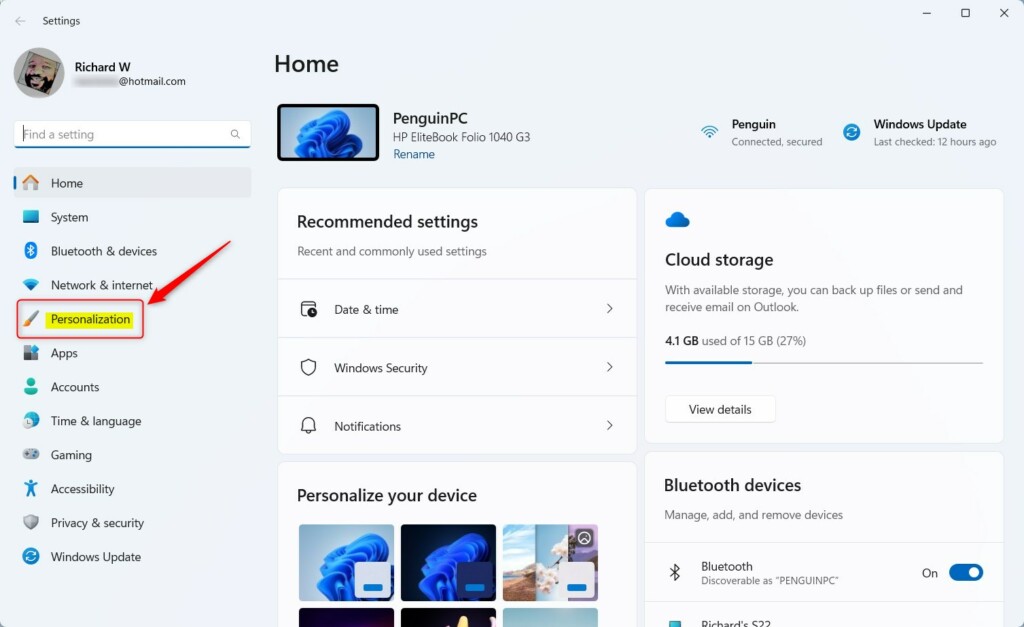
If the left-hand menu looks different, make the Settings window wider. When the window is narrow, Windows collapses the menu into icons or a menu button.
- Click Start on the right side. You are now on Settings Personalization Start, which lists the options for the Start menu layout and the items it shows.
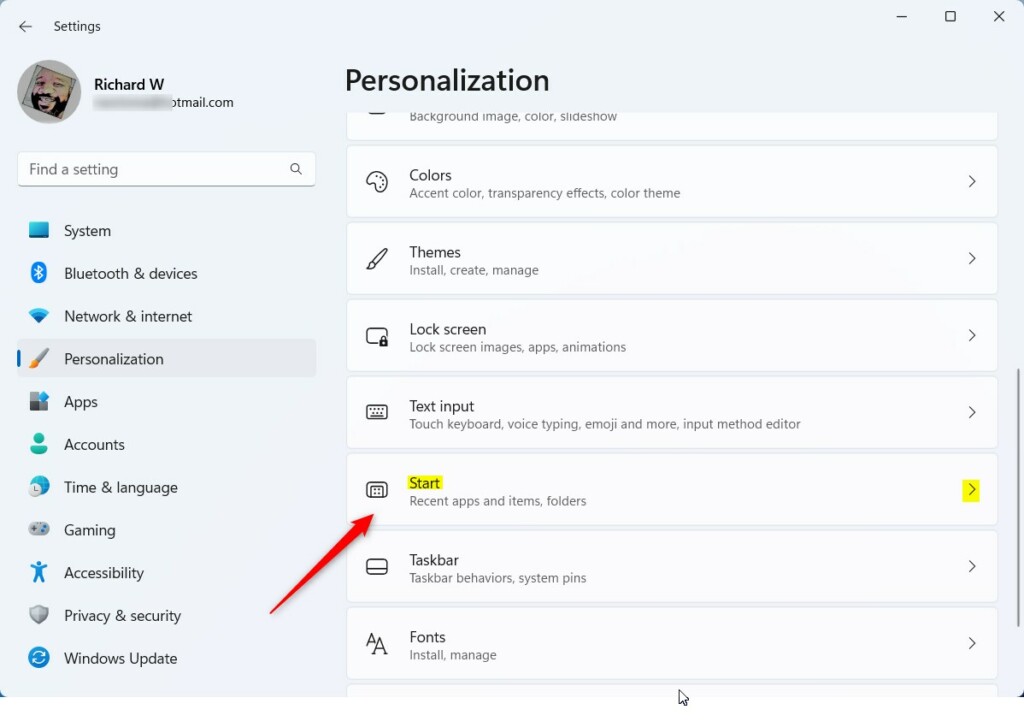
The list can be long, so scroll down if you don’t see the mobile device option straight away.
- Find Show mobile device in Start and switch the toggle to On. To remove the shortcut later, come back to this page and switch it to Off.
With the toggle on, your phone appears as a shortcut in the Windows 11 Start menu . From there you get quick access to its apps and notifications. Open Start to check. You may need to link your phone in the Phone Link app first, because the Start panel only has something to show once a phone is paired.
If you can’t find the option, your PC is probably on a build older than 22H2, or it hasn’t received the update that added it. Open Settings Windows Update , install any pending updates, restart, and look again.
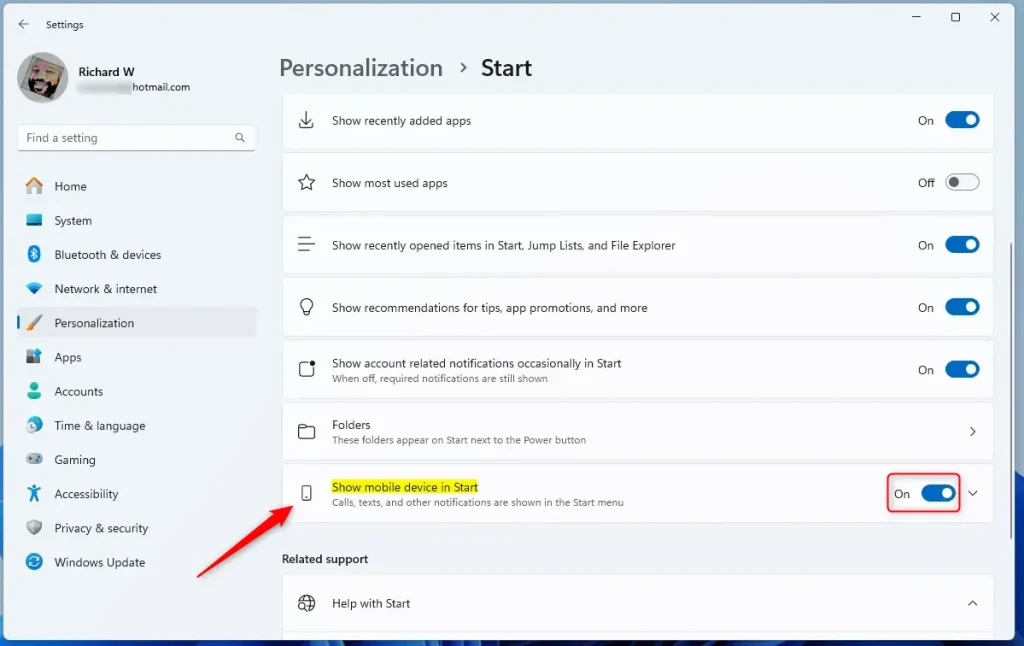
The toggle takes effect right away. If Start still doesn’t show your phone, close and reopen the Start menu , then check that your phone is linked in the Phone Link app.
Using the Windows Registry (Advanced)
This is an advanced method. It changes system keys directly and needs administrator permissions, so back up before you start. Either create a restore point, or in Registry Editor choose File Export to save a copy of the key you are about to change.
- Open the Windows Registry by typing its name into the Start menu search and selecting it from the results. Click Yes if User Account Control asks for permission. Standard accounts will be asked for an administrator password.
- Go to the key below. Paste it into the address bar at the top of the Registry Editor and press Enter, or expand the folders in the left pane one by one. The right pane then shows the values stored in that key.
Computer\HKEY_CURRENT_USER\Software\Microsoft\Windows\CurrentVersion\Start\Companions\Microsoft.YourPhone_8wekyb3d8bbwe
- Look for a value named IsEnabled in the right-hand pane. If it isn’t there, right-click an empty area of the pane and choose New DWORD (32-bit) Value. Name the new value IsEnabled. Check the spelling, because the name has to match exactly.
- Double-click IsEnabled to open its edit window. Enter 1 in the Value data box to turn the feature on, then click OK. A value of 0 turns the feature off, so use that if you want to undo the change later.
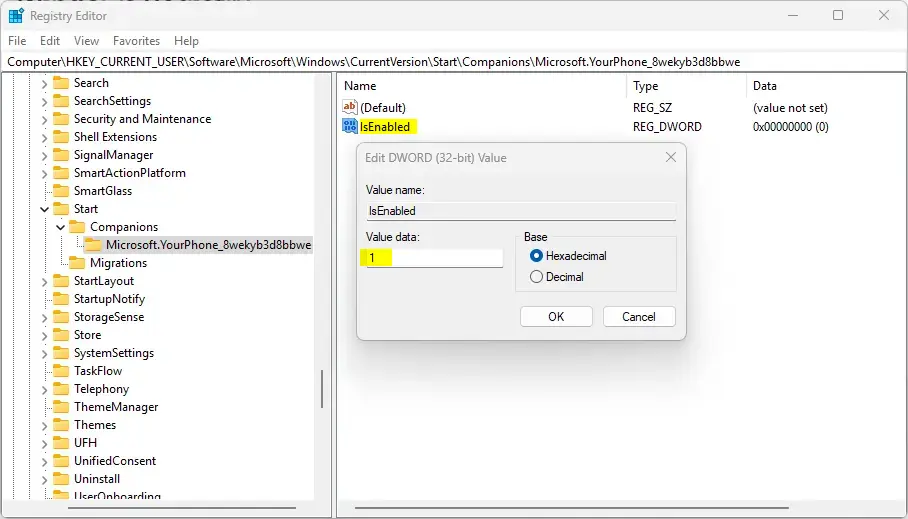
After you click OK, the right pane should list IsEnabled with a data value of 0x00000001 (1). If it shows anything else, double-click it and fix it.
A wrong change can cause problems in Windows. Back up your computer before making changes.
- Close the Registry Editor and restart your computer to apply the changes. Unlike the Settings method, the registry change needs a restart before it takes effect.
After you sign back in, open Settings Personalization Start and check that the mobile device option is there and switched on. If it still isn't, make sure Windows is fully updated.
Summary
Adding Phone Link to the Windows 11 Start menu puts your phone one click away from your PC. Try the Settings app first, since it is quick and easy to reverse. Use the Registry Editor only if the Settings option is missing, and back up first.
Reference: Microsoft.com
Have a question about this guide?
Answered by AI from this guide. Good questions may be added to this page — please don't include personal details.
Did this guide fix your problem?

About the Author
Richard
Tech Writer, IT Professional
Richard is a writer at Geek Rewind who turns complex IT tasks into clear, step-by-step guides. He draws on years of hands-on experience in system administration and enterprise IT operations, focusing on Windows, Linux and WordPress: the problems people actually run into, and the fixes that work. His server and WordPress guides come from systems he runs himself. Richard builds and maintains the platform behind Geek Rewind, from its Ubuntu servers and Nginx configuration to its custom WordPress plugins. Many new tutorials start with readers' questions, and he's always glad to answer them in the comments.
No comments yet — be the first to share your thoughts!