How to Transfer Files from USB to Windows 11

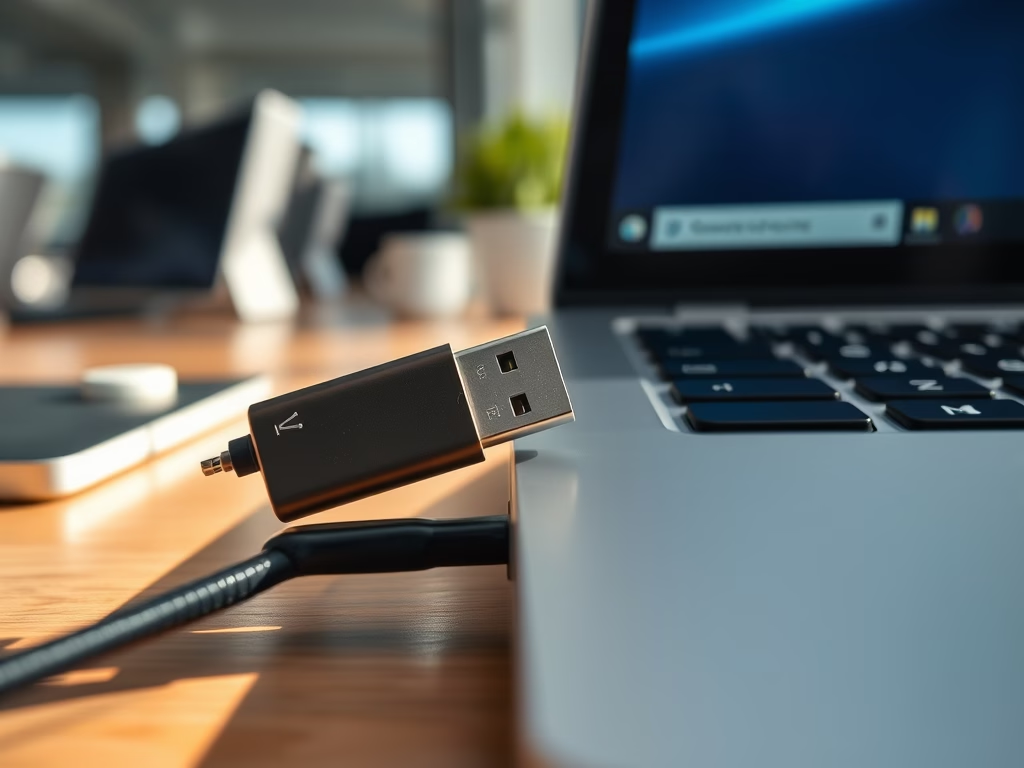
Transferring files from a USB drive to Windows 11 copies photos, documents, and videos from an external stick onto your internal storage. You do this in File Explorer , the built-in file manager. You can drag and drop the items or copy and paste them between folders.
Copying your files to the PC also gives you a backup. Large media collections stay organized on your computer, and you can open them from your desktop without the drive plugged in. The same method works for any removable drive, so you can reuse these steps later.
Copy and paste or drag and drop files from your USB drive into a Windows 11 folder. Plug in the USB, open File Explorer , locate the drive, select files, and paste them to your desired PC location.
What You Need
Before you start, make sure you have three things:
- A working USB flash drive.
- A working USB port on your computer.
- Enough free space on your PC for the files you want to copy.
Windows 11 supports most USB drives, including USB 2.0, USB 3.0, and USB-C models. Check the drive format first. Older FAT32 drives cannot hold a single file larger than 4GB. If you work with large video or game files, use a drive formatted as NTFS or exFAT.
To check the format, open File Explorer , right-click the drive and choose Properties. The General tab shows the file system.
How to Transfer Files from USB to 🪟 Windows 11
Step 1Plug In Your USB Drive
- Find an open USB port on your computer.
- Push the drive all the way into the port. A loose drive can drop the connection halfway through a copy.
- If your drive is USB 3.0 or higher, use a port with a blue interior. These ports give faster transfer speeds.
Windows should recognize the drive within a few seconds. You may hear a connection sound, and a notification may appear.
Step 2Wait for Windows to Recognize the Drive
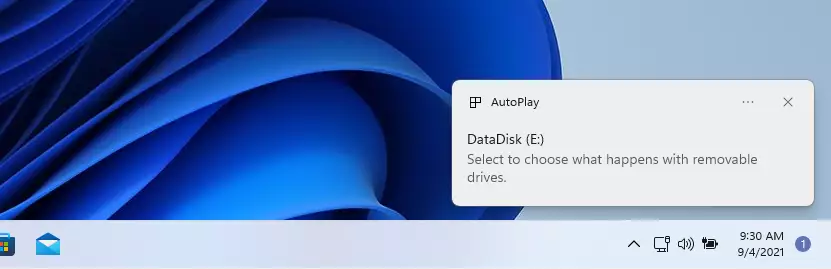
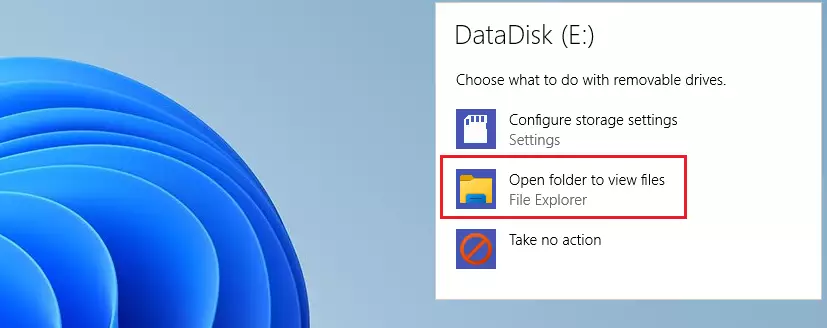
- Watch for the notification that Windows 11 usually shows after you plug in the drive.
- Click Open folder to view files when it appears.
A File Explorer window should open showing the contents of your USB drive. If you miss the notification or it never appears, use the next step instead.
Step 3Find Your USB Drive (If No Pop-Up Appears)
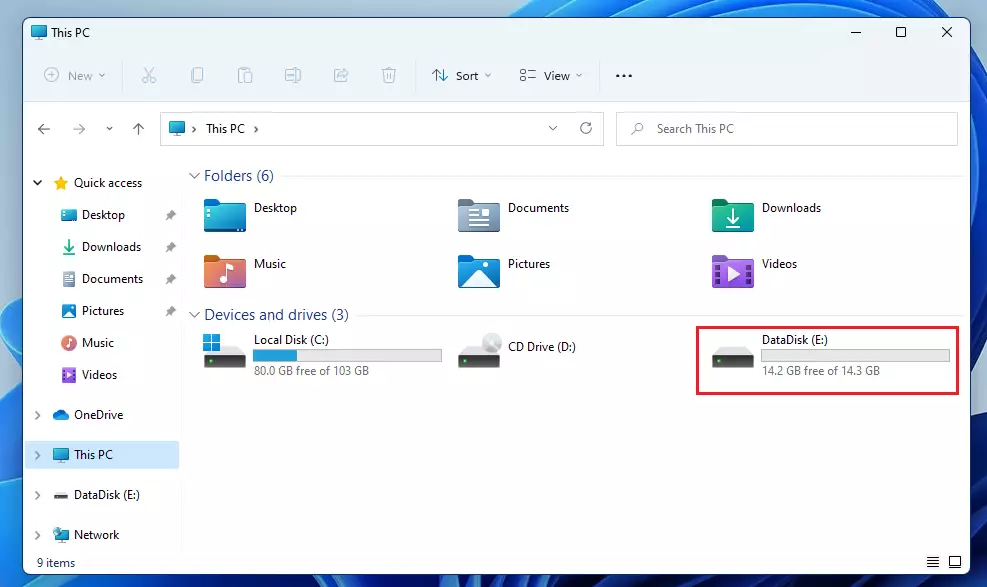
If nothing happens when you plug in the drive, open File Explorer yourself:
- Press Windows key + E to open File Explorer.
- Click This PC in the left pane.
- Look under Devices and drives. Your USB drive appears there, usually with a drive letter such as E: or F:.
- Double-click the drive to open it and see your files.
If the drive does not appear, see the troubleshooting section below.
Step 4Pick Which Files You Want to Copy
- Click the first file or folder you want to move. To select several items, hold Ctrl and click each one. To select everything in the folder, press Ctrl+A.
- Press Ctrl+C to copy the selected items.
Nothing visibly changes when you copy. Windows holds the items in memory until you paste them. Keyboard shortcuts are usually faster than right-click menus, so use Ctrl+C and Ctrl+V when you can.
Step 5Paste Your Files
- Open the destination folder on your computer, such as Documents, Pictures, or a folder you created.
- Click an empty area inside the folder so the window is active.
- Press Ctrl+V to paste. Your copied files are written from the flash drive to your PC.
- Wait for the progress window to close completely before you close any folders.
The files are copies, so the originals stay on the USB drive. To check the result, open the destination folder and confirm that everything is listed. When you are done, remove the drive safely. Right-click it in File Explorer and choose Eject, or use the Safely remove hardware and eject media icon in the taskbar tray. This reduces the risk of corrupted files.
When you transfer very large files, such as video projects or big game installs, check two things first. Your PC needs enough free space, and the USB drive must use NTFS or exFAT. FAT32 cannot handle files larger than 4GB.
Troubleshooting USB Recognition Issues
If Windows does not detect your USB drive, work through these steps in order:
- Try a different USB port on your computer. Use a port directly on the PC rather than a hub or front-panel extension if you can.
- Try the drive on another computer to find out whether the drive or your PC is at fault.
- Open Device Manager (requires admin privileges) to check for driver errors. A yellow warning icon next to the drive or a USB controller points to a driver problem.
- Use Disk Management to see if the drive needs a drive letter assigned. Right-click the Start button and choose Disk Management to open it.
Transfer Speed Optimization
For the fastest transfer speeds, connect your USB 3.0 drive to a blue USB 3.0 port on your computer. A fast drive in a slow port, or the reverse, only runs as fast as the slower of the two. Cheap USB hubs often reduce transfer speed, so avoid them when you copy large amounts of data.
Latest Update
For the fastest transfer speeds, connect your USB 3.0 drive to a blue USB 3.0 port on your computer. Newer USB standards like 3.1 and 3.2 offer faster speeds still, but you only get them if both the drive and the port support them. Cheap USB hubs often reduce transfer speed, so avoid them for the best performance.
File System Compatibility
Many transfer problems come from drives that use the older FAT32 format instead of NTFS or exFAT. FAT32 blocks any single file larger than 4GB from being copied to your computer. Fix this by formatting the drive to NTFS or exFAT. Formatting erases everything currently stored on the flash drive, so copy off anything you need first. If the large file is on the drive and you cannot read it elsewhere, use another computer or drive to hold the data while you reformat.
If your USB drive remains undetected, check whether it has a drive letter assigned. Open Disk Management by searching for it in the Windows search bar. Find the drive in the list, and if it has no letter, right-click it and assign one. Also make sure the drive is not corrupted. You might need to reformat it, which erases all data on it.
Choosing a File System
- FAT32: Widely compatible, but individual files cannot exceed 4GB.
- NTFS: Best for Windows internal drives. It supports large files and security features.
- exFAT: Good for flash drives and external drives. It supports large files and is compatible with macOS.
If you only use the drive with Windows PCs, either NTFS or exFAT works. If you also share it with a Mac, choose exFAT.
Summary
Transferring files from a USB drive to Windows 11 uses File Explorer. Plug in the drive, open it, copy your documents, photos, and videos, and paste them into a folder on your PC. Check the drive format first if you are moving files larger than 4GB.
Have a question about this guide?
Answered by AI from this guide. Good questions may be added to this page — please don't include personal details.
Did this guide fix your problem?

About the Author
Richard
Tech Writer, IT Professional
Richard is a writer at Geek Rewind who turns complex IT tasks into clear, step-by-step guides. He draws on years of hands-on experience in system administration and enterprise IT operations, focusing on Windows, Linux and WordPress: the problems people actually run into, and the fixes that work. His server and WordPress guides come from systems he runs himself. Richard builds and maintains the platform behind Geek Rewind, from its Ubuntu servers and Nginx configuration to its custom WordPress plugins. Many new tutorials start with readers' questions, and he's always glad to answer them in the comments.
hello, I switched to using a laptop with Windows 11 (passed down to me by another person), so i am trying to copy over files and folders from my existing laptop (Windows 10). I copied the files and folders onto an external hard disk drive. when i try to copy over to the other laptop, some folders it just doesn’t copy over. when i clicked paste, there is no response, any idea? thanks! i am searching google and YouTube but not getting any hint yet.
Copying files from external HDD to Windows 11 HDD forces those files to be stored on OneDrive. As only 5 GiG is available on the “free” storage of OneDrive, anything over that gets tagged as a error being unavailable.
The easy option is to fork out more money to Microsoft for more storage where it is downloaded from when needed, another slow process, costly, and not all that secure. Microsoft has our files, not us. We just provide Microsoft with the medium to stalk us.
Windows 11 is NOT free. In exchange for Windows 11, we give up our rights to privacy.
To transfer all files docs/pics/video/downloads etcetera, is to search the Internet or Google, for how to disable OneDrive. Then copy the file to where you want them, not where Windows wants them.
10000%
I’m really beginning to hate Windows 11!!!
[…] with the Microsoft Windows operating system. A graphical user interface lets you view, copy, move, delete, and rename files and folders and organize them […]
[…] is included in the Microsoft Windows operating system. A graphical user interface lets you view, copy, move, delete, and rename files and folders and organize them […]
[…] How to copy files to USB devices in Windows 11 […]
[…] included in the Microsoft Windows operating system. A graphical user interface lets you view, copy, move, delete, and rename files and folders and organize them […]
[…] included in the Microsoft Windows operating system. A graphical user interface lets you view, copy, move, delete, and rename files and folders and organize them […]
[…] you don’t want Windows Updates to download all previously downloaded updates again, you can copy the content from the old SoftwareDistribution.old Folder into the newly created symlink SoftwareDistribution […]
[…] is included in the Microsoft Windows operating system. A graphical user interface lets you view, copy, move, delete, and rename files and folders and organize them […]
[…] is included in the Microsoft Windows operating system. A graphical user interface lets you view, copy, move, delete, and rename files and folders and organize them […]
[…] large files between computers can be slow and frustrating. Most people rely on USB drives to copy files from one computer to another, but this is often inefficient for big data transfers. Using File Explorer can also make your […]