How to Apply Folder View to All Folders of Same Template Type In Windows 11

- 13 steps
- Needs administrator rights
The “Apply to Folders” feature in Windows 11 copies a custom layout to every folder that shares the same template type, such as Documents or Pictures. You set up one folder, click a button, and File Explorer updates all matching folders at once. You do not have to change them one by one.
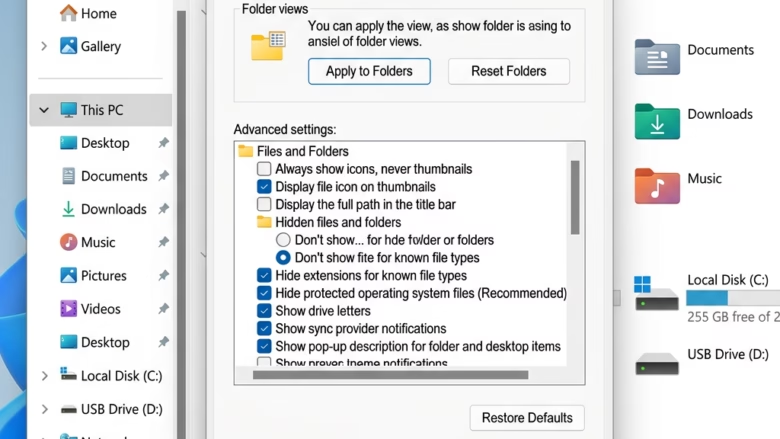
Open a regular folder on your drive, set its Layout, Sort by and Group by options the way you want, then go to See more (three dots) > Options View and click Apply to Folders, then Yes. Windows applies that view to every folder that uses the same template, such as Documents or Pictures, and you do not need administrator rights.
Why use this feature?
You might want all your folders to look the same. For example, you may want every folder that holds pictures to show large icons, or every Documents folder to use the Details view sorted by date. Applying the setting once means each folder of that type looks the way you prefer without manual changes.
This works the same on Windows 11 Home and Pro. It does not need administrator rights, and it only affects your own user account.
What happens when you apply these settings?
When you click Apply to Folders, Windows 11 saves the current view settings as the default for that folder template. Every folder on your computer that uses the same template then adopts those settings the next time you open it. This covers the layout (icon size or Details), the sort order, the grouping and the column choices.
Folders you have already customized are overwritten by it.
Step-by-Step: Apply Folder View to All Folders
The built-in Folder Options tool is the quickest way to do this. Set up one folder exactly how you want it, including layout and sort options. Then use the View tab in Folder Options to copy that look to all matching folders on your computer.
First, prepare the folder you will use as your model:
- Open File Explorer by pressing Win+E. A File Explorer window opens.
- Open a folder that uses the template you want to change (e.g., General Items). Pick a regular folder on your drive, not This PC or a library.
- Close all other open folder windows. Windows can write the view settings of a window you left open over the ones you just saved.
- Adjust the Layout, Sort by, Group by, and Column settings to your liking. You will find these on the Layout and Sort toolbar menus, and in the column headers in Details view. The folder should now look exactly as you want every folder of this type to look.
Now copy that view to the other folders:
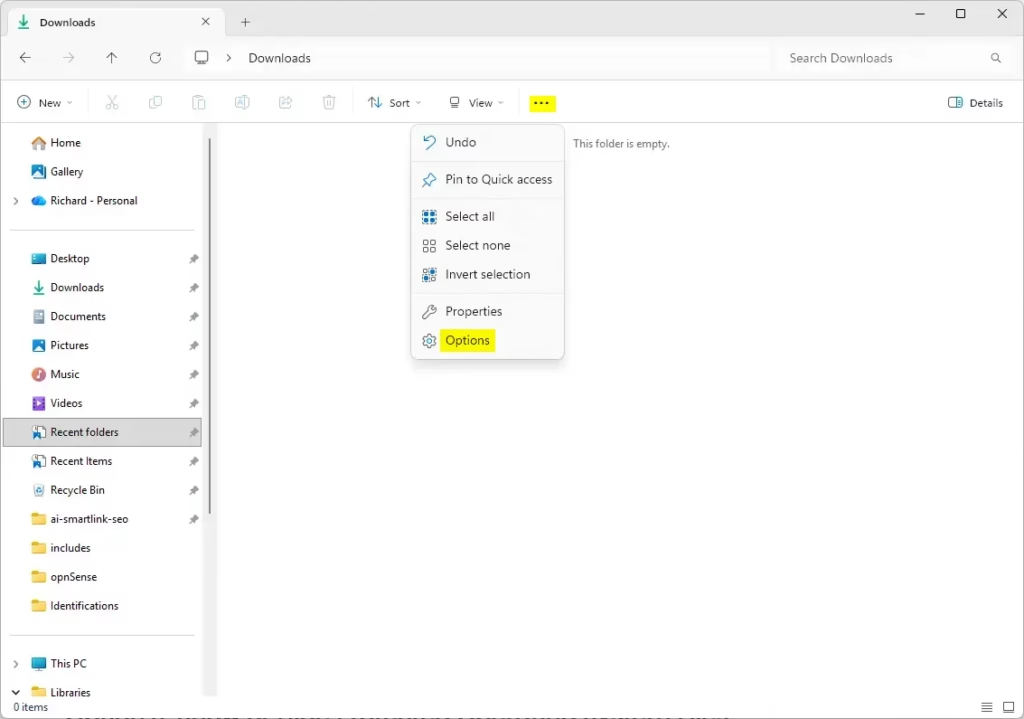
- Click the See more (three dots) icon in the top toolbar. A menu opens.
- Select Options from the menu. The Folder Options window opens.
- In the Folder Options window, click the View tab.
- Click the Apply to Folders button. Windows asks you to confirm that you want all folders of this type to match the current folder. Click Yes.
- Click OK to close the window.
Open a few other folders of the same type to check. They should now show your layout and sort order. If you are not happy with the result, set up the view again and repeat the steps. On the same View tab, the Reset Folders button sends folders of that template type back to the Windows defaults.
Understanding Folder Templates vs. Folder Views
Folder templates are pre-defined layouts for different types of content, such as Documents, Pictures, or Music. Folder views are the specific settings you apply to those templates. When you change a view, you are telling Windows how to display that template type across your entire system.
Windows picks a template for each folder, usually based on what the folder contains. If a folder does not pick up your new view, it may be using a different template. To check, right-click the folder, choose Properties, and open the Customize tab. The Optimize this folder for list shows the template in use. Changing it there moves that folder to another template, and it then follows that template’s view.
Troubleshooting: Why ‘Apply to Folders’ Fails
If the Apply to Folders button is grayed out, you are likely inside a special system folder like This PC or a Library. These locations do not support custom template views. Open a standard folder on your drive (for example, a folder inside Documents), then open Folder Options again. The button should now be available.
Registry Editor Workaround (Advanced)
The Windows 11 folder view settings sometimes get stuck or stop working correctly. When that happens, you may need Registry Editor (a tool for changing advanced system settings) to fix them. Deleting the saved view data in the registry makes Windows forget your custom layouts and return all folders to their default appearance.
Before you start, back up the registry key so you can undo the change. In Registry Editor, right-click the key and choose Export. Save the .reg file somewhere safe. Double-clicking that file later restores the key.
To manually reset these settings via the registry:
- Press Win + R, type regedit, and press Enter. Approve the User Account Control prompt if it appears. Registry Editor opens.
- Navigate to HKEY_CURRENT_USER\Software\Classes\Local Settings\Software\Microsoft\Windows\Shell\Bags. You can paste this path into the address bar at the top of Registry Editor.
- You can delete the Bags and BagMRU keys to reset all folder views to default. Right-click each key and choose Delete. The BagMRU key sits next to Bags in the same Shell key.
- Restart Windows Explorer via Task Manager to apply changes. Press Ctrl + Shift + Esc, find Windows Explorer on the Processes tab, right-click it and select Restart. The taskbar and desktop disappear for a moment and then come back. Restarting your computer also works.
After the restart, your folders use the Windows default views. You can set up a new custom view with the steps above.
Summary
A consistent folder view across your computer keeps your files organized without adjusting every directory by hand. If your layout settings stop working properly, you can fix them in two ways. Use the Folder Options menu to reapply or reset the view, or clear the saved view data in the registry.
Have a question about this guide?
Answered by AI from this guide. Good questions may be added to this page — please don't include personal details.
Did this guide fix your problem?

About the Author
Richard
Tech Writer, IT Professional
Richard is a writer at Geek Rewind who turns complex IT tasks into clear, step-by-step guides. He draws on years of hands-on experience in system administration and enterprise IT operations, focusing on Windows, Linux and WordPress: the problems people actually run into, and the fixes that work. His server and WordPress guides come from systems he runs himself. Richard builds and maintains the platform behind Geek Rewind, from its Ubuntu servers and Nginx configuration to its custom WordPress plugins. Many new tutorials start with readers' questions, and he's always glad to answer them in the comments.
No comments yet — be the first to share your thoughts!