How to Customize Quick Access in File Explorer on Windows 11

Quick Access is the list of folders and files that File Explorer puts in front of you as soon as you open a window. It shows up in the left pane and on the main page. On Windows 11 version 22H2 and later, the start page is labelled Home and Quick access sits inside it. On earlier builds the page is called Quick access. You can pin up to 20 heavy-use folders there and open them with one click instead of digging through drive letters.
You can also remove items you no longer want to see, or turn off recent history completely to keep your workspace private. None of this needs an administrator account, and it works the same on Home and Pro.
Pin folders by right-clicking them and selecting “Pin to Quick Access.” Remove them by right-clicking and choosing “Unpin from Quick Access.” To disable recent files, go to File Explorer Options, uncheck “Show recently used files,” and click Apply.
How to pin or remove items
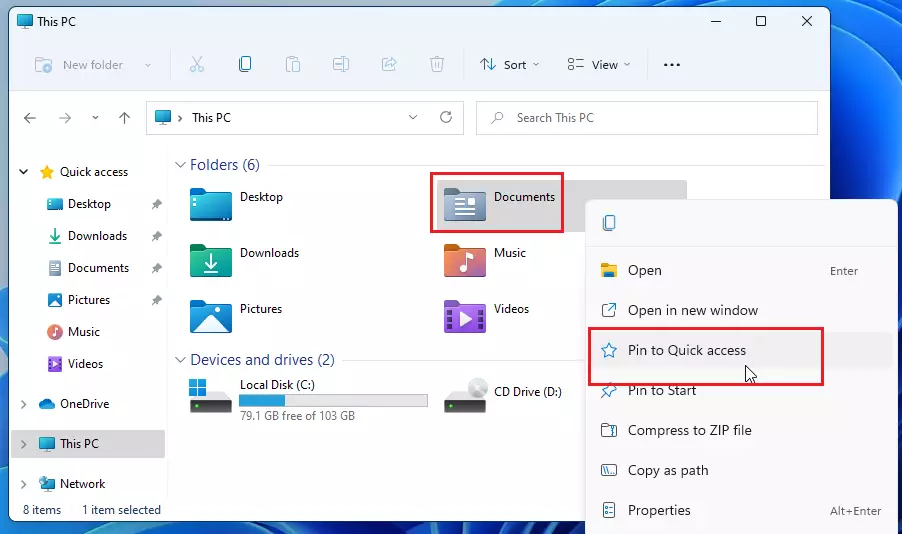
Pinning folders you use often keeps them at the top of the pane, whatever else you open. A pinned folder stays put until you unpin it. Windows does not push it out when you browse elsewhere. To pin a folder:
- Press the Win plus E to open File Explorer .
- Browse to the folder you want, for example in This PC or on another drive.
- Right-click the folder and select Pin to Quick access. If you don’t see it, click Show more options first, or press Shift plus F10 to open the full menu.
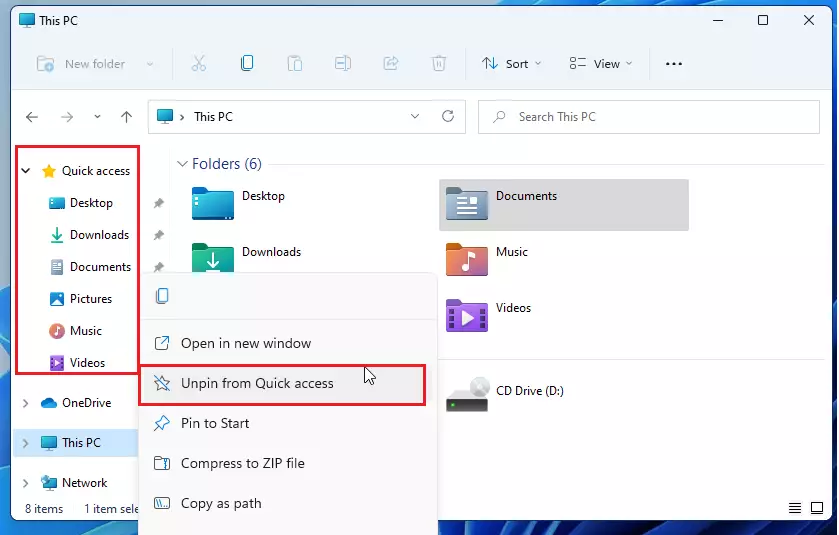
The folder now appears under Quick access in the left pane with a small pin icon next to it. To undo this, right-click the pinned folder and select Unpin from Quick access. The folder itself is not deleted or moved.
How to change Quick Access settings
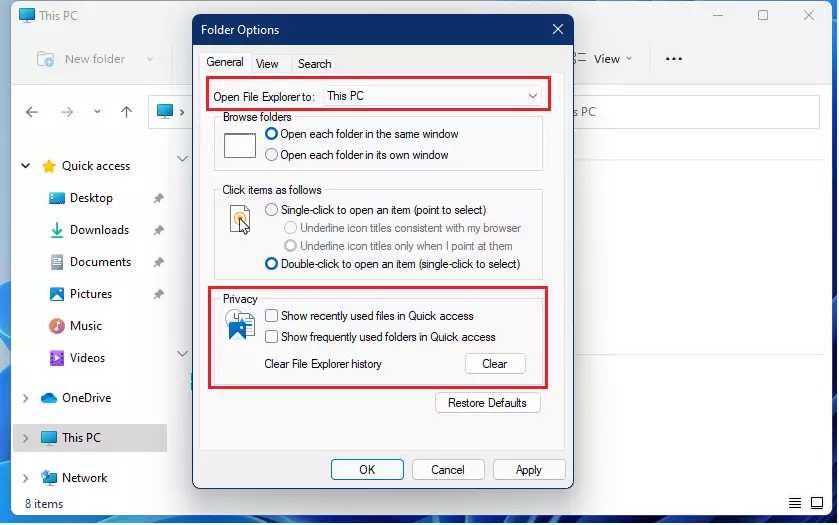
You customize Quick Access through the Folder Options window, which controls which files and folders appear and where File Explorer opens. From there you can change the privacy settings and choose whether File Explorer opens to Home (Quick access) or This PC. The steps below show how to reach it.
- Open File Explorer from the taskbar , or press the Win plus E.
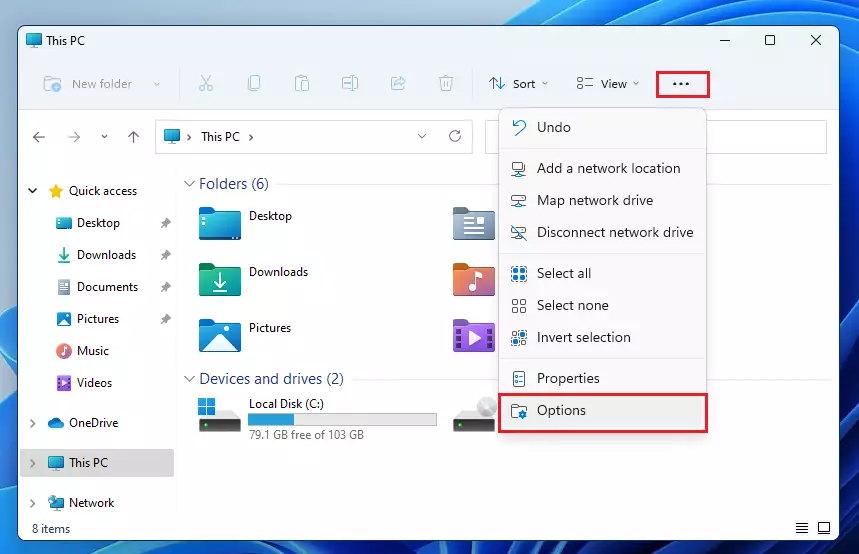
- Click the three dots (…) in the top menu. A drop-down menu opens.
- Select Options. The Folder Options window opens on the General tab.
If the three dots are missing, widen the File Explorer window. The menu is part of the toolbar, and it can be hidden when the window is very narrow.
With Folder Options open, look at the General tab. The Open File Explorer to drop-down lets you choose where File Explorer lands first. If you would rather see your drives than Quick access when it starts, change the setting to This PC. On Windows 11 22H2 and later, the other choice is called Home. On older builds it is called Quick access.
The change takes effect the next time you open File Explorer . You don’t need to restart Windows. To go back, set the drop-down to its other value again.
Next, to stop Windows from showing your recent files, scroll down to the Privacy section at the bottom of the window:
- Uncheck the boxes for Show recently used files and Show frequently used folders. The first stops recent files from being listed. The second stops Windows from adding folders you open often.
- Click Apply to save your changes.
Unchecking these boxes only hides the lists. Your folders and files are not deleted, and anything you pinned stays where it is. If you also want to wipe the history Windows has already stored, click Clear next to Clear File Explorer history in the same Privacy section. To bring the lists back, tick the boxes again and click Apply.
How to show only your pinned folders
You can make Quick Access show only your pinned folders by turning off the settings that track your recent activity. Open File Explorer , click the three dots, choose Options, and uncheck the privacy boxes for recent files and frequent folders. This hides your history and leaves only the folders you pinned yourself. This is a good setup on a shared PC, or if you simply want a short, predictable list.
- Open File Explorer .
- Click the three dots (…) and choose Options. The Folder Options window opens.
- Ensure Open File Explorer to is set to Quick Access. On Windows 11 22H2 and later this choice is labelled Home.
- In the Privacy section, uncheck the boxes for recent and frequent items. These are Show recently used files and Show frequently used folders.
- Click Apply. Then click OK to close the window.
If an old entry is still in the list afterwards, right-click it and choose Remove from Quick access. You can also use Clear in the Privacy section to wipe the stored history in one go.
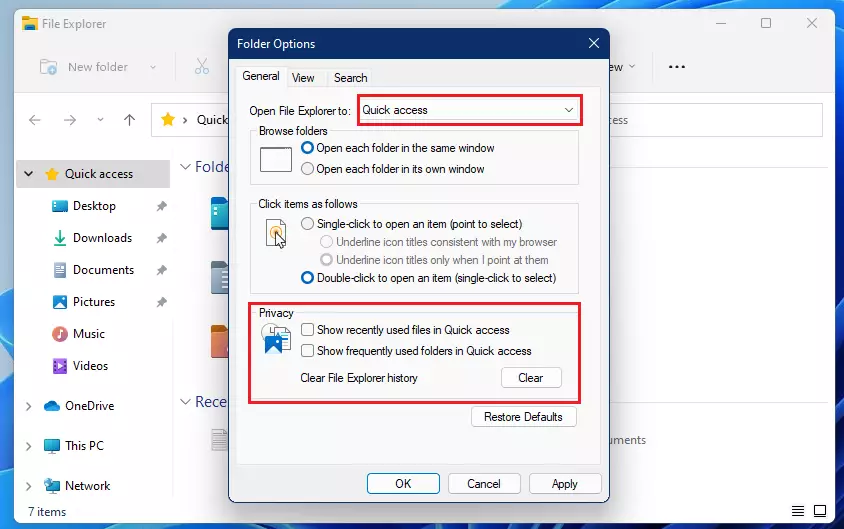
Click Apply to save the new setup. Quick Access will now show only the folders you have manually pinned. Open a new File Explorer window to check. If a folder you expect is missing, pin it again from its right-click menu. To go back to the automatic lists, tick the two Privacy boxes again.
Summary
Quick Access saves time once you set it up the way you work. Pin the folders you use every day so you stop searching for them. Then adjust the privacy settings to remove clutter and keep your recent activity private. Every change here can be reversed, so you can try different setups safely.
Have a question about this guide?
Answered by AI from this guide. Good questions may be added to this page — please don't include personal details.
Did this guide fix your problem?

About the Author
Richard
Tech Writer, IT Professional
Richard is a writer at Geek Rewind who turns complex IT tasks into clear, step-by-step guides. He draws on years of hands-on experience in system administration and enterprise IT operations, focusing on Windows, Linux and WordPress: the problems people actually run into, and the fixes that work. His server and WordPress guides come from systems he runs himself. Richard builds and maintains the platform behind Geek Rewind, from its Ubuntu servers and Nginx configuration to its custom WordPress plugins. Many new tutorials start with readers' questions, and he's always glad to answer them in the comments.
So there is no way to remove Quick Access in Windows 11??
And there seems to be no way to remove the Recommended section in the Start menu?!
This is ridiculous
You can remove Quick Acces via Registry editor. The W10 guide works fine.
The content of the Recommended section can be removed via Settings -> Personalisation -> Show recently… OFF Unfortunatelly the text “Recommended….” in Start menu can’t be removed.
I followed the instructions and nothing happened.
“You can remove Quick Access via Registry editor. The W10 guide works fine.” is your response to Luka – so where do I find W10 Guide? because I don’t want the stupid Quick Access.
Well, you can change the default folder to “This computer”, which is fine for me. (I never got the idea of quick access folder. All app I need to quickly access are pined to taskbar).
Cheers
Michala
[…] File Explorer version in Windows 11 now defaults to Home, which was previously referred to as Quick access. It lets you quickly access and view your frequently accessed folders (Quick […]
[…] Live captions can be turned on with the WINDOWS + CTRL + L keyboard shortcut or from the Accessibility flyout under Quick Settings. […]
[…] Live captions can be turned on with the WINDOWS + CTRL + L keyboard shortcut or from the Accessibility flyout under Quick Settings. […]
[…] The latest File Explorer version in Windows 11 now defaults to Home, which was previously referred to as Quick access. […]
[…] post shows students and new users steps to pin folders and files to File Explorer Quick access in Windows 11. Quick access is a navigation pane on the left of Windows File Explorer that allows […]
[…] you run into situations where the Taskbar, Quick Settings, and Notification area of the Taskbar aren’t working, you can quickly restore functionality […]
[…] default, File Explorer will open with Quick Access so you can access your frequently used items and quickly find files, folders, and settings in […]
[…] Quick access lets users conveniently access often-used files and folders. Located in the File Explorer, Quick Access allows you to pin specific items for easy access, quickly navigating to the most commonly used or recent files and directories without searching your entire system. […]
[…] Quick access lets users conveniently access often-used files and folders. You can pin specific items in the File Explorer for easy access, quickly navigating to the most commonly used or recent files and directories without searching your entire system. […]
[…] Live captions can be turned on with the WINDOWS + CTRL + L keyboard shortcut or from the Accessibility fly-out under Quick Settings. […]
[…] You can turn Live Captions on by pressing Windows + Ctrl + L on your keyboard. You can also find it in the Quick Settings menu under Accessibility. Learn more about Quick Settings here. […]
[…] How to Change Quick Access Settings in Windows 11 […]
[…] by pressing WINDOWS + CTRL + L on your keyboard. You can also find it in your system settings under Quick Settings. You can even change how the text looks using changing its on-screen positions and installing other […]
[…] are deaf or hard of hearing. You can turn it on by pressing WINDOWS + CTRL + L or by looking in the Quick Settings […]