How to Pin Recent Folders in Quick Access on Windows 11

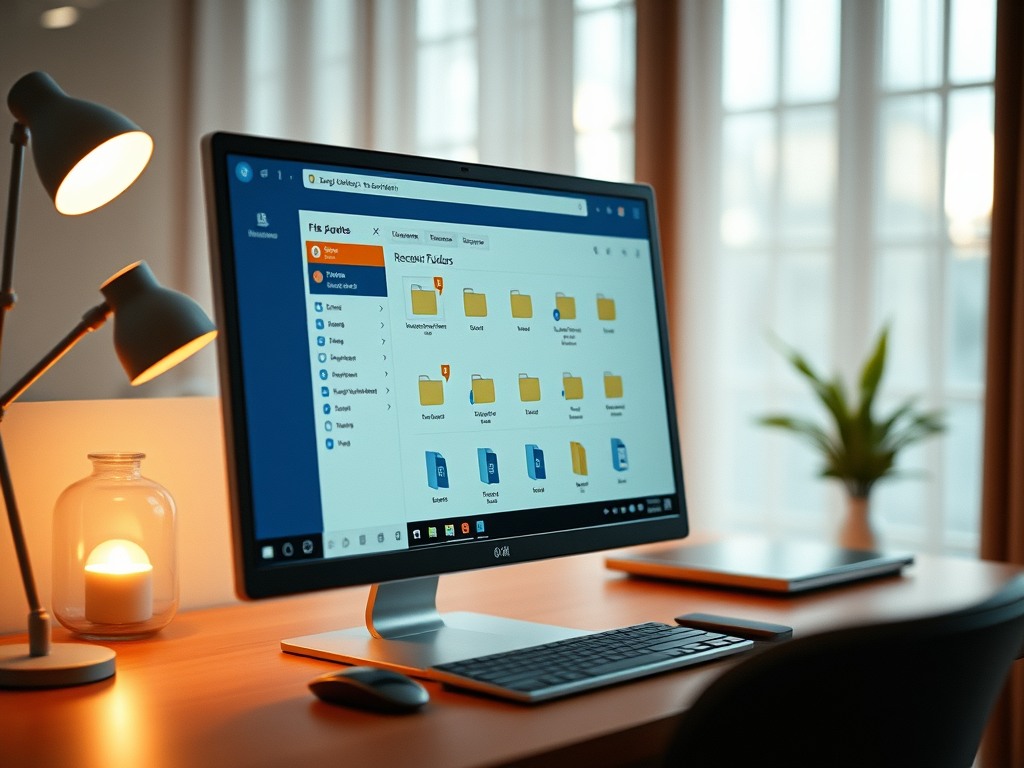
Quick Access in File Explorer pins your most-used folders to the top of the sidebar, so you can open them in one click instead of digging through deeply nested drives. Windows automatically tracks up to 20 frequent folders and 10 recent files. Pinning keeps your favorite spots in place permanently, so they don’t drop off the list when Windows replaces them with newer ones.
Right-click any folder in File Explorer and choose Pin to Quick access, or click See more (the three dots) in the toolbar after opening the folder and select the same option. The folder stays at the top of the sidebar under Quick access until you unpin it, and nothing needs to be restarted.
You can set this up in seconds to keep active project folders in view every time you open a window. The steps below work the same on Windows 11 Home and Pro, and you don’t need to restart anything. There are several ways to pin a folder. Pick whichever feels natural, because the result is the same.
First, pin a folder from the Home page or the recent list:
- Press the Win plus E to open File Explorer . You can also click the folder icon on the taskbar . File Explorer opens on a page showing your folders and files.
- Look at the left sidebar and find Home and, below it, Quick access. In current Windows 11 builds, File Explorer opens on Home by default. The main pane there lists your Quick access folders, Favorites and Recent files.
- Find the folder you want to keep. Recently and frequently used folders show up in the Quick access section of Home or under Quick access in the sidebar. If it isn’t there, browse to it the normal way.
- Right-click the folder. A context menu opens.
- Click Pin to Quick access. If you don’t see it, click Show more options at the bottom of the menu to open the classic menu, and look for it there.
The folder now appears in the Quick access list in the sidebar and has a small pin icon next to its name. It stays there until you remove it.
If the folder you want is listed in the Recent section on Home, you can pin it from there without browsing to it. Right-click the folder in that list and choose Pin to Quick access. The recent list only holds items Windows has seen you open lately, so pin a folder before it scrolls out of view. Individual files in the Recent list offer different options, such as pinning to Favorites. Only folders can be pinned to Quick access.
You can also pin a folder after you have opened it:
- Browse to the folder in File Explorer and open it, so its contents fill the main pane.
- Click the See more button (the three dots, or ellipsis) in the toolbar at the top of the window. A menu opens.
- Click Pin to Quick access. If the folder is already pinned, this entry reads Unpin from Quick access instead.
This method is handy when you have just navigated to a folder and decided it is worth keeping. You don’t have to go back up a level to right-click it. Right-clicking a folder’s name in the sidebar or on Home works the same way, and you can use the keyboard if you prefer: select the folder and press the Menu key, or Shift plus F10, to open its context menu.
There is a quicker way if the sidebar is already open. Drag a folder from the main pane and drop it onto Quick access in the sidebar. Windows pins it as soon as you release the mouse button. You can also drag pinned folders up or down in the list to put them in the order you like.
To unpin a folder, follow these steps:
- Right-click the pinned folder in the sidebar or on the Home page. You can also open the folder and click the See more (three dots) button instead.
- Click Unpin from Quick access. If the entry isn’t in the short menu, click Show more options and look in the classic menu.
The folder disappears from the pinned list. It may still show up as a frequent folder until Windows stops counting it as one. If it keeps coming back and you don't want it there, right-click it and look for Remove from Quick access. Unpinning never deletes the folder or anything in it. It only removes the shortcut. To undo an unpin, just pin the folder again with any of the methods above.
A few things to check if pinning doesn't behave as you expect:
- If the menu says Unpin from Quick access instead of Pin to Quick access, the folder is already pinned.
- If your recent folders never show up, automatic tracking may be turned off. In File Explorer, click the See more (three dots) button in the toolbar, then click Options. On the General tab, under Privacy, check Show frequently used folders in Quick access and Show recently used files in Quick access. You can still pin folders by hand when these are off.
- If a pinned folder shows an error when you click it, it was probably moved, renamed or deleted, or it sits on a drive that isn't connected. Unpin it, then pin it again from its new location.
Have a question about this guide?
Answered by AI from this guide. Good questions may be added to this page — please don't include personal details.
Did this guide fix your problem?

About the Author
Richard
Tech Writer, IT Professional
Richard is a writer at Geek Rewind who turns complex IT tasks into clear, step-by-step guides. He draws on years of hands-on experience in system administration and enterprise IT operations, focusing on Windows, Linux and WordPress: the problems people actually run into, and the fixes that work. His server and WordPress guides come from systems he runs himself. Richard builds and maintains the platform behind Geek Rewind, from its Ubuntu servers and Nginx configuration to its custom WordPress plugins. Many new tutorials start with readers' questions, and he's always glad to answer them in the comments.
No comments yet — be the first to share your thoughts!