How to Remove Home Folder from Windows 11 File Explorer


- 17 steps
- Needs administrator rights
- Includes a restart or sign-out
Removing the Home folder from Windows 11 File Explorer takes the Home entry, with its recent files and Quick access links, out of the left sidebar. Recent Windows 11 updates put this shortcut at the top of the navigation pane by default. If you mostly work from your drives and folders, removing it clears the clutter and gets you to them faster.
Open Registry Editor as an administrator and add a DWORD (32-bit) value named HubMode under 🗝️HKEY_LOCAL_MACHINE\
Hide the Home Folder in File Explorer
Why do this? Hiding the Home folder makes File Explorer look cleaner and less crowded.
What happens when you are done? The Home folder no longer appears in the File Explorer side menu.
Step 1Open the Registry Editor
- Open the Windows Registry. If a User Account Control prompt appears, click Yes.
- In the left pane, or by pasting it into the address bar at the top, go to this folder path:
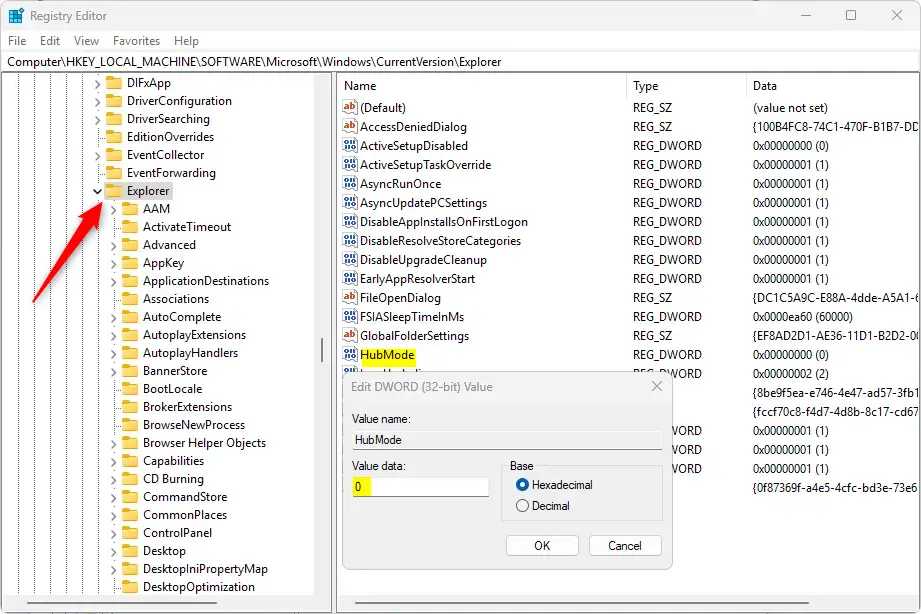
Computer\HKEY_LOCAL_MACHINE\SOFTWARE\Microsoft\Windows\CurrentVersion\Explorer
You should now see the Explorer key selected, with its values listed in the right pane.
⚠️ Admin required: You need administrator privileges to change these settings. On a standard account, the edit will be refused or Windows will ask for admin credentials. If the New menu is missing or greyed out, you are most likely not running Registry Editor as an administrator. Close it and reopen it from an admin account.
Step 2Create a New DWORD Value
- Right-click the Explorer key in the left pane.
- Hover over New and select DWORD (32-bit) Value. A new value appears in the right pane with its name highlighted.
- Type HubMode as the name and press Enter. Match the capitalization exactly.
- Double-click HubMode. The Edit DWORD (32-bit) Value window opens.
- In the Value data box, enter the value shown in the image below:
[Verification Required: Data value missing in source]
- Click OK. HubMode now appears in the right pane with the value you entered.
Step 3Delete the Home Folder Key
HubMode on its own is not enough. You also need to remove the Home entry from the navigation pane, which is the second Registry location.
- In Registry Editor, navigate to this folder path:
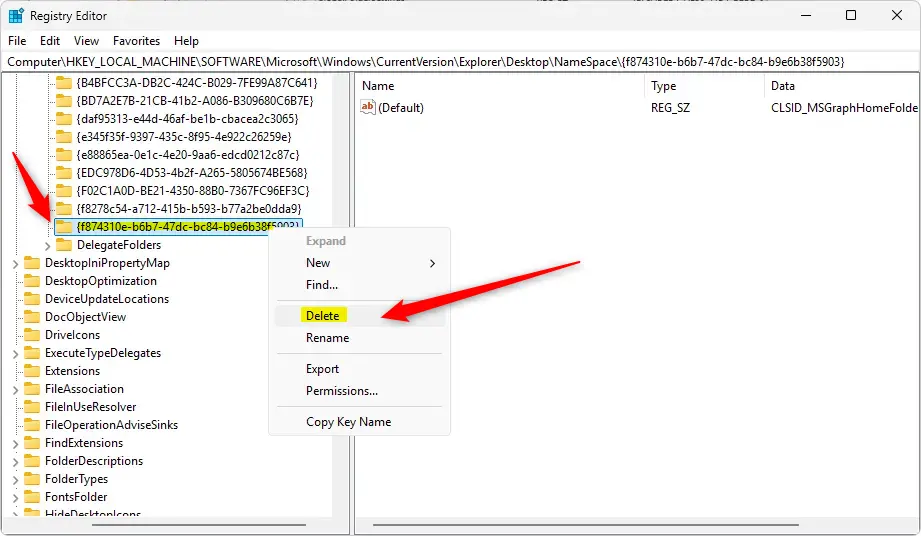
Computer\HKEY_LOCAL_MACHINE\SOFTWARE\Microsoft\Windows\CurrentVersion\Explorer\Desktop\NameSpace
- Find the key named {f874310e-b6b7-47dc-bc84-b9e6b38f5903} under that path and right-click it.
- Choose Delete. Windows asks you to confirm.
- Click Yes. The key disappears from the left pane.
Step 4Restart Your Computer
Restart your PC to finalize the changes. A restart is the most reliable way to apply them. Signing out and back in, or restarting Windows Explorer from Task Manager, often works too.
After the restart, File Explorer opens to “This PC” or your chosen default folder instead of Home, and Home is gone from the sidebar. To choose the default yourself, open File Explorer, click the three-dot menu in the toolbar, select Options, and change Open File Explorer to on the General tab.
Restore the Home Folder
To restore the Home folder, undo both Registry changes. First remove the HubMode value you added. Open Registry Editor, go to 🗝️HKEY_LOCAL_MACHINE\
What happens when you are done? The Home folder reappears in the File Explorer side menu.
- Delete the HubMode Value: Right-click the
HubModeentry you created earlier and select Delete. Confirm when asked. - Create the NameSpace Key: Go to the
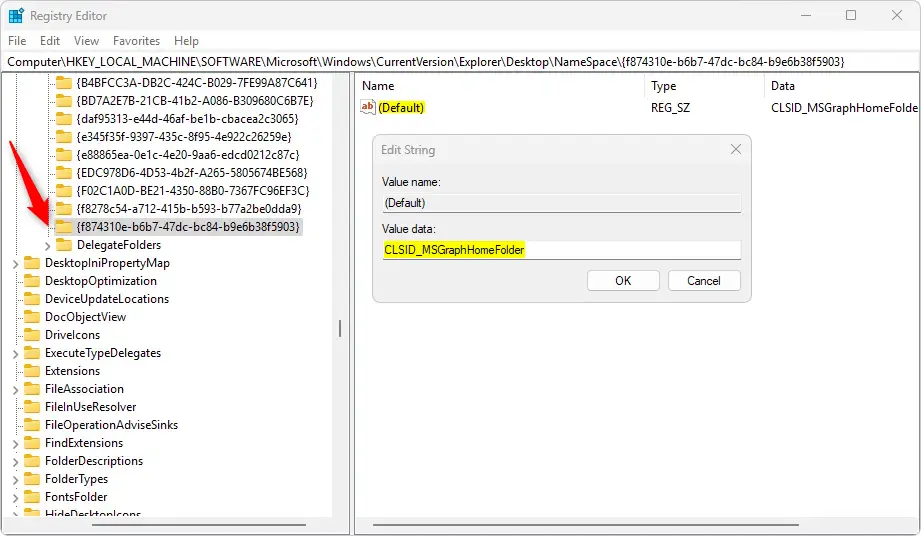
NameSpacefolder path. Right-click it, select New, and click Key. A new key appears with its name highlighted. - Name the Key: Name the new key
{f874310e-b6b7-47dc-bc84-b9e6b38f5903}and press Enter. - Set the Value: Select the new key, then right-click the Default string in the right pane and choose Modify. Change the value to
CLSID_MSGraphHomeFolder, and click OK. - Restart: Restart your PC so File Explorer picks up the restored entry.
Summary
Hiding or restoring the Home folder in Windows 11 File Explorer comes down to these Registry changes. Make them carefully, keep a backup, and restart afterwards.
Have a question about this guide?
Answered by AI from this guide. Good questions may be added to this page — please don't include personal details.
Did this guide fix your problem?

About the Author
Richard
Tech Writer, IT Professional
Richard is a writer at Geek Rewind who turns complex IT tasks into clear, step-by-step guides. He draws on years of hands-on experience in system administration and enterprise IT operations, focusing on Windows, Linux and WordPress: the problems people actually run into, and the fixes that work. His server and WordPress guides come from systems he runs himself. Richard builds and maintains the platform behind Geek Rewind, from its Ubuntu servers and Nginx configuration to its custom WordPress plugins. Many new tutorials start with readers' questions, and he's always glad to answer them in the comments.
No comments yet — be the first to share your thoughts!