How to Pin Files and Folders to Home and Quick Access in Windows 11

- 15 steps
- Needs administrator rights
- Includes a restart or sign-out
Pinning files and folders in Windows 11 puts your most-used items directly on the File Explorer home screen so you can open them with a single click. File Explorer uses two main spots for this. Home shows recent items automatically. Quick Access lets you pin up to twenty specific folders so they stay put.
Instead of digging through multiple folders to find a document, you can pin it to the sidebar to save time and keep your workspace tidy. This guide covers how to pin and unpin items, and what to do when pins go missing or stop working. The steps are written for current Windows 11. The right-click menu changed between early builds and the 22H2 and later releases, so I point out where it differs. Everything here works the same on Home and Pro editions.
Right-click the file or folder in File Explorer, select Pin to Quick Access from the context menu, and it appears in your Home sidebar. On Windows 11 version 22H2 and later, files pin to a Favorites section instead.
Why use Quick Access and Home?
Quick Access is a list on the left side of your File Explorer. It acts like a bookmark bar for your computer. It helps you open your most-used items with just one click instead of searching through your hard drive.
The list has two kinds of entries. Pinned items are the ones you add yourself, and they stay until you remove them. Windows also adds folders you use often and files you opened recently, and those entries change over time as you work. Pinning is how you stop a folder from being pushed out by newer activity.
What happens when you are done?
Once you pin your files or folders, they will always stay at the top of your File Explorer sidebar. You will save time by not having to click through multiple sub-folders to find your work.
The original file or folder stays where it is, and nothing is copied or moved. If you unpin an item or delete the shortcut, your data is not touched. If you later move or rename the real folder, the pin may stop working, and you will need to unpin it and pin it again from the new location.
Home vs. Quick Access: Understanding the UI
Windows 11’s Home and Quick Access are essentially the same place for pinning your favorite files and folders, even though Microsoft changed the name to Home in recent updates.
In practice, you open File Explorer and the first entry in the left sidebar is Home. Your pinned folders are listed under it, and the main pane shows the same pinned folders along with recent files. Older articles and the right-click menu still say “Quick access”, so treat the two names as one feature. Windows 11 version 22H2 and later also has a separate Favorites section on Home for pinned files. Older builds only let you pin folders there.
How to pin items to Quick Access
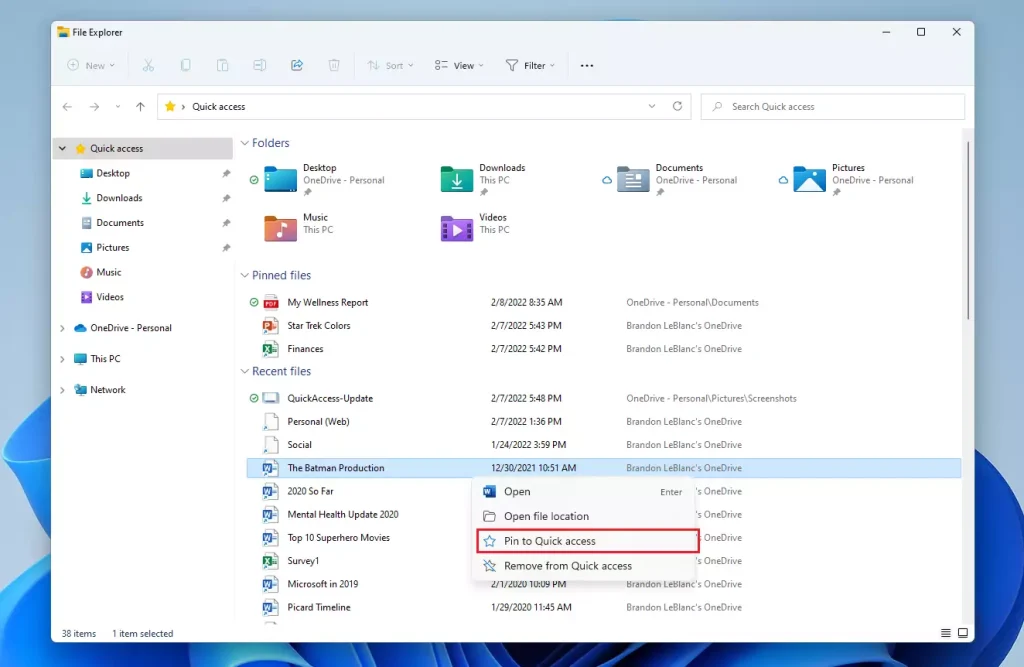
You can pin files Quick Access Windows 11 by opening File Explorer, right-clicking the folder or file you use often, and selecting Pin to Quick access from the menu. This adds the item to your sidebar so you can open it instantly without searching through multiple folders every time you need it.
Follow these steps:
- Open File Explorer . You can press the Win plus E, or click the folder icon on the taskbar . A window opens with Home selected.
- Find the folder or file you use often. Browse to it in the main pane or in the sidebar. You can also use the search box if you do not remember where it is.
- Right-click the item. A context menu appears.
- Select Pin to Quick access from the context menu . If you do not see it, click Show more options at the bottom of the menu, or select the item and press Shift+F10, to open the full classic menu. The folder now appears in the sidebar under Home. If you pinned a file on a build that supports it, the menu may say Add to Favorites instead, and the file appears in the Favorites section on Home.
You can also drag a folder from the main pane onto Home in the sidebar to pin it. If the option is missing or greyed out, the item is probably already pinned, or it is a location Windows does not let you pin.
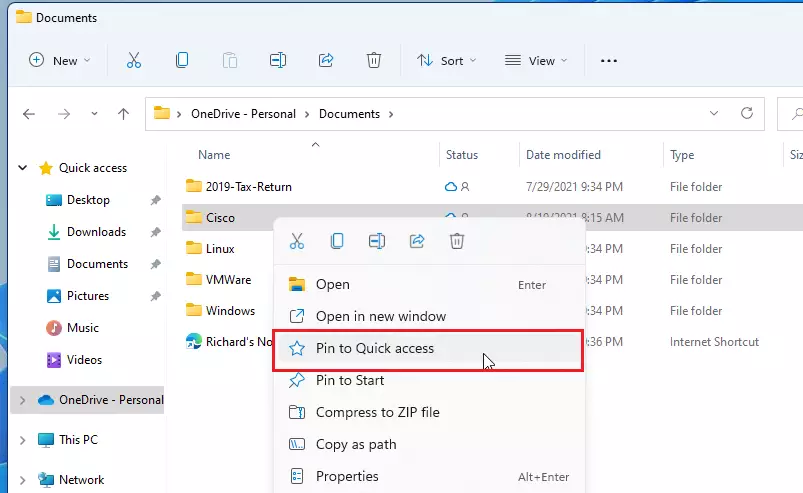
If your computer is updated, you will see options similar to the image below when you right-click a file.
On Windows 11 22H2 and later, the right-click menu is shorter and shows icons for Cut, Copy, Rename, Share and Delete at the top or bottom. The pin option may be in this short menu, or you may need Show more options to reach it. If your menu looks different from the image, check Windows Update. The layout depends on your build.
How to remove items
If you no longer need an item in your list, it is easy to remove it. Unpinning only removes the shortcut. The original file or folder is not deleted.
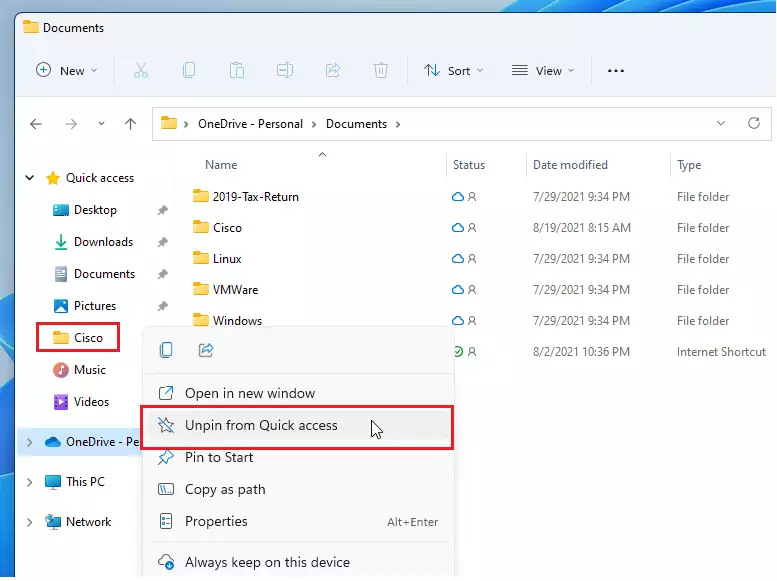
- Right-click the item in the Home or Quick Access sidebar. A context menu appears.
- Select Unpin from Quick access. The item disappears from the pinned list straight away. If it is a folder you use often, Windows may still show it in the frequent folders list until you clear the history.
To undo this, find the folder again and pin it as described above.
Troubleshooting Missing Pins and Bugs
Quick Access missing pins Windows 11 usually happen because a display setting is turned off or the history needs a reset. You can fix this by opening File Explorer options from the three-dot menu, making sure recent files and folders are set to show, and clearing the history to refresh the list.
Another common cause is that the pinned folder was moved, renamed, or sits on a drive that is not connected, such as a USB drive or a network share. Check that first. Then work through these steps:
- Open File Explorer .
- Click the three dots (…) in the top ribbon menu. A drop-down menu opens.
- Select Options. The Folder Options window opens.
- Under the General tab, go to the Privacy section and ensure Show recently used files and Show frequently used folders are checked. If you changed either box, click Apply.
- Click Clear to reset the history if you are experiencing glitches. This clears the list of recent and frequent items. Your pinned folders should stay, but if the list still looks wrong afterwards, close and reopen File Explorer and check again.
If your organization manages the PC, a policy may hide these options or control what appears in Quick Access. In that case, ask your administrator.
Advanced: Resetting via Command Prompt (Admin Privileges Required)
You can reset Quick Access Command Prompt Windows 11 to clear out broken cache files that stop pins from working properly. Open the Command Prompt as an administrator from the Start menu, run the delete command to clear your recent items history, and restart File Explorer to rebuild a clean list.
Use this one only if pins still will not show or will not stick. This reset can also remove your current pins, so make a note of what you have pinned before you start. You can pin the items again afterwards.
- Press the Windows key and type cmd. Command Prompt appears in the search results.
- Right-click Command Prompt and select Run as administrator. If a User Account Control prompt appears, click Yes. A black Command Prompt window opens.
- Type the following command and press Enter:Command Prompt
del /f /s /q %AppData%\Microsoft\Windows\Recent\*
- This clears the cache that might be causing your pinning issues. Close the Command Prompt window when it finishes.
To restart File Explorer, press Ctrl+Shift+Esc to open Task Manager, select Windows Explorer in the list, and click Restart task. The taskbar and windows flicker for a moment. You can also sign out and back in, or restart the PC. Then open File Explorer and pin your items again.
Summary
Pinning files and folders to Quick Access in Windows 11 is a great way to keep your important items handy, and most issues can be fixed by checking settings or clearing history.
To recap: right-click a folder and choose Pin to Quick access to add it, choose Unpin from Quick access to remove it, and check Options in File Explorer if pins go missing. Use the Command Prompt reset only as a last step.
Have a question about this guide?
Answered by AI from this guide. Good questions may be added to this page — please don't include personal details.
Did this guide fix your problem?

About the Author
Richard
Tech Writer, IT Professional
Richard is a writer at Geek Rewind who turns complex IT tasks into clear, step-by-step guides. He draws on years of hands-on experience in system administration and enterprise IT operations, focusing on Windows, Linux and WordPress: the problems people actually run into, and the fixes that work. His server and WordPress guides come from systems he runs himself. Richard builds and maintains the platform behind Geek Rewind, from its Ubuntu servers and Nginx configuration to its custom WordPress plugins. Many new tutorials start with readers' questions, and he's always glad to answer them in the comments.
No comments yet — be the first to share your thoughts!