How to Add or Remove the Navigation Pane in Windows 11

The navigation pane is the sidebar on the left side of File Explorer . It holds shortcuts to places like Home, Desktop, Downloads, and your drives. You can hide it to get more room for the file list, or turn it back on if it has gone missing. The View menu does this in a few clicks.
Windows updates, and sometimes a stray click, can change the sidebar without you noticing. This guide covers the normal way to switch it on or off from the menu at the top of any File Explorer window. It also covers a registry method for people who prefer the command line. Both are written for current Windows 11.
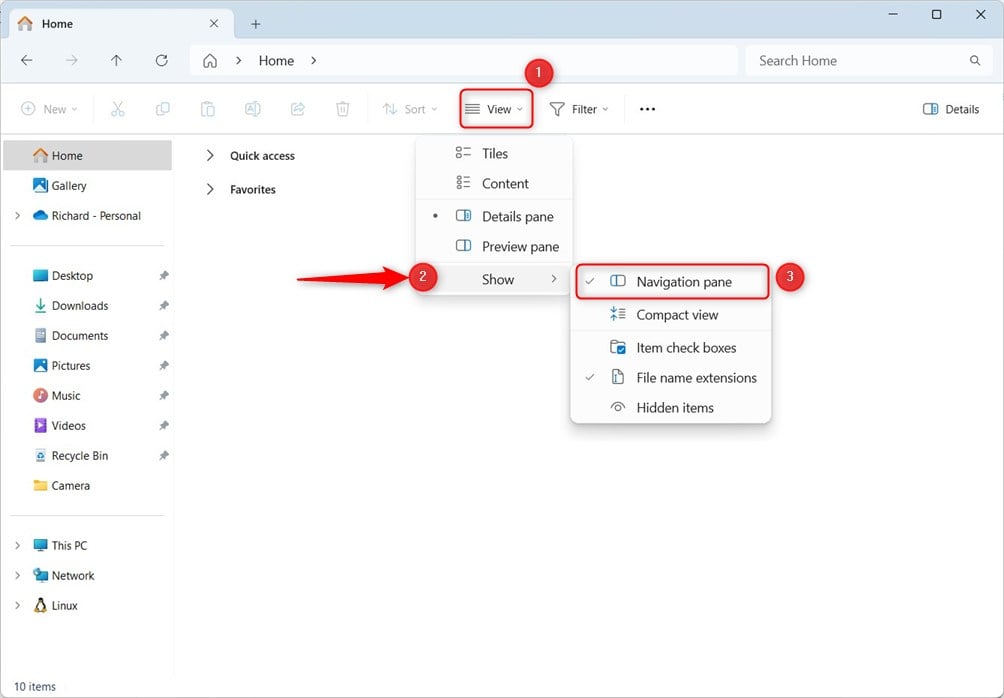
Open File Explorer , click View at the top, select Show, then click Navigation pane to toggle the sidebar on or off. The change takes effect immediately and applies to all new File Explorer windows.
What is the Navigation Pane?
The navigation pane lists your drives and folders in a tree, so you can jump to a location without clicking through several windows. It makes moving and copying files quicker, because you can drag a file straight onto a folder in the sidebar. If you work with many folders, it is worth keeping on. If you work on a small screen, hiding it gives you more room.
How to Show or Hide the Navigation Pane Using File Explorer
The easiest way to show or hide the navigation pane is the View menu in File Explorer . It works the same on Windows 11 Home and Pro, needs no restart, and takes effect straight away. The steps are below.
- Open File Explorer . Press
Win + Eon your keyboard to open it quickly. A File Explorer window opens, usually on Home or This PC. - Look at the top menu (called the Command Bar) and click View. A dropdown menu opens with layout and display options.
- In the dropdown, click Show and then choose Navigation pane to show or hide it. A check mark next to Navigation pane means the sidebar is on. When you click it, the sidebar appears or disappears from the left side of the window straight away.
The setting is remembered, so new File Explorer windows open with the same choice. To undo it, repeat the steps and click Navigation pane again. If the pane still looks wrong afterwards, close all File Explorer windows and open a new one.
How to Show or Hide the Navigation Pane Using Windows Registry (Advanced)
You can control the navigation pane by editing the Windows Registry with the Windows Terminal app. Open Windows Terminal from the Start menu and apply the change to the registry location listed below. Most people do not need this method. Use it only if the View menu is not available to you or you want to script the change.
The setting lives under HKEY_CURRENT_USER, so it affects only your account and does not need administrator rights. The method requires these details:
- Open the Windows Terminal app. Search for it in the Start menu. A terminal window opens with a command prompt.
- The setting is saved in the registry here:
HKEY_CURRENT_USER\SOFTWARE\Microsoft\Windows\CurrentVersion\Explorer\Modules\GlobalSettings\Sizeres\GlobalSettings\Sizer - The value to change is called
PageSpaceControlSizer. It is a binary value (REG_BINARY). Do not change any other value in that key.
To Show the Navigation Pane
Run this command in Windows Terminal. Type or paste it exactly as shown, then press Enter. The terminal should report that the operation completed successfully.
REG ADD HKCU\SOFTWARE\Microsoft\Windows\CurrentVersion\Explorer\Modules\GlobalSettings\Sizer /v PageSpaceControlSizer /t REG_BINARY /d a00000000100000000000000ec030000 /f
The change does not show up in windows that are already open. Restart your PC, or sign out and back in, then open File Explorer to check the result. If nothing changes, make sure you ran the command as your own user and not in a different account.
To Hide the Navigation Pane
Run this command instead. It writes a different data value to the same registry entry, so it switches the navigation pane the other way. Use it to undo the first command. Restart your PC afterwards, as before.
REG ADD HKCU\SOFTWARE\Microsoft\Windows\CurrentVersion\Explorer\Modules\GlobalSettings\Sizer /v PageSpaceControlSizer /t REG_BINARY /d a00000000000000000000000ec030000 /fWhat Each Part of the Command Means
/vspecifies the name of the value to change./t REG_BINARYmeans the data type is binary./dis the data to set./fforces the change without asking for confirmation.
Knowing what each part of the command does helps you spot a typo before you run it. Each switch has a specific job: /v points to the value name, /t REG_BINARY sets the data type, /d applies the target value, and /f forces the update without asking for confirmation. Because /f skips the prompt, check the command carefully before you press Enter.
Summary
For most people, the View menu inside File Explorer is the quickest and safest way to manage the navigation pane. It has no restart and nothing to break. Power users who prefer the command line can use Windows Terminal instead. Restart your PC afterwards so the registry change is picked up.
- Use the File Explorer View menu for the easiest way. The change is instant and works on Home and Pro.
- Use Windows Terminal and registry commands if you want more control (advanced users only). Export the registry key first so you can roll back.
- Remember to restart your PC if you use the registry method, then open a new File Explorer window to check the result.
File Explorer is easy to adjust to the way you work. Showing or hiding the sidebar takes a few seconds, and you can reverse it just as quickly. Pick the layout that gives you the access you need and the screen space you want.
Have a question about this guide?
Answered by AI from this guide. Good questions may be added to this page — please don't include personal details.
Did this guide fix your problem?

About the Author
Richard
Tech Writer, IT Professional
Richard is a writer at Geek Rewind who turns complex IT tasks into clear, step-by-step guides. He draws on years of hands-on experience in system administration and enterprise IT operations, focusing on Windows, Linux and WordPress: the problems people actually run into, and the fixes that work. His server and WordPress guides come from systems he runs himself. Richard builds and maintains the platform behind Geek Rewind, from its Ubuntu servers and Nginx configuration to its custom WordPress plugins. Many new tutorials start with readers' questions, and he's always glad to answer them in the comments.
No comments yet — be the first to share your thoughts!