How to Customize Windows 11 File Explorer for Your Needs

The status bar in Windows 11 File Explorer is a thin strip along the bottom of the window. It shows how many items are in the current folder and how many you have selected. When you select files, it also shows their combined size. For a picture, it can show the image dimensions. This lets you check basic file details without opening a separate Properties window.
You can turn the status bar on or off in the classic Folder Options dialog. Hiding it frees a little screen space. Showing it keeps the file information in view while you browse. To change it:
- Open File Explorer and click the See more (…) button in the toolbar.
- Click Options. The Folder Options window opens.
- Open the View tab.
- In the Advanced settings list, tick Show status bar to turn it on. Clear the box to hide it.
- Click OK. The strip appears or disappears at the bottom of the window straight away. No restart is needed.
To undo the change, repeat the steps and flip the checkbox back. The setting applies to all File Explorer windows, not just the folder you are in.
Open File Explorer, click the See more (…) button in the toolbar, then click Options. Go to the View tab and adjust settings like Show status bar, or use the General tab to change where File Explorer opens. Click OK to apply changes immediately without restarting.
Getting Started with File Explorer
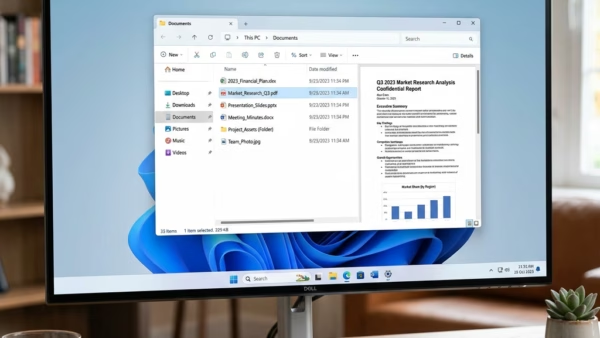
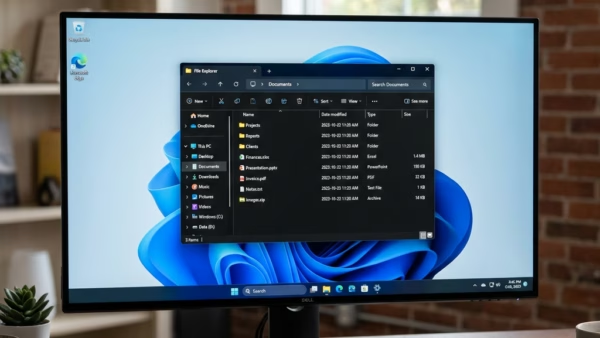
These guides cover the basics of the Windows 11 File Explorer layout and its common functions. They show you how to view your files and how to connect to other devices. If you are new to Windows 11, start here. The layout differs from Windows 10, mainly because the toolbar replaces the old ribbon.
Organizing and Accessing Your Files
Keeping files tidy makes them much easier to find. This group of guides covers three areas:
- Quick Access, a section for your frequent folders. You can pin a folder to it so it is always one click away.
- Managing folder views, so each folder shows its files in the way that suits its contents.
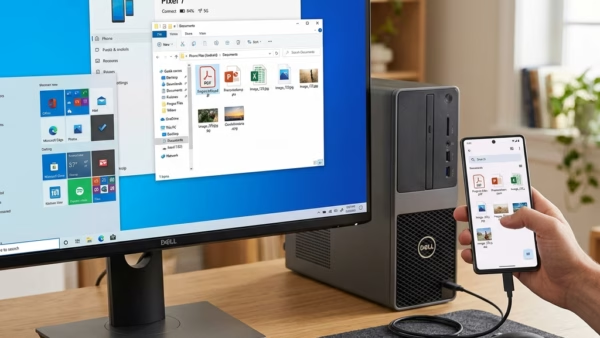
- Accessing files stored on a phone. Connect it by USB and set the phone to allow file transfer. It should then appear in File Explorer as a device.
Customizing Your File Explorer Experience
You can change how File Explorer behaves and how it looks. The options range from which location it opens to, to which information it displays. Most of these settings are in the Folder Options window, which you can reach from the See more (…) menu. Changes take effect as soon as you click OK or Apply. You do not need to restart Windows.

Advanced Features and File Recovery
This group covers specific features and tricky situations. Topics include undo and redo, rotating images, and recovering files that were deleted from mobile devices. For undo and redo, File Explorer also responds to the usual keyboard shortcuts, Ctrl+Z and Ctrl+Y. Undo works on actions such as renaming, moving, or deleting a file, but only while the window is still open.
Common questions
How do I make File Explorer open to 'This PC' instead of 'Quick access'?
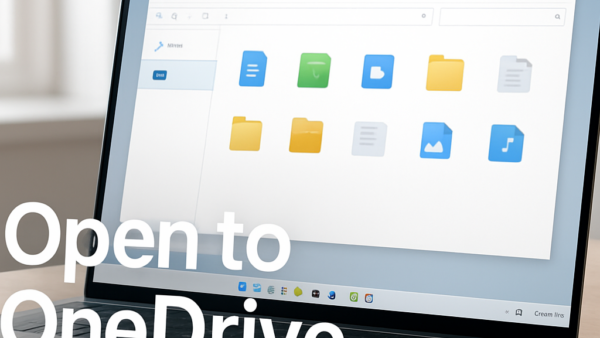
By default, File Explorer opens to Home, which shows Quick Access folders and recent files. If you would rather start at your drives, change one preference:
- Open File Explorer and click the See more (…) menu in the toolbar.
- Click Options.
- On the General tab, find Open File Explorer to.
- Choose This PC from the drop-down list.
- Click OK. The next File Explorer window you open should start at This PC, with your drives listed.
To go back, choose Home in the same drop-down. The Home option appears in current Windows 11 builds. On a very early build you may see Quick access instead. This setting is the same on Windows 11 Home and Pro.
How can I see file details like size and date modified more easily?
You can adapt a folder’s view to its contents in a couple of clicks:
- Open the folder you want to change.
- Click the View menu in the toolbar.
- Choose Details. The files now appear as a list, with columns for size, date, and type.
- Right-click any column header. A list of extra columns appears.
- Tick a column to add it, or clear a tick to remove it.
Windows remembers the view for each folder, so you can use Details in a documents folder and a larger icon view in a pictures folder. If a column you want is not in the short list, look for a More… option at the bottom of the right-click menu.
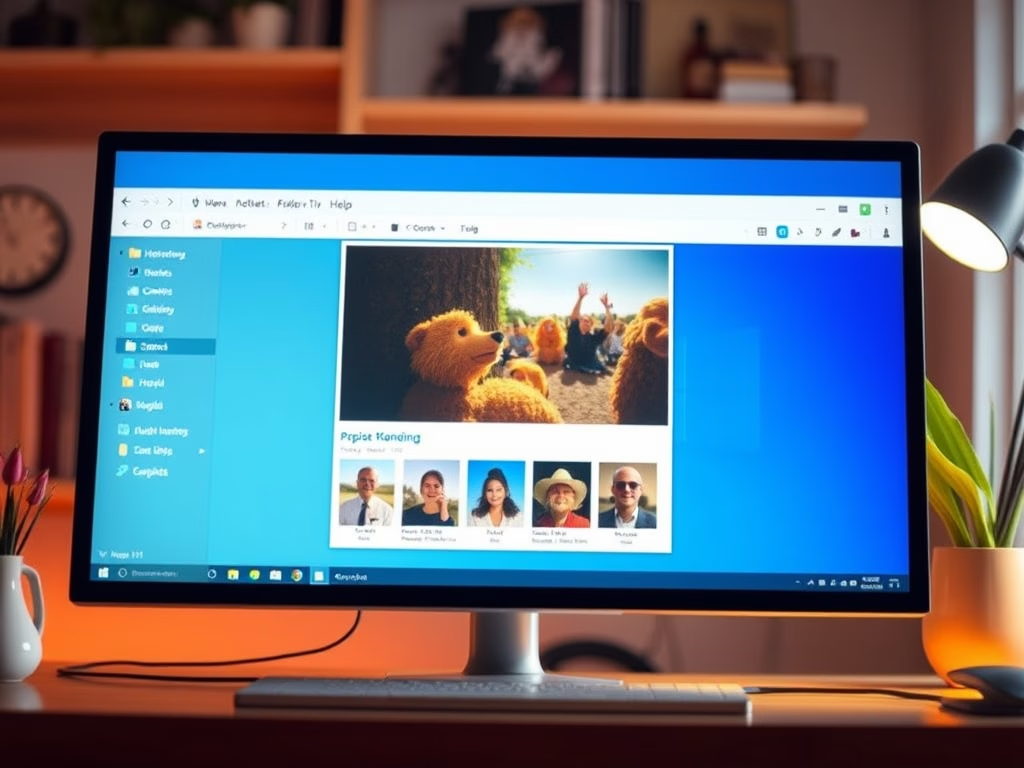
What is the 'Gallery' in File Explorer?
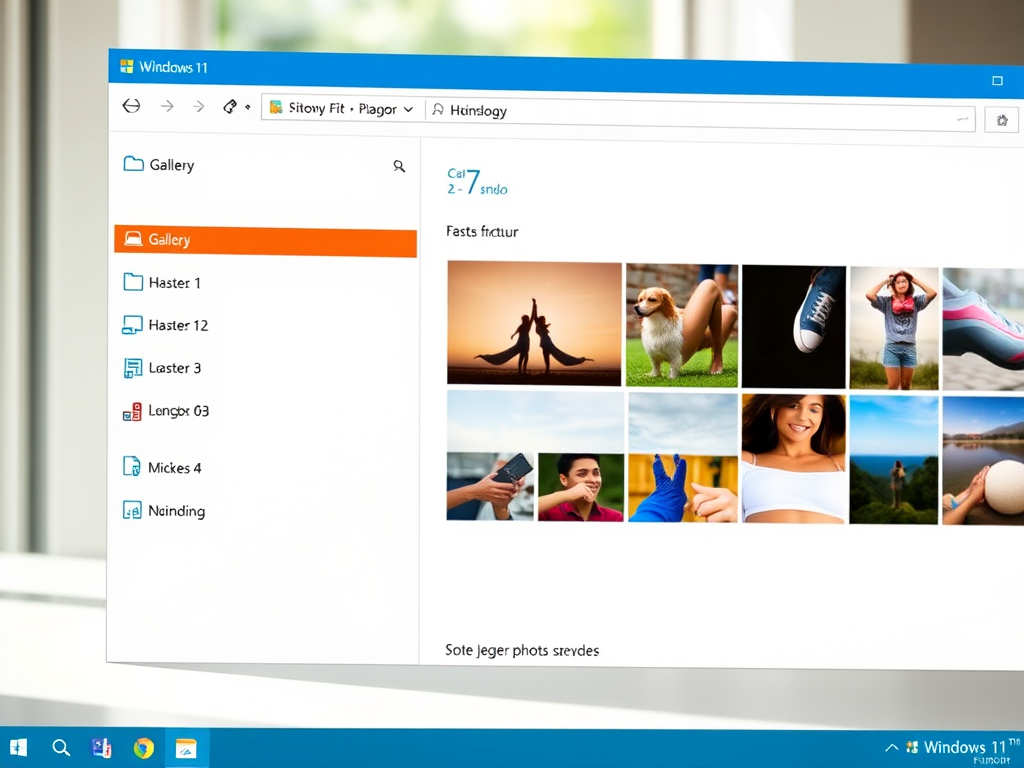
This dedicated view lets you browse photos and videos from across the PC without clicking through separate folders. It is called Gallery and appears in the navigation pane on the left. It is mostly built from your Pictures library and any folders you have added to it. Gallery is only in newer Windows 11 releases. If you do not see it, run Windows Update and check again.
How do I use tabs in File Explorer?
File Explorer supports tabs, much like a web browser. Use these shortcuts:
- Press Ctrl+T to open a new tab.
- Press Ctrl+Tab to switch to the next tab.
- Press Ctrl+W to close the current tab.
Tabs arrived with Windows 11 version 22H2 and later updates. On the original release of Windows 11, these shortcuts will not work. In that case, install the latest updates through Windows Update. Tabs work the same on Home and Pro.
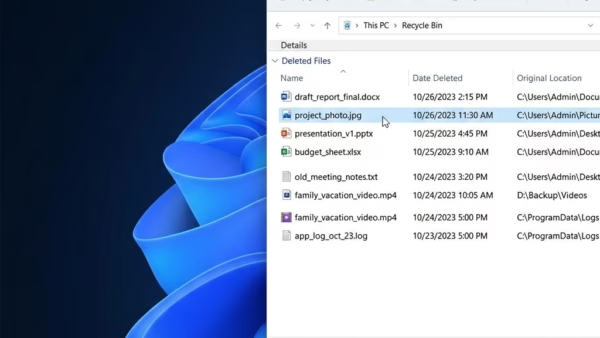
Can I get back a file I accidentally deleted?
- Open the Recycle Bin from the desktop, or type its name into File Explorer’s address bar.
- Locate the file you want to recover. Sorting by date deleted can help.
- Right-click the item.
- Select Restore. The file returns to the folder it was deleted from.
A file removed with Shift+Del skips it, and so does a file deleted from a network location. Files removed from a mobile device via File Explorer also skip it, so they need specific recovery software. Try to recover them soon after deleting, and avoid saving new data to that device in the meantime.
Have a question about this guide?
Answered by AI from this guide. Good questions may be added to this page — please don't include personal details.
Did this guide fix your problem?

About the Author
Richard
Tech Writer, IT Professional
Richard is a writer at Geek Rewind who turns complex IT tasks into clear, step-by-step guides. He draws on years of hands-on experience in system administration and enterprise IT operations, focusing on Windows, Linux and WordPress: the problems people actually run into, and the fixes that work. His server and WordPress guides come from systems he runs himself. Richard builds and maintains the platform behind Geek Rewind, from its Ubuntu servers and Nginx configuration to its custom WordPress plugins. Many new tutorials start with readers' questions, and he's always glad to answer them in the comments.
No comments yet — be the first to share your thoughts!