Open File Folder Options in Windows 11

- 6 ways to do it
- Needs administrator rights
- Group Policy needs Windows 11 Pro, Enterprise or Education
To open file folder options in Windows 11, open File Explorer, select the three-dot See more button on the command bar, then select Options. If File Explorer is missing or does not respond, the control folders command opens the same dialog without it.
File Explorer Options is the Windows 11 dialog that controls how File Explorer shows your files. You use it to show file extensions, show hidden files, and pick the folder File Explorer opens to by default.
These settings only change your own user account, so you do not need administrator rights. Any Windows 11 PC works the same way.
To open File Explorer Options in Windows 11, press Win+E, select the three-dot See more button on the command bar, then select Options. The Folder Options dialog opens with General, View and Search tabs. You can also press Win+R, type control folders and press Enter, which works even when File Explorer won’t respond.
Which method to use
All the methods below open the same dialog. Pick the one that matches your situation:
- File Explorer is already open: use the command bar (Method 1).
- You want the fastest route from anywhere: use Start search (Method 2) or the Run dialog (Method 3).
- You prefer the classic Control Panel layout: use Control Panel (Method 4).
- You open this dialog often: create a desktop shortcut (Method 6).
Windows 11 names this dialog inconsistently. The Control Panel item and the Start search result are called File Explorer Options. The window itself can be titled Folder Options or File Explorer Options, depending on your build. It is the same dialog either way. The Settings app has no page called Folder Options, so skip any guide that points you there.
Method 1Open it from the File Explorer command bar
This is the route to use when File Explorer is already on screen. The command bar is the row of buttons across the top of the File Explorer window, with New, Cut, Copy, Sort and View on it. These steps take you from File Explorer to the Folder Options dialog.
- Press Win+E to open File Explorer. A File Explorer window opens on your default start folder, either Home or This PC.

File Explorer - Select the See more button at the right end of the command bar. It is the three dots. A menu opens.
- Select Options at the bottom of the menu. The Folder Options dialog opens with three tabs: General, View and Search.
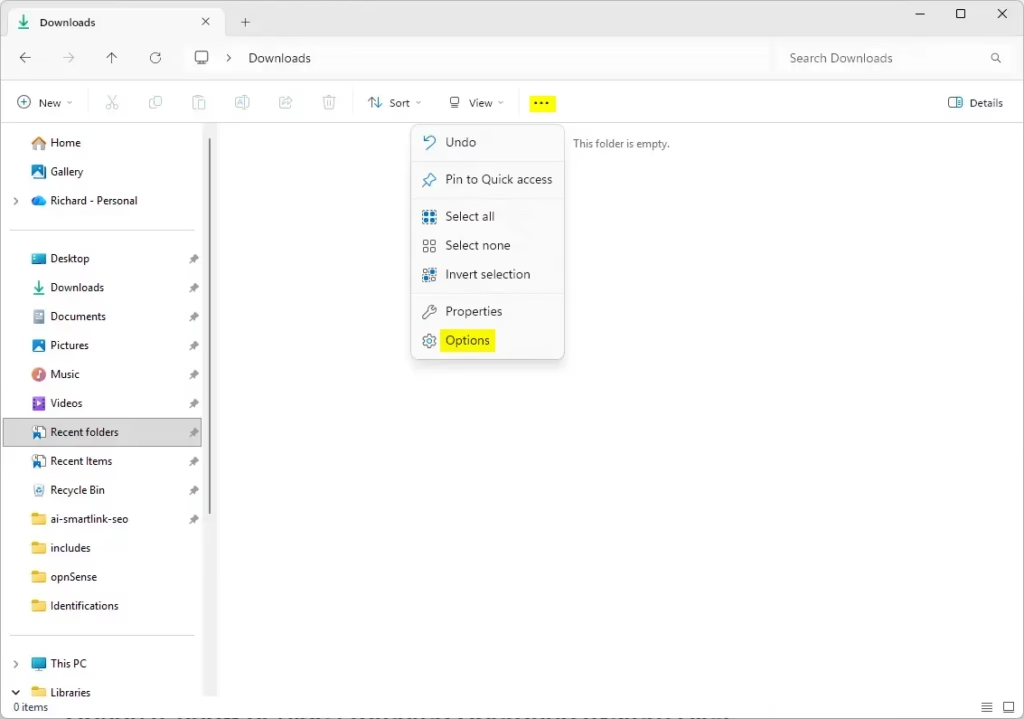
Windows 11 File Explorer Folder Options window showing Apply to Folders button.
If you can’t see the three dots, the File Explorer window is too narrow or the command bar is hidden. Widen the window by dragging its edge, or maximise it. The three dots stay at the far right of the bar.
Method 2Open it with Start search
Use this method when you don’t want to open File Explorer first. These steps open the dialog straight from the taskbar.
- Press the Windows key. You can also select the Search box on the taskbar.
- Type
File Explorer Options. The File Explorer Options result, tagged as a Control panel item, appears at the top of the list. - Press Enter to open it. You can also select Open. The dialog opens on the General tab.
If the result does not appear, wait a few seconds and retype the name. Search results sometimes lag right after a restart. If it still does not appear, use Method 3, which does not depend on search.
Method 3Open it from the Run dialog or a command line
The Run dialog is a small box that launches a program or command by name. This is the quickest method if you are comfortable typing a command, and it works from Windows Terminal and Command Prompt too.
- Press Win+R. The Run dialog opens.

Run dialog - Type
control foldersin the Open box. - Select OK. The Folder Options dialog opens.
To do the same from a command line, open Windows Terminal, Command Prompt or PowerShell, type control folders and press Enter. You do not need to run the terminal as administrator.
Method 4Open it from Control Panel
Control Panel still exists in Windows 11 and still lists this dialog. Which route you take depends on how Control Panel is set to display its items. Follow these steps to reach the dialog from Control Panel.
- Press the Windows key, type
Control Paneland press Enter. Control Panel opens.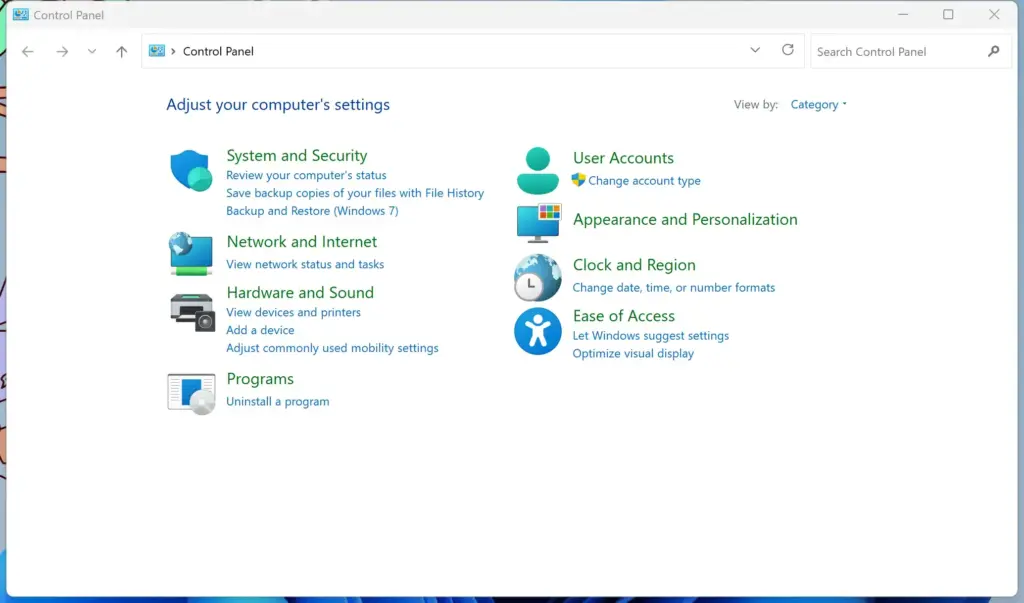
Control Panel - Check the View by setting in the top-right corner. If it says Category, go to step 3. If it says Large icons or Small icons, skip to step 4.
- Select Appearance and Personalization in Category view. The list of related items opens.
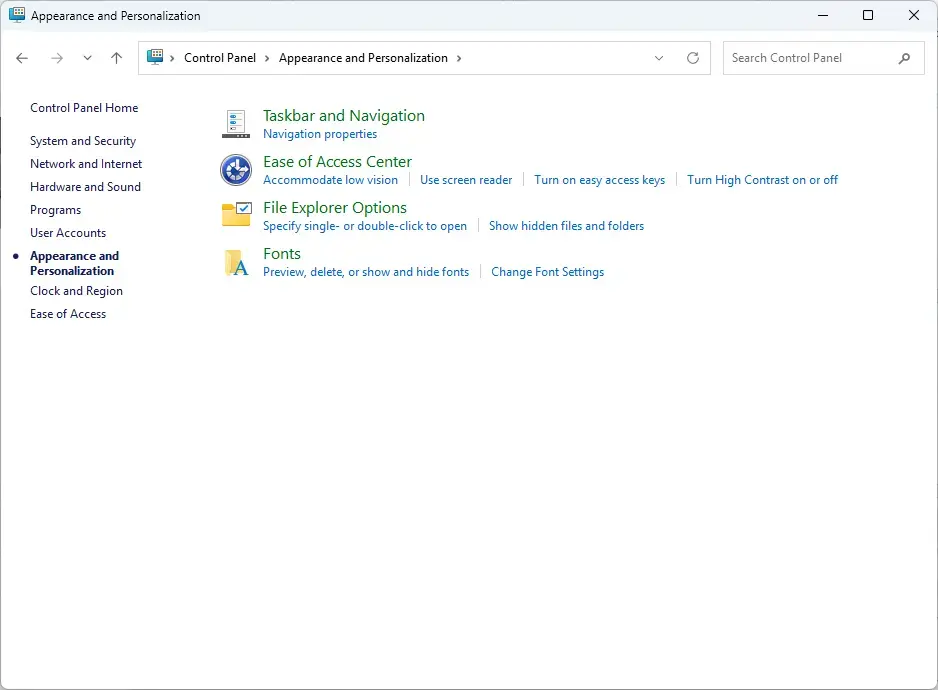
Control Panel › Appearance and Personalization - Select File Explorer Options from the list of items. The dialog opens on the General tab.
Method 5Open it from the File Explorer address bar
This is a handy alternative if the command bar menu is misbehaving but you can still use File Explorer. These steps run the command from the address bar.
- Open File Explorer with Win+E.
- Select the address bar at the top. It is the box showing the current folder path.
- Type
control foldersand press Enter. The dialog opens.
If File Explorer instead shows an error or searches for the text, use Method 3. The Run dialog handles the command reliably.
Method 6Create a desktop shortcut or pin it to Start
If you open this dialog often, a shortcut saves the trip through menus. Both options are safe, and you can remove either one at any time.
Pin the Start search result
These steps put a File Explorer Options tile on your Start menu.
- Press the Windows key and type
File Explorer Options. The File Explorer Options result appears. - Right-click the File Explorer Options result. A context menu opens.
- Select Pin to Start. A tile appears in the pinned section of the Start menu.
To undo this, right-click the tile in the Start menu and choose the option to unpin it.
Create a desktop shortcut
These steps create a desktop shortcut that opens the dialog with a double-click.
- Right-click an empty area of the desktop. A context menu opens.
- Select New Shortcut. The Create Shortcut wizard opens.
- Type
control foldersin the location box and select Next. - Type a name such as
Folder Optionsand select Finish. A shortcut icon appears on the desktop. - Double-click the shortcut. The dialog should open, which confirms the shortcut works.
To remove the shortcut later, right-click it and select Delete. Deleting the shortcut does not change any of your folder settings.
What each tab controls
Once the dialog is open, the three tabs cover most of what people come here to change. This section describes what each tab does so you can go straight to the right setting.
General tab
The General tab holds four groups of settings:
- Open File Explorer tochooses whether new File Explorer windows start on Home or This PC. On older Windows 11 builds, Home is labelled Quick access.
- Browse folderschooses whether each folder opens in the same window or a new one.
- Click items as followsswitches between single-click and double-click to open items.
- Privacycontrols whether File Explorer shows recently used files and frequently used folders. The Clear button next to Clear File Explorer history wipes that history. The exact checkbox labels vary slightly between Windows 11 versions.
View tab
This is the tab most people want. The Advanced settings list holds dozens of options. Two matter most:
- Hidden files and foldersselect Show hidden files, folders, and drives to reveal items that are normally invisible.
- Hide extensions for known file typesclear this checkbox to show extensions such as .docx and .jpg.
Leave Hide protected operating system files (Recommended) ticked unless you have a specific reason to change it. Showing protected system files risks moving or deleting something Windows needs to start. If you do change it, read the warning before you tick the box.
The Folder views section at the top has two buttons. Apply to Folders copies the current folder’s layout to all folders of the same type. Reset Folders returns every folder to the default layout.
For quick changes without opening the dialog, the command bar offers View Show. It has toggles for File name extensions and Hidden items. Use the dialog when you need the full Advanced settings list.
Search tab
This tab controls how File Explorer searches inside folders. You can choose whether File Explorer searches inside compressed files. You can also choose whether it includes system folders in locations that aren’t indexed. Most users never need to change it. Windows handles indexing, the background process that builds a searchable list of your files, in its search settings rather than here.
Save your changes
These steps save whatever you changed in the dialog.
- Change the options you want on the General, View or Search tab.
- Select Apply to save and keep the dialog open. Or select OK to save and close. Open File Explorer windows update straight away.
- Close and reopen the File Explorer window if a change doesn’t seem to take effect. A restart of Windows is not required.
None of these steps need administrator privileges. The settings belong to your user account, so a change you make does not affect other people who sign in to the same PC.
If the Options entry is missing or the dialog won’t open
Most failures fall into one of three groups. Work through them in this order.
The dialog opens in one method but not another
If Options on the command bar does nothing, run control folders from the Run dialog (Method 3). If that works, the problem is with the File Explorer window, not the dialog. Restart File Explorer:
- Press Ctrl+Shift+Esc. Task Manager opens. If it opens in its compact view, select More details at the bottom first.
- Select the Processes tab. Skip this if it is already selected.
- Right-click Windows Explorer in the list. A context menu opens.
- Select Restart. The taskbar and desktop disappear for a moment and then return.
- Try opening the dialog again.
The entry is missing, or nothing happens on a work or school PC
On a PC managed by an organisation, an administrator can hide File Explorer Options or block it from opening. You can tell this is the cause if the Options entry is gone from See more, File Explorer Options is absent from Control Panel, or the Run command does nothing. You cannot reverse this from your own account. Ask your IT team whether the restriction is intentional.
On a home PC where you are the only user, check whether an app, a tweaking utility or a script you ran earlier removed it. Windows 11 Home and Windows 11 Pro both include the dialog by default. The difference is that Pro includes the Local Group Policy Editor, which can hide it, while Home does not include that tool. The exact policy and registry settings that control this are not covered here.
Some options appear greyed out or reset themselves
A greyed-out option usually means a policy (a rule set by an organisation) or a management app (software an organisation uses to control the PC) has locked it. If a setting you changed reverts after you sign out, the same cause applies: something is overwriting it. To check whether your PC is connected to an organisation, go to Settings Accounts Access work or school and look for a work or school account.
How to undo your changes
Each tab has its own reset button. These steps put the settings back to their defaults, so use the tab where you changed settings.
- Open the dialog using any method above.
- Select the tab you changed: General, View or Search.
- Select Restore Defaults on that tab. The options return to their original values.
- Select Reset Folders on the View tab if you want folder layouts back to default. This replaces any custom layouts you set.
- Select OK to save and close the dialog.
What to do next
Open the View tab next and turn on file extensions and hidden items if you need to see them. That is the change most people want when they come to this dialog. If you later find that a setting has reverted after a Windows update, reopen the dialog and check it again, because feature updates can reset individual File Explorer options. A shortcut from Method 6 makes that check a one-click job.
Frequently asked questions
How do I access the file location in 🪟 Windows 11?
Right-click the app or shortcut in Start search or on the desktop, then select Open file location. That opens the folder where the file sits. If you already have a file open in File Explorer, the full folder path appears in the address bar at the top, and you can click any part of it to go up a level.
How do I change 🪟 Windows 11 Explorer to Classic View?
Windows 11 has no setting that restores the old File Explorer look. You can change how files appear in File Explorer by selecting View on the command bar and picking Details, List, or another layout. For older dialog settings, open Control Panel and select File Explorer Options.
How do I change what app opens a file in 🪟 Windows 11?
Right-click the file, select Open with, then select Choose another app. Pick the app you want, turn on Always use this app to open .ext files, and select OK. To change this for a whole file type, open Settings, select Apps, then Default apps, and choose the app for that type.
How do I view the options in File Explorer?
Open File Explorer, select the three-dot See more button on the command bar, then select Options. The window that opens is File Explorer Options. It controls settings such as showing file extensions and hidden files. These changes apply only to your user account, so you do not need administrator rights.
Still have a question?
Answered by AI from this guide. Good questions may be added to this page — please don't include personal details.
Did this guide fix your problem?

About the Author
Richard
Tech Writer, IT Professional
Richard is a writer at Geek Rewind who turns complex IT tasks into clear, step-by-step guides. He draws on years of hands-on experience in system administration and enterprise IT operations, focusing on Windows, Linux and WordPress: the problems people actually run into, and the fixes that work. His server and WordPress guides come from systems he runs himself. Richard builds and maintains the platform behind Geek Rewind, from its Ubuntu servers and Nginx configuration to its custom WordPress plugins. Many new tutorials start with readers' questions, and he's always glad to answer them in the comments.
No comments yet — be the first to share your thoughts!