Open Command Prompt as Administrator in Windows 11

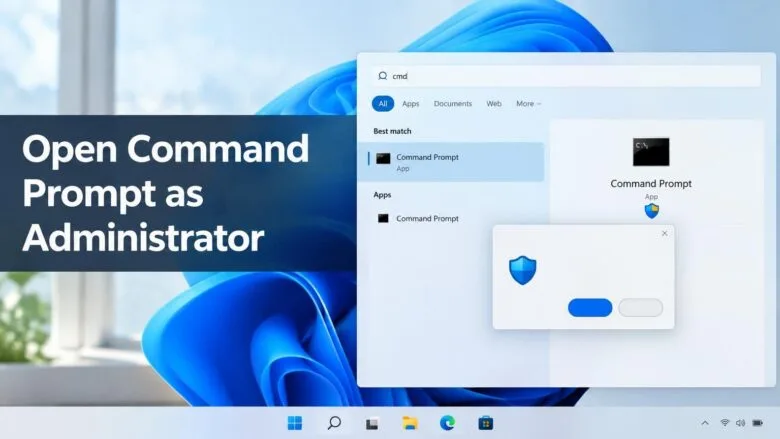
Opening cmd as administrator in Windows 11 means starting Command Prompt with elevated rights, which lets it change system files and settings that a normal window is not allowed to change. The quickest way is to press the Win, type cmd, press Ctrl+Shift+Enter, and select Yes at the User Account Control prompt.
User Account Control (UAC) is the Windows dialog that asks permission before a program makes system-level changes. This guide covers the Start menu method plus four other routes, including ones that work when search or File Explorer misbehaves.
The steps apply to Windows 11 Home and Pro alike. You need an administrator account, or the password of one. No restart is needed.
To open cmd as administrator in Windows 11, press the Win, type cmd, then press Ctrl+Shift+Enter. Select Yes at the User Account Control prompt. The title bar should read Administrator: Command Prompt. You need an administrator account or its password, and no restart is required.
What “Run as Administrator” Changes
A normal Command Prompt window runs with limited rights. It can read most files and run most commands, but it blocks anything that alters protected parts of Windows. Commands such as sfc /scannow fail in a normal window. The message reads “You must be an administrator running a console session in order to use the sfc utility.” Others return “Access is denied” or “Error: 740 The requested operation requires elevation.”
That also means a mistyped command can do real damage, such as deleting files in C:\Windows or changing disk settings. Run only commands you understand, and close the window when you finish.
Open Command Prompt as Administrator from Start Search
This is the fastest way to get a cmd administrator window, and it works on every Windows 11 build. The steps below take you from the desktop to an elevated Command Prompt.
- Press the Windows key. The Start menu opens with the search box ready for typing.

- Type cmd. Command Prompt appears under Best match, with a list of options in the right pane.
- Select Run as administrator in the right pane. You can also right-click Command Prompt in the results and choose the same option.
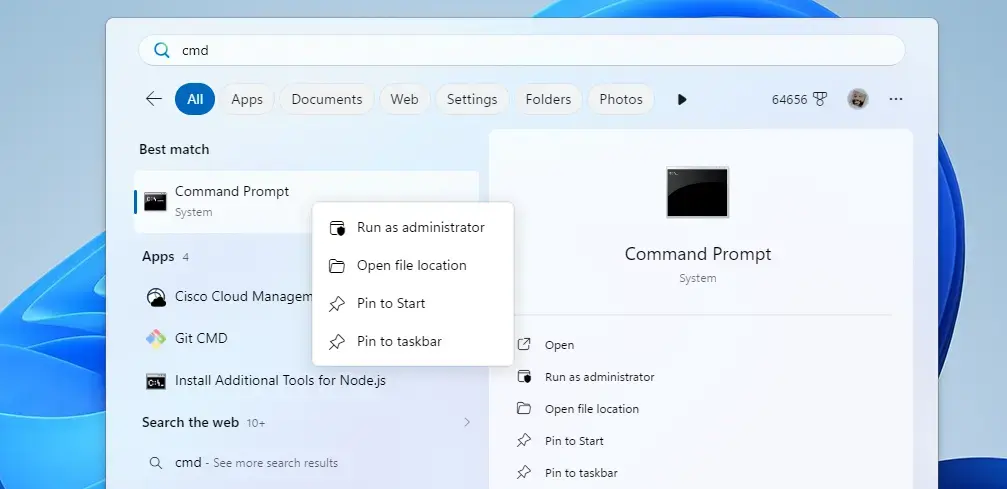
- Select Yes when UAC asks "Do you want to allow this app to make changes to your device?" The app is listed as Windows Command Processor. A black Command Prompt window opens.
- Check the title bar. It should read Administrator: Command Prompt. If it does not, the window is not elevated. Close it and repeat from step 1.
On a standard (non-administrator) account, the UAC prompt asks for an administrator's username and password instead of showing Yes and No. Enter those credentials and the window opens elevated.
Use the Keyboard Shortcut Instead of the Mouse
After typing cmd in step 2, press Ctrl+Shift+Enter instead of selecting a result. Windows opens the highlighted item as administrator and shows the same UAC prompt. If you open Command Prompt often, this saves the most time.
Other Ways to Open cmd as Administrator
Use these methods if Start search is slow, does not list Command Prompt, or you prefer another route. Each one ends at the same UAC prompt and the same elevated window.
From the Run Dialog
The Run dialog starts a program from a typed name. It is the shortest route if you do not want to use search.
- Press Windows+R. The Run dialog opens at the bottom-left of the screen.
- Type cmd in the Open box.

Run dialog - Press Ctrl+Shift+Enter. Do not select OK or press Enter alone, because that opens a normal, non-elevated window.
- Select Yes at the UAC prompt. The Administrator: Command Prompt window opens.
From the Power User Menu (Windows Terminal)
Right-clicking the Start button opens the Power User menu, which holds shortcuts for admin tools. In Windows 11 this menu offers Windows Terminal, not Command Prompt, so you need one extra step. Windows Terminal is Microsoft's tabbed app that runs Command Prompt, PowerShell and other command-line programs (called shells).
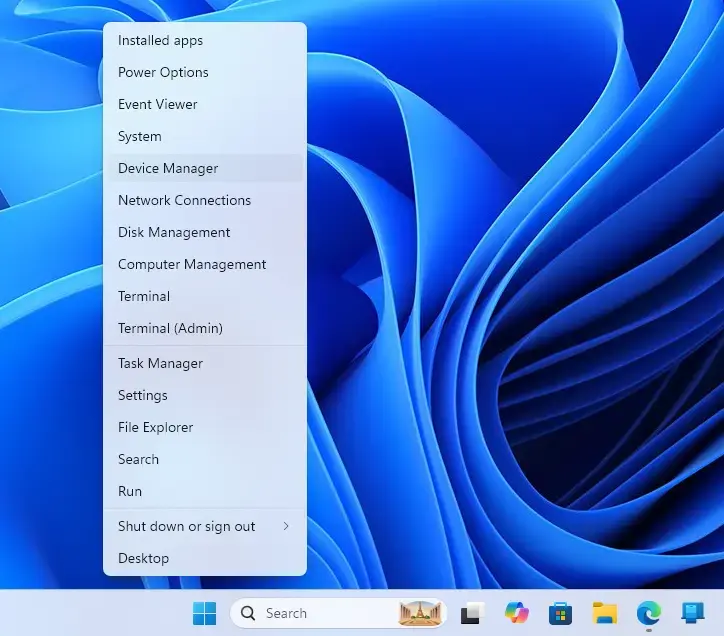
- Right-click the Start button, or press Windows+X. The Power User menu appears.
- Select Terminal (Admin). Some earlier Windows 11 builds label this item Windows Terminal (Admin).
- Select Yes at the UAC prompt. Windows Terminal opens in an elevated window.
- Select the down arrow next to the + symbol in the tab bar. A list of shells appears.
- Select Command Prompt. A new tab opens running Command Prompt with administrator rights.
The first tab usually starts as Windows PowerShell, not Command Prompt. That is normal. The elevated state carries over to every tab you open in that window.
If you do not see Terminal (Admin), Windows Terminal may be missing or the menu may show different entries on your build. Use the Start search method instead.
From Task Manager
Task Manager can launch a program with administrator rights even when the Start menu or taskbar is not responding. This is the method to try when search fails.
- Press Ctrl+Shift+Esc. Task Manager opens.
- Select Run new task in the toolbar at the top of the window. The Create new task dialog opens.
- Type cmd in the Open box.
- Tick Create this task with administrative privileges. Skipping this box opens a normal window.
- Select OK. An Administrator: Command Prompt window opens.
If Task Manager opens in its compact view with no toolbar, select More details at the bottom first.
From File Explorer
Use this method when you cannot find it through search. Browsing this folder is safe, but do not rename, move or delete anything in it.
- Open File Explorer and go to
C:\Windows\System32. The folder holds thousands of files. - Type cmd while the file list is selected. Explorer jumps to the first item that starts with those letters.
- Right-click cmd.exe. A context menu opens.
- Select Run as administrator. If you do not see it, select Show more options first, then choose it from the classic menu.
- Select Yes at the UAC prompt. The elevated window opens.
Typing cmd in the File Explorer address bar also opens Command Prompt in the current folder. That window is not elevated, so it will not help for admin tasks.
Make Command Prompt Always Open as Administrator
Changing the shortcut's properties makes it request elevation every time. This only affects that one shortcut. Opening cmd through the Run dialog or Windows Terminal still gives a normal window, unless you use the steps above.
Think before you do this. An always-elevated window gives every command you type full system rights, including the mistakes. Many people prefer the Ctrl+Shift+Enter shortcut for that reason.
- Press the Windows key and type cmd. Command Prompt appears under Best match.
- Select Open file location in the right pane. File Explorer opens on the folder that holds the Command Prompt shortcut.
- Right-click the Command Prompt shortcut and select Properties. If the menu does not show it, select Show more options first.
- Select the Shortcut tab, then select Advanced. The Advanced Properties dialog opens.
- Tick Run as administrator.
- Select OK in both dialogs. A small shield icon may appear on the shortcut.
To undo this, repeat the steps and clear the Run as administrator box. Windows will then ask for elevation only when you choose it yourself.
If Windows reports that you need permission to change the shortcut, select Continue and approve the UAC prompt. Windows saves the change after that.
Confirm That the Window Is Elevated
Check this before you run a command that changes the system. Three signs tell you the window has administrator rights.
- The title bar starts with Administrator:.
- The prompt opens at
C:\Windows\system32rather thanC:\Users\USERNAME. - Run
whoami /groups, and look for Mandatory Label\High Mandatory Level in the output.
Two things behave differently in an elevated window. It starts in a different folder, so use cd to move to your own files. Network drives you mapped in File Explorer may also not appear, because Windows treats the elevated session as separate from your normal one. Use the full UNC path (a network address such as \\SERVER-NAME\share) instead of a drive letter if you need to reach a share.
If Run as Administrator Is Missing or Fails
Most problems come from the account type or from a policy set by whoever manages the PC.
- UAC asks for a password: You are signed in with a standard account. Enter the username and password of an administrator account. If nobody has those credentials, you cannot open an elevated window on this PC.
- Run as administrator is missing or greyed out: On a work or school PC, an administrator may have restricted elevation. Ask your IT team. On a personal PC, sign in with an administrator account and try again.
- Command Prompt does not appear in search: Use the Run dialog, Task Manager or File Explorer method. They do not rely on Start search.
- The title bar does not say Administrator: The window opened without elevation, usually because you pressed Enter alone or skipped the Task Manager checkbox. Close it and repeat the steps.
- Command Prompt opens inside a Windows Terminal window: Windows 11 can be set to use Windows Terminal as the default console host. The window still runs elevated if you opened it as administrator.
- A command still says "Access is denied": Check the title bar first. If it reads Administrator:, the command may be blocked by something other than UAC, such as file permissions or security software. The error alone does not show which block is causing the problem.
What to Do Next
An elevated window stays elevated until you close it. When the task is done, close the window or type exit and press Enter. If you set a shortcut to always run as administrator and no longer want that, clear the Run as administrator box in its Advanced Properties. With the window open, you can now run commands that need elevation, such as sfc /scannow.
Have a question about this guide?
Answered by AI from this guide. Good questions may be added to this page — please don't include personal details.
Did this guide fix your problem?

About the Author
Richard
Tech Writer, IT Professional
Richard is a writer at Geek Rewind who turns complex IT tasks into clear, step-by-step guides. He draws on years of hands-on experience in system administration and enterprise IT operations, focusing on Windows, Linux and WordPress: the problems people actually run into, and the fixes that work. His server and WordPress guides come from systems he runs himself. Richard builds and maintains the platform behind Geek Rewind, from its Ubuntu servers and Nginx configuration to its custom WordPress plugins. Many new tutorials start with readers' questions, and he's always glad to answer them in the comments.
No comments yet — be the first to share your thoughts!