How to Use the Run as Command in Windows 11

- 12 steps
- Needs administrator rights
The “Run as” command in Windows 11 lets you open apps, tools, and batch files under a different user account than the one you are signed in with. A standard user account cannot make deep system changes, such as installing drivers or editing protected settings. Run as lets you start a single program with another account’s permissions without signing out.
Use it to install software or run system fixes when your main account lacks the permissions. You will need the username and password of an account that does have them, usually an administrator.
Hold Shift and right-click a program or shortcut in File Explorer, then select Run as administrator or Run as different user and enter the alternate account’s password. You can also use the runas command in Command Prompt: type runas /user:”username” “path to program” and press Enter.
How to Use Run as in File Explorer
File Explorer is the quickest place to do this. Hold Shift while you right-click a program or shortcut, and the menu includes Run as administrator and Run as different user. Either one launches the item with alternate login details.
- Browse to the program or file you want to run, such as a
.exeor.batfile. You should see it listed in the folder. - Hold down the
SHIFTkey on your keyboard and keep it held for the next step. - Right-click the file. In Windows 11 the short menu appears by default, so click Show more options if you do not see the full list. With Shift held, the full classic menu often opens straight away.
- Choose Run as different user or Run as administrator from the menu. Running as administrator requires admin privileges. If you are a standard user, Windows asks for an administrator’s credentials first.
- Enter the username and password of the account you want to use, then click OK. The program should now open under that account.
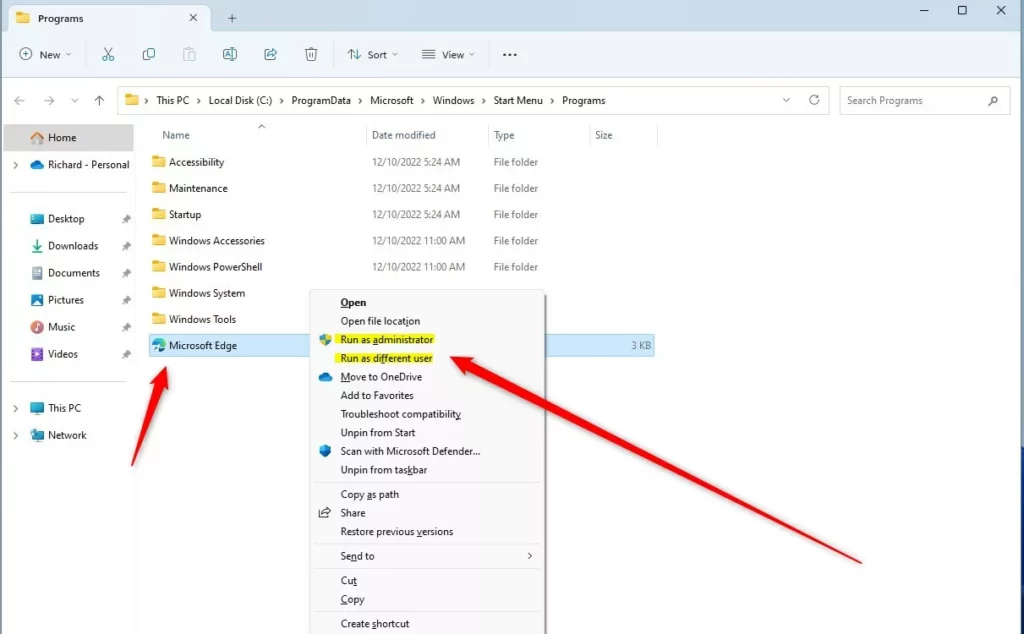
Right-click menu to run as different user or administrator
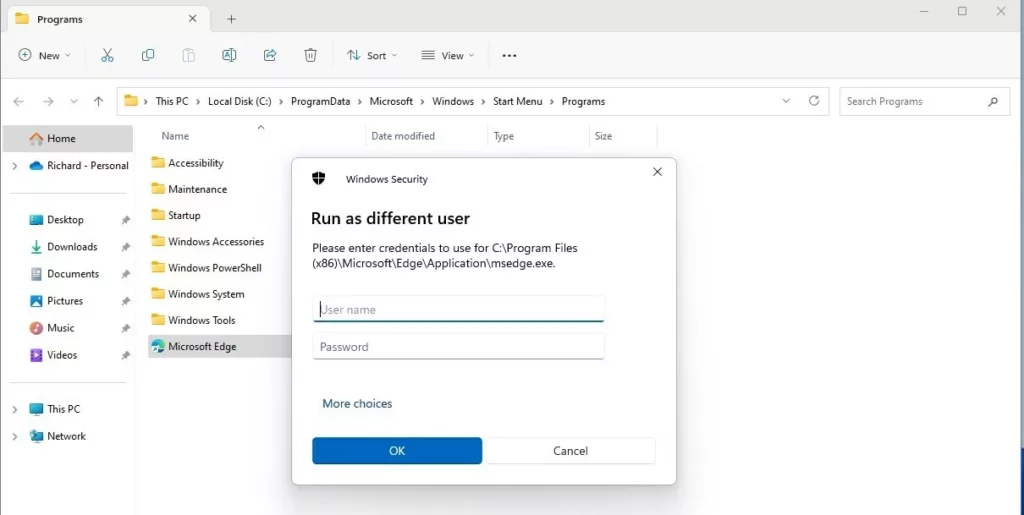
Enter username and password to run as different user
How to Use Run as from the Taskbar
The same option works on pinned app icons on your taskbar. Hold Shift while you right-click an app icon to open the extended menu, then pick Run as administrator or Run as different user to open the program with different access rights.
- Hold the
SHIFTkey. - Right-click the app’s icon on the taskbar. An extended menu should appear above the icon.
- Click Run as different user or Run as administrator. Running as administrator requires admin privileges, so a standard user will be asked for an administrator password.
- Type the username and password, then click OK. The app opens under that account.
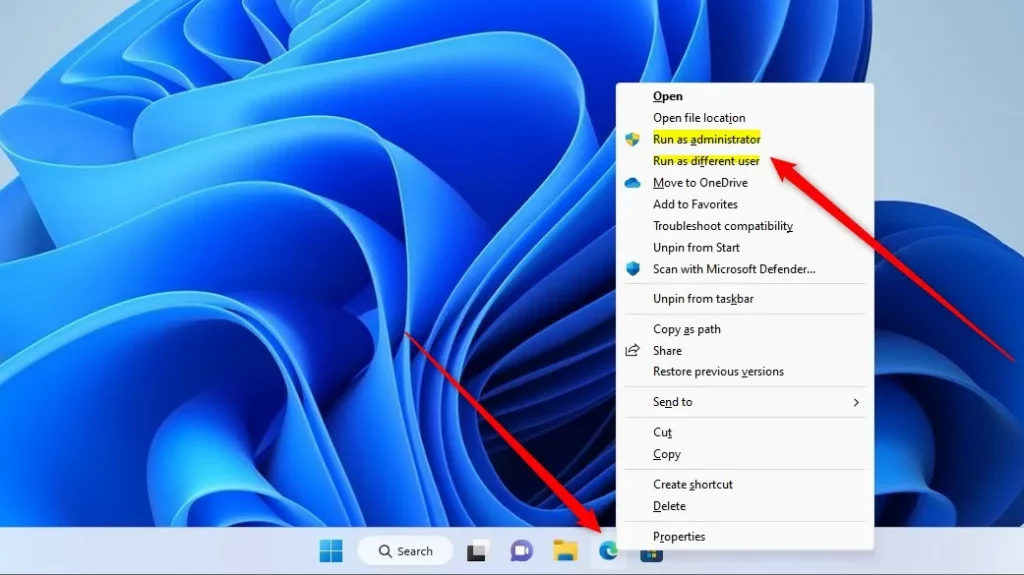
Run as different user or administrator from the Taskbar
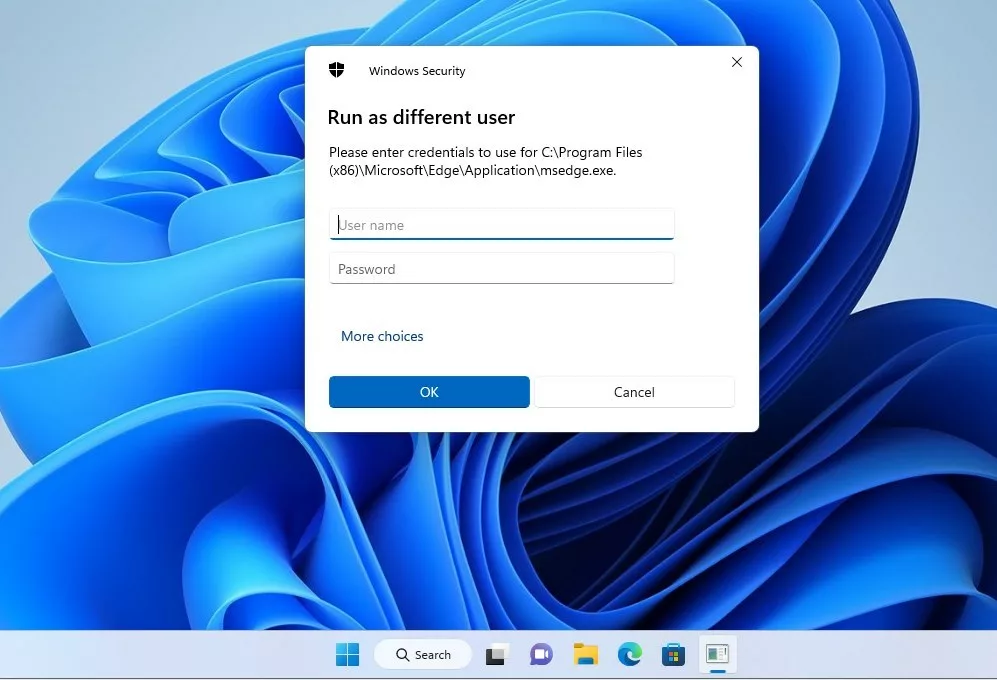
Enter credentials to run program as different user
How to Use Run as from Command Prompt or PowerShell
You can also use the runas command from Command Prompt or PowerShell. Type runas with the username and the full path to the program, press Enter, and the program runs under that account. This method suits scripts and remote sessions, or any time the right-click menu is not available.
- Open Command Prompt or PowerShell. Command Prompt or PowerShell
- Type the following command, replacing the placeholders with the real username and file path:Code
runas /user:"<username>" "Full path to the program or file"
Example: After you press Enter, the window asks for that account’s password. The characters do not appear as you type, which is normal. Press Enter again and the program starts. If the path contains spaces, it needs to be wrapped in quotes.
runas /user:"user123" "notepad.exe C:\Users\user123\Documents\file.txt"If the command fails with a message that a service is disabled, check that the Secondary Logon service is not turned off. Runas depends on it. A wrong password or a locked account will also stop the command.
Computers on a domain need a slightly different syntax, because the username must include the domain name:
runas /user:"domain\user123" "notepad.exe C:\Users\user123\Documents\file.txt"Other Notes
Start menu items are another route. Right-click an app in the All Apps list, and the menu may offer alternate launch options. Universal Windows Platform (UWP) apps from the Microsoft Store do not offer this option, so for those you need a different account to sign in with instead.
Summary
The run as command windows feature lets you open any app or file using a different user account or administrator profile. You can easily access this built-in tool through File Explorer, the taskbar, or command-line interfaces whenever you need to perform tasks that require elevated permissions on your PC.- Run as lets you open programs or files as another user or administrator.
- You can use it in File Explorer, the Taskbar, Command Prompt, or PowerShell.
- This is useful when you need admin rights but are logged in as a regular user.
- The Windows Store app does not support running as a different user.
Learn More
Review the official Microsoft documentation for deeper technical insights: Microsoft.com – Use Run as to start an app as admin
Have a question about this guide?
Answered by AI from this guide. Good questions may be added to this page — please don't include personal details.
Did this guide fix your problem?

About the Author
Richard
Tech Writer, IT Professional
Richard is a writer at Geek Rewind who turns complex IT tasks into clear, step-by-step guides. He draws on years of hands-on experience in system administration and enterprise IT operations, focusing on Windows, Linux and WordPress: the problems people actually run into, and the fixes that work. His server and WordPress guides come from systems he runs himself. Richard builds and maintains the platform behind Geek Rewind, from its Ubuntu servers and Nginx configuration to its custom WordPress plugins. Many new tutorials start with readers' questions, and he's always glad to answer them in the comments.
No comments yet — be the first to share your thoughts!