How to Customize the ‘All’ Apps View in Windows 11 Start Menu

The “All” apps view in the Windows 11 Start menu lists every installed program. By default it is a single alphabetical list. Windows 11 build 22635.4950 and newer builds include layouts that let you switch that list to a grid or to categories, which makes programs quicker to find.
A tidier view helps most on a PC with a lot of installed software. You can find a rarely used program without scrolling through the whole list. The change takes a few minutes, and you can reverse it later.
Customize the Windows 11 Start menu ’s All view by running ViVeTool from an elevated Terminal with vivetool /enable /id:48433719,47205210,49221331, restarting, then choosing Name list, Name grid or Category from the drop-down on the All page. Your build must be 22635.4950 or newer, and the layouts stay hidden until you restart.
Change the ‘All’ page view on the Start menu
These layouts are hidden test features from Microsoft, and they are switched off by default. To use them, you turn them on with ViVeTool, an open-source utility for enabling unreleased Windows features. Once they are on, you can change the “All” view from the alphabetical list to a grid or a category view. You need an administrator account and the specific feature IDs for these layouts.
Go to Settings System About and look under Windows specifications. If your build is older than 22635.4950, the layouts are not in your copy of Windows, and ViVeTool cannot add them. ViVeTool works the same on Home and Pro.
ViVeTool can switch a feature off again by using its disable option with the same feature ID, so you can always undo the change.
First, learn how to download and use ViVeTool in Windows. Extract it to a folder you can find again, because you will run it from there.
Now run the command. It must run in an elevated window, or ViVeTool will fail with a permissions error.
- Click the Start button and type Terminal or Command Prompt.
- Right-click the result and select Run as administrator.
- Click Yes if the User Account Control prompt appears. An elevated window opens, and its title bar usually says Administrator.
- Run the required command from the folder where you extracted ViVeTool. The tool prints a message saying the feature configuration was set. If you see an error instead, check that the window is elevated and that you are in the right folder.
- Restart your computer. Go to Start Power > Restart. The change does not take effect until Windows starts again.
vivetool /enable /id:48433719,47205210,49221331
After the restart, check that the new layouts are available:
- Click the Start button to open the Start menu .
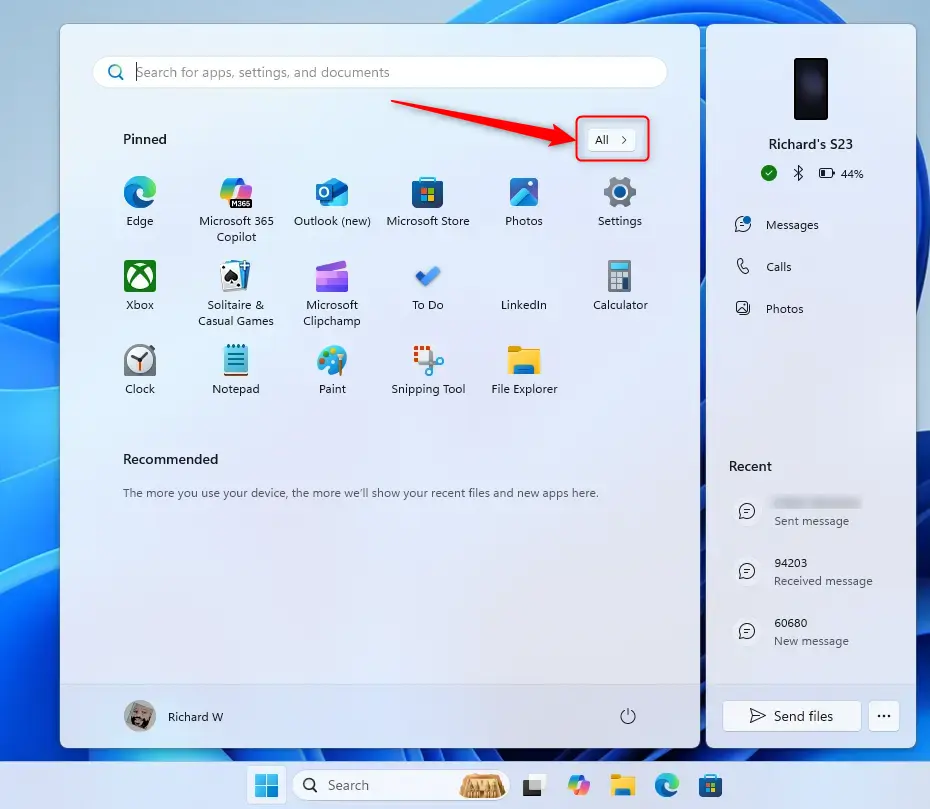
- Click the All button in the top-right corner of the pinned section. The full list of installed apps opens.
If the page still looks the same and has no layout drop-down, the feature has not turned on. Check that your build is 22635.4950 or newer, and run the command again in an elevated window before restarting.
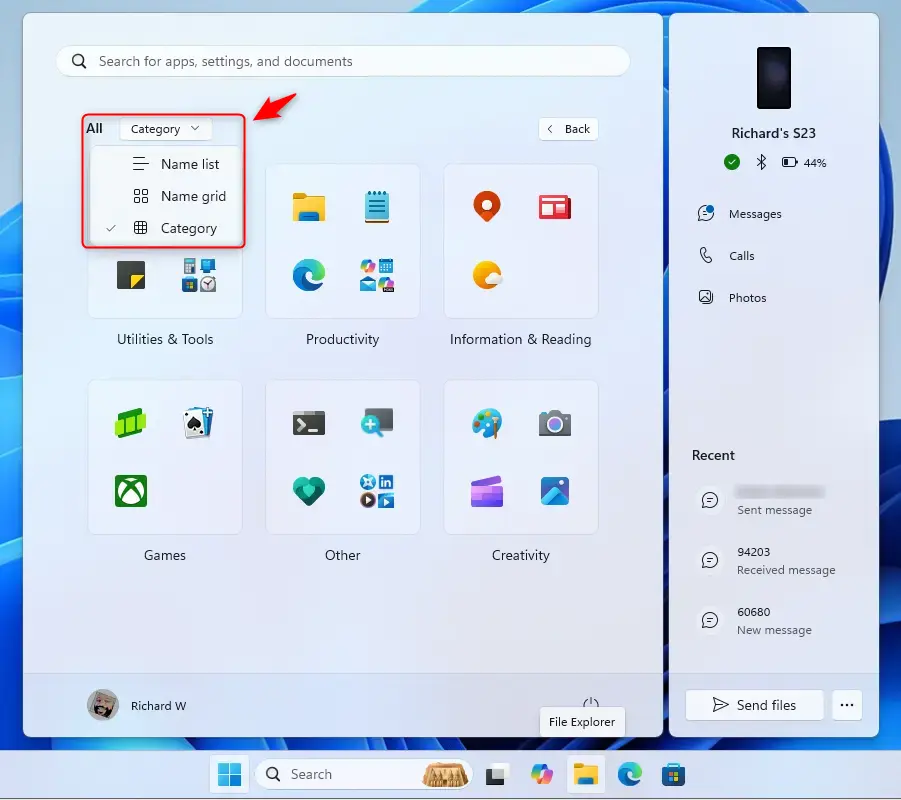
Use the drop-down menu on the All page to choose how the apps are displayed.
- Open the drop-down menu at the top of the All apps page.
- Select one of these options. The list redraws as soon as you pick it:
- Name list (default): one alphabetical list, the same as before.
- Name grid: apps appear as a grid of icons, so you see more of them at once.
- Category: apps are grouped by type, so you can look in a group rather than scroll the whole list.
Windows remembers your choice. To go back to the standard view, pick Name list from the same menu.
These layouts give you more control over how installed software appears in the Start menu. Try each one for a day or two to see which suits the way you open programs.
Reference:
Conclusion:
- The Windows 11 Start menu offers flexibility in displaying apps with the new grid and category views.
- You can switch between the default name list, the name grid and the category view from a drop-down on the All page.
- Turning these features on requires downloading and using ViVeTool, and you need to restart afterwards.
- Customizing the All page lets you tailor app access to how you work, and you can reverse the change if you do not like it.
- Stay up to date with Windows builds. These layouts are still experimental, and Microsoft may change them or turn them on for everyone in a later update.
Have a question about this guide?
Answered by AI from this guide. Good questions may be added to this page — please don't include personal details.
Did this guide fix your problem?

About the Author
Richard
Tech Writer, IT Professional
Richard is a writer at Geek Rewind who turns complex IT tasks into clear, step-by-step guides. He draws on years of hands-on experience in system administration and enterprise IT operations, focusing on Windows, Linux and WordPress: the problems people actually run into, and the fixes that work. His server and WordPress guides come from systems he runs himself. Richard builds and maintains the platform behind Geek Rewind, from its Ubuntu servers and Nginx configuration to its custom WordPress plugins. Many new tutorials start with readers' questions, and he's always glad to answer them in the comments.
No comments yet — be the first to share your thoughts!