How to Organize Windows 11 Start Menu Apps into Folders

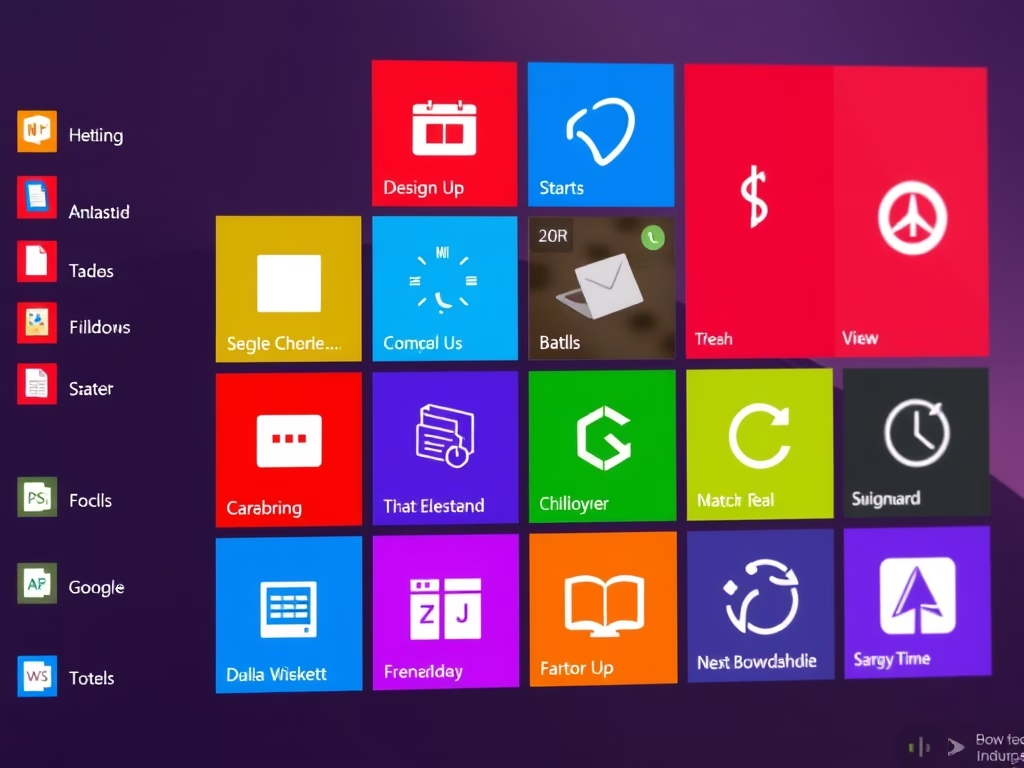
Windows 11 Start menu folders let you group related apps together in the pinned section so you can find them faster and cut down on scrolling. Starting with Windows 11 version 22H2, you can drag one app icon directly on top of another to create a custom folder, exactly like you do on your phone.
Sort your games, work programs, and favorite tools into neat categories to keep your screen tidy. Drag any app out of a folder whenever you want to undo the grouping.
Before you start, check that your PC is new enough. Open Settings System About and look at the Version line under Windows specifications. If it says 21H2, drag-to-group will not work. Open Settings Windows Update , click Check for updates , and install the feature update. Folders work the same on Home and Pro, so the edition does not matter.
Folders only work in the Pinned section at the top of the Start menu . You cannot drag items in the All apps list or the Recommended section into a folder. If an app is not pinned yet, pin it first (see the layout section below), then group it.
Drag one pinned app icon directly on top of another in the Start menu ’s Pinned section to create a folder. This requires Windows 11 version 22H2 or later. Both apps must already be pinned to Start; you cannot drag items from the All apps or Recommended sections into a folder.
Advanced Start Menu Customization
A folder can only hold apps that are already pinned, so it helps to get the pins right first.
- Click the Start button or press the Win. You should see the pinned apps at the top.
- To pin a new app, click All apps, right-click the program, and select Pin to Start . The app now appears at the end of the pinned section.
- To remove a pin, right-click the app in the pinned section and select Unpin from Start. This only removes the shortcut from Start. The app stays installed.
- To reorder icons, click and drag an icon to a new position. The other icons move aside to make room, and the icon stays there when you let go.
If your pinned section feels cramped, open Settings Personalization Start On Windows 11 22H2 and later, you can choose a layout with more pins and fewer recommendations. This is a quick way to make room for several folders.
Troubleshooting and Management
Troubleshoot a malfunctioning Windows 11 Start menu by checking relevant settings or restarting Windows Explorer . Restarting Explorer (the program responsible for managing the desktop and taskbar) often resolves display issues with the menu.
If dragging does nothing, or a folder looks wrong, work through these checks in order:
- Confirm you are on version 22H2 or later in Settings System About. Older builds cannot create folders.
- Make sure you are dragging inside the Pinned section, not the Recommended section or the All apps list.
- Press Ctrl+Shift+Esc to open Task Manager . If you see a small window, click More details first.
- On the Processes tab, find Windows Explorer , right-click it, and select Restart. The taskbar and desktop will disappear for a few seconds and then come back. Open Start again and try the drag.
If the problem remains, restart the PC and check Windows Update for pending updates.
Summary
- Grouping apps keeps your Start menu tidy and organized. A few well-named folders are easier to scan than one long list of icons.
- You can create folders by dragging one app icon on top of another. This needs Windows 11 version 22H2 or later, and both apps must be pinned.
- You can rename folders to keep your digital space categorized. Open the folder and use the name field at the bottom to type a new label.
- You can easily add, remove, or rearrange your apps within these folders at any time. Drag an app out of the open folder to remove it. Nothing is uninstalled when you do this.
- Customizing your Start menu layout helps improve your daily productivity. If something stops working, restarting Windows Explorer is the quickest fix to try first.
Windows 11 Start Menu folders let you group your favorite apps together so your screen stays clean and easy to read. You can make a folder by dragging one app icon directly on top of another. Once you create a folder, you can click it to open the contents, drag in more apps, or change the folder name to match what is inside.
To undo a folder, open it and drag each app back out to the main pinned area. Windows removes the folder once it no longer holds a group of apps. Your apps stay installed the whole time, so you can rearrange as often as you like.
Have a question about this guide?
Answered by AI from this guide. Good questions may be added to this page — please don't include personal details.
Did this guide fix your problem?

About the Author
Richard
Tech Writer, IT Professional
Richard is a writer at Geek Rewind who turns complex IT tasks into clear, step-by-step guides. He draws on years of hands-on experience in system administration and enterprise IT operations, focusing on Windows, Linux and WordPress: the problems people actually run into, and the fixes that work. His server and WordPress guides come from systems he runs himself. Richard builds and maintains the platform behind Geek Rewind, from its Ubuntu servers and Nginx configuration to its custom WordPress plugins. Many new tutorials start with readers' questions, and he's always glad to answer them in the comments.
No comments yet — be the first to share your thoughts!