How to Rename Files and Folders in Windows 11

- 9 steps
- Needs administrator rights
- Includes a restart or sign-out
Renaming files and folders in Windows 11 changes the label of any item on your PC, so you can find and organize your documents much faster. This core file management task lets you turn a generic name like “IMG_20231026.jpg” into a clear description like “BirthdayParty_Alice_2023.jpg” in a few seconds.
You can do it in several ways. You can right-click an item and choose Rename from the context menu. You can also select the item and press the F2 key on your keyboard. The methods below cover both, plus renaming many files at once.
Rename files and folders in Windows 11 by right-clicking and selecting “Rename” or by pressing F2. You can also use the Rename icon in File Explorer’s top menu bar. For bulk renaming, select multiple files, press F2, type a new name, and press Enter.
What happens when you rename?
When you rename a file, you only change the label. The content inside stays exactly the same. Windows simply updates its internal record of where that file is stored, so the file opens, copies and moves just as before.
Shortcuts and links that point to the old name may stop working after a rename, and so can saved paths in some programs. If a document stops opening from a recent-files list, that is usually why. Renaming it back fixes it.
Many files show an extension at the end of the name, such as .jpg or .docx. The extension tells Windows which program should open the file. If you can’t see extensions, open File Explorer and go to View Show File name extensions. Keep the extension when you rename. If you remove or change it, the file may lose its icon or refuse to open.
How to rename a folder in 🪟 Windows 11
To rename files and folders in Windows 11, open File Explorer and click the folder you want to change. Next, click the rename button at the top of the window, type your new name, and press Enter to save it. You can also right-click the folder and pick the rename option from the menu if you prefer. The steps are the same for a file.
- Open File Explorer . Press the Win plus E, or click its icon on the taskbar .
- Click the folder you want to change once, so it is selected. You should see it highlighted.
- Click the Rename icon in the top menu bar. If you aren’t sure which icon it is, hover over the icons until the tooltip says Rename. The folder name should now turn into an editable text box.
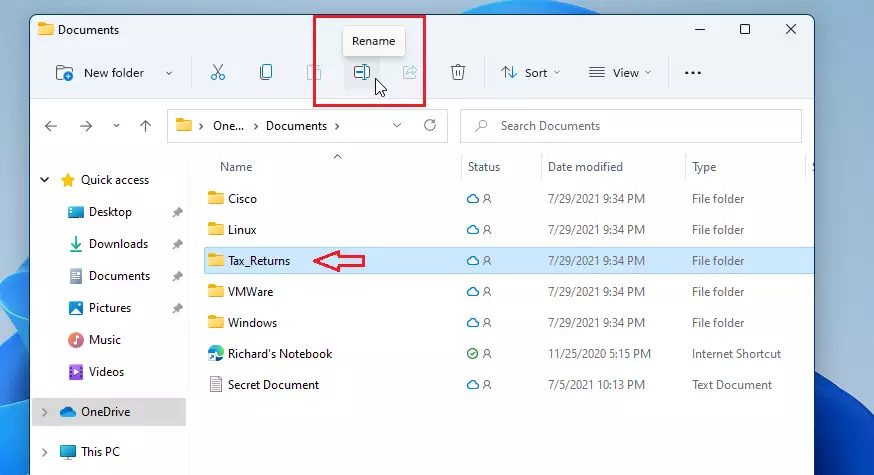
windows 11 rename file and folder - The name will be highlighted. Start typing the new name. Whatever you type replaces the old name completely.
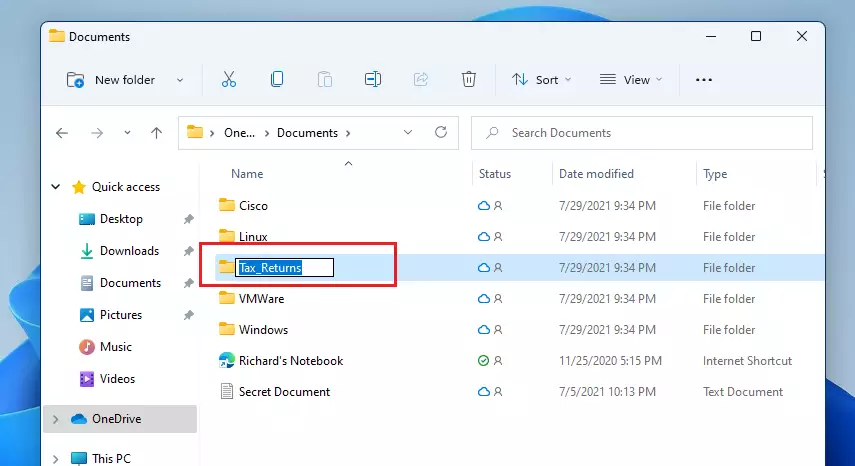
windows 11 rename folder - Press Enter on your keyboard to save the change. The folder now shows the new name. If you change your mind, press Esc before you hit Enter to cancel.
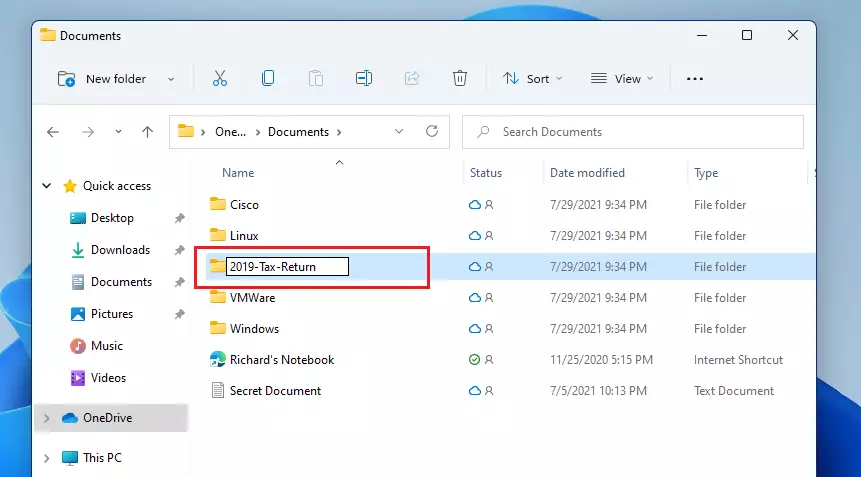
windows folder is renamed
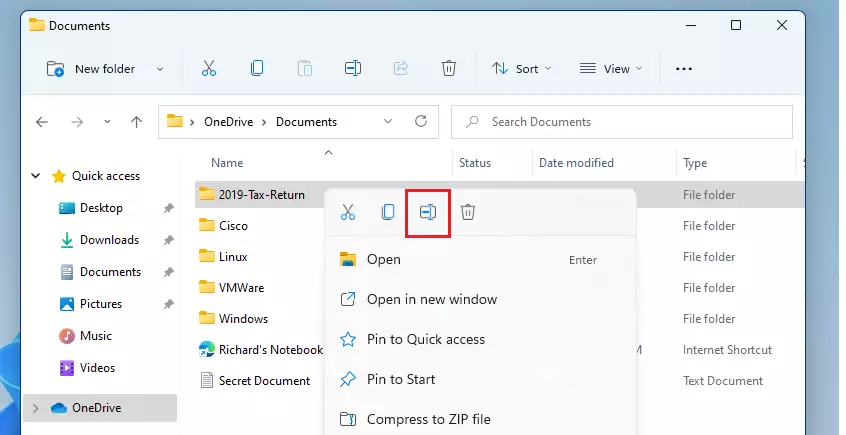
Alternatively, you can right-click the folder and select the Rename icon. In the Windows 11 context menu it is a small icon in the row at the top or bottom of the menu, and hovering over it shows its name. If you use the older full menu through Show more options, Rename appears there as a text entry. Type the new name and press Enter.
How to rename multiple files at once in 🪟 Windows 11
If you have many files, you can use the F2 shortcut to rename them all in one go.
- Open the folder that holds the files.
- Select the files. Press Ctrl+A to select everything, or hold Ctrl and click individual files.
- Press F2. The name of one file becomes editable.
- Type a name and press Enter.
Windows will name them sequentially, like “Photo (1),” “Photo (2),” and so on. Each file keeps its own extension. If the result isn’t what you wanted, press Ctrl+Z right away to undo the whole batch.
Advanced Bulk Renaming with PowerToys
For more control, use the Microsoft PowerToys PowerRename tool. It allows you to use regular expressions to find and replace text in hundreds of files at once. For example, you can swap a word in every file name or strip out a prefix. It is part of PowerToys, which is a separate download, so you need to install PowerToys first and make sure the PowerRename module is turned on.
Once it is set up, select your files in File Explorer, right-click them and choose PowerRename. On some setups it sits under Show more options. A window opens where you enter the text to find and the text to replace it with. It shows a preview of the new names before anything changes, so check that list before you apply it.
How to rename files using Command Prompt
Advanced users can use the Command Prompt. This is handy for scripts or when File Explorer is not an option. Note: This does not require admin privileges unless the file is in a protected system folder like C:\Windows\System32. In that case, open Command Prompt with Run as administrator. If a file or folder name contains spaces, put the name in quotation marks, as in the example below.
ren "oldname.txt" "newname.txt"
Troubleshooting Common Issues
If you're having trouble renaming files or folders in Windows 11, it's often due to one of a few common issues:
- The file is in use. Make sure the file isn't open in another program. Close the program, then try again. If it still fails, restart your PC to release the lock.
- The name has forbidden symbols. Windows does not allow these characters in a name: \ / : * ? " < > |. Remove them and try again.
- You lack permission. System files and folders need administrator permission. Sign in with an administrator account and click Continue if Windows asks for approval. Some protected items cannot be renamed at all, and you should leave those alone.
- The Rename option is greyed out or missing. This usually means nothing is selected, or the item is a protected system item or a read-only location.
Summary
Keeping your files and folders named clearly in Windows 11 helps keep your digital space tidy. Remember you can use F2 for quick renaming or PowerRename for more complex jobs. Avoid forbidden characters, keep file extensions intact, and use Ctrl+Z to undo any mistakes easily.
Have a question about this guide?
Answered by AI from this guide. Good questions may be added to this page — please don't include personal details.
Did this guide fix your problem?

About the Author
Richard
Tech Writer, IT Professional
Richard is a writer at Geek Rewind who turns complex IT tasks into clear, step-by-step guides. He draws on years of hands-on experience in system administration and enterprise IT operations, focusing on Windows, Linux and WordPress: the problems people actually run into, and the fixes that work. His server and WordPress guides come from systems he runs himself. Richard builds and maintains the platform behind Geek Rewind, from its Ubuntu servers and Nginx configuration to its custom WordPress plugins. Many new tutorials start with readers' questions, and he's always glad to answer them in the comments.
No comments yet — be the first to share your thoughts!