How to Master Windows File Management for Pros

- 22 steps
- Needs administrator rights
- Includes a restart or sign-out
File Explorer is the built-in Windows tool that organizes every document, photo, and app stored on your computer. Windows hides system folders and file extensions like .exe or .txt by default in Windows 10 and Windows 11 to prevent accidental data loss. Taking control of these hidden settings lets you find missing files instantly and manage your storage efficiently.
The sections below follow the order you will usually need them: viewing files, sorting them, sharing and partitioning, privacy and free space, and then the individual day-to-day tasks. The menu names are for the current Windows 11 File Explorer. Windows 10 uses the same tab names in most places, and I note where it differs.
Windows File Management helps you organize and find your digital files. You can show hidden files by going to View Show Hidden items in File Explorer. To rename a file, right-click it and choose Rename, or select it and press F2.
Getting Started with Your Files
This section covers the basics of viewing and interacting with your files, including how to reveal hidden items, understand drive types, and run basic file operations.
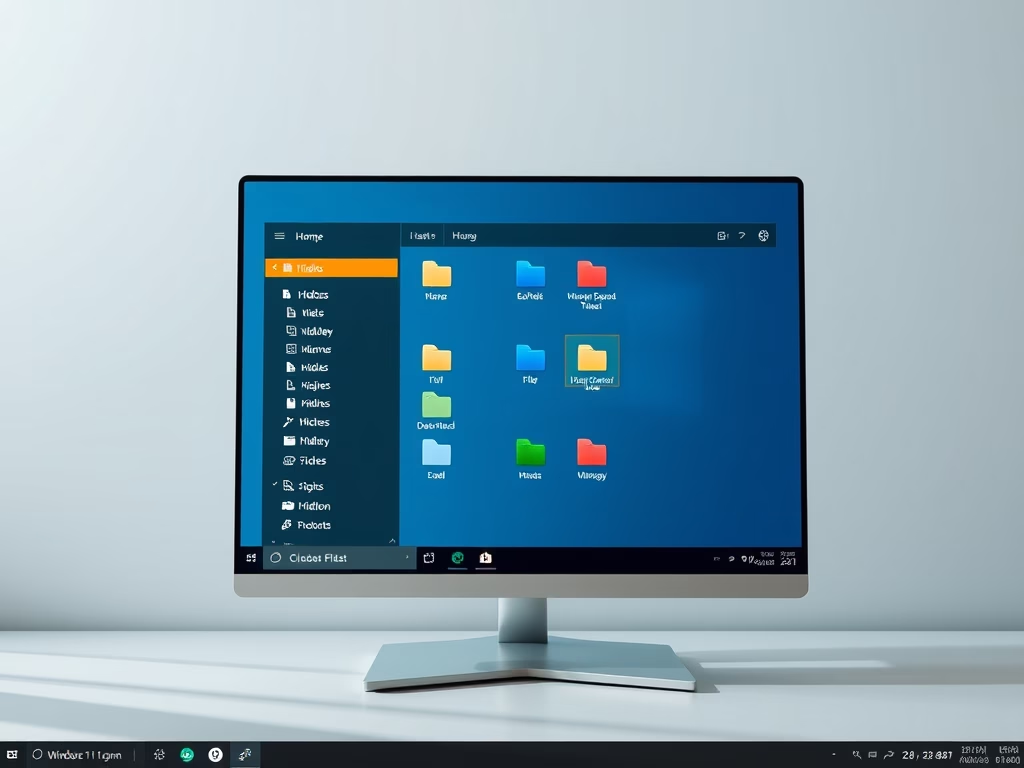
To open File Explorer, press the Win plus E, or click the folder icon on the taskbar. To show hidden folders and file extensions:
- Open File Explorer and go to the folder you want to inspect.
- Click View on the command bar (in Windows 10, click the View tab on the ribbon).
- Point to Show and click Hidden items. Hidden files and folders now appear in the list, slightly faded.
- Click View Show again and click File name extensions. Every file name now ends in its extension, such as .txt or .exe.
To undo either change, repeat the step to clear the check mark. Seeing extensions is worth keeping on permanently. It helps you spot a file called “invoice.pdf.exe” before you open it. Windows also keeps a separate class of protected operating system files hidden, even with Hidden items on. Leave those alone unless you have a specific reason.
Drive types are easier to work with once you know what you are looking at. The C: drive is normally your system drive, where Windows is installed. Other letters are extra internal disks, partitions, USB sticks and external drives, or mapped network locations. Removable and network drives behave differently when you delete files, as covered later.
The basic file operations are copy, cut, and paste. Select an item, press Ctrl+C to copy or Ctrl+X to move it, open the destination folder, and press Ctrl+V. Dragging an item to another folder on the same drive moves it. Dragging it to a different drive copies it.

Organizing and Finding Your Stuff
Sorting visible content establishes order for future retrieval. Targeted tutorials assist with organizing common directories, customizing File Explorer layouts, and maximizing search efficiency. These resources eliminate wasted time hunting for documents, pictures, or music.
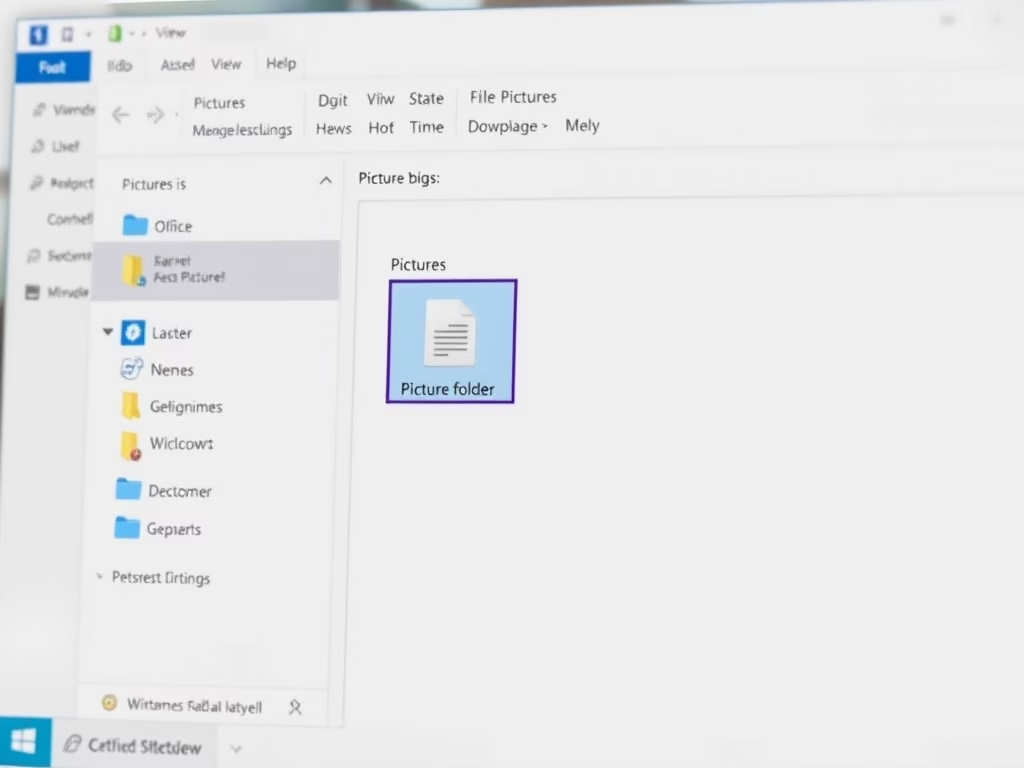
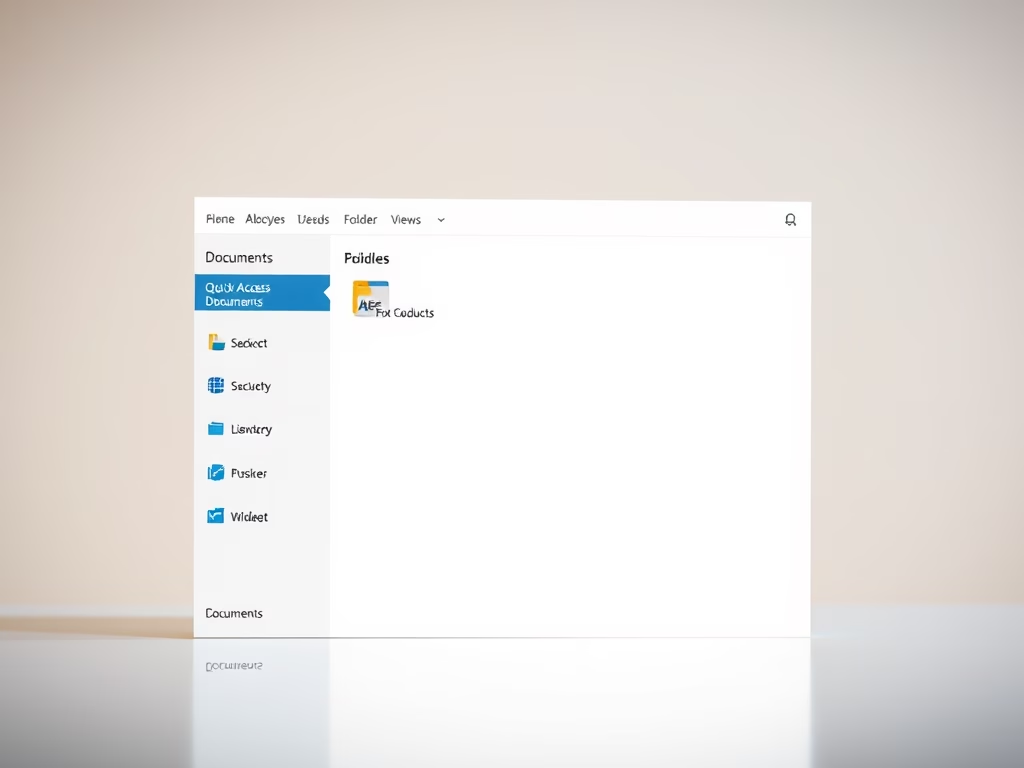
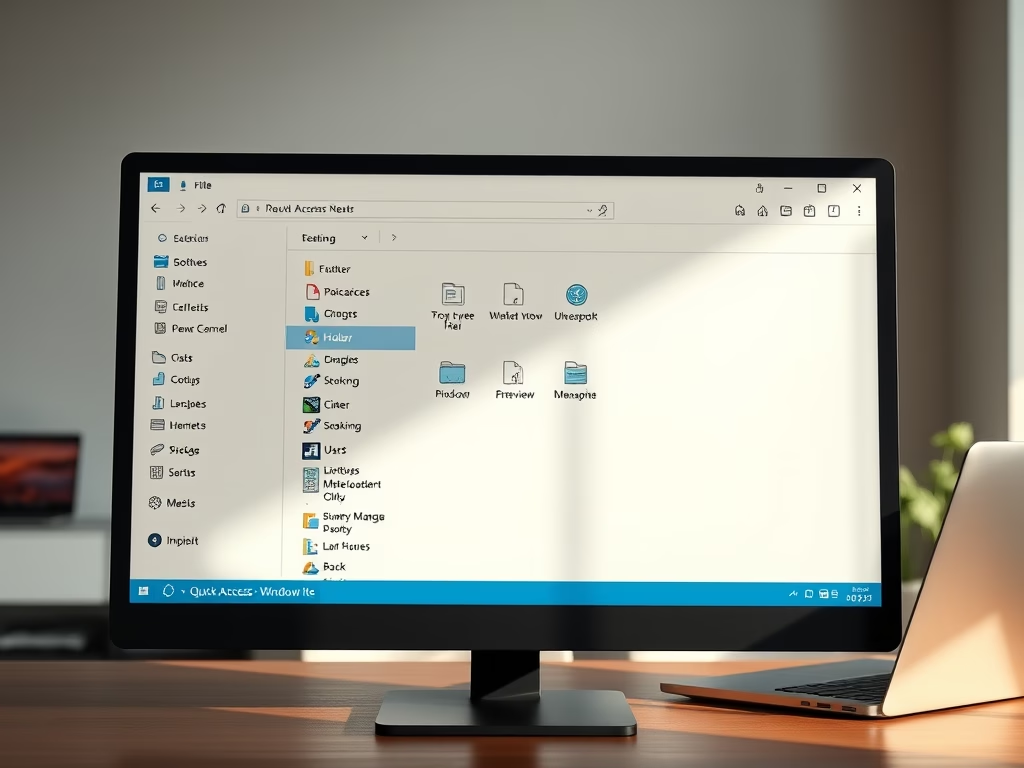
A few habits make the biggest difference. Keep personal files in the standard folders such as Documents, Pictures and Music, so backups and search find them. Use the Sort and View buttons on the command bar to change the order and layout of the current folder. Windows remembers those choices per folder. Names that start with a date or a project name sort predictably, which saves you from searching later.

Sharing and Advanced File Actions
Advanced operations involve sharing data across networks or reconfiguring storage architecture. Permissions control who can access files over a network, while partitioning prepares new drives for use. These procedures support collaboration and deeper storage administration.
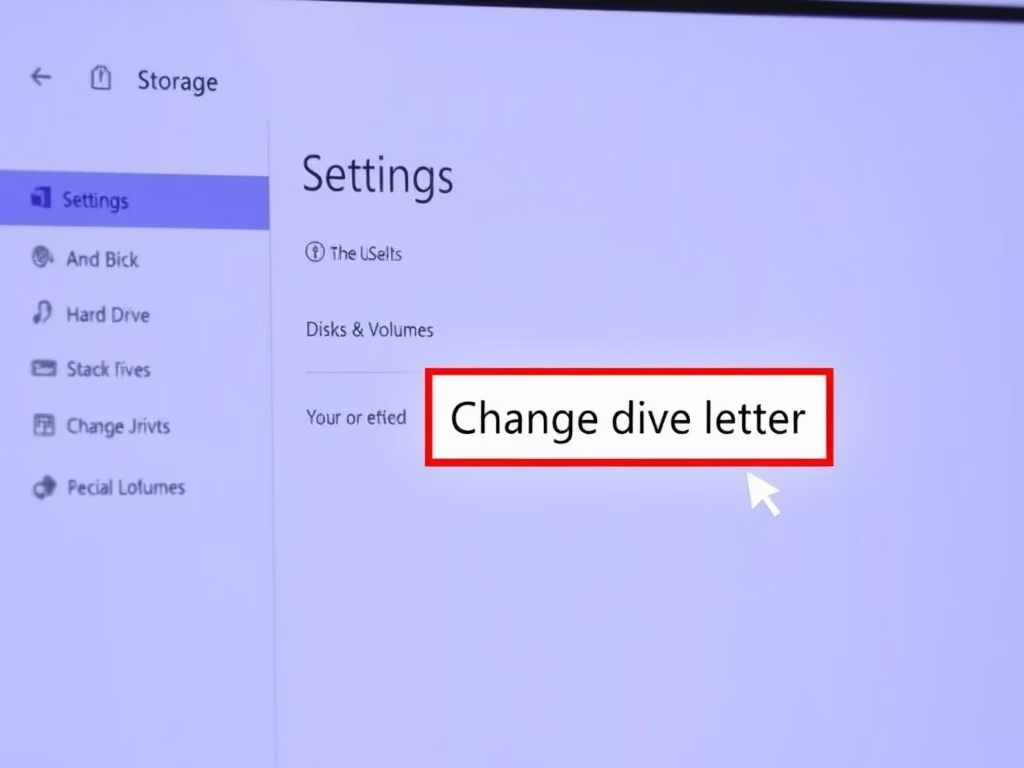
Two points apply to both tasks. First, sharing and permission changes usually need an administrator account. Second, partitioning can destroy data if you pick the wrong disk. Check the disk and its size twice, and back up anything you care about before you start. For sharing, give people only the access they need, such as read-only instead of full control, and remove the share when the project ends.
Keeping Things Tidy and Private
Maintaining privacy and reclaiming capacity require specific strategies. Designated procedures obscure sensitive directories and leverage cloud infrastructure to preserve local drive capacity. Privacy protection and low-capacity alerts drive the need for these methods.
Hiding a folder only keeps it out of casual view. It is not security, because anyone who turns on Hidden items can see it. If a folder holds truly sensitive data, use a separate user account or encryption as well. Cloud storage helps with space because files can stay online and download only when you open them. That requires an internet connection when you need the file, so keep anything essential offline.

Working with Text Files
Notepad remains a fundamental utility for authoring and modifying plain text documents. This reference details locating and operating the application, which serves configuration tasks, script editing, and quick note-taking.
The quickest way to open it is to press the Win, type Notepad, and press Enter. Notepad saves plain text only, with no formatting, which is why it suits configuration files and scripts. When you save, check the Save as type box and the file name. Notepad can add .txt to the end of a file that needed a different extension, and this is another reason to keep file name extensions visible.

Renaming Your Profile
Altering a user profile directory requires caution during execution. Experienced administrators rely on this walkthrough to modify profile paths, which directly impacts how the operating system associates personal preferences and system data.
Before you change a profile path, back up the profile and create a restore point. Do the work from a different administrator account, not the profile you are changing. A wrong path can leave Windows unable to load your desktop, settings or apps, and you will want a second working sign-in to fix it. Restart the PC after the change and confirm that you can sign in normally before you delete anything old.
More on Windows File Management
Common questions
How do I rename a file or folder in 🪟 Windows 11?
To rename a file or folder, use either of these methods:
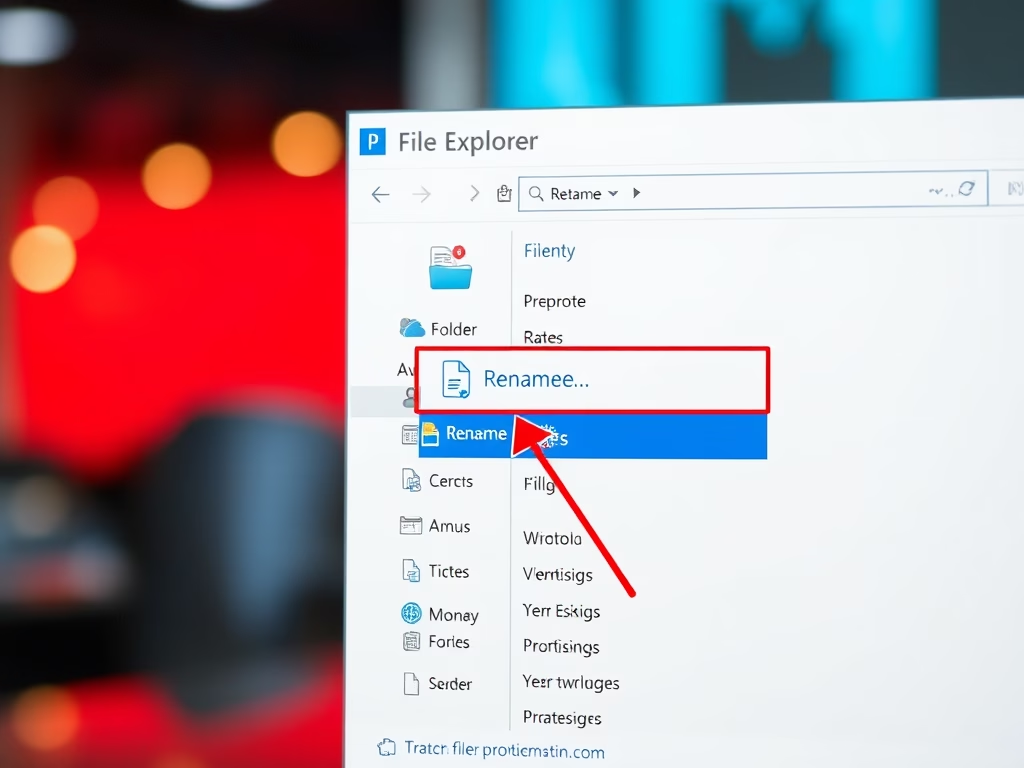
- Right-click the item. In Windows 11, click the Rename icon in the row of icons at the top of the menu (hover over it to see the name). In Windows 10, click Rename in the list. The name becomes editable.
- Or select the item and press F2, which does the same thing from the keyboard.
- Type the new name and press Enter. The new name now shows in the folder.
A name cannot contain these characters: \ / : * ? ” < > |. If you change a file’s extension, Windows warns that the file may become unusable. Press Ctrl+Z straight away to undo a rename. If rename does nothing, the file may be open in another program. Close it and try again.
How can I find a file if I don't know its name?
File Explorer houses a dedicated search bar for locating records. Keywords matching titles or internal content yield relevant matches. Windows 11 further refines results through filters targeting modification dates, file types, and size parameters.
- Open the folder or drive you want to search. The search box at the top right searches that location and the folders inside it, so start as close to the file as you can.
- Click the search box, type a keyword, and press Enter. Matches appear as Windows finds them, so wait for the progress bar to finish.
- To narrow the results, use the filter options that appear after you search, such as Date modified, Kind and Size, and pick a value.
Searching inside file contents depends on indexing, so a very new file or an unindexed location may not show content matches. Searching a folder you have not opened before can be slow for the same reason.
What's the difference between hiding and deleting a file?
Concealing an item removes it from default File Explorer views while preserving physical presence on the storage volume. Deletion expunges records from active directories, typically routing them through the Recycle Bin before permanent removal.
To hide an item:
- Right-click the file or folder and click Properties.
- On the General tab, tick Hidden next to Attributes.
- Click Apply, then OK. If it is a folder, you may be asked whether to apply the change to subfolders and files. The item disappears unless Hidden items is turned on in View Show. To unhide it, turn that option on, clear the Hidden box, and apply.
To delete an item, select it and press the Delete key. It goes to the Recycle Bin, where you can right-click it and choose Restore. Shift+Del skips the Recycle Bin, and files on USB drives and network locations usually bypass it too. Treat those as permanent. A very large file may also be too big for the Recycle Bin and be deleted outright, after a prompt.
How do I free up space on my hard drive?
Purging redundant data, removing unused software, and running Disk Cleanup recover storage capacity. Windows 11 incorporates Storage Sense automation, which routinely eliminates temporary files and empties the Recycle Bin.
- Open Settings System Storage. Windows shows what is using space on the drive, split into categories such as apps, temporary files and documents.
- Look at Temporary files and remove what you do not need. Read each item before you confirm. For example, the Downloads folder can hold files you want to keep.
- Turn on Storage Sense on the same page if it is off, so Windows clears temporary files and the Recycle Bin on a schedule.
For Disk Cleanup, press the Win, type Disk Cleanup, and open it. Choose the drive, tick the file types to clear, and click OK. Uninstall apps you no longer use from Settings Apps Installed apps. If you turn Storage Sense on, check its settings, since deleting files from the Recycle Bin automatically means you cannot restore them afterwards.
What does it mean to format a drive?
Formatting prepares physical media for operation by wiping existing contents and establishing a file system structure. Hardware deployment or total data sanitization prior to resale necessitates this procedure.
- Copy anything you want to keep to another drive. Formatting erases everything on the volume.
- Open File Explorer, right-click the drive, and click Format (in Windows 11, you may need to click Show more options first). The Format dialog opens.
- Choose a File system. NTFS suits internal drives and large files. exFAT works well for USB drives shared between Windows and other systems.
- Enter a Volume label if you want a name for the drive.
- Leave Quick Format ticked for a fast format. Clear it for a full format, which takes longer but is the better choice before you sell or give away a drive. A quick format does not overwrite the old data, so it can sometimes be recovered.
- Click Start and confirm the warning. When it finishes, the drive shows as empty.
You cannot format the drive Windows is running from, normally C:. Check the drive letter and size before you click Start, because there is no undo.
Have a question about this guide?
Answered by AI from this guide. Good questions may be added to this page — please don't include personal details.
Did this guide fix your problem?

About the Author
Richard
Tech Writer, IT Professional
Richard is a writer at Geek Rewind who turns complex IT tasks into clear, step-by-step guides. He draws on years of hands-on experience in system administration and enterprise IT operations, focusing on Windows, Linux and WordPress: the problems people actually run into, and the fixes that work. His server and WordPress guides come from systems he runs himself. Richard builds and maintains the platform behind Geek Rewind, from its Ubuntu servers and Nginx configuration to its custom WordPress plugins. Many new tutorials start with readers' questions, and he's always glad to answer them in the comments.
No comments yet — be the first to share your thoughts!