How to Check Disk Drive Partition Style in Windows 11


GPT (GUID Partition Table) and MBR (Master Boot Record) are the two partition styles Windows uses to organize a drive and control how the PC starts up. Windows 11 needs a GPT system drive paired with UEFI firmware to boot, so it is worth checking your current layout before an upgrade or a clean install.
You can find the partition style in a few seconds with built-in tools: Settings, Disk Management, or a command-line check. None of them needs extra software, and none of them changes anything on the drive.
Open Settings , go to System Storage Advanced storage settings Disks & volumes, select your drive and click Properties to see the Partition Style, which reads GPT or MBR. Disk Management works too: right-click the disk label (not a partition), choose Properties, then open the Volumes tab. Neither method changes anything on the drive.
What is a Disk Drive Partition Style?
A partition style, either Master Boot Record (MBR) or GUID Partition Table (GPT), is the scheme that records where partitions start and end on a drive. It also decides how the firmware finds the operating system at boot. Knowing which one you have tells you whether the drive works with newer Windows features or only with older systems.
In short, MBR goes with legacy BIOS boot and is limited to about 2 TB per drive. GPT goes with UEFI boot and handles much larger drives. Windows 11 expects the GPT and UEFI combination on the system drive.
Why Check Your Partition Style?
Checking the partition style shows whether a drive meets the Windows 11 requirements. If the system drive is still MBR, you will need to convert it before Windows 11 will install or run in the supported way.
Moving an older MBR layout to GPT also lets you use drives larger than two terabytes. It also lets the PC boot with UEFI, which is what security features such as Secure Boot depend on.
Method 1Using the Windows Settings App
This is the quickest route on a current Windows 11 build. If a page in these steps is missing, you are probably on an early Windows 11 build. Use Method 2 instead.
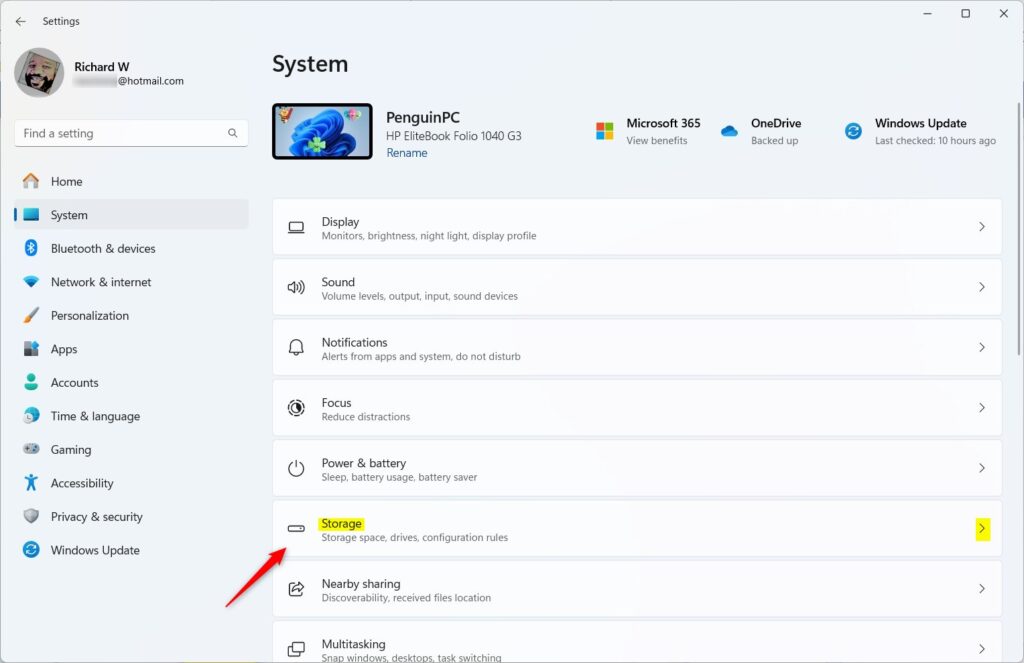
- Open
Settingsby pressingWindows key + I. - Click
Systemon the left. - Select
Storage. - Expand
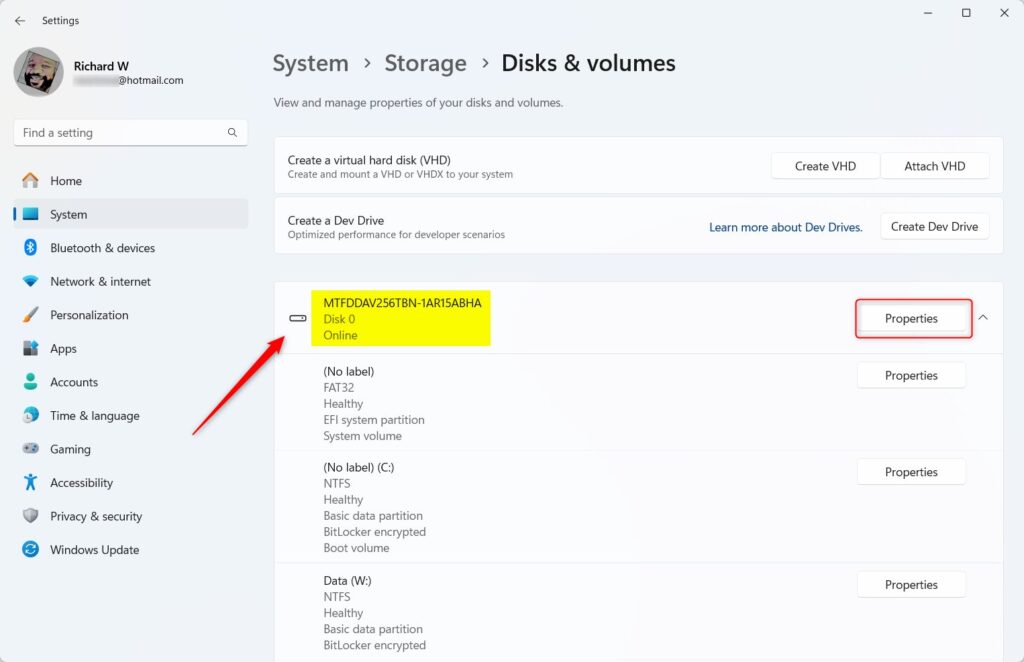
Advanced storage settings. - Click
Disks & volumes. You should see a list of the physical disks in the PC. - Select your drive and click
Properties. A page with details for that disk opens. - View the
Partition Styleat the bottom. It reads either GPT or MBR.
If you have more than one drive, repeat the steps for each. A PC can have a GPT system drive and an MBR data drive, and the two do not affect each other. The same steps work on Windows 11 Home and Pro.

%%IMG6-->
Method 2Using Disk Management
Disk Management shows every disk, including ones that have no drive letter. It is the most reliable graphical option and is available in both Home and Pro.
- Right-click the
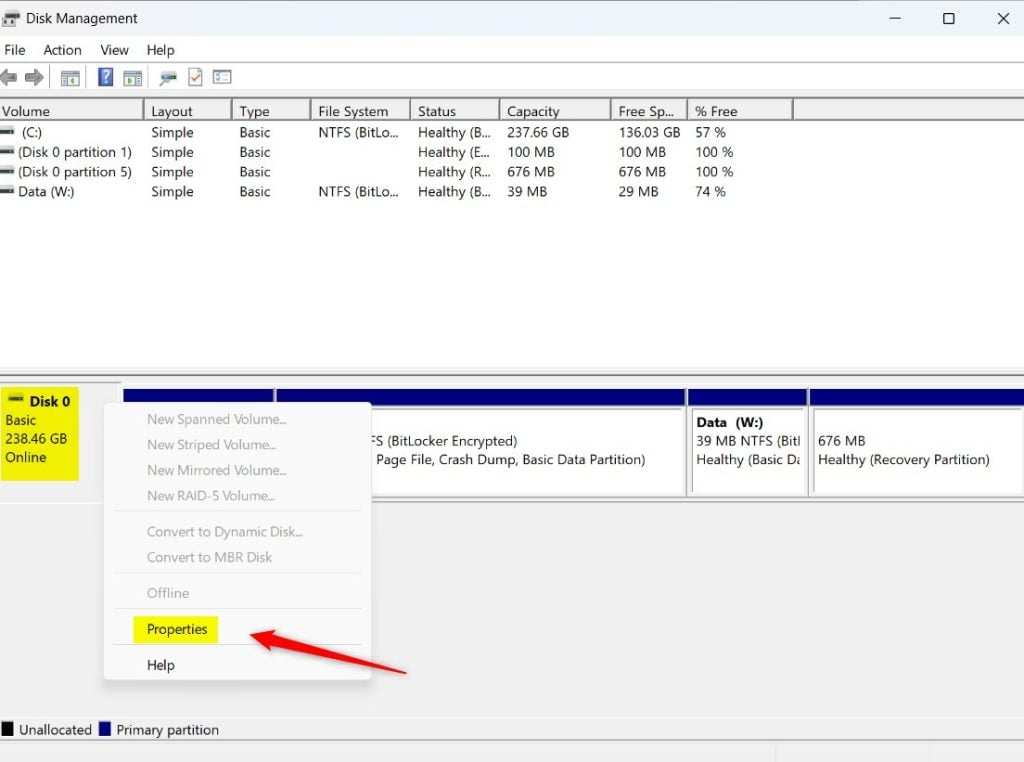
Startbutton and selectDisk Management. The Disk Management window opens. - Locate your disk (e.g., Disk 0) in the lower pane. Use the disk label on the left, not one of the partition blocks to its right.
- Right-click the disk label and select
Properties. If you right-click a partition instead, you get a different menu without this option. - Click the
Volumestab to see thePartition style. It shows either GUID Partition Table (GPT) or Master Boot Record (MBR).
Close the Properties window when you are done. Nothing is changed unless you pick a command from the right-click menu and confirm it.
%%IMG8-->
Method 3Using the Command Line
Using PowerShell
Method 3: Using the Command Line. PowerShell gives you a quick text view of your disks, which is handy over a remote session or when you want to check several drives at once. The following command shows your disk details:
Look through the output for the partition style of each disk. Each disk is listed on its own line or block, so match the disk number to the drive you care about.
Get-DiskUsing Command Prompt ⚠️ Requires Admin Privileges
You can also check from an elevated window with the steps below. The window must be opened as administrator, otherwise the disk tool will refuse to start or return an error.
- Search for
cmd, right-click it, and selectRun as administrator. Approve the User Account Control prompt if one appears. - Type
diskpartand press Enter. - Type
list diskand press Enter. A table of your disks appears.
If the table has a GPT column, a drive that uses GPT shows an asterisk (*) in it. A drive with nothing in that column uses MBR.
diskpartConversion Pathways and Troubleshooting
Older drives running the MBR format need to be converted to GPT before they can meet the Windows 11 requirements. Built-in utilities handle this change without formatting the drive.
The conversion tool works on the system drive. After a successful conversion, the PC must also boot in UEFI mode, so you will usually need to switch the firmware from legacy BIOS (or CSM) to UEFI in the firmware settings. If you skip that step, the PC will not start from the converted drive.
Summary
You can check the disk partition style in Windows 11 using built-in tools: the Settings app, Disk Management, or the command line. All three give the same answer, so pick whichever you find easiest.
Finding out whether your drive uses GPT or MBR helps you prepare for major system upgrades, install new operating systems, or fix boot errors on your computer.
Can I convert MBR to GPT without losing data?
Always perform a full backup of your files first. Converting a non-system drive may require reformatting, which erases all data on that drive.
Have a question about this guide?
Answered by AI from this guide. Good questions may be added to this page — please don't include personal details.
Did this guide fix your problem?

About the Author
Richard
Tech Writer, IT Professional
Richard is a writer at Geek Rewind who turns complex IT tasks into clear, step-by-step guides. He draws on years of hands-on experience in system administration and enterprise IT operations, focusing on Windows, Linux and WordPress: the problems people actually run into, and the fixes that work. His server and WordPress guides come from systems he runs himself. Richard builds and maintains the platform behind Geek Rewind, from its Ubuntu servers and Nginx configuration to its custom WordPress plugins. Many new tutorials start with readers' questions, and he's always glad to answer them in the comments.
No comments yet — be the first to share your thoughts!