How to Show or Hide File Extensions in Windows 11 File Explorer

To show file extensions in Windows 11, open Settings System Advanced File Explorer and turn on Show file extensions. If your build has no Advanced page, open File Explorer and use View Show > File name extensions instead.
File extensions are the short endings, usually three or four letters, such as .txt or .jpg, at the end of a filename. They tell Windows 11 which program should open that file. Windows 11 hides most of them by default to keep folders looking clean.
Showing extensions helps you spot risky files ending in .exe, .bat or similar before you open them by mistake. It also exposes tricks like a file named invoice.pdf.exe, which looks like a PDF when the real ending is hidden. The change takes under 30 seconds, and you can reverse it as fast.
File Explorer is the built-in file manager for browsing documents, folders and drives on your PC. Open it from the taskbar, or press the Win+E. It does not need to be open while you change the setting below, but you will use it afterwards to check the result.
To show file extensions in Windows 11, open Settings System Advanced File Explorer and turn on Show file extensions. On older builds without the Advanced page, open File Explorer and choose View Show File name extensions. The change applies immediately, with no restart needed.
How to Show File Extensions Using Settings
Windows 11 has one setting that shows or hides file extensions. When it is on, each file name ends with its real type, such as .txt for a text file or .docx for a Word document. That makes similar files simple to tell apart, for example a .jpg and a .png that share the same name.
If Advanced is missing under System, your build is older. In that case, open File Explorer, click View Show, and tick File name extensions. The setting works the same on Home and Pro, and it needs no restart.
Step 1Open Settings
These steps show file extensions in Windows 11 from start to finish, beginning with opening Settings. When you finish, every file name in File Explorer ends with its type, such as .txt or .jpg. There are nine steps in total, and they continue through the sections that follow.
- Click the Start button. It is the Windows logo on the taskbar, and on Windows 11 it sits in the center unless you moved the taskbar icons to the left. The Start menu should open.
- Click Settings. If it is not among the pinned apps, type “Settings” into the Start menu search box and open it from the results. The Settings window should now be open.
Or press the Win+I to open Settings in one step. This works from any screen, so it is the quicker route if you open Settings often. If you use this shortcut, carry on from step 3.
Step 2Go to System > Advanced
- Click System in the left menu. The System options appear on the right.
- Scroll down the right side of the window. The list is long, so keep going until you reach the bottom.
- Click Advanced to open more options. If it is not in the list, your Windows 11 build is too old for this page. Use the File Explorer View menu method described above, or run Windows Update and try again.
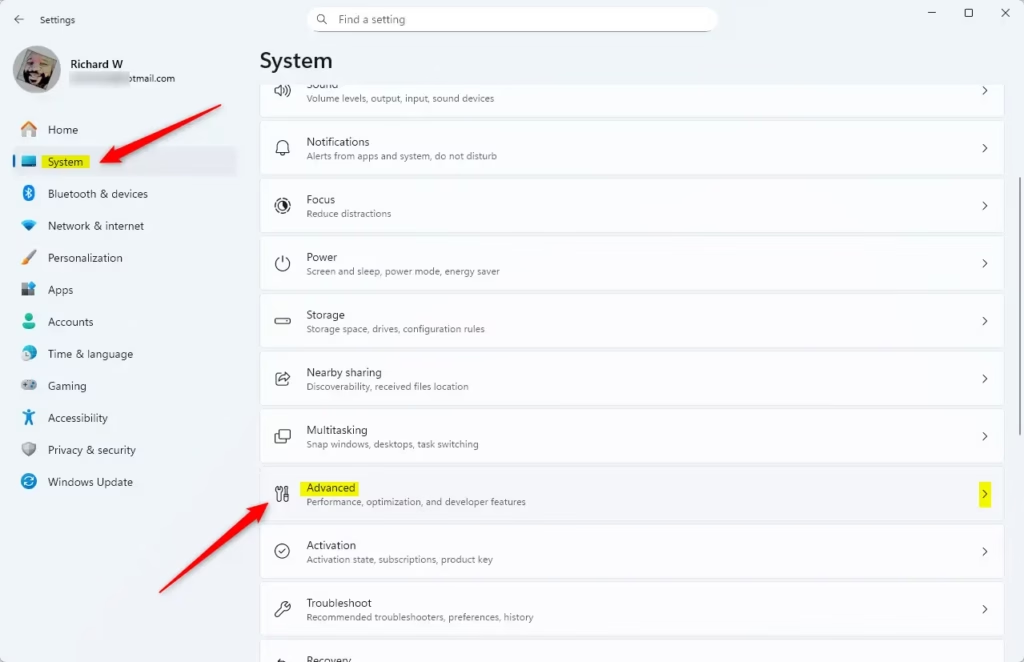
You should now be on the Advanced page, with a list of settings grouped by area. If the page looks empty or you land somewhere else, go back to the System page and click Advanced again.
Step 3Find File Explorer Settings
- Find the File Explorer section. It sits among the other groups of settings on the Advanced page, so you may need to scroll a little.
- Click File Explorer to expand it. The File Explorer options should now appear below the heading.
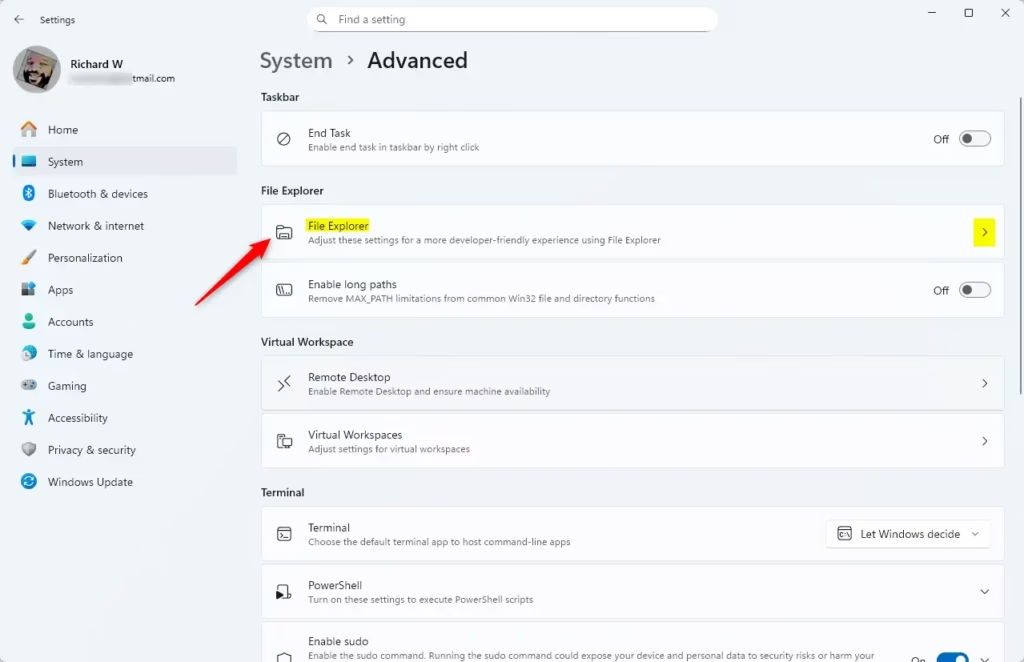
With the section expanded, you should see a short list of switches that control how File Explorer behaves. Each switch is either On or Off. Changing one affects only that one behavior.
Step 4Turn On File Extensions
- Find the option labeled Show file extensions. It is one of the switches in the File Explorer section you just expanded.
- Turn the Show file extensions switch to On. The switch label changes to On, and the change applies right away, with no restart or sign-out needed.
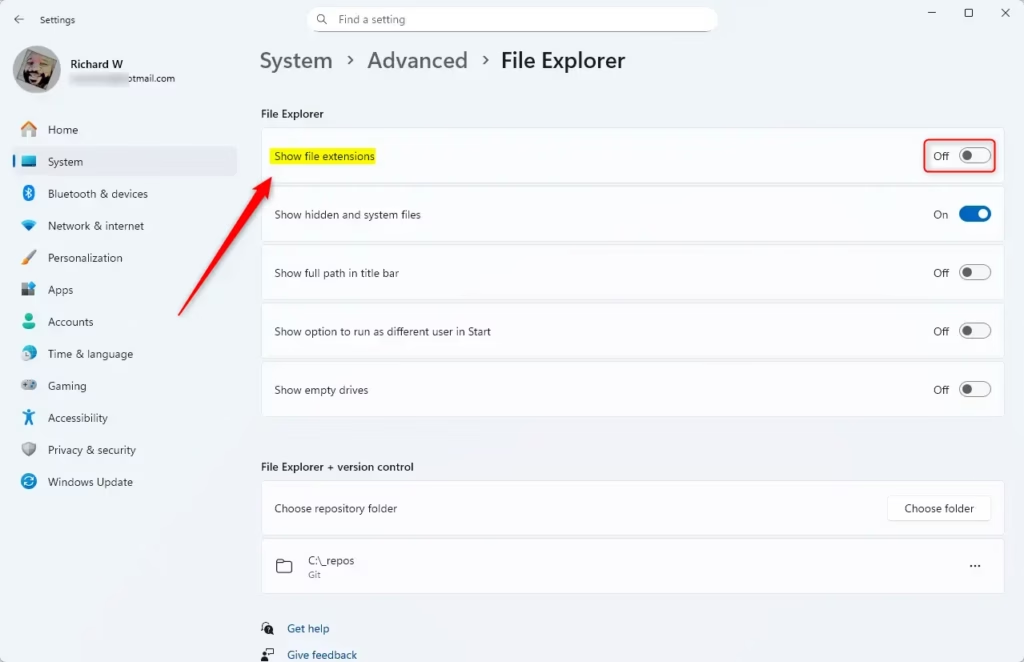
That’s it. Windows 11 now shows file extensions for every file in File Explorer. To undo this later, return to the same page and switch Show file extensions to Off. Your files are not changed either way, because only what File Explorer displays is affected.
Step 5Close Settings
To check the result, open any folder in File Explorer. A file that used to show as “Report” should now read “Report.docx” or similar. If a File Explorer window was already open, it normally updates on its own. If it does not, press F5 to refresh it, or close and reopen it.
Other Ways to Show File Extensions
Windows 11 File Explorer settings control whether file extensions are visible. Seeing the extension on every file makes it simpler to sort documents from programs, and to notice when a file is not what its icon or name suggests.
Windows warns you before it applies an extension change, so read that prompt rather than clicking through it. If you rename a file by mistake, press Ctrl+Z in the folder right away to undo it.
Why Show File Extensions?
File extensions show the exact type of a file, such as a picture or a document, through the letters after the final dot in the file name. Turning them on helps you spot dangerous files disguised as normal documents. It also stops you from breaking a file by accident when you rename it.
- File extensions tell you what type of file you are looking at, such as a picture, a document, or a program. Two files with the same name but different endings, like a .jpg and a .png, are clear at a glance.
- They help you avoid opening the wrong kind of file. A file ending in .exe or .bat is a program, not a document, and you can see that before you double-click it.
- They make file management safer, especially when you sort downloads or check email attachments.
- The Settings app route is quick for anyone using Windows 11, and you can reverse the change at any time with the same switch.
Summary
To show file extensions in Windows 11, open Settings and go to System Advanced File Explorer. Then turn on Show file extensions. The change takes effect immediately, with no restart. File types become visible in every folder, which helps with organization and security. If your build has no Advanced page, use View Show > File name extensions in File Explorer instead.
Frequently asked questions
How to show file extensions in 🪟 Windows 11?
To show file extensions in Windows 11, open Settings System Advanced File Explorer and turn on Show file extensions. If your build has no Advanced page, open File Explorer, select View, point to Show, and tick File name extensions. The endings, like .txt or .jpg, then appear right after each filename.
How to show file type in file explorer?
The file type is shown by its extension, so turn on extensions first. In File Explorer, select View, point to Show, and tick File name extensions. Each filename then ends with its type, such as .docx or .jpg.
How to see file extensions 🪟 Windows 11?
Open File Explorer, select View, point to Show, and tick File name extensions. Each filename then shows its ending, such as .docx or .png, in every folder. If your Windows 11 build has an Advanced page, you can also turn on Show file extensions in Settings System Advanced File Explorer.
How to view file extensions 🪟 Windows 11?
Open File Explorer and select View, then point to Show and tick File name extensions. Extensions appear after every filename in all folders, and the setting stays on until you clear that box. You can also turn it on from Settings System Advanced File Explorer if your build includes that page.
How to display file extensions in 🪟 Windows 11?
Open Settings, select System, then Advanced, and turn on Show file extensions. The change applies to all files and folders right away, with no restart needed. If your build has no Advanced page, open File Explorer, select View, point to Show, and tick File name extensions instead.
How do I make the .txt .exe etc apears in 🪟 Windows 11?
Turn on file extensions, and .txt, .exe and similar endings will appear after each filename. In File Explorer, select View, point to Show, and tick File name extensions. Windows 11 applies this to every folder, so you only need to do it once.
Still have a question?
Answered by AI from this guide. Good questions may be added to this page — please don't include personal details.
Did this guide fix your problem?

About the Author
Richard
Tech Writer, IT Professional
Richard is a writer at Geek Rewind who turns complex IT tasks into clear, step-by-step guides. He draws on years of hands-on experience in system administration and enterprise IT operations, focusing on Windows, Linux and WordPress: the problems people actually run into, and the fixes that work. His server and WordPress guides come from systems he runs himself. Richard builds and maintains the platform behind Geek Rewind, from its Ubuntu servers and Nginx configuration to its custom WordPress plugins. Many new tutorials start with readers' questions, and he's always glad to answer them in the comments.
No comments yet — be the first to share your thoughts!