How to Show or Hide the Details Pane in Windows 11 File Explorer


Windows 11 File Explorer includes a Details pane that displays file dimensions, sharing options, and recent activity without opening the file. It sits on the right side of the File Explorer window and shows information about whatever item you have selected. It is available in both Home and Pro editions, and you can turn it on or off at any time.
Press Alt+Shift+P in File Explorer to toggle the Details pane on or off. Alternatively, click View in the menu bar, select Show, then click Details pane. The pane appears on the right side and displays file size, sharing options, and recent activity.
Why use the 🪟 Windows 11 Details pane?
This sidebar displays file dimensions, sharing options, and recent activity without forcing you to open the actual file. That is handy when you are sorting through a folder of similar files and want to check one before opening it. Click a file and the pane fills in. If nothing is selected, the pane has little to show, so select an item first.
Comparison of Methods
| Method | Ease of Use | Requirement |
|---|---|---|
| Keyboard Shortcut | Fastest | None |
| View Menu | Easy | None |
| Registry Editor | Advanced | Admin Privileges |
Method 1The Keyboard Shortcut
The quickest way to toggle the pane is to open File Explorer and press Alt+Shift+P on your keyboard. This will show or hide the pane instantly.
Click inside the File Explorer window first so it has focus. If the shortcut does nothing, another program may be in the foreground. The same shortcut works for both showing and hiding, so press it again to undo the change.
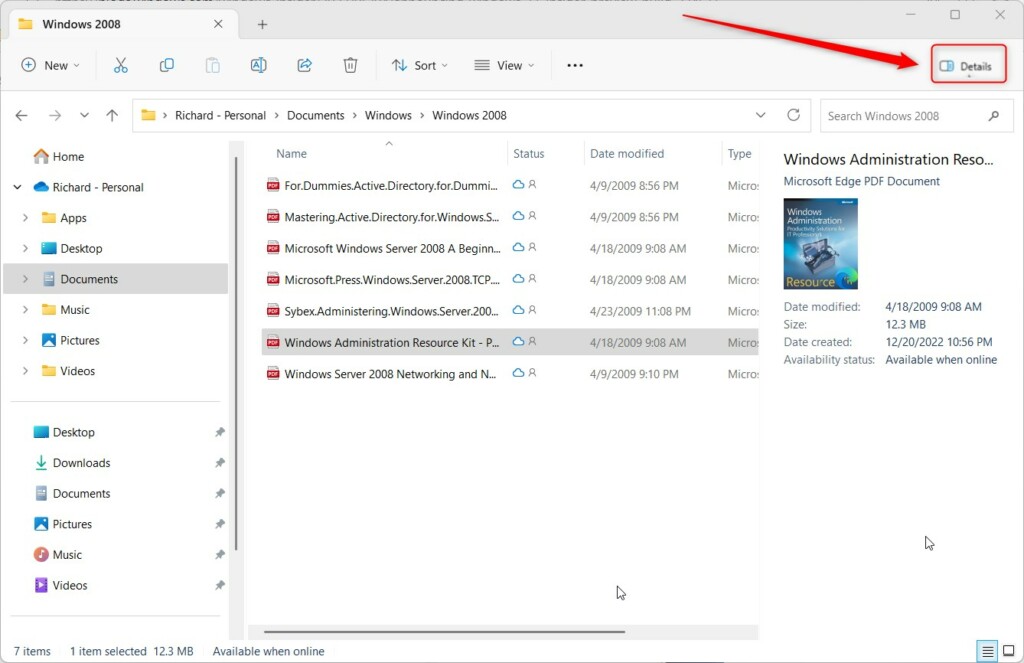
Method 2The View Menu
Mouse users can follow these steps:
- Open File Explorer .
- Click View in the top command bar. A menu opens with layout, display, and show options.
- Select Show. A submenu opens.
- Click Details pane to toggle it on or off. A check mark beside the entry means the pane is currently on, and the pane appears or disappears on the right side of the window.
Windows remembers the setting, so the pane stays in the state you chose the next time you open File Explorer .

Method 3Registry Editor (Advanced)
Make changes carefully, as incorrect edits cause system instability. This lets you change how the Details pane shows up in File Explorer.
This requires administrator privileges and should be done with caution, as incorrect changes can cause system instability. Before you change anything, back up the registry. In Registry Editor, use File Export to save a copy you can restore if something goes wrong.
- Navigate to:
HKEY_CURRENT_USER\Software\Microsoft\Windows\CurrentVersion\Explorer\Modules\GlobalSettings\DetailsContainer - Double-click
DetailsContainerand set the value to01 00 00 00 02 00 00 00to show the pane. - Navigate to:
HKEY_CURRENT_USER\Software\Microsoft\Windows\CurrentVersion\Explorer\Modules\GlobalSettings\Sizer - Double-click
DetailsContainerSizerand set the value to15 01 00 00 01 00 00 00 00 00 00 00 c0 03 00 00.
Registry changes may not show up in a File Explorer window that is already open. Close and reopen File Explorer, or sign out and back in, to make sure the new value is picked up. To undo a change, set the value back to what it was or import the backup you exported.
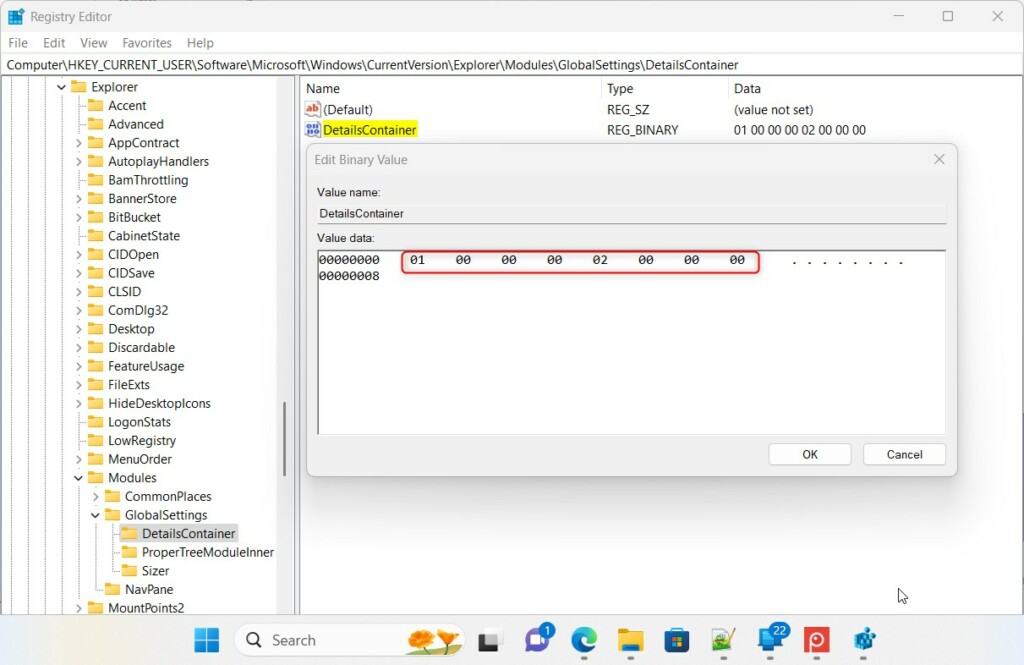
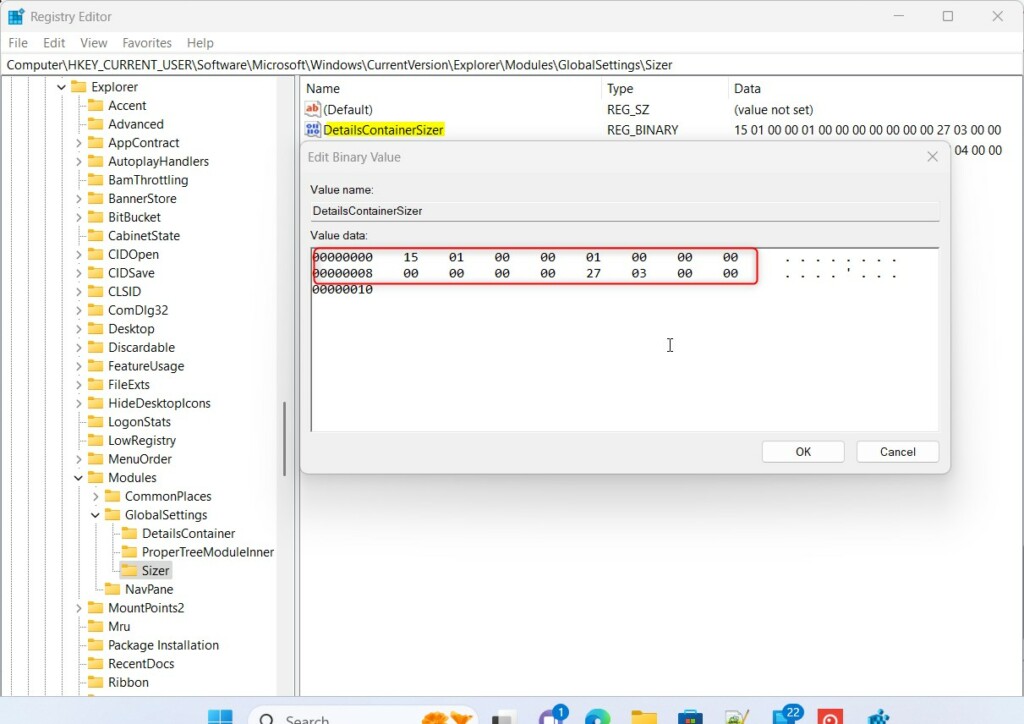
To show the pane using the registry, navigate to HKEY_CURRENT_USER\Software\Microsoft\Windows\CurrentVersion\Explorer\Advanced, then double-click DetailsContainer and set its value to 1. To hide it, change the value of DetailsContainer to 0.
Keep in mind that the toggle on the View menu and the registry value control the same behavior, so use whichever is easier for you. For a single PC, the keyboard shortcut or the View menu is simpler and carries no risk.
Customizing and Troubleshooting
Troubleshooting missing panes or adjusting sizing involves a few specific troubleshooting steps. If the pane is on but looks empty, click a file or folder to select it. If it still does not appear, check View Show to confirm Details pane is ticked, then close and reopen File Explorer. To change the width, drag the divider between the file list and the pane left or right.
Summary
Any of these three approaches will toggle the sidebar to fit your workflow. Use the shortcut for a quick check, the View menu when you want to see the option on screen, and the registry only when you need to set the value directly.
Have a question about this guide?
Answered by AI from this guide. Good questions may be added to this page — please don't include personal details.
Did this guide fix your problem?

About the Author
Richard
Tech Writer, IT Professional
Richard is a writer at Geek Rewind who turns complex IT tasks into clear, step-by-step guides. He draws on years of hands-on experience in system administration and enterprise IT operations, focusing on Windows, Linux and WordPress: the problems people actually run into, and the fixes that work. His server and WordPress guides come from systems he runs himself. Richard builds and maintains the platform behind Geek Rewind, from its Ubuntu servers and Nginx configuration to its custom WordPress plugins. Many new tutorials start with readers' questions, and he's always glad to answer them in the comments.
No comments yet — be the first to share your thoughts!