How to Show or Hide the Sidebar in Windows 11 Copilot

The Copilot sidebar in the Windows 11 Copilot app is the panel that holds your conversations, and you show or hide it with one click on the sidebar button. You do this while the app is in full view, and no settings change or restart is needed.
Open the Copilot app. While in full view, click the sidebar button to open or close it. This toggles the display of your past chats for more screen space or easy access.
A Windows 11 Copilot+ PC has a dedicated Copilot key on the keyboard. Pressing it opens the Copilot app by default, so that is the quickest way to get to the sidebar button.
Besides hiding the panel, the app lets you enable or disable it, launch the tool at startup, or Pin or Unpin the Copilot side panel, Resize the Copilot side panel, delete chat history in Copilot, create a desktop shortcut, and more.
Starting with version 1.25023.101.0, the Copilot app has an updated interface with a new sidebar. It lets you start conversations and look back through your conversation history quickly.
This layout also gives you a toggle to show or hide the sidebar. If you want more room for the chat itself, hide it. If you want to jump between past conversations, show it.
Toggle Copilot sidebar button
The updated Copilot interface includes a control that turns the sidebar on or off. If you can’t find it, your Copilot app is probably older than the version above. Update the app from the Microsoft Store, then open it again.
Follow these steps to toggle the sidebar:
- Open the Copilot app. You can also press the Copilot key if your PC has one.
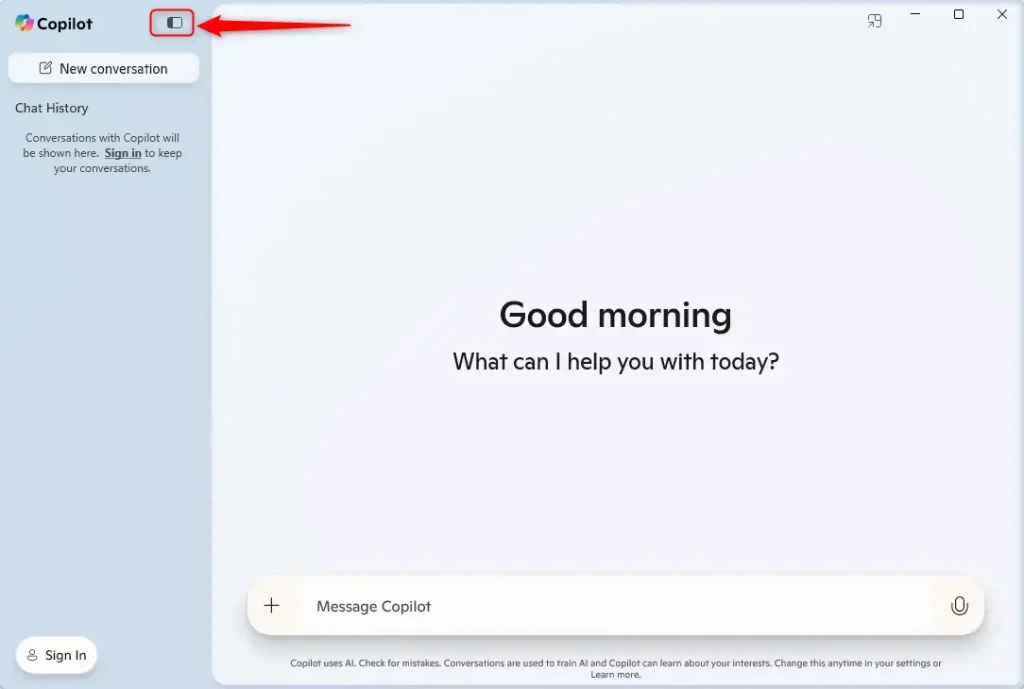
- While in full view, click the sidebar button to open or close the sidebar. The panel appears or disappears right away.
- To undo the change, click the same button again.
Here is how the app looks with the sidebar showing:
Copilot with sidebar.
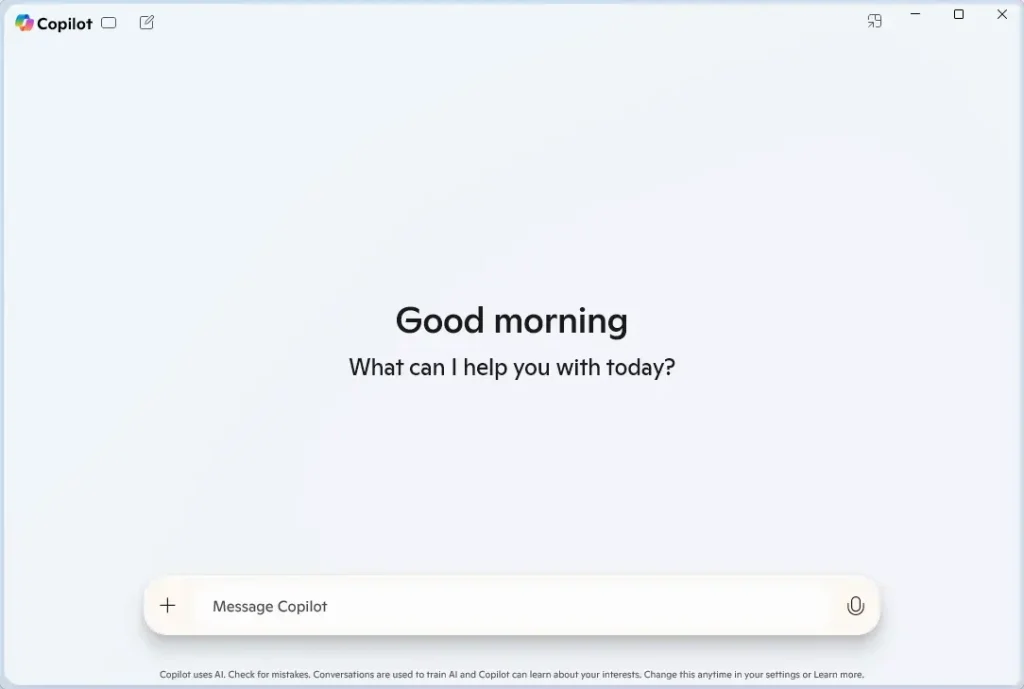
And here it is with the sidebar hidden. The conversation area takes up the freed space:
Copilot without sidebar.
That completes the process. The sidebar stays available whenever you want it back.
Conclusion:
Managing the sidebar gives you a cleaner workspace whenever you need to focus. Key points to remember include:
- The Copilot key opens the app quickly for easy access.
- Users can enable or disable Copilot, allowing for tailored functionality.
- The new XAML application features an updated UI with a sidebar for improved navigation.
- The sidebar can be toggled on or off while in full view for a customizable workspace.
- Enhancements in version 1.25023.101.0 and higher offer an improved user experience with conversation management.
Controlling the sidebar changes how you work in the Copilot app. It is a small change, but it makes the app easier to use for productivity in Windows 11.
Have a question about this guide?
Answered by AI from this guide. Good questions may be added to this page — please don't include personal details.
Did this guide fix your problem?

About the Author
Richard
Tech Writer, IT Professional
Richard is a writer at Geek Rewind who turns complex IT tasks into clear, step-by-step guides. He draws on years of hands-on experience in system administration and enterprise IT operations, focusing on Windows, Linux and WordPress: the problems people actually run into, and the fixes that work. His server and WordPress guides come from systems he runs himself. Richard builds and maintains the platform behind Geek Rewind, from its Ubuntu servers and Nginx configuration to its custom WordPress plugins. Many new tutorials start with readers' questions, and he's always glad to answer them in the comments.
[…] Make sure Copilot is in full view. Then, click the Account button on the left sidebar, and select Settings.How to open and close the sidebar […]