How to Remove Copilot App from Windows 11

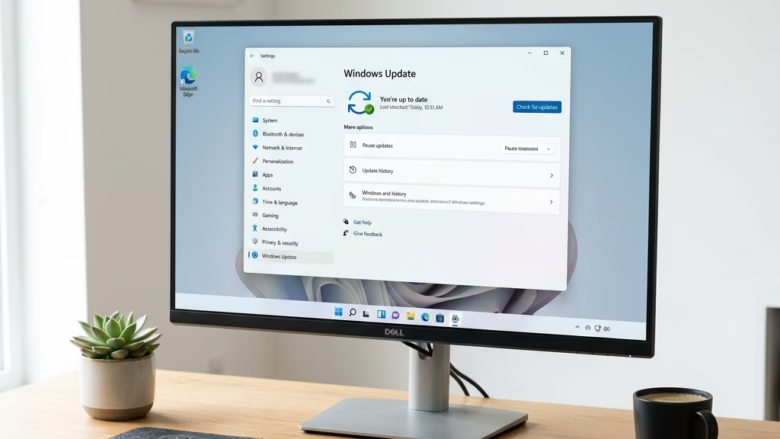
Removing the Copilot app (an AI digital assistant built into Windows 11) stops it from taking up space on your taskbar and running in the background. Microsoft installs this tool automatically on systems running version 23H2 and newer.
Uninstalling Copilot normally through the Start menu only hides the shortcut for your current profile. To delete the app package from your PC so it does not come back after a system update, you need to use one of the methods below. Pick the one that matches your Windows edition: Group Policy for Pro, Enterprise and Education, the Registry for Home, or PowerShell for any edition.
To remove Copilot in Windows 11 on Pro, Enterprise or Education, open the Local Group Policy Editor and go to Computer Configuration Administrative Templates Windows Components Windows AI. Set “Remove Microsoft Copilot app” to Enabled, then restart. Home users need the Registry method instead.
Method 1Using Group Policy Editor (For 🪟 Windows 11 Pro, Enterprise, and Education)
Windows 11 Pro, Enterprise, and Education editions include the Group Policy Editor. This utility controls many operating system settings, including Copilot availability. It is also the easiest option if you manage several PCs. Windows 11 Home does not have it, so Home users should skip to the Registry method further down.
You need an account with administrator rights to change these policies.
Step 1Open the Group Policy Editor
- Press Win+R to open the Run dialog box.
- Type the Group Policy Editor command shown below into the Open field and press Enter.
If Windows says it cannot find the file, you are almost certainly on Home edition. Use the Registry or PowerShell method instead.
Step 2Find the Windows AI Policy
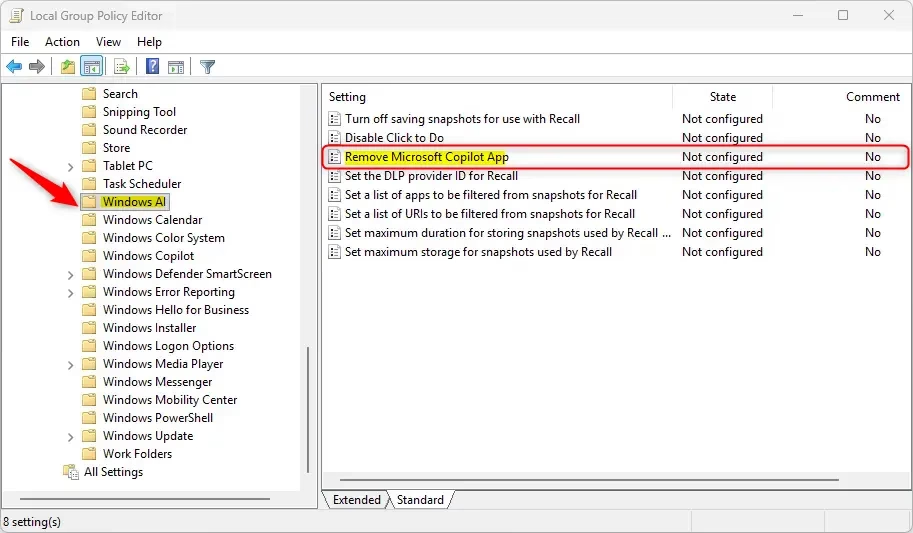
The Local Group Policy Editor opens with a folder tree in the left-hand pane. Expand the folders in this order:
Computer Configuration > Administrative Templates > Windows Components > Windows AI
Follow the path carefully. The "Windows AI" folder holds the settings for AI features in the operating system. If you cannot see it, your Windows 11 build may be too old to include that policy. Run Windows Update and check again.
Step 3Enable the "Remove Microsoft Copilot app" Setting
- In the right-hand pane, find the policy that removes the Copilot app, as shown in the screenshot, and double-click it.
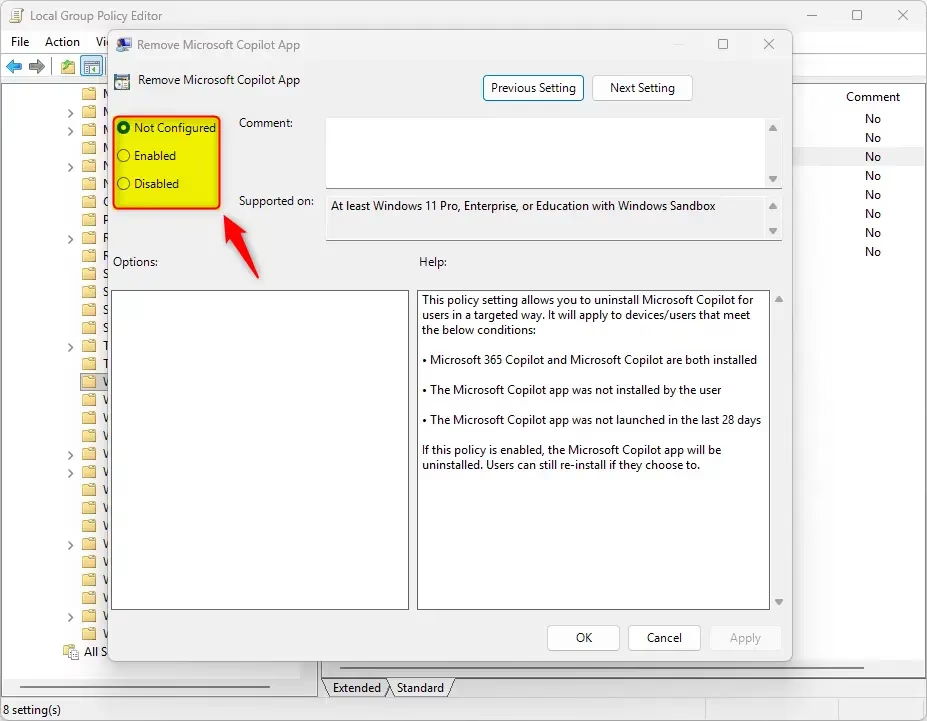
- In the policy window, select Enabled.
- Click Apply, then click OK.
The policy window closes and the setting should now show as Enabled in the list. This tells Windows to remove the Copilot app instead of just hiding it, so no leftover app files stay on your drive.
The Registry Editor is a separate tool and does not open as part of this process. The policy writes its own rule behind the scenes.
Step 4Restart Your PC or Sign Out
Restart your PC or sign out of your user account to finish the process. Windows reads the new policy at sign-in, and the Copilot app should be gone afterward.
This configuration targets both the standard Copilot app and Microsoft 365 Copilot, so you do not need a second setting for each.
To undo the change, return to the same policy, select Not Configured (or Disabled), click Apply, and restart. Be careful in the Group Policy Editor, because a wrong change can cause unexpected errors. Only touch the policy described here.
Method 2Using the Windows Registry Editor (For 🪟 Windows 11 Home and Other Editions)
Windows 11 Home lacks the Group Policy Editor. Editing the Windows Registry, the central database for low-level system settings, gives you the same result. This method also works on Pro, Enterprise and Education if you prefer it.
Before you start, back up the Registry. In Registry Editor, click File Export, choose a location, and save the file. You can double-click that file later to restore the backup.
Step 1Open the Registry Editor
- Press
Windows key + Rto open the Run dialog box. - Type
regeditand press Enter. - Click Yes on the User Account Control prompt.
Registry Editor opens with a folder tree on the left.
Step 2Go to the Right Registry Location
Now go to the right location. In the left pane, expand the folders to reach this path:
HKEY_CURRENT_USER\Software\Microsoft\Windows\CurrentVersion\Explorer
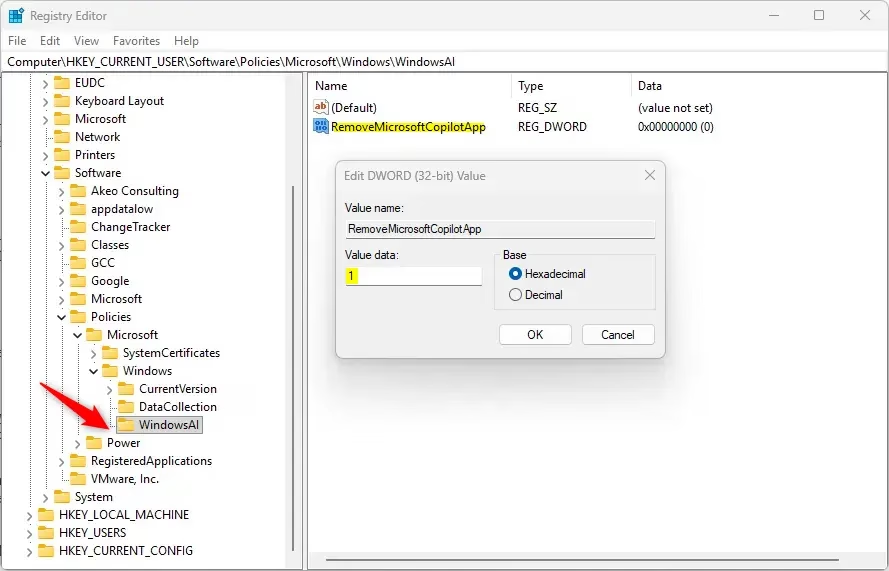
The exact path required for this tweak is HKEY_CURRENT_USER\Software\Policies\Microsoft\Windows. Check it against the screenshot, because the new key must sit in the right place.
Step 3Create the "WindowsAI" Key
- Right-click the
Windowskey in the left pane. - Select New Key.
- Name the new key
WindowsAIand press Enter.
The new key appears as a folder under the one you right-clicked. Spell its name exactly as given, or Windows will ignore it.
Step 4Create the "RemoveMicrosoftCopilotApp" Value
- Click the
WindowsAIkey to select it. - Right-click the blank space in the right pane.
- Select New DWORD (32-bit) Value.
- Name the value
RemoveMicrosoftCopilotAppand press Enter.
The new value shows up in the right pane with a default data of 0. Windows only recognizes the rule if the name is exact.
Step 5Set the Value to 1
- Double-click the
RemoveMicrosoftCopilotAppvalue to open its properties window. - Set the Value data field to
1. - Click OK.
This tells the operating system to remove the app. The right pane should now list the value with the data you entered.
Step 6Restart Your PC
Restart the computer so the registry change takes effect. Copilot should be gone after you sign back in.
RemoveMicrosoftCopilotApp value from the registry, or set its Value data back to 0.Restart afterward.
Warning: Registry mistakes can cause system instability. Work carefully and back up the Registry before you make changes.
Method 3Using PowerShell (A Quick Scripting Option)
PowerShell offers a command-line method that removes Copilot as an application package. It works on every Windows 11 edition, including Home, and needs administrator rights.
Step 1Open PowerShell as Administrator
- Click Start and type "PowerShell".
- Right-click Windows PowerShell and choose Run as administrator.
- Click Yes on the User Account Control prompt.
A PowerShell window opens. The title bar should say "Administrator". If it does not, close it and start again, because the command will fail without elevated rights.
Step 2Run the Uninstall Command
Next, run the uninstall command shown below. It removes the Copilot app package from every user account on the machine at the same time. Paste the command into the elevated PowerShell window, press Enter, and give Windows a moment to strip the app files from your drive.
Get-AppxPackage -AllUsers -Name "Microsoft.Copilot" | Remove-AppxPackage -AllUsersWatch the window while the command runs. If you get your prompt back with no red error text, the removal worked. If you see errors, check that PowerShell is running as administrator and that you copied the command exactly.

Step 3Restart Your PC (Recommended)
Restart your PC to finish the uninstall.
Future Windows updates sometimes restore the app after a PowerShell removal. Setting the Group Policy or Registry method as well helps prevent that reinstall.
Even a small typo can cause a syntax error or make the command fail.
A Final Check: Can You Still Uninstall Normally?
Before you change any system settings, check whether Windows offers a direct uninstall option. It takes seconds and may be enough on its own.
How to Check:
- Click the Start button.
- Type "Copilot" in the search bar.
- When the Copilot app appears in the results, right-click it.
- Look for an Uninstall option and click it if it is there.
If there is no Uninstall option, use one of the methods above instead.
To check that the removal worked, search for Copilot in the Start menu again. If the app no longer appears in the results, the removal worked.
Why this might not be enough: Operating system updates often restore software removed through the Start menu. Group Policy and Registry settings block this from happening again.
Summary
Removing Microsoft Copilot from Windows 11 comes down to three main approaches: the Group Policy Editor (Pro, Enterprise and Education), the Windows Registry (any edition, and the usual choice on Home), or a PowerShell command (any edition). For the most lasting result, combine PowerShell with the Group Policy or Registry setting.
Have a question about this guide?
Answered by AI from this guide. Good questions may be added to this page — please don't include personal details.
Did this guide fix your problem?

About the Author
Richard
Tech Writer, IT Professional
Richard is a writer at Geek Rewind who turns complex IT tasks into clear, step-by-step guides. He draws on years of hands-on experience in system administration and enterprise IT operations, focusing on Windows, Linux and WordPress: the problems people actually run into, and the fixes that work. His server and WordPress guides come from systems he runs himself. Richard builds and maintains the platform behind Geek Rewind, from its Ubuntu servers and Nginx configuration to its custom WordPress plugins. Many new tutorials start with readers' questions, and he's always glad to answer them in the comments.
No comments yet — be the first to share your thoughts!