How to Enable or Disable Keep Copilot App Running on Close in Windows 11


Microsoft Copilot is the AI assistant app built into Windows 11. When you close its window, it can either keep running in the background or shut down completely. If it keeps running, its icon stays in the system tray at the right end of the taskbar , so the app is ready the moment you want it. This tutorial shows how to turn that behavior on or off.
Open the Copilot app and go to Account Settings Preferences. Toggle the “On close, keep the app running” option to enable or disable this background function. This change takes effect immediately.
What is Microsoft Copilot?
Copilot is an integrated assistant for everyday computer tasks: asking questions, drafting text, and getting quick answers without opening a browser. Because you tend to reach for it in the middle of other work, how fast it opens matters.
Why Would You Want to Change This Setting?
With the background process active, Copilot does not have to load from scratch each time you call it, so you skip the startup delay. The trade-off is a small amount of memory and background activity while the app sits idle. Which way to go depends on how often you use it.
When turned on: The background process stays active after you close the window. The Copilot icon remains in the system tray , and you can reopen the app or quit it from there at any time. If you don’t see the icon, click the up arrow in the taskbar to show hidden tray icons.
When turned off: Closing the window fully shuts down Copilot. It uses no background resources until you launch it again, and the next launch takes a little longer.
This is a per-app setting inside Copilot. It is the same on Windows 11 Home and Pro, and you don’t need administrator rights to change it.
How to Enable or Disable Keep Copilot Running on Close
- Open the Copilot app on your computer. You can find it from the Start menu or the taskbar. You should see the Copilot window with a sidebar on the left.
- Click the Account button on the left sidebar. A menu or panel with more options should appear.
- Click Settings. The Copilot settings page opens.
- Click Preferences on the left side of the settings page.
- Find the option On close, keep the app running. Turn it on if you want Copilot to stay in the system tray after you close the window. Turn it off if you want it to quit completely.
- Close the Copilot window to check the result. With the option on, the Copilot icon should still be in the system tray. With it off, the icon should be gone.
You don't need to restart Windows. The setting applies the next time you close the app, and you can reverse it later by returning to the same page and flipping the toggle back. If you can't find Preferences or this option, your Copilot app may be out of date. Open the Microsoft Store, check for updates, and try again.
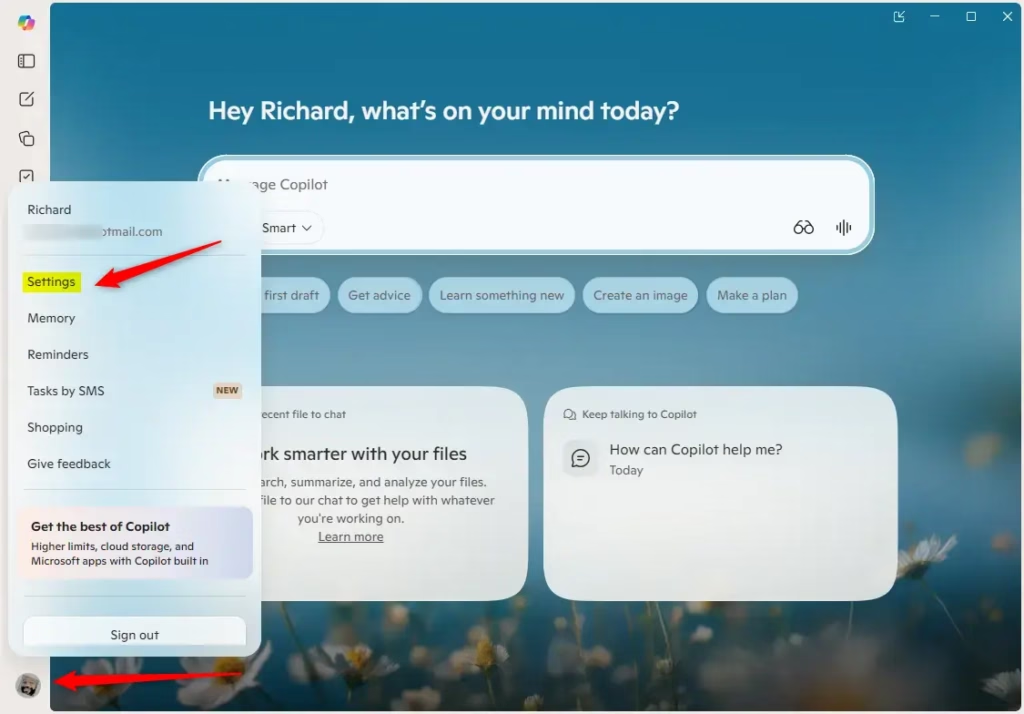
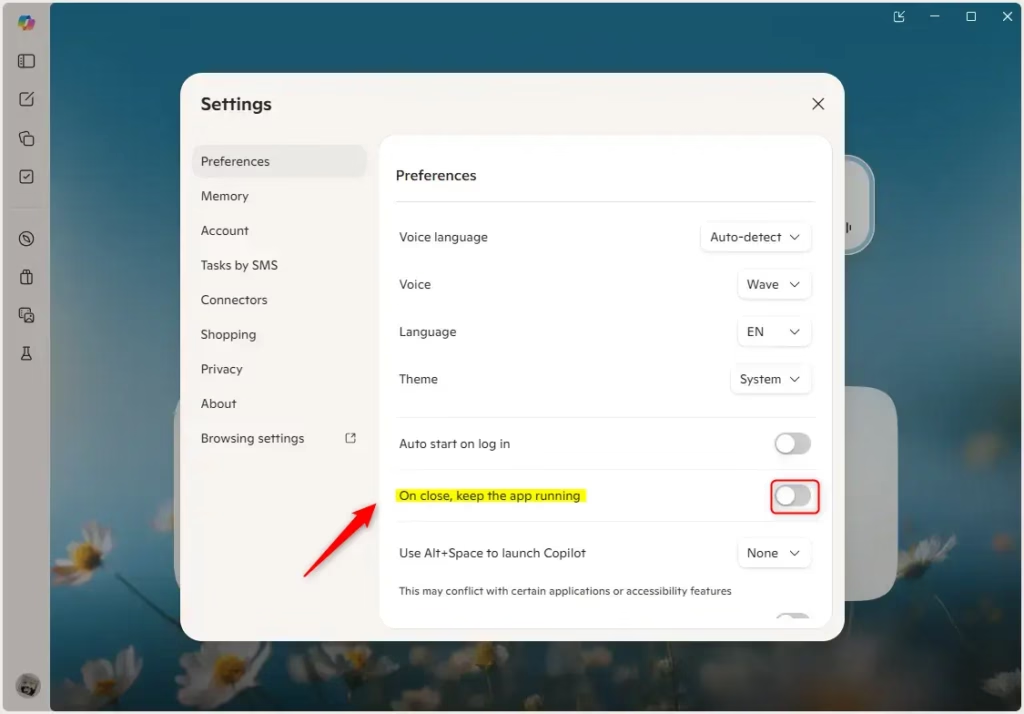
In short: launch Copilot, click the Account button in the left sidebar, then choose Settings and Preferences.
Summary
The On close, keep the app running setting lives inside the app itself, at Account Settings Preferences It is not in the Windows Settings app. The toggle decides whether Copilot stays active in the background or shuts down completely when you close it. Leave it on if you want quick access, and turn it off if you would rather keep background activity to a minimum.
Have a question about this guide?
Answered by AI from this guide. Good questions may be added to this page — please don't include personal details.
Did this guide fix your problem?

About the Author
Richard
Tech Writer, IT Professional
Richard is a writer at Geek Rewind who turns complex IT tasks into clear, step-by-step guides. He draws on years of hands-on experience in system administration and enterprise IT operations, focusing on Windows, Linux and WordPress: the problems people actually run into, and the fixes that work. His server and WordPress guides come from systems he runs himself. Richard builds and maintains the platform behind Geek Rewind, from its Ubuntu servers and Nginx configuration to its custom WordPress plugins. Many new tutorials start with readers' questions, and he's always glad to answer them in the comments.
No comments yet — be the first to share your thoughts!