How to Enable or Disable Minimize Xbox App to Taskbar System Tray on Close in Windows 11

This tutorial shows you how to turn the “minimize the Xbox app to the system tray on close” option on or off for your account in Windows 11. The setting applies only to your user account. Other people who sign in to the same PC keep their own choice.
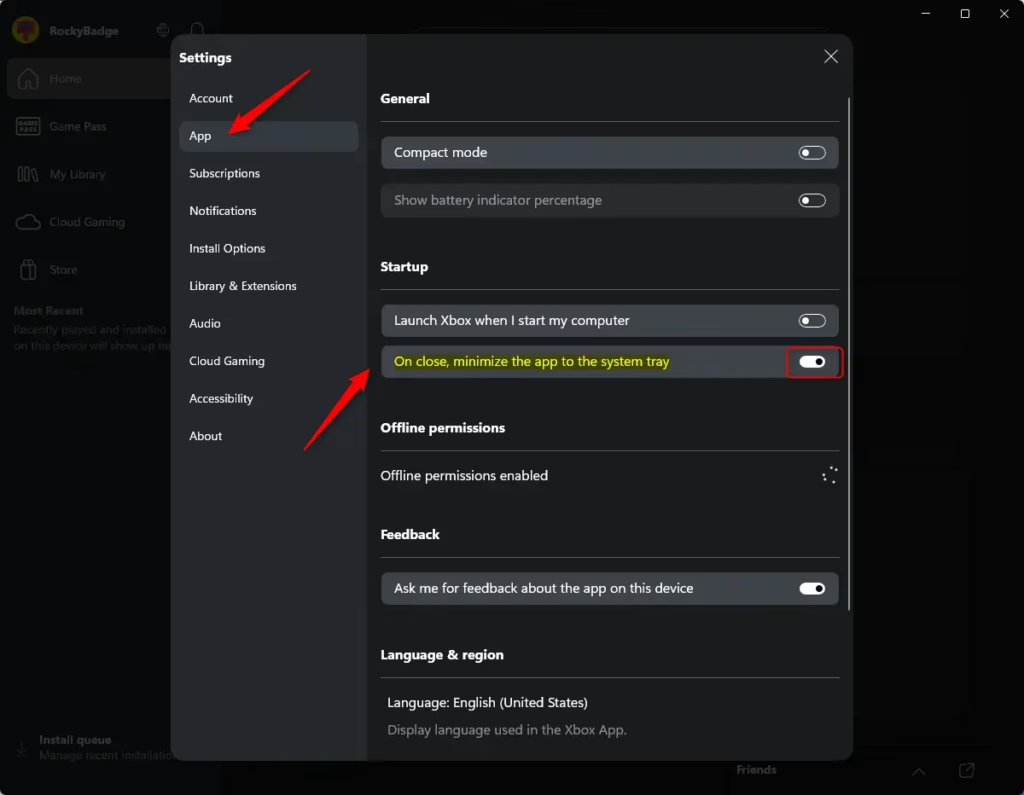
Open the Xbox app, click your Profile button in the top right, select Settings, click App on the left, then toggle On close, minimize the app to the system tray on or off. The setting takes effect immediately when you close the app.
Why Would You Want to Do This?
With this option on, the app does not quit. It shrinks to an icon in the system tray , the notification area at the right end of the taskbar, and keeps running in the background.
The app is already loaded when you open it again, so you can start a game or check your library without waiting for it to launch. This helps if you open the Xbox app several times a day.
There are a few trade-offs to know about:
- The app keeps using some memory and a little CPU while it sits in the tray. On a low-spec PC, or one with little free RAM, you may prefer to leave this option off.
- The icon may be tucked away under the Show hidden icons arrow (the small caret) in the system tray . Click the arrow if you do not see it right away.
- If the app seems to be “still open” after you closed it, this setting is the usual reason. Turning the option off restores the normal close behavior, where closing the window quits the app.
- The setting works the same on Windows 11 Home and Pro. No Group Policy or administrator rights are involved.
What You’ll Need
Before you start, make sure you have the following:
- The Xbox app installed on your Windows PC. It comes from the Microsoft Store. If the option is missing from the app, update the Xbox app in the Microsoft Store, because older versions may not have it.
- Your user account. You do not need to be an administrator, since the setting is stored per account and only changes how the app behaves for you.
Here's How:
Changing how the Xbox app closes is easy and only takes a few clicks right inside the app. First, open the Xbox app. Then, click on your Profile button in the top right corner and select Settings. In the Settings menu, click on App on the left. You will then see the Startup settings where you can change the close behavior.- Open the Xbox app.
- Click or tap on your user Profile button in the top right corner. Then click or tap on Settings.
- Click or tap on App in the left side menu of Settings.
- Look for the section labeled Startup settings. You'll see an option that says On close, minimize the app to the system tray. Turn this option on or off depending on what you want.
More Information
For more details about the Xbox PC app, visit: Xbox PC app | Xbox and Xbox Support
Summary
The Xbox app setting to minimize to the system tray keeps it running in the background for quicker access, instead of closing completely.
Have a question about this guide?
Answered by AI from this guide. Good questions may be added to this page — please don't include personal details.
Did this guide fix your problem?

About the Author
Richard
Tech Writer, IT Professional
Richard is a writer at Geek Rewind who turns complex IT tasks into clear, step-by-step guides. He draws on years of hands-on experience in system administration and enterprise IT operations, focusing on Windows, Linux and WordPress: the problems people actually run into, and the fixes that work. His server and WordPress guides come from systems he runs himself. Richard builds and maintains the platform behind Geek Rewind, from its Ubuntu servers and Nginx configuration to its custom WordPress plugins. Many new tutorials start with readers' questions, and he's always glad to answer them in the comments.
No comments yet — be the first to share your thoughts!