Windows 11 Taskbar and System Tray Customization Guide

- 18 steps
- Includes a restart or sign-out
Windows 11 taskbar and system tray customization changes how you manage open apps, check the time, and view system notifications on your PC. The taskbar sits centered by default in Windows 11 builds, moving familiar tools away from their traditional left-hand spots.
You can fix this layout by moving the taskbar alignment back to the left, hiding unneeded notification badges, or turning off system icons you never use. These built-in settings let you clean up your desktop and set up multi-monitor displays without installing extra software. They work the same in Home and Pro. Most of them live in one place, Settings Personalization Taskbar, so start there. Menu names shift slightly between Windows 11 versions, and I point out the differences where they matter.
To manage multi-screen taskbar settings in Windows 11, open the Settings app, go to Personalization, click Taskbar, and look under Taskbar behaviors. Here, you can choose whether the taskbar appears on your main display only or across every connected monitor to fit your viewing preferences.
Clean up extra buttons and icons
Clean up extra buttons and icons. Remove items you never click and tidy up the busy area near your clock. Hide specialty buttons like touch menus and sharing tools so your desktop stays neat.
- Right-click an empty spot on the taskbar and choose Taskbar settings. You can also open Settings Personalization Taskbar.
- Under Taskbar items, switch off the buttons you don’t use, such as Search, Task view, or Widgets. The list varies by build, and newer builds may add items such as Copilot. Each button disappears from the taskbar as soon as you flip its toggle.
- Expand Taskbar corner icons and switch off Pen menu, Touch keyboard, or Virtual touchpad if they appear. On some earlier builds this section is called System tray icons. Those buttons should vanish from the corner next to the clock.
To undo any of this, return to the same page and switch the toggle back on. Nothing needs a restart. If a toggle is missing, your build doesn’t offer that item, or the feature isn’t available on your device.
Manage the clock and system tray
This section covers your notification area and the corner of the screen where your clock lives. Adjust time formats and control which background apps stay visible or hide inside the overflow menu.
- Open Settings Personalization Taskbar.
- Expand Taskbar corner overflow. On older builds this section is called Other system tray icons.
- Switch an app’s toggle On to keep its icon visible next to the clock. Switch it Off to tuck it into the overflow menu.
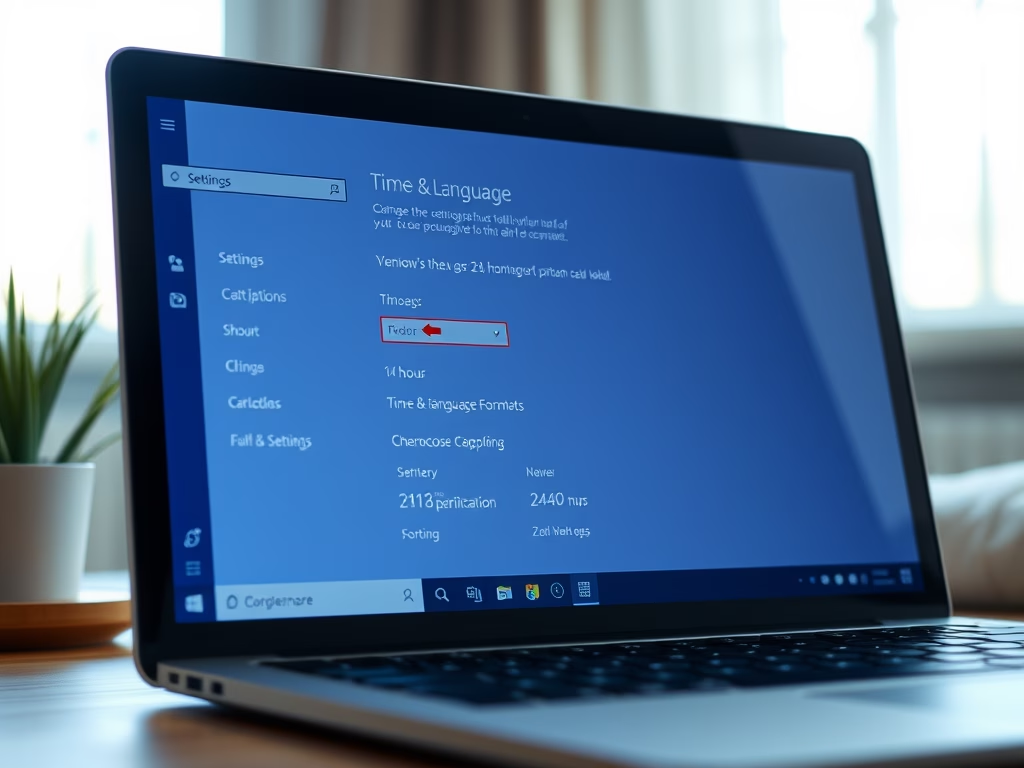
- To change how the clock displays the time and date, open Settings Time & language > Date & time. Use the options on that page to adjust the clock and date display.
- To show seconds in the clock, look for Show seconds in system tray clock under Taskbar behaviors on the Taskbar page. This option only exists on recent builds, so if you don’t see it, update Windows.
An app only appears in the overflow list after it has run at least once and put an icon in the tray. If an app you expect is missing, launch it first and then check the list again.

Set up multi-monitor displays
If you connect extra screens to your computer, these guides show you how taskbars behave across multiple displays. Choose whether your open apps appear on every screen or just your main monitor.
- Connect your extra monitors and confirm Windows detects them under Settings System Display.
- Open Settings Personalization Taskbar and expand Taskbar behaviors.
- Tick Show my taskbar on all displays. A taskbar should appear on each connected screen.
- Use the drop-down labeled When using multiple displays, show my taskbar apps on to pick where app buttons appear: All taskbars, Main taskbar and taskbar where window is open, or Taskbar where window is open.
If these options are missing, only one display is active. Check the cable, or press the Win+P and choose Extend rather than Duplicate or a single-screen mode.

Fix taskbar and icon problems
When your taskbar freezes or icons disappear, restarting your entire computer is unnecessary. Use these steps to safely restart the background process that runs your desktop and taskbar. That process is Windows Explorer.
- Press Ctrl+Shift+Esc to open Task Manager.
- If you see a small window with no tabs, click More details.
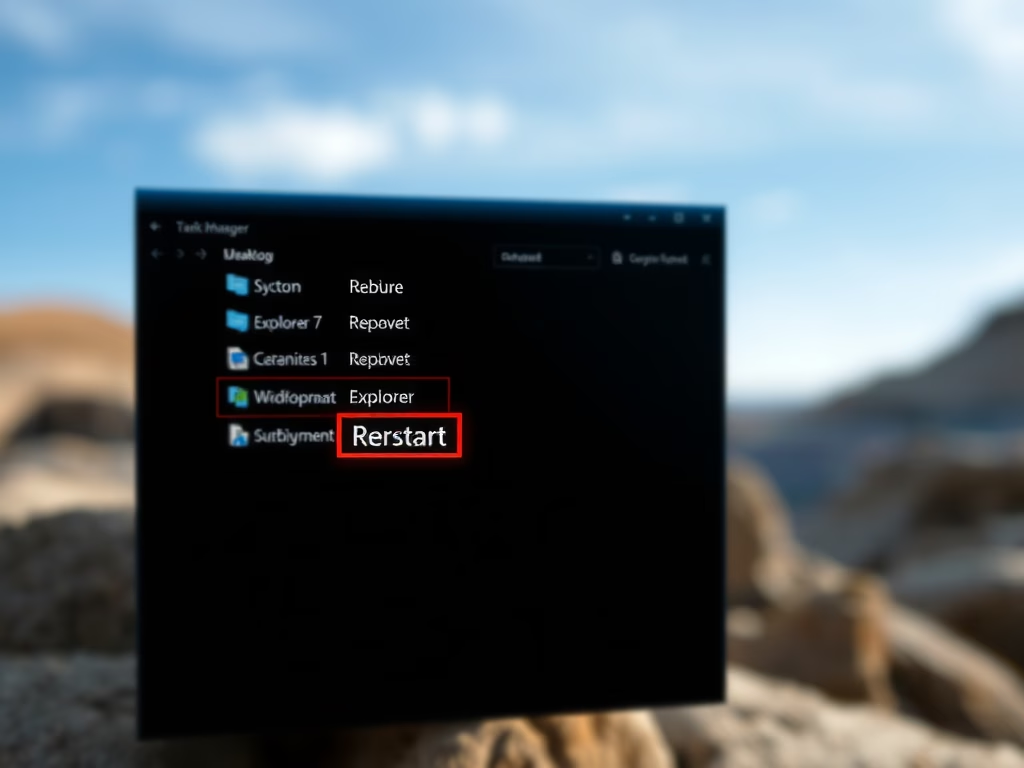
- On the Processes tab, find Windows Explorer under Apps or Windows processes.
- Right-click it and choose Restart. The taskbar and desktop go blank for a second or two, then come back.
Open File Explorer windows may close or reopen, so save any work in progress first. If the problem returns every time, restart the PC and install any pending Windows updates.
Common questions
How do I move the 🪟 Windows 11 taskbar to the top or side of the screen?
The built-in option to move the taskbar was removed in Windows 11, so it stays at the bottom of the screen by default. Moving the taskbar requires modifying core system files, which can break things or cause crashes when Windows installs future updates.
If you only want the old left-side layout for your icons, you don’t need any of that. Open Settings Personalization Taskbar, expand Taskbar behaviors, and set Taskbar alignment to Left. I’d stay with the supported settings rather than a tool that patches system files.
Why are some of my system tray icons hidden?
Windows 11 automatically tucks less frequently used icons into an overflow menu represented by a small upward arrow next to the clock. Drag and drop icons out of this hidden menu if you want them visible on the taskbar all the time.
- Click the small upward arrow next to the clock. A small panel of hidden icons opens.
- Click and hold the icon you want, drag it onto the visible part of the tray, then release. The icon now stays beside the clock.
You can also use the toggles under Taskbar corner overflow in Settings Personalization Taskbar. To hide an icon again, drag it back into the overflow panel or switch its toggle off.
How do I make the 🪟 Windows 11 taskbar smaller?
Windows 11 does not include a toggle switch in the Settings app to change the overall taskbar height. Adjust icon scaling through display settings, though changing the taskbar size specifically requires editing the Windows Registry (the database storing low-level system settings).
To make everything on screen, including the taskbar, larger or smaller, open Settings System Display and change Scale. Windows may ask you to sign out for some apps to redraw correctly. If you decide to edit the registry, create a restore point first so you can roll back if something goes wrong. Registry edits can also be reset by later feature updates.
Can I show the taskbar on all monitors when using dual screens?
Yes, choose whether the taskbar appears on your main display only or across every connected monitor. Open the Settings app, go to Personalization, click Taskbar, and look under Taskbar behaviors to adjust multi-screen settings. Tick or clear Show my taskbar on all displays, and the change applies immediately without a restart.
Frequently asked questions
How to fix taskbar customization in 🪟 Windows 11?
To fix taskbar customization in Windows 11, open Settings Personalization Taskbar and check each setting there. Use Taskbar behaviors to move the alignment back to the left, and use Taskbar items to turn off buttons you don't need. If a change won't stick, restart Windows Explorer from Task Manager.
How to open my tray on window 11?
Click the up arrow (Show hidden icons) in the system tray, next to the clock. Hidden icons appear in a small pop-up above the taskbar. To keep an icon visible, drag it out of that pop-up and onto the taskbar itself.
How to enable taskbar in system tray on boot?
Windows 11 always shows the taskbar and system tray when it starts. To get an app's tray icon back after sign-in, open Settings Apps Startup and switch the app on. Then check Settings Personalization Taskbar Taskbar corner overflow so its icon stays visible.
Still have a question?
Answered by AI from this guide. Good questions may be added to this page — please don't include personal details.
Did this guide fix your problem?

About the Author
Richard
Tech Writer, IT Professional
Richard is a writer at Geek Rewind who turns complex IT tasks into clear, step-by-step guides. He draws on years of hands-on experience in system administration and enterprise IT operations, focusing on Windows, Linux and WordPress: the problems people actually run into, and the fixes that work. His server and WordPress guides come from systems he runs himself. Richard builds and maintains the platform behind Geek Rewind, from its Ubuntu servers and Nginx configuration to its custom WordPress plugins. Many new tutorials start with readers' questions, and he's always glad to answer them in the comments.
No comments yet — be the first to share your thoughts!