How to Set a 24-Hour Clock on Windows 11 Lock Screen


A 24-hour clock on Windows 11 changes the lock screen time format to run from 00:00 to 23:59 instead of using AM and PM. This system-wide time display setting works on Windows 11 version 22H2 and later by updating your regional preferences. You can turn on this format directly inside the Region settings app on your PC.
Open Settings Time & language Language & region, click the Regional format tile, then Change formats. In the Long time dropdown, select a 24-hour entry like 09:40:07 with no AM or PM. Restart your PC and the lock screen clock switches to 24-hour format.
Why use a 24-hour clock?
This format removes ambiguity between morning and afternoon hours, which helps prevent mistakes in time-sensitive schedules. Anyone who has booked a meeting for 6:00 and turned up twelve hours off will see the point. The setting is available on both Windows 11 Home and Pro. It belongs to your user account, so it does not need a special edition of Windows.
What happens when done?
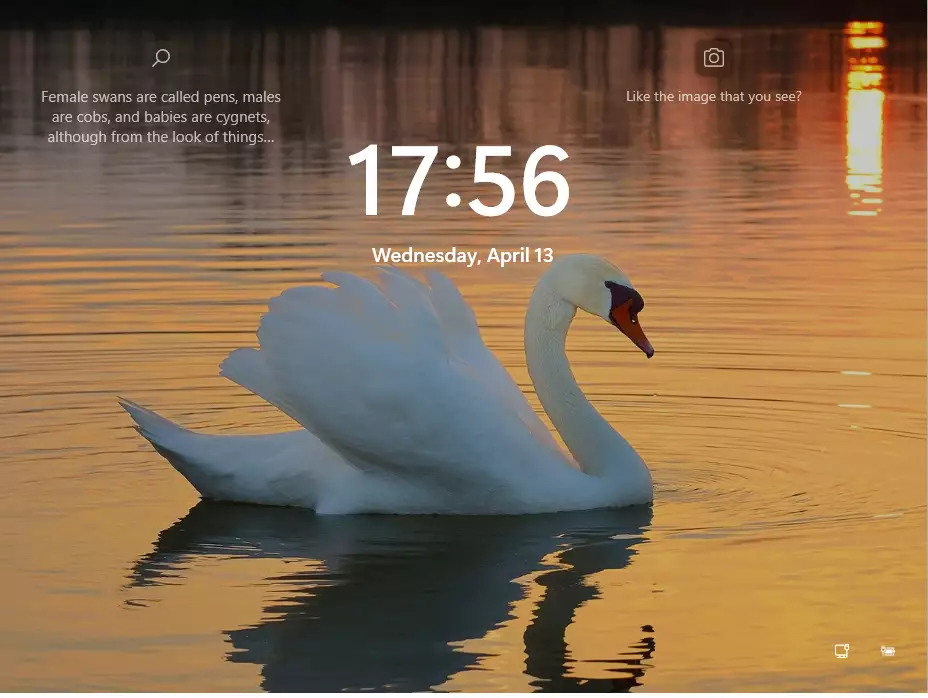
Once these steps finish and your PC restarts, the lock screen displays time using the 24-hour format (for example, 14:00 instead of 2:00 PM). This change applies system-wide to your user profile. To check it, press Win+L to lock the PC and look at the clock. If you want to go back, repeat the steps and pick a 12-hour format instead.
Method 1Using the Settings App
Changing this setting updates how time appears on your lock screen and taskbar. This is the method to try first, because it is the quickest and the easiest to undo. Open your main settings menu to start changing your time preferences right away.
1. Open the Settings app by pressing the Win+I on your keyboard, or click Start Settings. The Settings window opens with a list of categories on the left.

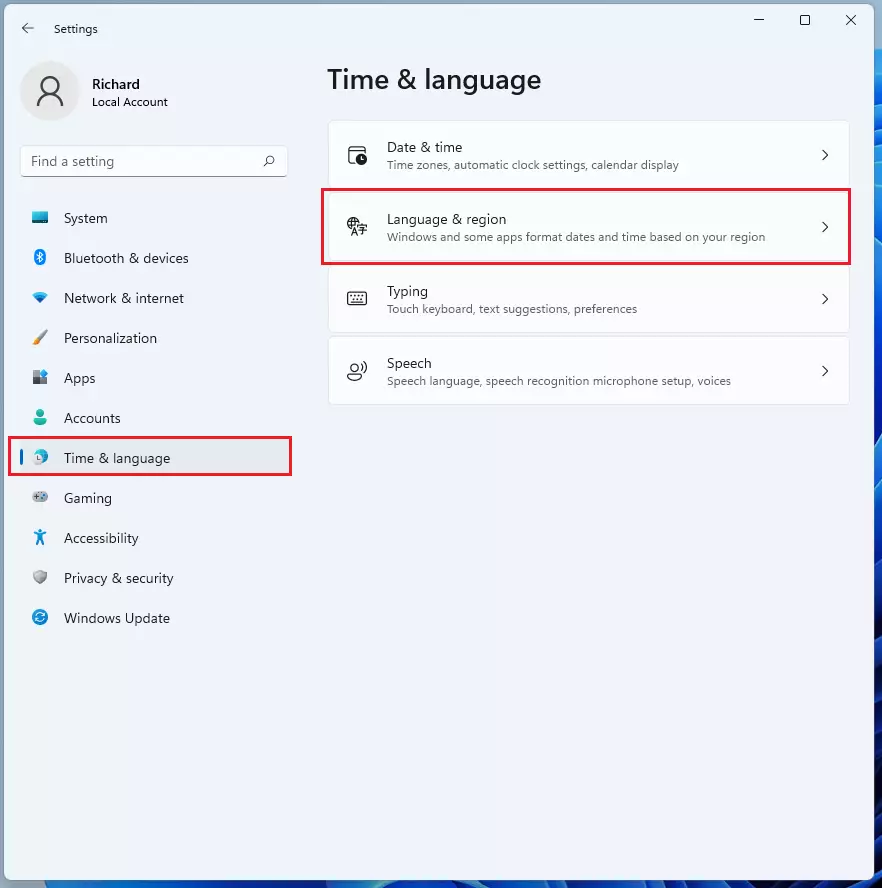
2. In the Settings menu, click on Time & language on the left side, then select Language & region. The page that opens lists your display language, preferred languages and region settings.
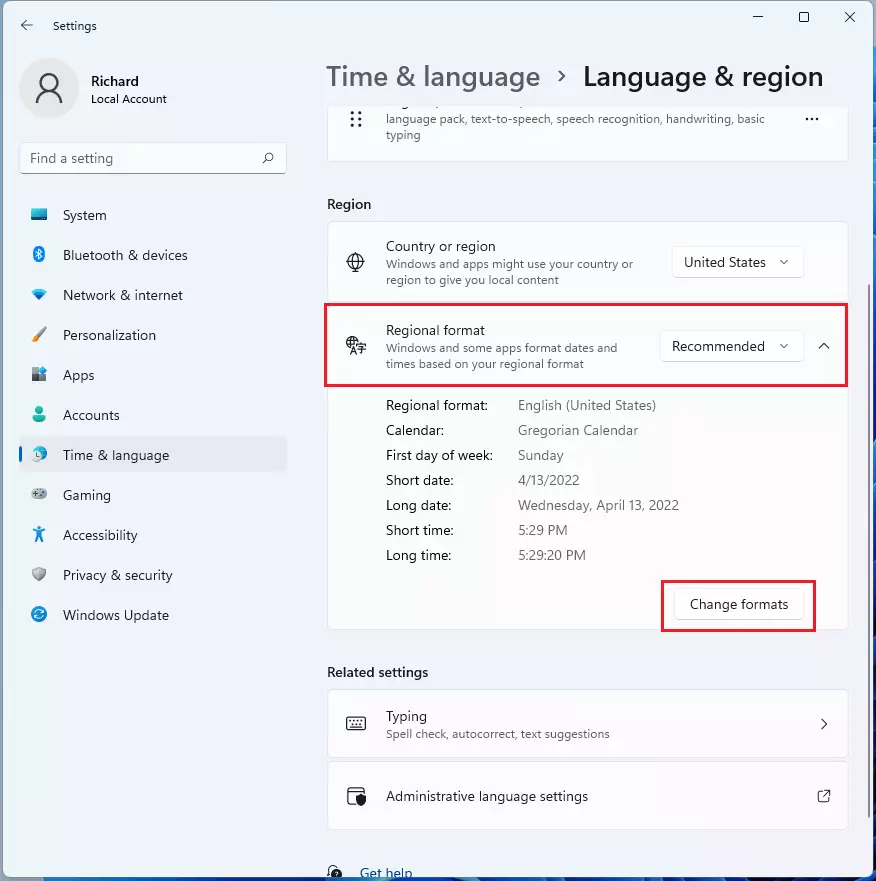
- Look for the Region section and click the Regional format tile to open more options. The tile expands and shows the current regional format along with a few related buttons.
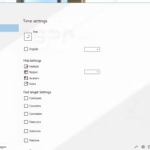
- Click the Change formats button. A page opens with a list of dropdown menus for calendar, date and time formats.
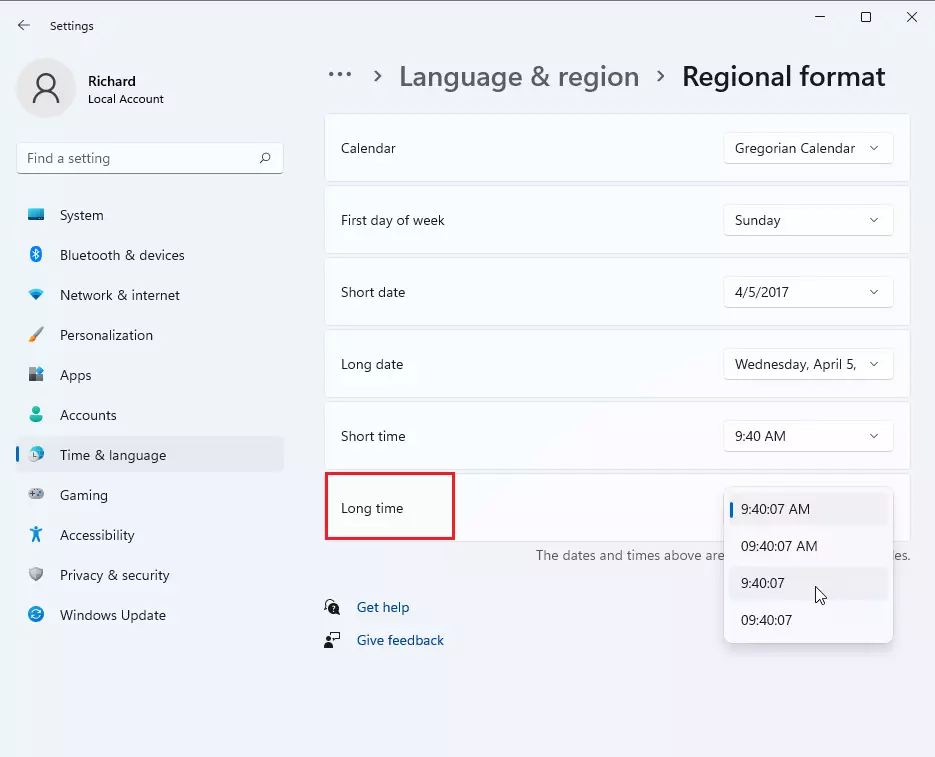
- Find the Long time option. Use the dropdown menu to choose your preferred format. The times shown in the list are only samples, so your own entries will differ:
- Choose 9:40:07 AM or 09:40:07 AM for a 12-hour clock. These entries end in AM or PM.
- Choose 9:40:07 or 09:40:07 for a 24-hour clock. These entries have no AM or PM. The only difference between the two is whether single-digit hours get a leading zero.
The lock screen and taskbar clock usually show only hours and minutes. If they still show AM or PM after this change, open the Short time dropdown on the same page and pick a 24-hour entry there as well.
- Close the Settings app. The change is saved as soon as you pick the format, so there is no Save or Apply button to look for.
- Restart your computer to apply the new time format to your lock screen. After you sign back in, press Windows key + L to lock the PC and confirm the clock now shows 24-hour time. To undo the change, go back to the same dropdown and choose a 12-hour entry.
Method 2Using Control Panel
Granular control is available through the classic Control Panel. This works on both Home and Pro, and it lets you type your own format instead of picking from a list.
1. Press Windows key + R, type control, and hit Enter. Control Panel opens.
- Click Clock and Region, then Region. If Control Panel is set to show icons instead of categories, click Region directly. A small Region window opens.
- Under the Formats tab, click Additional settings. A Customize Format window opens with several tabs.
- Go to the Time tab and change the Short time to HH:mm. Click Apply, then OK, and close the Region window. The capital HH tells Windows to use 24-hour time with a leading zero. Sign out and back in, or restart, so the lock screen picks up the change. To undo it, reopen this tab and choose a 12-hour entry from the same dropdown.
Method 3Registry Editor (Advanced)
Proceed carefully, because incorrect edits inside the registry can cause system instability. Before you change anything, back up the key. In Registry Editor, select it and use File Export to save a copy you can restore later.
- Press Windows key + R, type regedit, and press Enter. Approve the User Account Control prompt if it appears. Registry Editor opens.
- Navigate to: HKEY_CURRENT_USER\Control Panel\International. You can expand the folders in the left pane, or paste the path into the address bar at the top of the window. The values for that key appear in the right pane.
- Double-click sShortTime and change the value to HH:mm. Click OK. Then sign out and back in, or restart, so the lock screen uses the new format. To undo it, change the value back to what it was before. You can find the old value in your exported backup.
Method 4PowerShell for Deployment
Bulk updates use this method, which requires administrator privileges. Test it on one PC first and confirm the lock screen clock changes as expected before you roll it out to the rest. Keep a note of the original value so you can reverse it if needed.
Set-Culture -CultureInfo en-GB
Summary
Switching to a 24-hour clock on the Windows 11 lock screen happens primarily through the Settings app by adjusting regional formats, though advanced users can employ the Registry Editor. If the lock screen still shows AM or PM afterwards, check that the Short time format is set to a 24-hour entry, then restart. Those two steps fix most cases.
Was this guide helpful?

About the Author
Richard
Tech Writer, IT Professional
Richard is a writer at Geek Rewind who turns complex IT tasks into clear, step-by-step guides. He draws on years of hands-on experience in system administration and enterprise IT operations, focusing on Windows, Linux and WordPress: the problems people actually run into, and the fixes that work. His server and WordPress guides come from systems he runs himself. Richard builds and maintains the platform behind Geek Rewind, from its Ubuntu servers and Nginx configuration to its custom WordPress plugins. Many new tutorials start with readers' questions, and he's always glad to answer them in the comments.

No comments yet — be the first to share your thoughts!