How to Change Backgrounds on Each Monitor in Windows 11

Different desktop backgrounds on each monitor make it easier to tell your screens apart at a glance. Windows 11 lets you set a separate wallpaper on every connected screen from the Settings app, and you do not need any extra software. The steps below cover the setup, the usual reasons a wallpaper will not stay put, and what to use if you want more control.
Open Settings Personalization Background, set the background type to Picture, then right-click any image in Recent images and select Set for monitor 1 or Set for monitor 2. Repeat for each screen to assign different wallpapers.
Physical Monitors vs. Virtual Desktops
Physical monitors are the actual screens on your desk. Virtual desktops are software workspaces that run on a single display. Windows 11 does not support a different wallpaper for each virtual desktop. You can, however, set a unique background on each physical monitor, and that is what this guide covers.
How to Set Unique Wallpapers
Windows 11 lets you put a different background image on each of your connected monitors. You do this in the built-in Personalization settings. Pick an image from your recent images, right-click it, and assign it to a specific screen.
If a screen is missing from the right-click menu later, the display setup is the first thing to check. The troubleshooting section below covers this.
- Press Win+I to open Settings. The Settings window opens with the system categories listed on the left.

- Click Personalization in the left menu, then select Background. You should now see a preview of your current wallpaper and the background options below it.
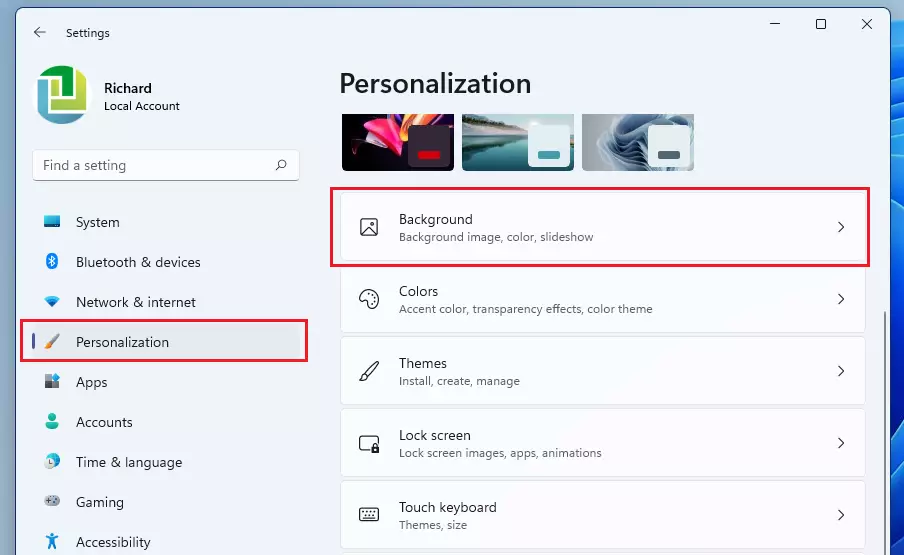
- Under Personalize your background, choose Picture. The page now shows a Recent images list.
If you leave this set to Solid color or Slideshow, the per-monitor menu does not appear in the same way. Switch to Picture first.
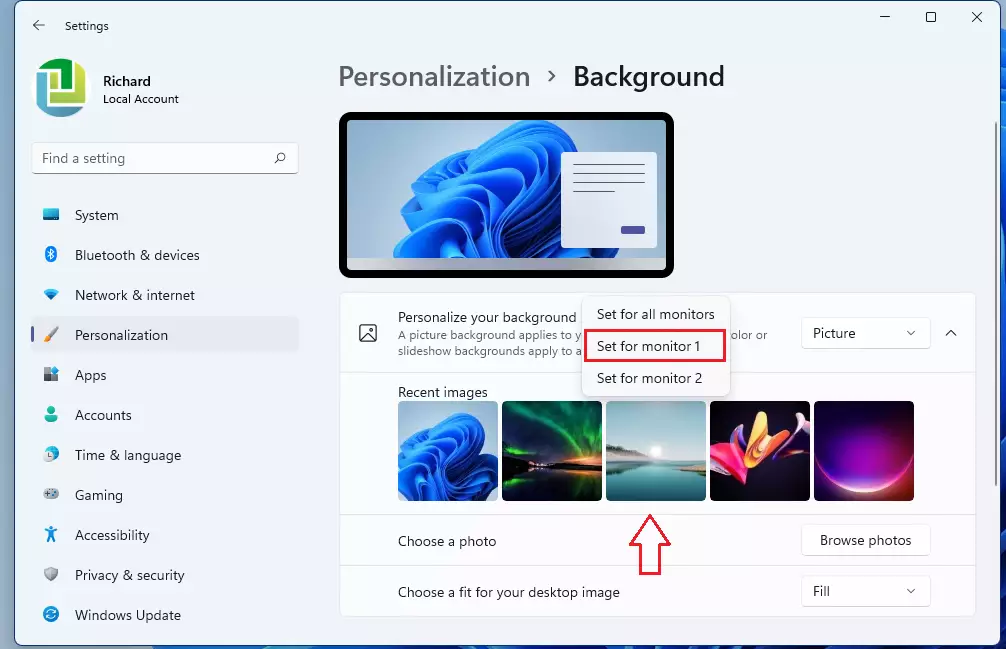
- Right-click any image in the Recent images list. A menu appears, letting you choose Set for monitor 1 or Set for monitor 2. If you have more than two screens, you get one entry per monitor. Click the one you want, and that screen’s wallpaper changes right away.
If the picture you want is not in the list, use the Browse photos button to select it from your drive. Windows applies it to all screens first and then adds it to Recent images. You can then right-click it and assign it to just one monitor.
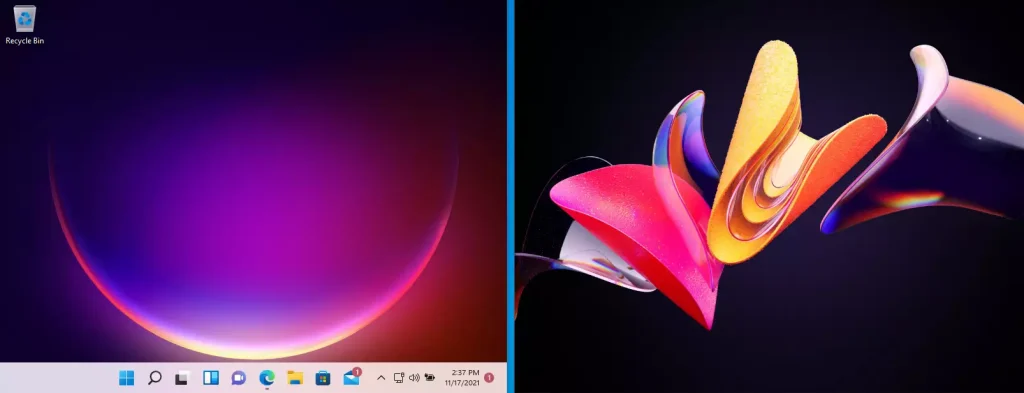
- Repeat the right-click step with a different image for each remaining screen until every monitor has its own background.
The numbering of "monitor 1" and "monitor 2" follows the order Windows uses, which may not match the physical layout on your desk. If an image lands on the wrong screen, right-click it again and pick the other monitor. To undo everything, right-click one image and choose the option that sets it for all desktops.
Troubleshooting Wallpaper Issues
Windows often syncs your display preferences across all computers linked to your Microsoft account, and that can override your custom monitor backgrounds. Work through the checks below in order.
- Check Sync Settings: Go to Settings Accounts Windows backup and toggle off Remember my preferences if you do not want your wallpaper to sync across multiple PCs. This only applies if you sign in with a Microsoft account. After you turn it off, set your wallpapers again and check that they stay in place.
- Reset Settings: If the background is frozen, you can reset the registry key. Flag: Requires admin privileges. Open Command Prompt as administrator and run:
reg delete "HKEY_CURRENT_USER\Control Panel\Desktop" /v Wallpaper /f. Then restart your computer. Registry changes are not easy to reverse, so try the other checks first and create a restore point before you run this. - Verify Display Mode: Ensure you are in Extended mode by pressing Windows key + P. A small menu opens on the right side of the screen. If it is set to a duplicate or single-screen mode, choose Extend. Windows treats the screens as one mirrored display in those modes, so you cannot give each its own wallpaper.
Third-Party Alternatives
If the built-in options are not enough, tools like Wallpaper Engine or DisplayFusion offer more control. They add animated backgrounds, multi-monitor spanning, and automatic rotation settings that go beyond default Windows 11 personalization. Both are third-party programs, so install them from the publisher's own site or the Microsoft Store, and remember that animated wallpapers use some extra CPU and graphics resources.
Summary
Setting a different background on each monitor takes a few clicks in the Personalization settings, as long as your displays are in Extended mode. If a wallpaper will not stay put, check the Windows backup sync setting and the display mode first.
Does 🪟 Windows 11 sync my wallpaper across multiple PCs?
Yes, signing in with a Microsoft account and enabling sync settings inside Windows backup preferences causes this behavior. Stopping the behavior requires navigating to Settings, selecting Accounts, and turning off sync options for the desktop theme and background settings to keep each PC unique.
Have a question about this guide?
Answered by AI from this guide. Good questions may be added to this page — please don't include personal details.
Did this guide fix your problem?

About the Author
Richard
Tech Writer, IT Professional
Richard is a writer at Geek Rewind who turns complex IT tasks into clear, step-by-step guides. He draws on years of hands-on experience in system administration and enterprise IT operations, focusing on Windows, Linux and WordPress: the problems people actually run into, and the fixes that work. His server and WordPress guides come from systems he runs himself. Richard builds and maintains the platform behind Geek Rewind, from its Ubuntu servers and Nginx configuration to its custom WordPress plugins. Many new tutorials start with readers' questions, and he's always glad to answer them in the comments.
Option no longer exists in Windows 11 for different settings per monitor for either the background image or slideshow.