Windows 11 Backup and Recovery Without Losing Files

- 14 steps
- Needs administrator rights
Windows 11 Backup and Recovery is a set of built-in tools that protect your personal files, apps, and settings from sudden crashes and accidental deletes. Windows includes three main tools. File History saves automatic copies of your files. System Restore rolls back bad system changes. OneDrive is cloud storage that syncs your folders online.
Each tool covers a different risk, so they work best together. File History and OneDrive protect your documents and photos. System Restore protects Windows itself from a bad driver or update. None of them replaces having a copy of your important files on a separate device.
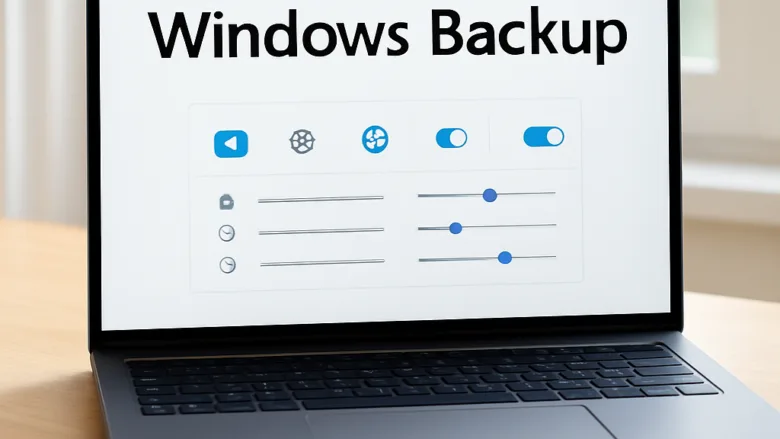
Windows Backup and Recovery protects your personal files and settings from loss using built-in tools like File History, System Restore, and cloud storage. You can secure your data by connecting an external hard drive, using the Windows Backup app for OneDrive, or creating restore points to fix computer problems.
Set up your backups
These guides show you how to choose what gets saved and where your backup copies go. Set these options up early. A backup you create after the problem starts may already be missing the files you needed.
As you work through them, decide two things first. Which folders matter most (usually Documents, Pictures, Desktop, and anything you cannot download again)? And where will the copy live? A backup that sits on the same drive as the original will not help if that drive fails.

Save files to external drives
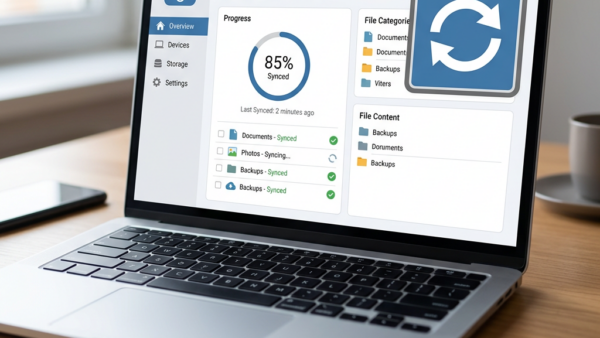
If you prefer to keep your backups offline, use an external hard drive or a USB flash drive. These steps move your photos and documents to a physical device you control.
A few things to check before you start:
- Make sure the drive has more free space than the files you plan to copy. A drive about twice the size of your data gives you room for several versions.
- Use a drive you can leave unplugged. Disconnecting it after a backup protects it from malware and accidental deletes on your PC.
- Label the drive and keep it somewhere other than your computer bag if you can.

Restore your files and system
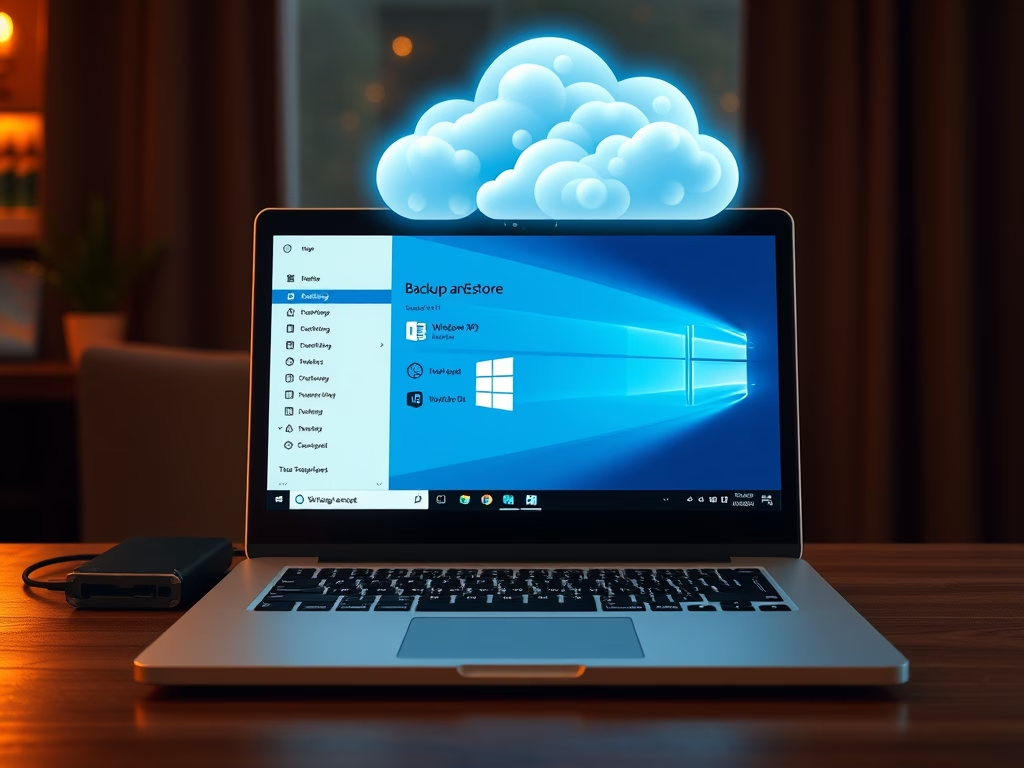
When you lose data or need to move your files to a new computer, these guides walk you through getting everything back. You can recover individual missing files or return the whole system to a working state.
Before you restore anything, connect the backup drive or sign in to the Microsoft account that holds your backup. Restore to a location with enough free space. If you are only missing a few files, restore just those rather than the whole backup, so you do not overwrite newer work.
Fix computer problems
Sometimes Windows acts up and needs a deeper repair than a standard restore can give. Use these troubleshooting steps to scan your system files and fix hidden errors.
Run these repairs while signed in with an administrator account, and close your open programs first. The scans can take several minutes. Do not shut the PC down while one is running. If a scan reports problems it cannot fix, back up your personal files before trying anything more drastic.
Common questions
How do I back up my 🪟 Windows 11 computer for free?
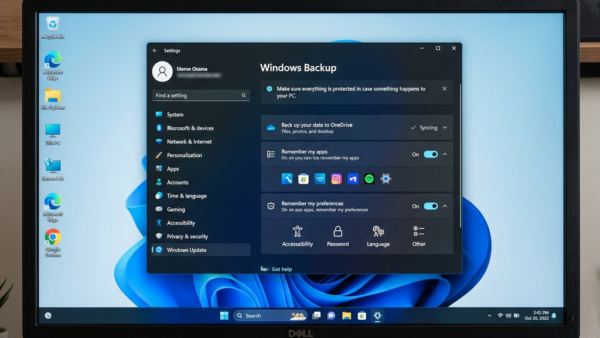
You have two main ways to back up. The built-in Windows Backup app saves your folders, apps, and settings to OneDrive. Alternatively, connect an external hard drive and use the Backup and Restore tool to save a copy of your files without paying for extra software.
To use the Windows Backup app:
- Click Start, type Windows Backup, and open the app. You need to be signed in with a Microsoft account.
- Find the Folders section and turn on the folders you want to protect, such as Desktop, Documents, and Pictures.
- Turn on the options for Apps, Settings, and Credentials if you want them saved as well.
- Click Back up. The app shows progress, and your files begin uploading to OneDrive.
Free OneDrive storage is limited (5 GB on a free account). If your folders are larger than that, the app will warn you and offer a storage upgrade. You can also turn off the larger folders, such as Pictures, and back those up to an external drive instead.
To use the external drive method:
- Plug in the drive and wait for Windows to recognize it.
- Open Control Panel System and Security Backup and Restore(Windows 7).
- Click Set up backup.
- Choose your external drive as the destination and click Next.
- Choose what to back up, review the settings, and click Save settings and run backup.
The name says Windows 7 because the tool was carried over from that version. It still works in Windows 11. If you would rather use File History, it also lives in Control Panel and saves versions of your files to an external or network drive.
Where does Windows store my backup settings?
Windows links your backup preferences and folder lists to your Microsoft account so your settings can sync across devices. This is why a new PC signed in with the same account can offer to restore your earlier setup.
You can manage or clear these stored cloud settings through your Microsoft account dashboard online. To stop a PC from adding more, open the Windows Backup app and turn off the folders, apps, and settings options you no longer want saved. Clearing cloud data online does not delete the files on your PC. Files already in OneDrive stay there until you delete them.
What is the difference between System Restore and a full backup?
System Restore and full backups serve very different purposes. System Restore saves a snapshot of your system files, drivers, and installed apps so you can undo software problems. It leaves your personal documents alone. This means it cannot bring back a file you deleted.
A full backup copies your personal data (photos, music, documents) and, if you create a system image, the whole drive. You can then restore everything if your computer stops working completely.
Restore points are usually stored on the same drive as Windows. If that drive fails, the restore points go with it. Use System Restore for quick fixes after a bad update or driver, and use a backup on a separate device or in the cloud for real protection.
How do I free up disk space taken by old restore points?
Windows automatically creates restore points when you install updates or some apps. Over time they can use a lot of drive space. Opening the System Protection settings lets you delete older restore points (snapshots of system files from specific dates) and reclaim that space.
- Click Start, type Create a restore point, and open the result. The System Properties window opens on the System Protection tab.
- Under Protection Settings, select your Windows drive (usually C:).
- Click Configure. A new window shows how much space restore points currently use.
- Under Disk Space Usage, either drag the Max Usage slider down to cap the space, or click Delete to remove all restore points for that drive.
- Click Continue if Windows asks you to confirm, then click OK.
You need administrator rights for this. If Configure is greyed out, you are probably not signed in as an administrator. If protection is turned off for the drive, Windows does not create restore points at all. Turning on Turn on system protection in the same window fixes that. Deleting restore points cannot be undone, so click Create afterward to make a fresh one before you change anything risky.
Can I restore a backup from an older version of Windows?
Windows 11 can usually restore personal files from older backups made with standard folder copying or File History. These are ordinary files, so you can open the backup drive and copy them back, or restore them through the tool that made them.
Full system image backups from much older operating systems may not work directly with newer recovery tools. If you have one, do not wipe the old backup. Try to open it and copy out the personal files you need, and keep the original until you confirm the files open correctly on your new PC.
Have a question about this guide?
Answered by AI from this guide. Good questions may be added to this page — please don't include personal details.
Did this guide fix your problem?

About the Author
Richard
Tech Writer, IT Professional
Richard is a writer at Geek Rewind who turns complex IT tasks into clear, step-by-step guides. He draws on years of hands-on experience in system administration and enterprise IT operations, focusing on Windows, Linux and WordPress: the problems people actually run into, and the fixes that work. His server and WordPress guides come from systems he runs himself. Richard builds and maintains the platform behind Geek Rewind, from its Ubuntu servers and Nginx configuration to its custom WordPress plugins. Many new tutorials start with readers' questions, and he's always glad to answer them in the comments.
No comments yet — be the first to share your thoughts!