How to Create a Full System Backup in Windows 11

- 21 steps
- Needs administrator rights
A full system backup makes an exact copy of your entire Windows 11 drive: the operating system, installed apps, settings and personal files. Windows calls this copy a system image. If the PC crashes, a virus wrecks it, or the drive fails, you can restore the image and get back to the state the machine was in when you made it.
The backup usually takes from 30 minutes to a few hours, depending on how much data is on the drive and how fast your backup drive is. It is time well spent. Without an image, recovery means reinstalling Windows, every program and every driver by hand, and that takes far longer.
Open Settings System Storage Advanced storage settings Backup options Backup and Restore(Windows 7). Click Create a system image, choose your external drive as the destination, and follow the wizard to back up your entire Windows 11 drive including the operating system, apps and files.
The 3-2-1 Backup Strategy
Keep three copies of your data, on two different types of storage, with one copy off-site. A system image on an external drive counts as one copy. Add a cloud copy or a second drive kept at another location to cover the rest. An image sitting next to the PC is no help if a fire or a theft takes both.
How to Create a System Image in 🪟 Windows 11
A system image copies your whole drive, not just your documents. That means the operating system, apps, settings and personal files all go into one backup. If the drive fails or Windows will no longer start, you can restore the image to get the whole computer back as it was.
A system image is not the same as a file backup. A file backup only protects folders such as Documents and Pictures. The image also protects the installed programs and Windows itself, which is why it is worth making before a major change or on a regular schedule.
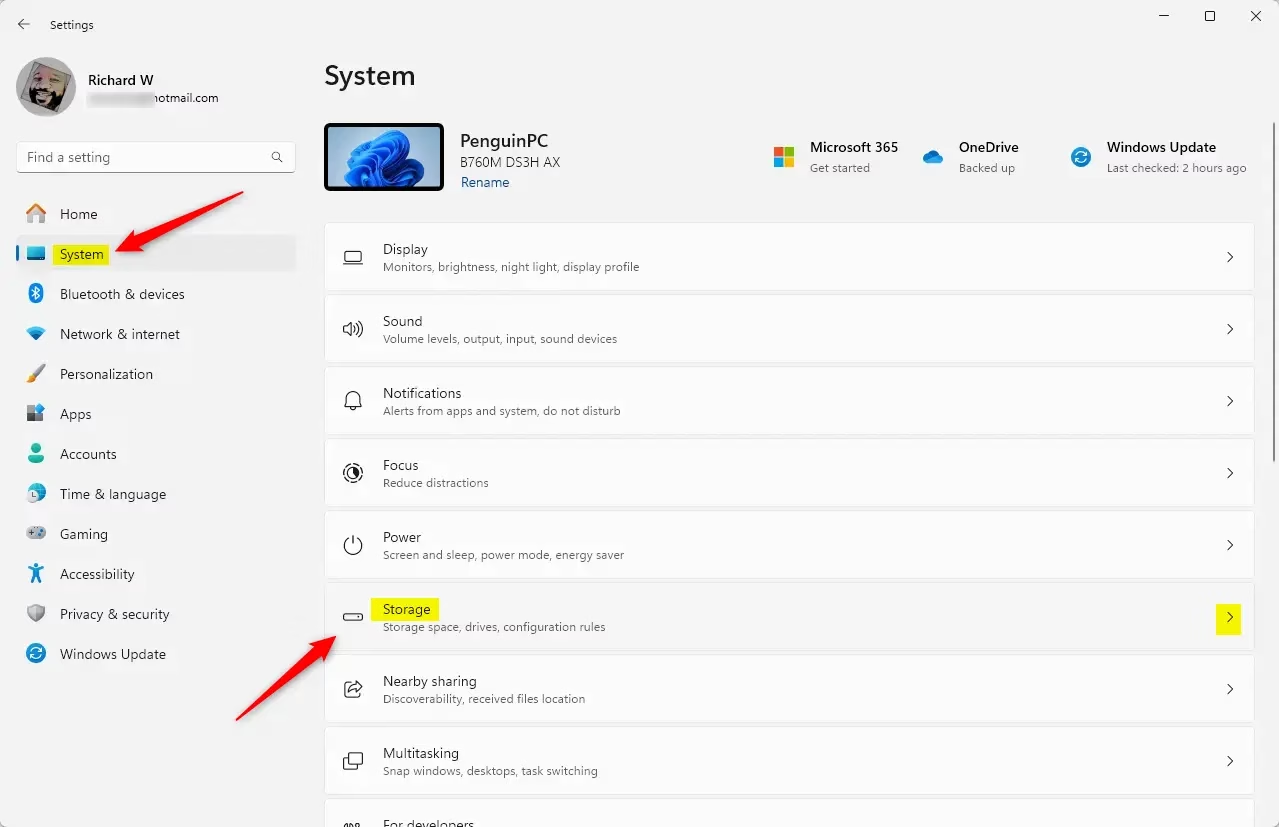
- Press Win+I to open Settings .
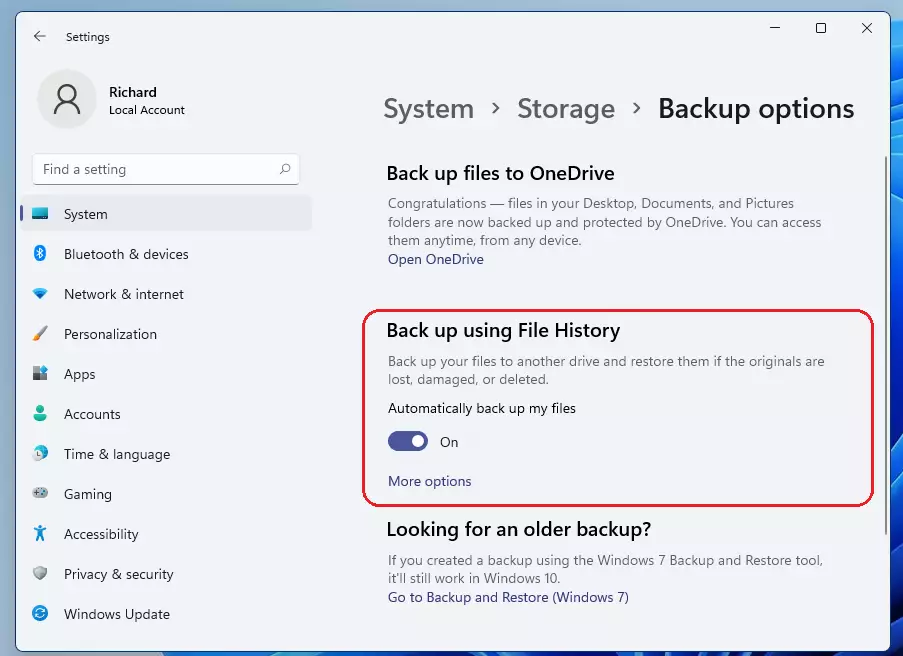
- You should see the Settings window, with the System section listed in the left pane.

- In Settings, click System.
- Select Storage from the right pane. You should see a breakdown of your drive space.
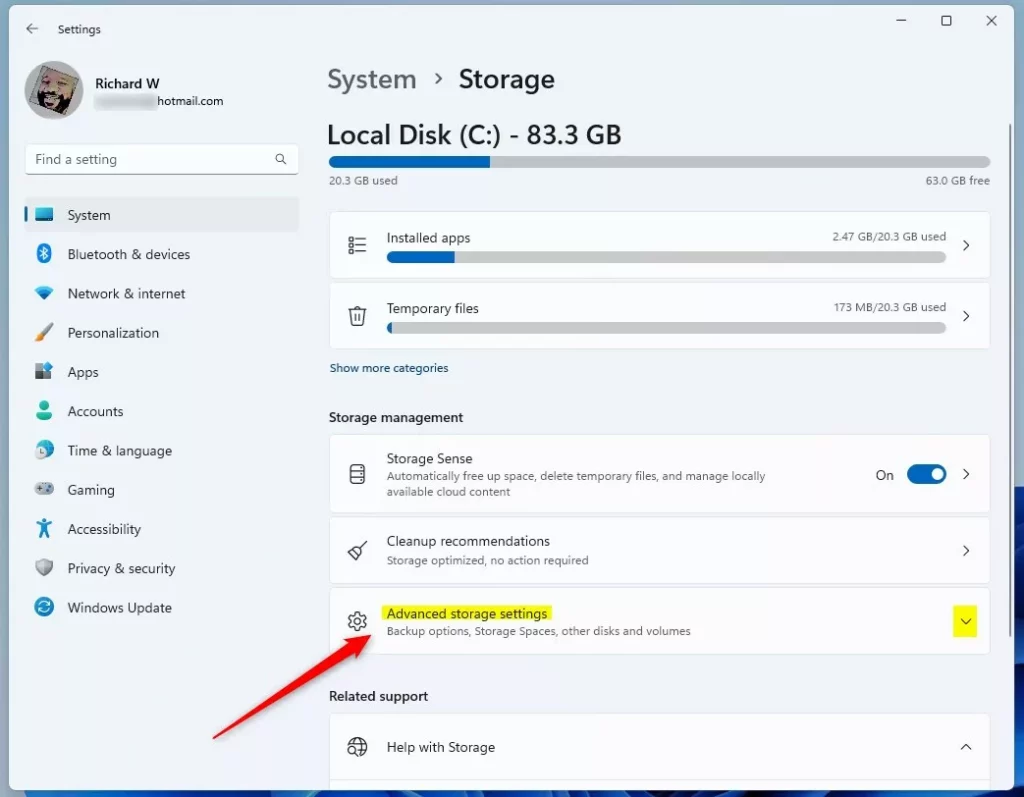
- Under Storage Management, select Advanced storage settings to expand more options.
Menu layouts shift a little between Windows 11 versions. If you cannot find an item, skip ahead to the Control Panel route described a few steps below.
- Open the Settings app and go to System Storage.
- Expand Advanced storage settings.
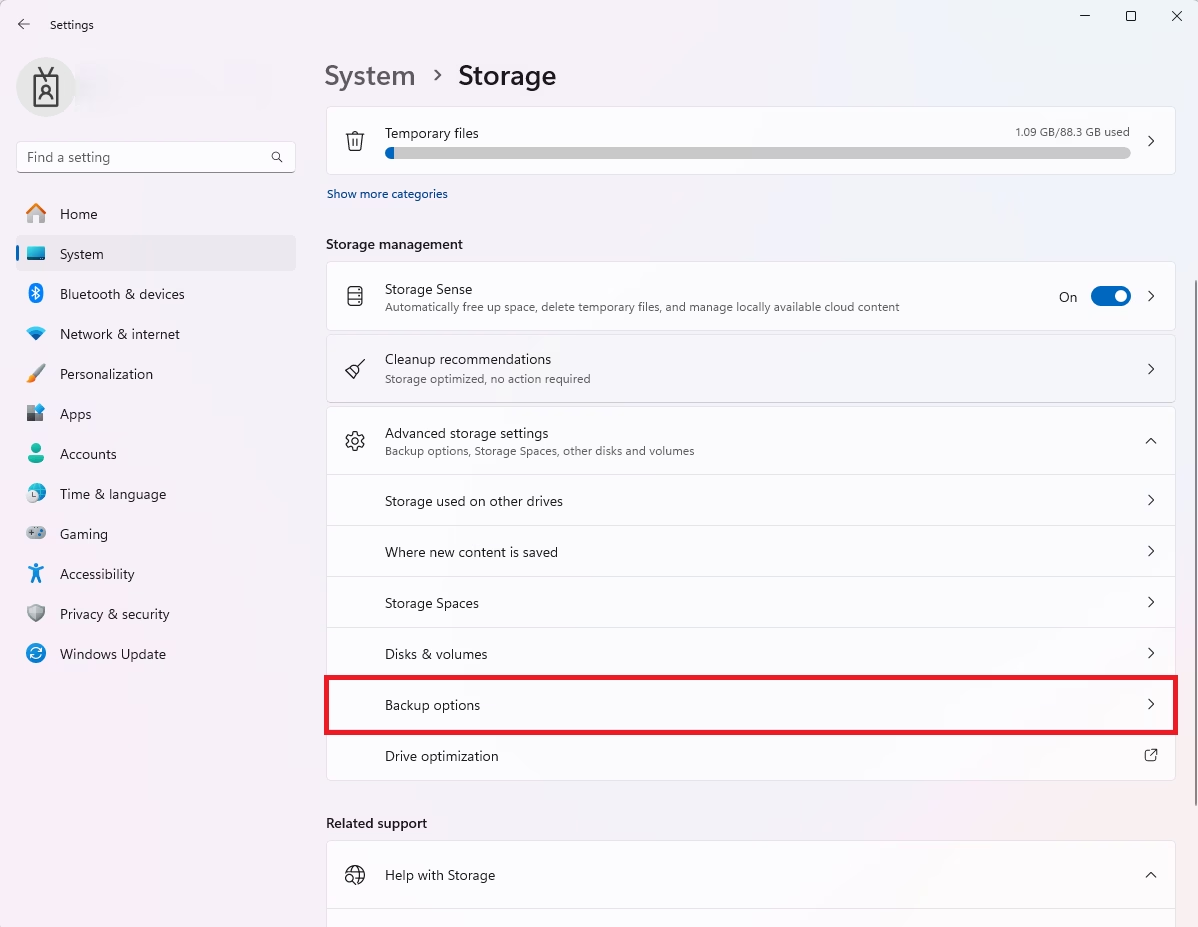
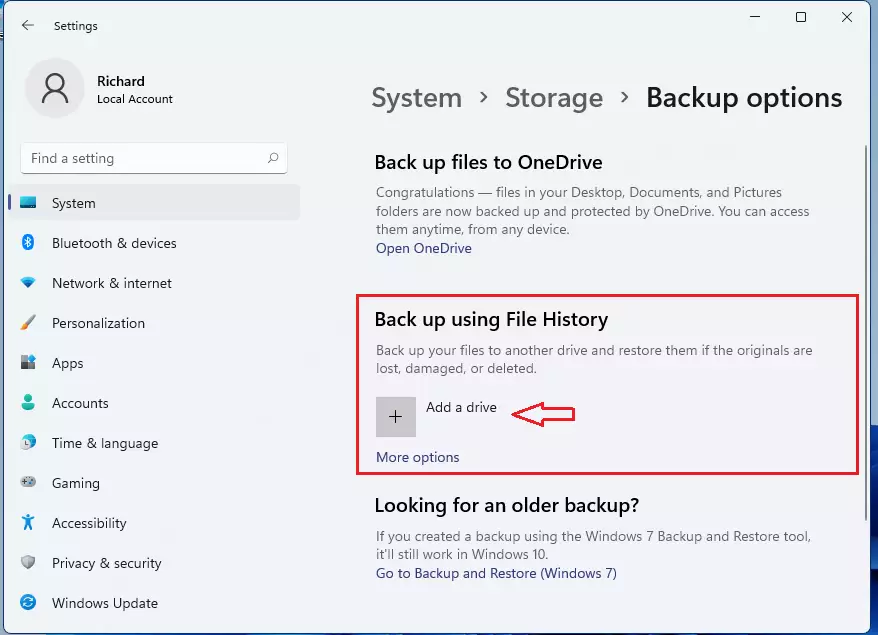
- Click Backup options.
- Select Backup and Restore (Windows 7).
If you do not see that link in Settings on your build, you can open the same tool from the classic Control Panel. Go to Control Panel System and Security Backup and Restore(Windows 7). It is the same tool either way.
The Backup and Restore (Windows 7) link opens a classic Control Panel window. This is the older backup tool carried over from Windows 7, and it is still the built-in way to create a full system image in Windows 11. Microsoft treats it as a legacy feature and pushes its newer Windows Backup app, but that app does not make a full drive image. It still works and is available in both Home and Pro editions.
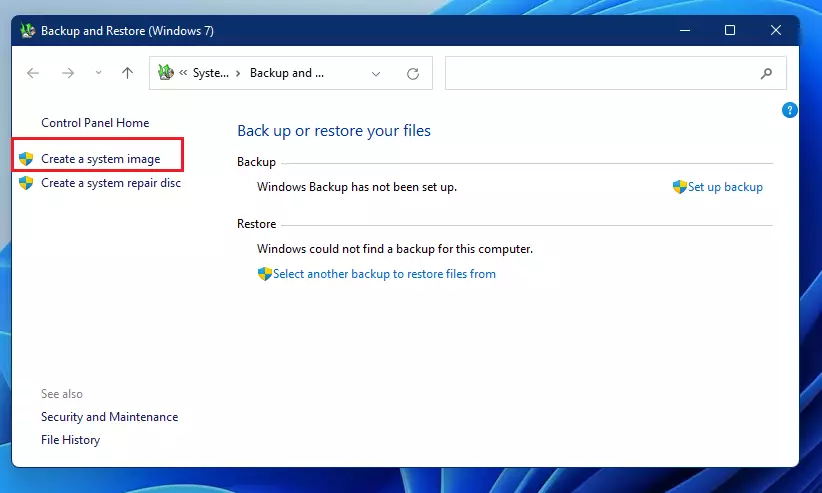
After clicking the link, you should see a window titled Backup and Restore (Windows 7), with options in the left pane.
Before you start, connect a place to save the image. You can save it to an external hard drive, to DVDs, or to a network location. An external drive is the simplest choice, and DVDs become impractical quickly because a full image can span many discs.
- The destination drive should be formatted as NTFS. The wizard will not offer drives with other file systems.
- The drive should have at least as much free space as the data in use on the drives you are backing up.
- You need administrator access to change these backup settings. If you are on a standard account, Windows asks for an administrator password.
- Do not save the image on the same physical drive you are backing up. It will not protect you if that drive fails.
- Click Create a system image on the left side of the Backup and Restore window.
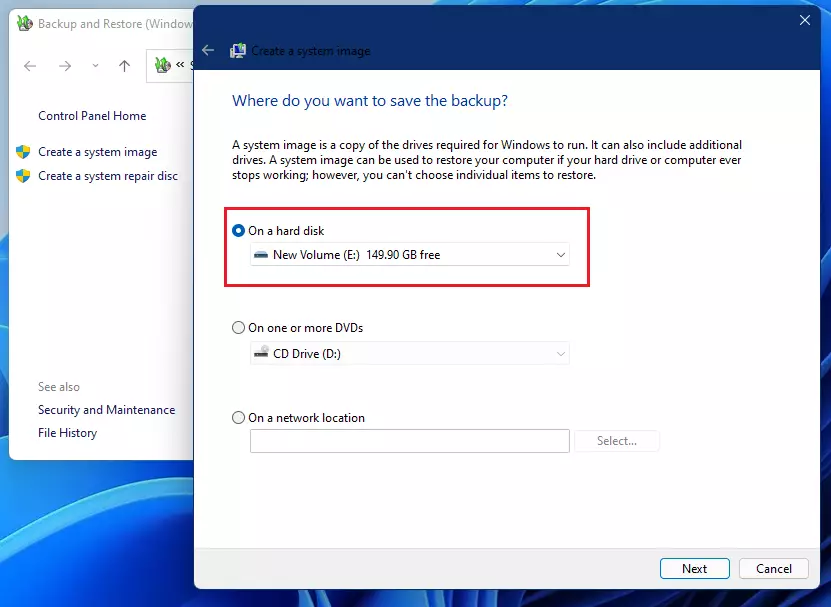
- Wait a moment while Windows scans for available backup destinations. The wizard then asks where you want to save the backup.
- Choose On a hard disk, On one or more DVDs or On a network location.
If your external drive does not show up in the list, check that it is plugged in, and that it is formatted as NTFS.
An external hard disk is the safest and easiest place to keep your Windows 11 backup. As a rough guide, a drive with at least 1 terabyte of storage can hold a full system backup for most home PCs. Check how much space your own PC uses, and pick a drive larger than that. A bigger drive also lets you keep more than one image.
- Select your external drive from the drop-down list in the wizard.
- Click Next.
- If asked which drives to include, leave the system drive checked. Windows includes the drives required for it to run by default.
- Click Next again to reach the confirmation screen.
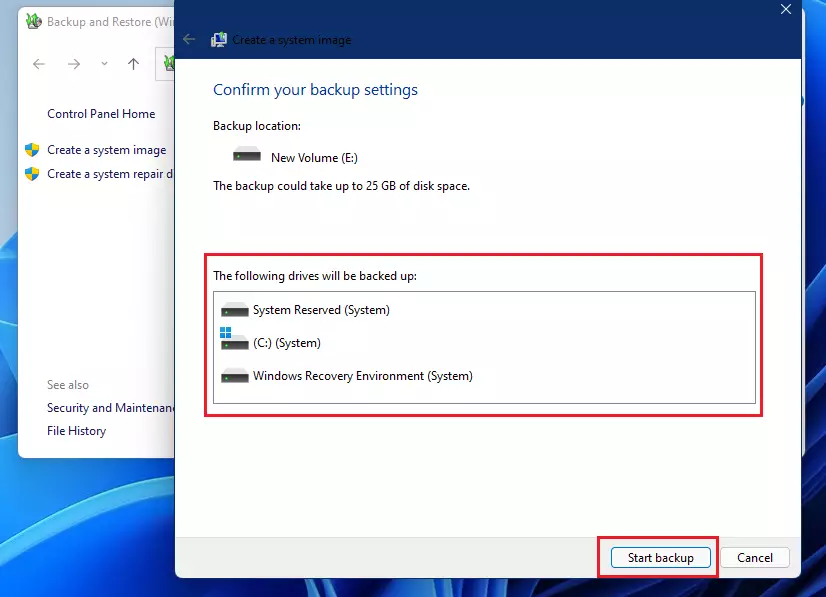
- Review the summary on the confirmation screen. It lists the backup location and the drives to be included.
- Click Start backup to begin the full system backup.
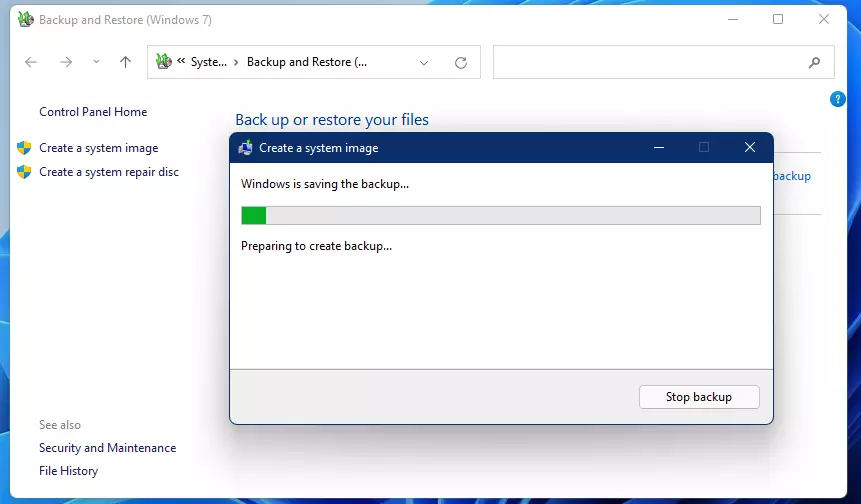
The backup needs administrator rights because it reads protected system files. If the button seems to do nothing, check for a User Account Control prompt and approve it. You should then see a progress bar.
This can take a few hours depending on how much data is on your computer and how fast the drive is. You can keep using the PC, but it runs slower while the backup works. Heavy file changes during the backup are best avoided. Do not unplug the drive or put the PC to sleep until it is done.
When it completes, Windows may offer to create a system repair disc. A repair disc lets you boot the PC and restore the image when Windows will not start. If you have no optical drive, you can skip it. You can also boot the PC from a Windows 11 USB installation drive and use its repair options instead.
- When the wizard reports that the backup finished, click Close.
- Safely eject the external drive using the Safely Remove Hardware icon in the taskbar's system tray, then unplug it.
- Label the drive with the date and keep it somewhere safe. Away from the PC is best, and an off-site location counts toward the 3-2-1 rule.
An image goes out of date as you install apps and add files. Make a new one every few months, or before big changes such as a major Windows update.
To recap the route: open the Backup and Restore (Windows 7) link, which opens the legacy tool, and then choose Create a system image. If the link is missing from Settings, use Control Panel System and Security Backup and Restore(Windows 7).
Summary
A full system backup is the best way to protect your whole Windows 11 PC. The legacy System Image tool covers the entire drive, including Windows, apps and settings. Follow the 3-2-1 backup rule alongside it, and refresh the image regularly so it is worth restoring when you need it.
Have a question about this guide?
Answered by AI from this guide. Good questions may be added to this page — please don't include personal details.
Did this guide fix your problem?

About the Author
Richard
Tech Writer, IT Professional
Richard is a writer at Geek Rewind who turns complex IT tasks into clear, step-by-step guides. He draws on years of hands-on experience in system administration and enterprise IT operations, focusing on Windows, Linux and WordPress: the problems people actually run into, and the fixes that work. His server and WordPress guides come from systems he runs himself. Richard builds and maintains the platform behind Geek Rewind, from its Ubuntu servers and Nginx configuration to its custom WordPress plugins. Many new tutorials start with readers' questions, and he's always glad to answer them in the comments.
After the image showing file history, it is not clear where the link/tab is, to trigger the system image screen
[…] You can create a system image: How to create a system image […]
[…] You can read that post here. […]