Change Windows 11 External Drive Removal Policy


The Windows 11 external drive removal policy controls how USB flash drives and external hard disks disconnect from your computer. You can switch between two different modes to balance data safety and file transfer speed.
Quick Removal lets you unplug a drive at any time without clicking the taskbar icon, while Better Performance speeds up file transfers by caching data temporarily in memory. Better Performance requires you to use the “Safely Remove Hardware” option before unplugging your drive to prevent data loss.
Go to Settings System Storage Advanced storage settings Disks & volumes. Click your external drive, then Properties, and choose Quick removal or Better performance under Removal policy. Alternatively, use Device Manager, find your drive, select Properties, and choose a policy on the Policy tab.
Change disk removal policy in Windows
You can change your Windows 11 external drive policy by opening the Disks & volumes menu in your system settings and switching between quick removal and better performance. Quick removal lets you unplug your USB drive without using the Safely Remove Hardware option, while better performance makes file transfers faster but requires you to safely eject the drive every time.
The steps below explain how to configure them.
Press Win+I to open Settings . Click System, select Storage, expand Advanced storage settings, and click Disks & volumes.
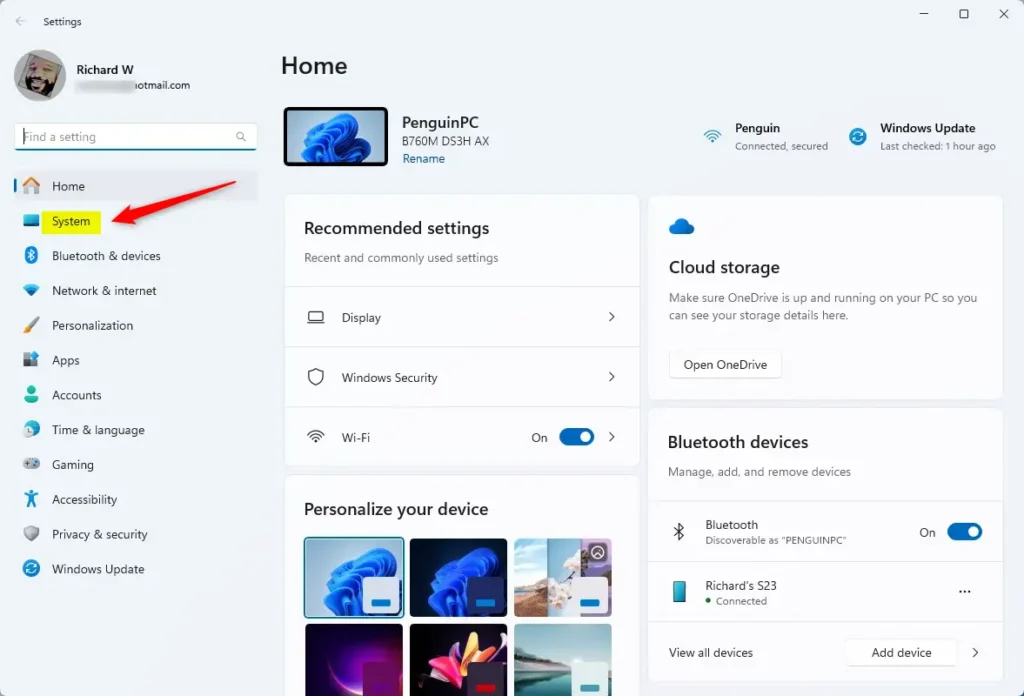
Click the System button on the left side of the Settings app window.
Select the Storage tile on the right to expand it.

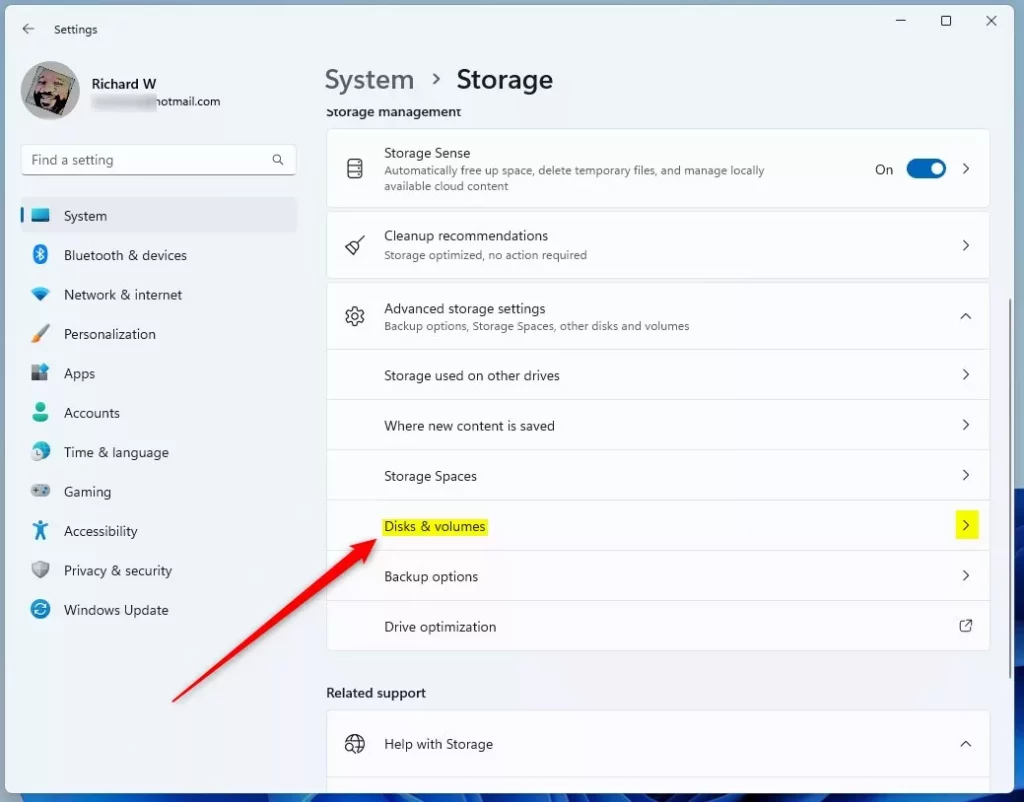
Expand "Advanced storage settings" on the System Storage settings pane, then click the "Disks & volumes" tile.
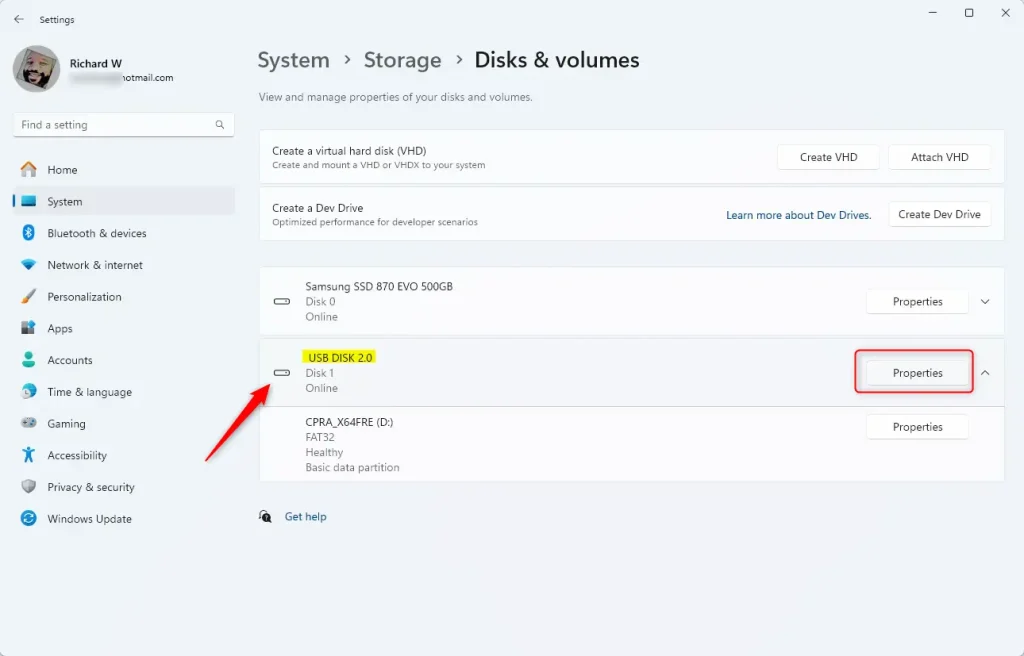
Locate the target external drive on the Disks and volumes settings pane and click Properties.
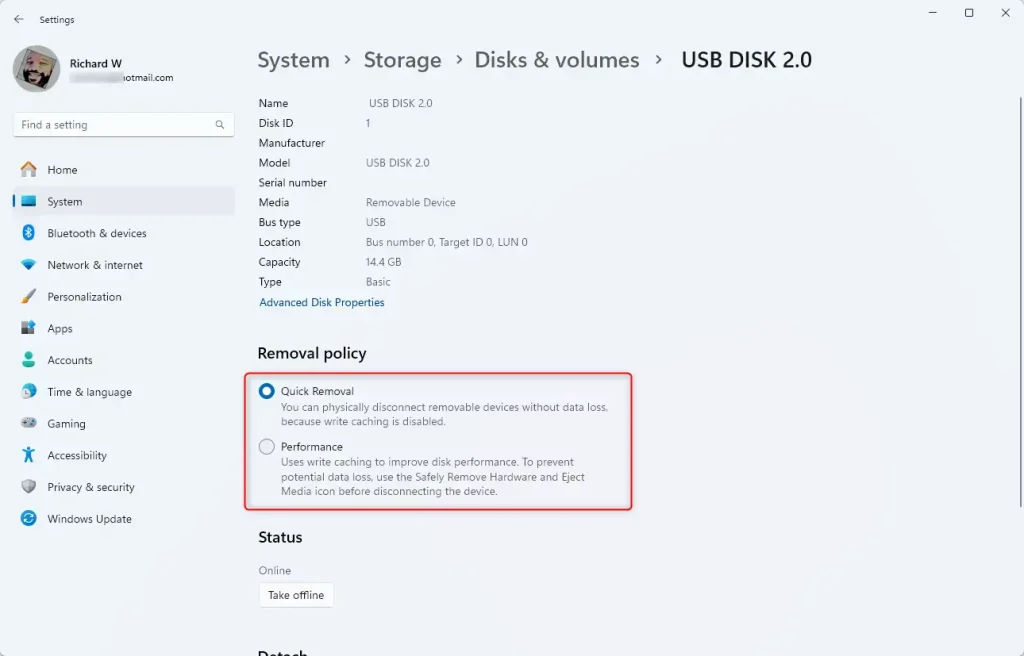
Choose either Quick Removal (default) or Performance under the Removal policy section.
Close the Settings app after making a selection.
The "Device Manager" app provides an alternative method for making this change.
Launch the Device Manager first.
Right-click the external device, select Properties, and choose an option under the Policy tab:
- Quick removal (default)
- Better performance
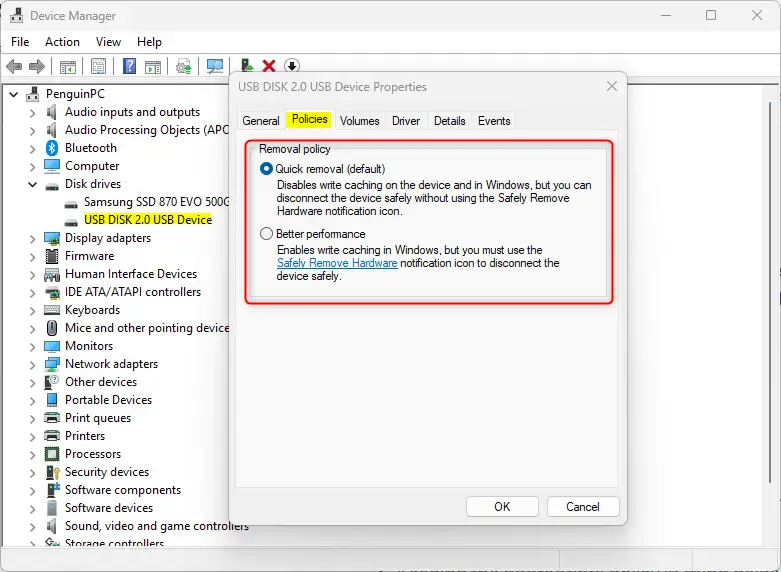
Configuration is complete.
Conclusion:
Adjusting this policy helps protect data without slowing down your workflow. Quick Removal allows for immediate unplugging without data loss, making it ideal for everyday use.
- Quick Removal allows for immediate unplugging without data loss, making it ideal for everyday use.
- Performance mode boosts writing efficiency but requires the use of the "Safely Remove Hardware" option to avoid risks.
- Adjusting the removal policy is straightforward through the Settings app, offering flexibility based on your needs.
- Keeping the appropriate policy in mind helps prevent data corruption and ensures smooth operation of external drives.
Choosing the correct policy optimizes external storage performance.
Was this guide helpful?

About the Author
Richard
Tech Writer, IT Professional
Richard is a writer at Geek Rewind who turns complex IT tasks into clear, step-by-step guides. He draws on years of hands-on experience in system administration and enterprise IT operations, focusing on Windows, Linux and WordPress: the problems people actually run into, and the fixes that work. His server and WordPress guides come from systems he runs himself. Richard builds and maintains the platform behind Geek Rewind, from its Ubuntu servers and Nginx configuration to its custom WordPress plugins. Many new tutorials start with readers' questions, and he's always glad to answer them in the comments.



No comments yet — be the first to share your thoughts!