How to Safely Eject External Devices in Windows 11

- 2 ways to do it
- Needs administrator rights
Safely ejecting an external drive in Windows 11 tells the system to finish any background activity on the drive before you unplug it. This applies to USB flash drives, external hard drives and SSDs, and memory card readers. If you pull a storage device out while Windows is still writing to it, the file system can be damaged and your files may become unreadable.
Clicking the taskbar icon takes about five seconds. It protects your documents and helps your hardware last longer. This guide covers two ways to eject a drive, what to do when Windows says the device is busy, and a few habits that keep your data safe.
Click the Safely Remove Hardware and Eject Media icon in the system tray, next to the clock on the taskbar, then select your drive from the list. Wait for the “Safe to Remove Hardware” notification before unplugging. If the icon is missing, turn it on under Settings Personalization Taskbar Other system tray icons
Why should you safely eject your devices?
If you unplug a drive without ejecting it first, Windows may still be writing to it. That can leave a file half-saved, damage the drive’s file system, or make the drive ask you to format it the next time you plug it in.
Windows often caches file changes and writes them later, so a copy that looks finished may not be. Newer versions of Windows 11 set USB drives to a “Quick removal” policy by default, which lowers the risk. It does not remove it, because a file can still be open or a write can still be in progress. Ejecting is still the safe habit, especially with large copies and external hard drives.
What happens when you safely eject?
When you use the eject command, Windows stops all active communication with the drive. It writes out any data still waiting in memory and asks programs to release the files they have open on that drive. Once Windows confirms the drive is idle, you can unplug it.
If something is still using the drive, Windows will not let you eject it and will tell you the device is busy. That warning is useful. It means unplugging now could have damaged your data. The troubleshooting section below explains how to deal with it.
Method 1Using the Taskbar
- Look at the bottom right corner of your screen, next to the clock. This area is the system tray , and you should see a few small icons there.
- Click the small upward-pointing arrow to show the hidden icons. A small panel opens above the taskbar .
- Find the Safely Remove Hardware and Eject Media icon. It looks like a small USB plug with a check mark. It only appears while a removable device is connected. If the icon is missing and a drive is plugged in, open Settings Personalization Taskbar Other system tray icons and turn on the toggle for this icon. In some builds the toggle is labeled Windows Explorer .
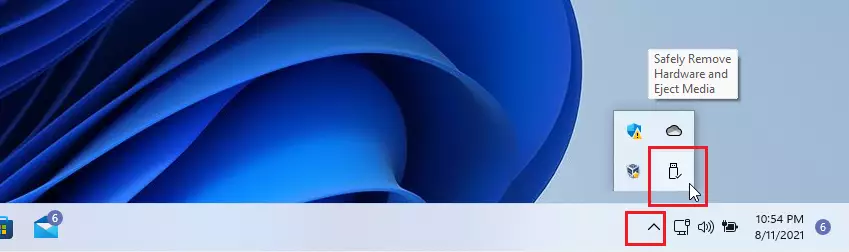
The system tray menu is the quickest way to disconnect a USB drive or flash drive, because you don’t need to open File Explorer. Click the small arrow near the clock to find the hardware removal icon. Then click the name of your drive. This works the same on Windows 11 Home and Pro.
- Click the icon to see a list of your connected devices. Each removable drive appears as its own entry, usually with its drive letter or label.
- Select the name of the drive you want to remove. If you have several drives connected, check the name and drive letter first so you eject the right one.
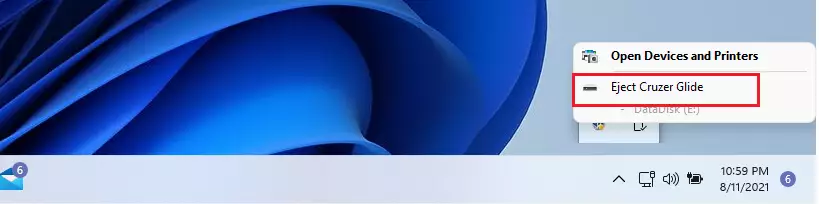
After you pick the drive from the list, Windows begins to stop it. This usually takes a second or two. If you were copying files, it may take longer while Windows finishes writing them. The drive then disappears from File Explorer. Don’t unplug it until you see the confirmation message.
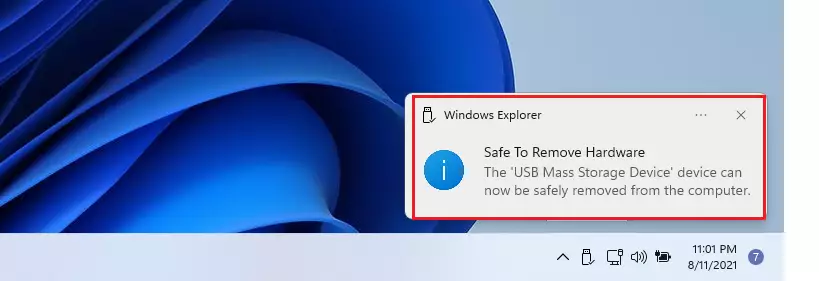
Windows 11 then shows a Safe to Remove Hardware notification once all data transfers are finished. This confirms you can unplug the device without risking file corruption. If the drive has an activity light, wait until it stops blinking before you pull the drive out. You can unplug it safely at that point.
If you miss the notification, check the drive list again. A drive that has been ejected no longer appears in File Explorer under This PC.
The taskbar is the fastest route to disconnecting hardware safely. Look for the small upward-pointing arrow near the clock in the bottom-right corner. Hidden icons, including the eject icon, are kept behind it.
If you eject drives often, you can drag the eject icon out of the hidden panel and onto the visible part of the taskbar. It will then stay in view whenever a device is connected.
Method 2Using File Explorer
- Open File Explorer on your computer. You can click its icon on the taskbar or press the Win plus E.
- Find your external drive in the list on the left side. It appears under This PC, and sometimes also as its own entry in the navigation pane.
- Right-click the name of the drive. A context menu appears.
- Select Eject from the menu. If you don’t see it, click Show more options and look for it in the classic menu. The drive then disappears from the list, and Windows shows a message that it is safe to remove.
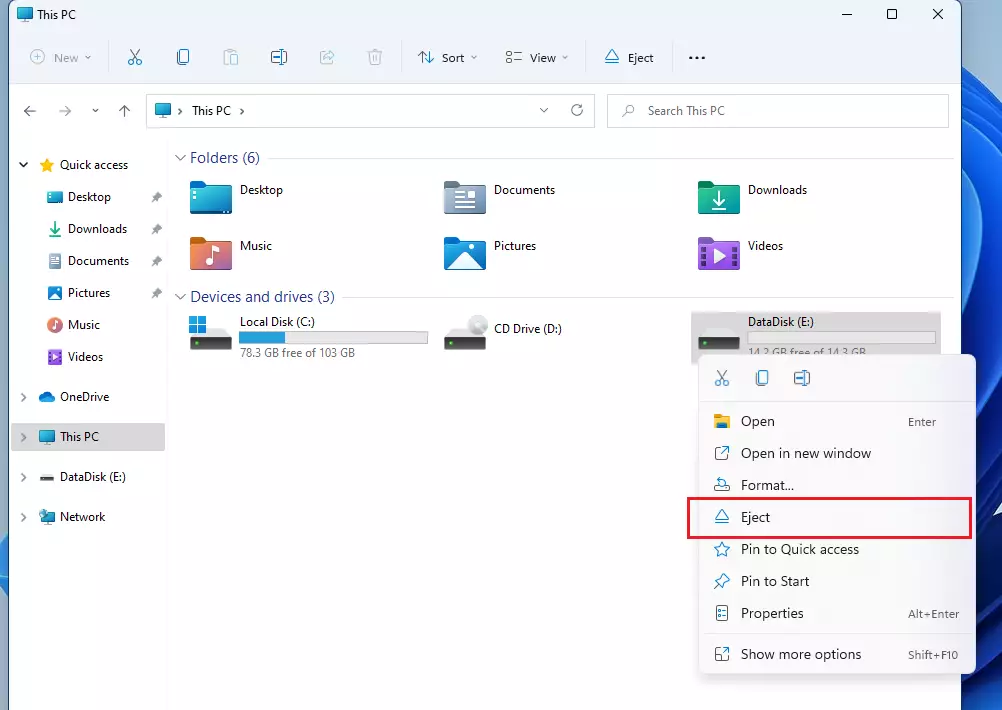
Once the drive vanishes from File Explorer and Windows confirms it is safe to remove, unplug the device. If you want to use it again, unplug it and plug it back in. Windows will detect it as a new connection. Eject only works on drives that are connected and not in use, so close anything that points at the drive first.
Troubleshooting
Most eject problems come from open files or background apps that are still using the drive. If Windows says the device is busy and cannot be stopped right now, work through these steps:
- Close any File Explorer windows that show a folder on the external drive.
- Close documents, media players, photo viewers and any other apps that have files open from the drive.
- Check that no copy or backup is still running to or from the drive, and wait for it to finish.
- Try the eject again from the taskbar icon or File Explorer .
If the message keeps appearing, an app may still be running in the background. Open Task Manager, look through the apps and background processes for anything that uses the drive, and close it. As a last resort, shut down the PC and unplug the drive once the PC is fully off. This is safer than pulling the drive while Windows is running.
However, if you're using network drives (shared storage on a work network) or system-managed volumes, you might need administrator privileges to stop associated services. Network drives are also not ejected the same way. You disconnect them instead of ejecting them.
Summary
Safely ejecting external devices protects your data. Before you disconnect a device, close all open files related to that specific drive and wait for any transfer to finish. Then eject it from the taskbar or File Explorer and wait for the confirmation. This habit prevents data loss and helps external drives work reliably, and it is worth following every time you use a removable drive in Windows 11.
Have a question about this guide?
Answered by AI from this guide. Good questions may be added to this page — please don't include personal details.
Did this guide fix your problem?

About the Author
Richard
Tech Writer, IT Professional
Richard is a writer at Geek Rewind who turns complex IT tasks into clear, step-by-step guides. He draws on years of hands-on experience in system administration and enterprise IT operations, focusing on Windows, Linux and WordPress: the problems people actually run into, and the fixes that work. His server and WordPress guides come from systems he runs himself. Richard builds and maintains the platform behind Geek Rewind, from its Ubuntu servers and Nginx configuration to its custom WordPress plugins. Many new tutorials start with readers' questions, and he's always glad to answer them in the comments.
This is no longer necessary, per Microsoft default behavior change.
https://docs.microsoft.com/en-AU/windows/client-management/change-default-removal-policy-external-storage-media
On my new Windows 11 There is NO Icon to remove external Hardware safely .What do I do?
I agree! Trying to find solution. Even though turned on in my Personalization/Taskbar settings, it does not appear. Haven’t figured it out yet…
I have just upgraded to Windows 11. There is NO icon I can find to safely remove external drives.
How can I fix this?
By the way, be sure to restart your computer. You might not see the icon(s) until you restart.
[…] can safely unplug the disks from the computer if they are external. If the disks are internal, turn off the computer […]
[…] Removal: This policy lets you remove the device without using the “Safely Remove Hardware” option. Windows automatically disables write caching for the device, meaning data is […]
[…] How to eject removable drives in Windows 11 […]
[…] If your disk is external (like a USB drive), you can safely unplug it. […]
[…] more details, see how to Safely Remove External Drives in Windows 11 and how to enable write caching for better […]