How to Check If Printer Supports Windows Protected Print Mode

Windows Protected Print mode (WPP) is a Windows 11 security setting. When it is on, Windows stops loading old third-party printer drivers and talks to the printer directly with its own built-in print stack. That shuts out a lot of risky driver software and the security flaws that come with it. It also means a printer that depends on a vendor driver may stop working once the mode is switched on, so check support before you enable it.
Your printer needs to support Mopria certification or the Internet Printing Protocol (IPP) to work with this setting. You can find these details in two places: the Settings app on a PC where the printer is already installed, or the specifications for your printer model. If you are not sure which applies, check both.
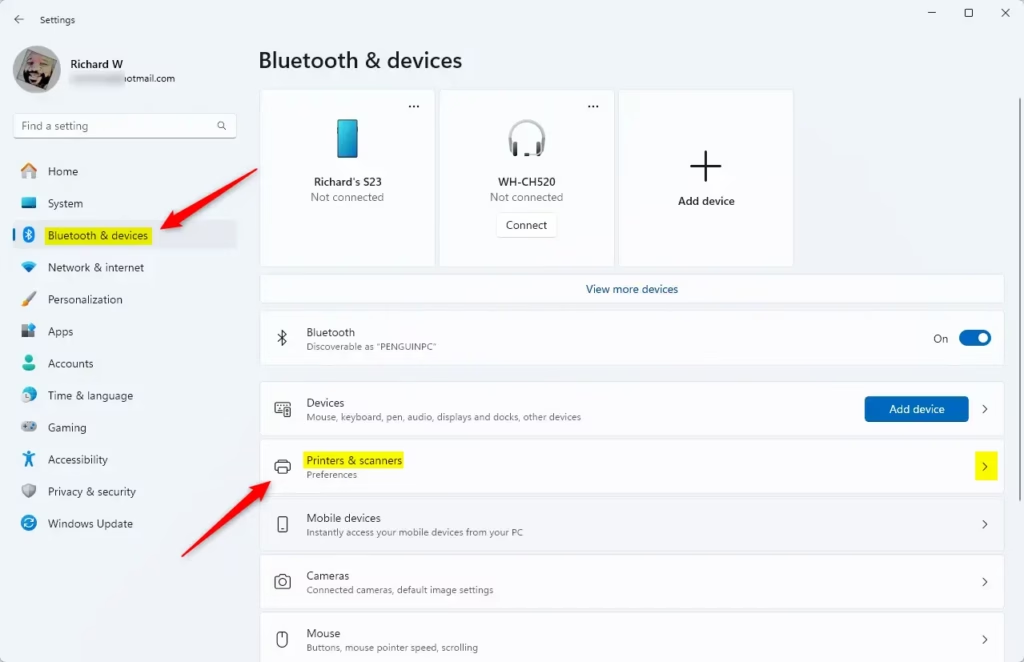
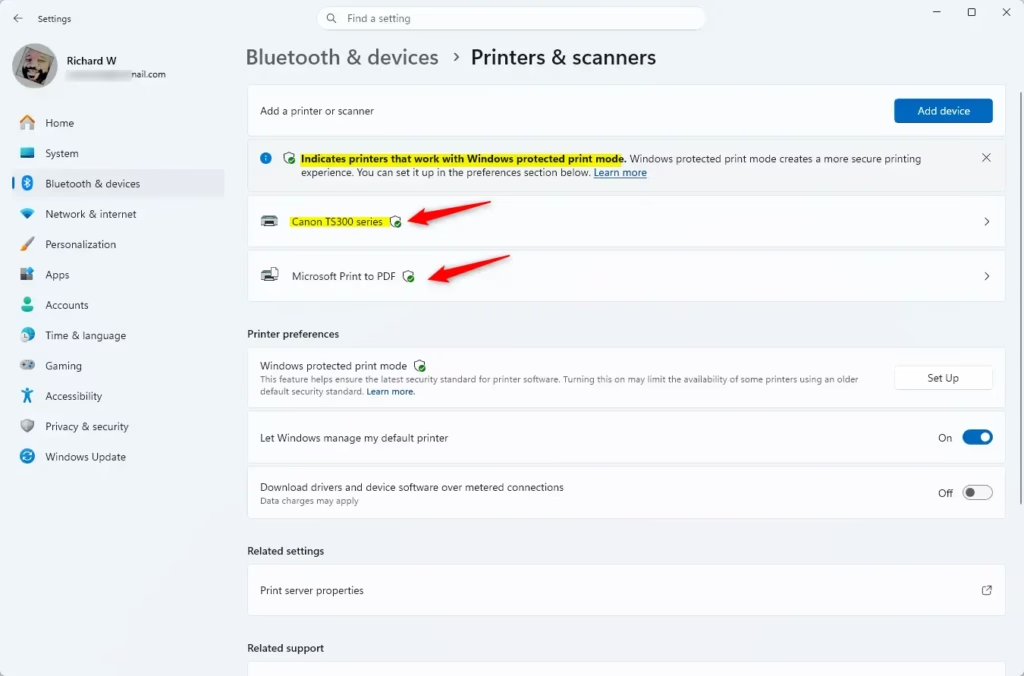
Press Win+I to open Settings , select Bluetooth & devices, then Printers & scanners. Look for the Windows Protected Print icon next to your printer name. If it appears, your printer supports Windows Protected Print mode. If not, search the Mopria certified products list or check your printer’s specifications for Mopria certification or IPP support.
Option 1Use Mopria Certified Products list
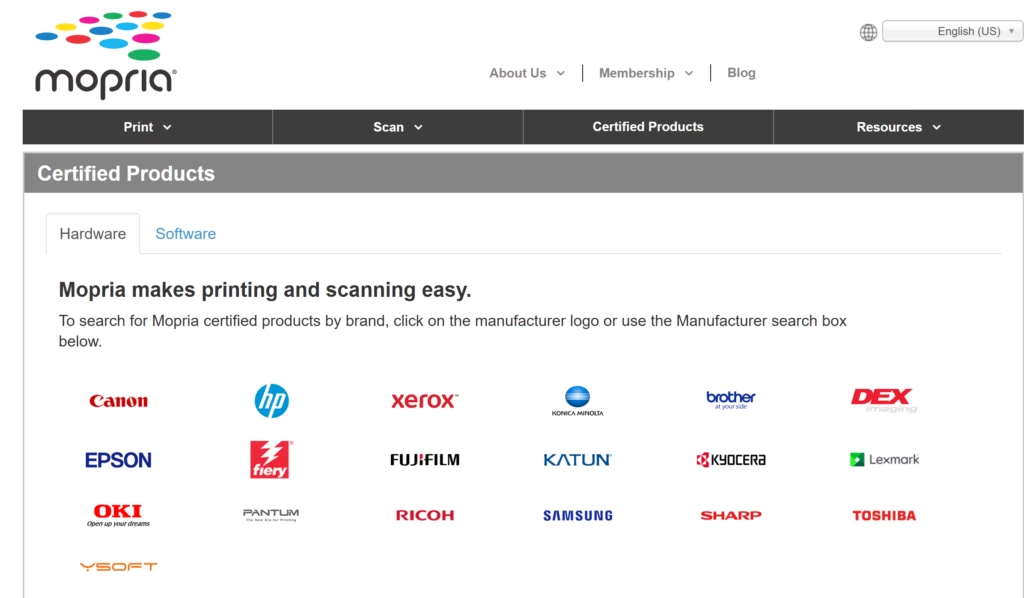
The Mopria certified products website lists hardware that supports Windows Protected Print (WPP). Most modern models carry Mopria certification, which means they work with WPP. Use this list in two situations: before you buy new equipment, and when you want to verify printers you already own.
To check a printer against the list, search for the exact manufacturer and model name. Models in the same family often differ in what they support, so a similar name is not enough. If your model is not listed, look at the manufacturer’s spec sheet for Mopria or IPP support before assuming it will work.
Option 2🪟 Windows 11 Settings
The steps below assume a current build of Windows 11. Home and Pro show the same page here, but older builds may not have the WPP options at all, so run Windows Update first if you do not see them.
- Press Win+I on your keyboard to open Settings.
- Select Bluetooth & devices in the left-hand list, then select Printers & scanners. You should now see every printer installed on this PC.
- Look at the list of devices for the WPP icon next to your printer name. If the icon is there, the printer is compatible.
- If there is no icon, do not assume the printer is broken. It may simply not support WPP. Look up the model on the Mopria list described above, or check the manufacturer’s specifications for IPP support.
Open Printers & scanners settings
Enterprise Deployment and GPO
Group Policy Objects (GPO) let administrators manage Windows Protected Print across many computers at once, so every PC on the network gets the same security configuration.
Check each model against the Mopria list, and test the policy on a small pilot group of computers. Any printer that relies on a vendor driver will stop printing once the mode is enforced, and finding that out on a few test PCs is much easier than finding out across the whole office.
Summary
Windows Protected Print is a built-in security feature in Windows 11 that isolates printer communication to protect your computer from vulnerabilities. It stops the need for third-party manufacturer apps and drivers by using modern Microsoft printing software, which helps keep your overall system defense strong against potential threats from connected hardware.
References:
- Windows Protected Print Mode
- Making it easier to identify Windows protected print mode compatible devices | Microsoft Community Hub
For technical specifications, consult the official Microsoft Learn documentation.
Have a question about this guide?
Answered by AI from this guide. Good questions may be added to this page — please don't include personal details.
Did this guide fix your problem?

About the Author
Richard
Tech Writer, IT Professional
Richard is a writer at Geek Rewind who turns complex IT tasks into clear, step-by-step guides. He draws on years of hands-on experience in system administration and enterprise IT operations, focusing on Windows, Linux and WordPress: the problems people actually run into, and the fixes that work. His server and WordPress guides come from systems he runs himself. Richard builds and maintains the platform behind Geek Rewind, from its Ubuntu servers and Nginx configuration to its custom WordPress plugins. Many new tutorials start with readers' questions, and he's always glad to answer them in the comments.
No comments yet — be the first to share your thoughts!