How to Secure Your Windows 11 PC: Essential Security Settings

Windows 11 includes built-in tools, mainly Microsoft Defender Antivirus (in the Windows Security app) and Windows Hello, that protect your PC from viruses, malware, and hackers. Most of them are in the Settings app, so you don’t need extra software to cover the basics.
These features protect your photos, documents, and passwords. This guide covers where each setting lives, what to check, and how to undo a change if it causes trouble.
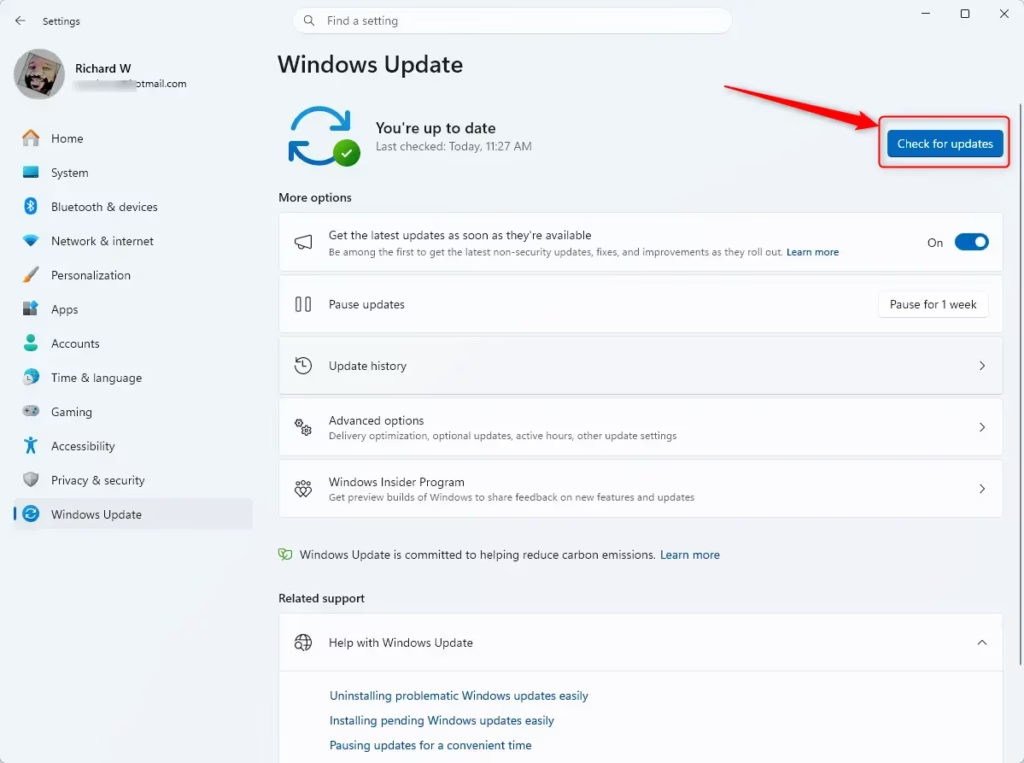
Open Settings , select Windows Update , and click Check for updates to install the latest security patches. Then open Windows Security from the Start menu , confirm all sections show green check marks, and enable Microsoft Defender Antivirus if it is off. These two steps close most security vulnerabilities on Windows 11.
What happens when you don’t secure your PC?
- Malware Infections: Viruses, ransomware, and spyware can infect your computer. They can steal your data, slow down your system, or lock your files until you pay a ransom.
- Data Theft: Hackers can gain access to your accounts, steal your passwords, and open your personal files.
- Identity Theft: Stolen personal information can be used to open fraudulent accounts or commit crimes in your name.
- Financial Loss: If your banking or credit card details are compromised, you could lose money.
- System Damage: Malware can corrupt your system files and leave your computer unstable or unusable.
An unprotected PC is exposed to all of these risks. Without proper security settings, malicious software can steal your files, log your keystrokes, lock you out for ransom, or give an attacker a way into your online accounts.
Essential Security Settings in 🪟 Windows 11
Windows 11 ships with solid security features, but they only help if they are switched on and you know where to find them. The sections below go through the most important ones in a sensible order. Start with updates, then work down. Most changes take a minute or two.
1Keep Windows Updated
Keeping Windows updated is the most important security step you can take. Updates close security holes and fix bugs before attackers can use them. Without them, known weaknesses stay open on your PC, and attackers actively scan for those.
An update gives you the latest security fixes and features, which makes your system harder to attack.
How to check for updates:
- Click the Start button, open Settings, and select Windows Update. You can also type "Check for updates" in Start and select the result.
- Click Check for updates. Windows checks for new updates, and you should see them listed as downloading or installing.
- Let the downloads and installs finish. Windows 11 also checks automatically in the background, so you may find updates already waiting.
- If you see Restart now, save your work and click it. Some updates only take effect after a restart. If the timing is bad, use the option to schedule the restart for later.
Only do this if a specific update is clearly the cause. Skipping updates leaves you exposed.
Home and Pro behave much the same here. Pro and business editions can also have updates managed by an organisation's policies. If you can't change update settings on a work PC, that is usually why.
2Enable and Configure Windows Security (Microsoft Defender)
Windows Security is the built-in antivirus and protection hub. It scans for malicious software, blocks threats in real time, and helps shield you from dangerous websites. When it is on, it scans files, detects threats, and quarantines or removes them. Its threat definitions are updated automatically through Windows Update, often several times a day, so you don't need to do anything.
How to open and check Windows Security:
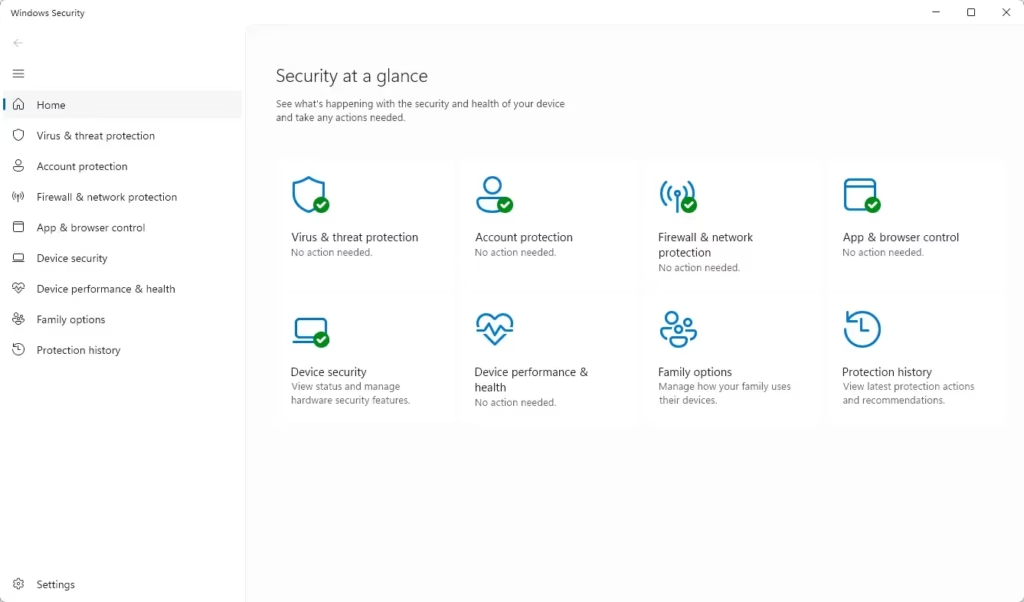
- Click the Start button, type "Windows Security", and select it. You can also open it from the shield icon in the taskbar notification area (you may need to click the small up arrow to see hidden icons).
- Look at the home page. Green check marks mean the area is fine. A yellow or red mark means Windows wants you to take action, and clicking it usually shows a button to fix the issue.
The main sections you'll see include Virus & threat protection, Account protection, Firewall & network protection, App & browser control, and Device security. These are the ones that matter most:
- Virus & threat protection: Make sure Real-time protection is turned on. To check, select Manage settings under Virus & threat protection settings. You can run a Quick scan from the main page. For a Full scan or Custom scan, click Scan options. If you turn real-time protection off for a short task, Windows switches it back on after a while, but don't rely on that.
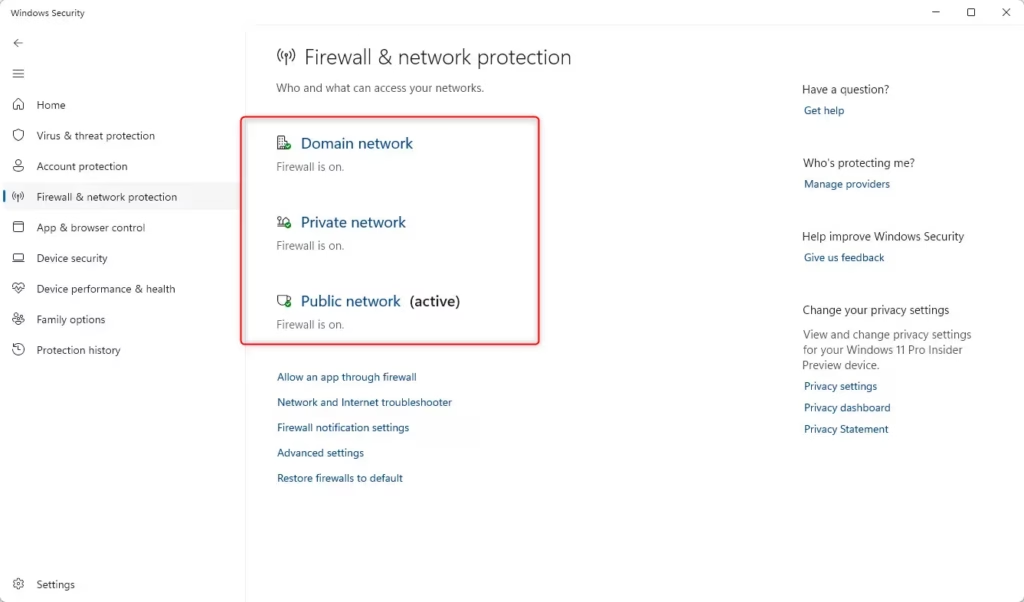
- Firewall & network protection: Make sure the firewall is on for each network type (Domain, Private, Public). The firewall controls which applications can reach the network. There is more on this in the firewall section below.
- Account protection: This area helps protect your sign-in information and links to Windows Hello and related options.
- App & browser control: This helps protect against potentially unwanted applications and malicious sites.
If these settings are greyed out or Windows Security says another provider is in charge, you probably have a third-party antivirus installed. In that case Microsoft Defender Antivirus steps back, and you manage protection in that product instead. Running two real-time antivirus tools at once is not a good idea.
3Use a Strong Password and Consider Windows Hello
A strong, unique password is your first line of defense against someone trying to get into your PC and accounts. Windows Hello adds a faster and often safer way to sign in on top of that.
A strong password makes it much harder for an attacker to guess or crack it, which keeps your files and accounts secure.
Tips for a strong password:
- Make it long, at least 12 characters. Length matters more than anything else.
- Use a mix of uppercase and lowercase letters.
- Include numbers and symbols (for example !, @, #, $).
- Avoid common words, personal information (birthdays, names), and simple patterns like "123456".
- Never reuse a password across sites. If one site is breached, every account sharing that password is at risk.
- Consider a password manager to create and store complex passwords for you.
Windows Hello: A More Secure and Convenient Option
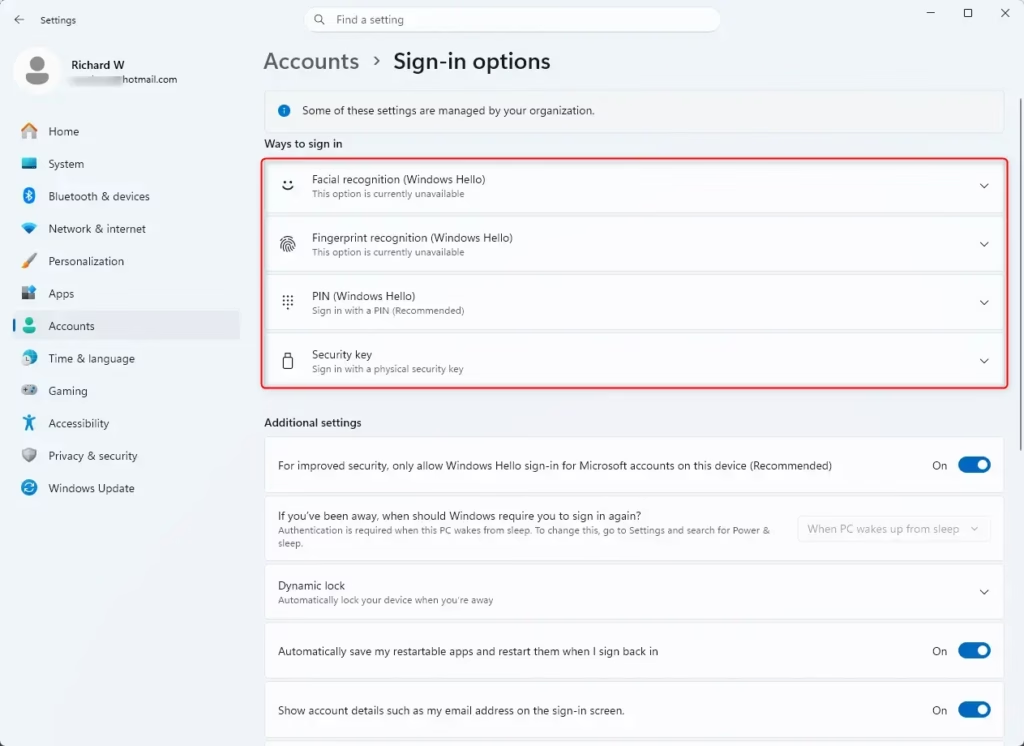
Windows Hello lets you sign in with a facial scan, a fingerprint scan, or a personal identification number (PIN) instead of a password. Passwords are easy to forget, steal, or guess. A Windows Hello PIN is tied to your PC, so it is generally safer than a password. Face and fingerprint sign-in also let you log in quickly without typing anything.
How to set up Windows Hello:
- Click the Start button and open Settings (the gear icon).
- Select Accounts.
- Click Sign-in options. You should see a list of ways to sign in.
- Pick the method you want: Windows Hello Face, Windows Hello Fingerprint, or PIN. The exact labels can differ slightly between Windows 11 versions.
- Click Set up and follow the on-screen instructions. If you haven't created a PIN yet, set one first. Windows requires it as a backup for face and fingerprint sign-in.
If face or fingerprint options are greyed out or missing, your PC probably lacks compatible hardware. Face sign-in needs a supported infrared camera, and fingerprint sign-in needs a fingerprint reader. A PIN works on any PC. To go back, return to the same page, select the method, and choose Remove.
4Enable Secure Boot
Secure Boot makes sure only trusted software starts when you turn on your computer. It is a firmware-level feature that stops harmful programs such as rootkits from loading before Windows itself runs. Rootkits are very hard to detect and remove once they are loaded, so blocking them at this stage matters.
Secure Boot checks the digital signatures of the Windows 11 boot files and drivers at startup. If something has a suspicious signature, it is not allowed to load. Windows 11 is designed to run with Secure Boot, and most PCs that meet its requirements already have it on.
How to check whether Secure Boot is already on:
- Open Windows Security and select Device security.
- Look for the Secure boot entry. If it says Secure boot is on, you're done. If it says it is off or unsupported, continue below.
How to enable Secure Boot:
- Access UEFI/BIOS Settings: Restart your PC and press a specific key repeatedly during startup. It is often F2, F10, F12, or DEL, and it varies by manufacturer.
- Find the Secure Boot setting: Look for a Security or Boot tab. Menu names differ between vendors.
- Enable Secure Boot: If it is disabled, change the setting to Enabled. You might need to change the OS Mode or CSM (Compatibility Support Module) setting to UEFI, or disable CSM, before Secure Boot becomes available.
- Save and Exit: Save your changes and exit the setup screen. Your PC will restart.
Consult your PC manufacturer's documentation if you are unsure. Be careful with the CSM change in particular. If Windows was installed in legacy (non-UEFI) mode, turning CSM off can stop it from booting until the disk is converted. Also, if BitLocker is on, changing firmware settings can trigger a request for your recovery key at the next startup, so have it ready. To undo the change, go back into the same screen and set the option back.
5Manage User Account Control (UAC)
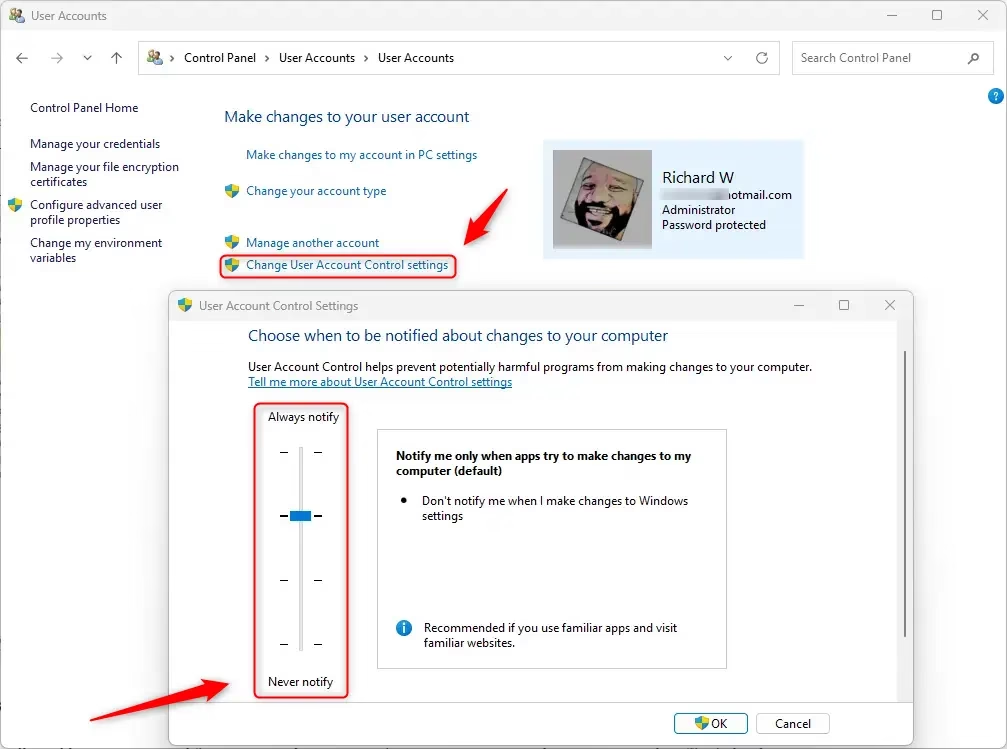
User Account Control (UAC) is a gatekeeper. It shows a prompt before a program can make significant changes to your system. This stops malware, and accidental clicks, from changing things without your permission, and it gives you a chance to cancel if you didn't start the action.
How to adjust UAC settings:
- Click the Start button.
- Type "UAC" or "Change User Account Control settings" and select it. A window with a slider opens.
- Look at the slider. It has four levels. The default is the second one from the top: Notify me only when apps try to make changes to my computer (default).
- Drag the slider to the level you want. The top level asks for more prompts and is the most cautious. The bottom level, Never notify, turns the protection off and isn't recommended.
- Click OK. You may be asked for administrator permission to confirm the change. On a standard (non-admin) account you will need an administrator's credentials.
Changes take effect right away, and you normally don't need to restart. To undo, return to the same window and move the slider back to the default.
6Use a Firewall
A firewall is a security guard for your internet connection. It watches network traffic going in and out of your PC. Blocking unauthorized network access stops outsiders from reaching your computer from the internet or other networks, and it also stops malicious programs from sending your data out to unauthorized recipients.
Keep the firewall settings at the default or at a higher level. Lowering them reduces your PC's security by allowing more connections. When the firewall is on, it creates a barrier between your PC and the outside world.
How to check if the firewall is on:
- Click the Start button.
- Type "Windows Defender Firewall" and select it. On Windows 11 the feature is also called Microsoft Defender Firewall, and you can reach the same switches from Windows Security under Firewall & network protection.
- Check the status for each network type (Domain, Private, Public). A green check mark means the firewall is on for that network.
If the firewall is off:
- Click Turn Windows Defender Firewall on or off on the left-hand side.
- Under both the Private and Public network settings, select Turn on Windows Defender Firewall. Avoid the option labelled Turn off Windows Defender Firewall (not recommended).
- Click OK. The main screen should now show green check marks.
If a third-party security suite with its own firewall is installed, Windows may show the Windows firewall as off on purpose. In that case, check that the other firewall is active instead.
Advanced Security Measures for Extra Protection
Beyond the basic settings, there are further steps to harden your Windows 11 PC. They are a bit more technical, and some depend on your hardware or Windows edition, but they give real protection.
7Enable Core Isolation and Memory Integrity
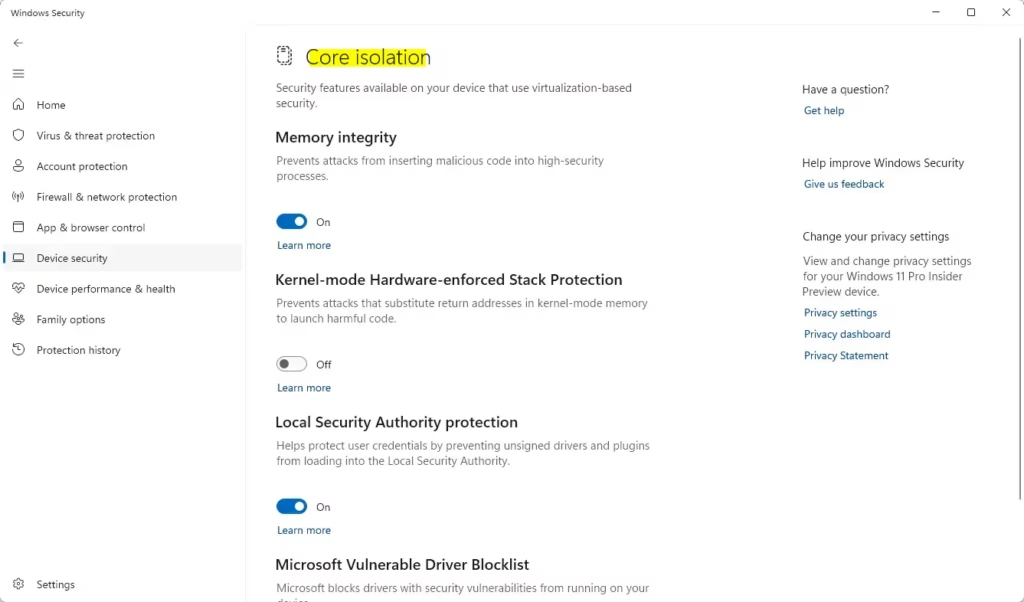
Core isolation and Memory integrity use your computer's hardware to protect sensitive system processes from malicious code. Memory integrity, sometimes called hypervisor-protected code integrity (HVCI), creates a secure, separate area of memory. Drivers and apps running there are verified, and Windows blocks untrusted ones from running in that isolated space. This guards against advanced threats, including kernel-level malware (malware that targets the core of the operating system) and rootkits, and helps keep critical system functions out of reach even if something else gets infected.
How to enable Core isolation and Memory integrity:
- Click the Start button and open Settings.
- Select Privacy & security.
- Click Windows Security, then click Device security (you may need to use the Open Windows Security button first).
- Under Core isolation, click Core isolation details.
- Turn the Memory integrity switch to On.
- Restart your PC when prompted. You will likely need to restart for the change to take effect.
On many newer PCs and fresh installs, Memory integrity is already on. If the switch is on already, you have nothing to do.
Some older hardware or specific drivers might not be compatible with Memory integrity, which can cause problems. If Windows refuses to turn it on, it will usually list the incompatible drivers. Update or remove those drivers, then try again. If a problem appears after enabling it, return to the same page, switch it off, and restart.
8Use BitLocker Drive Encryption
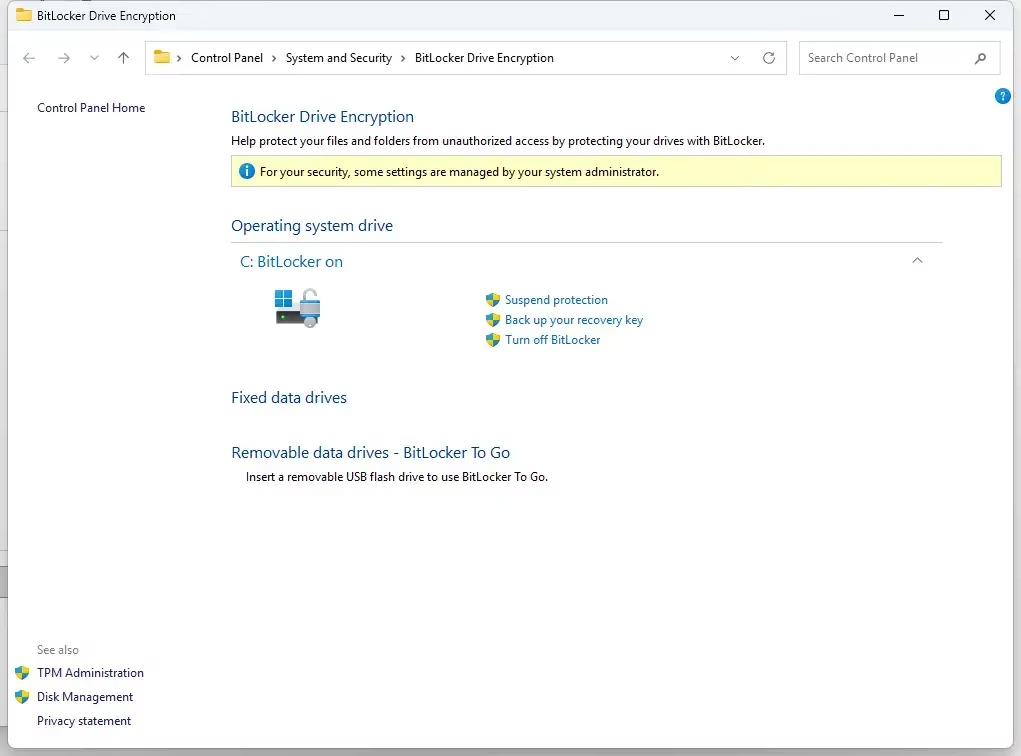
BitLocker drive encryption makes your entire drive unreadable to anyone without your password or recovery key. If a laptop is lost or stolen, or the drive is pulled out of the machine, your data stays protected. Once it is on, everything written to the drive is encrypted automatically, and you may need to unlock the drive at startup before Windows loads.
How to enable BitLocker:
- Click the Start button.
- Type "Manage BitLocker" and select it. The BitLocker Drive Encryption window opens.
- Find the drive you want to encrypt, usually the C: drive.
- Click Turn on BitLocker.
- Choose how you want to unlock the drive, such as a password or a USB flash drive, and follow the on-screen prompts.
- Choose where to save your recovery key and save it. Back it up in a safe, separate location, not on the drive you are encrypting.
- Finish the wizard to start encryption.
The recovery key is crucial. It is the only way back in if you forget your password or lose your USB key. Encryption can take a significant amount of time depending on the size of your drive, but you can usually keep using the PC while it runs. To undo it, open Manage BitLocker again and choose to turn it off. The drive is then decrypted, which also takes time.
If you don't see Manage BitLocker, that is probably why. Some Home PCs offer a simpler Device encryption option under Privacy & security in Settings, if the hardware supports it. Otherwise, consider third-party encryption software.
9Regularly Review App Permissions
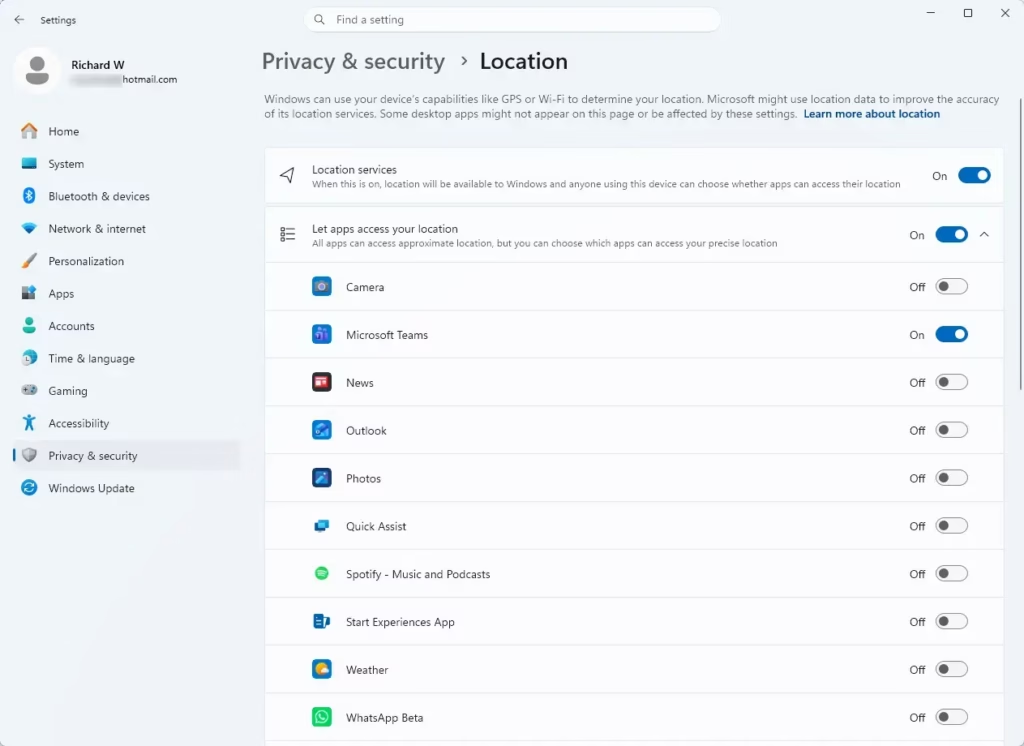
Some programs ask for more access than they need. That is a privacy risk, and a security problem if the program is ever hacked. Reviewing app permissions lets you control which apps can use hardware such as your camera or microphone, and which can see personal data like your location.
How to review app permissions:
- Click the Start button and open Settings.
- Select Privacy & security.
- Scroll down to the App permissions section. You'll see categories such as these:
- Location: See which apps can access your location.
- Camera: See which apps can use your camera.
- Microphone: See which apps can use your microphone.
- Account info: See which apps can access your name, picture, and other account details.
- Click each category and review the list of apps.
- Switch off the toggle for any app that doesn't need access or that you don't want to have access.
Changes apply immediately. If an app stops working properly afterwards, come back to the same page and turn its permission back on. Check the camera and microphone pages first, since those are the most sensitive.
10Understand and Manage Startup Programs
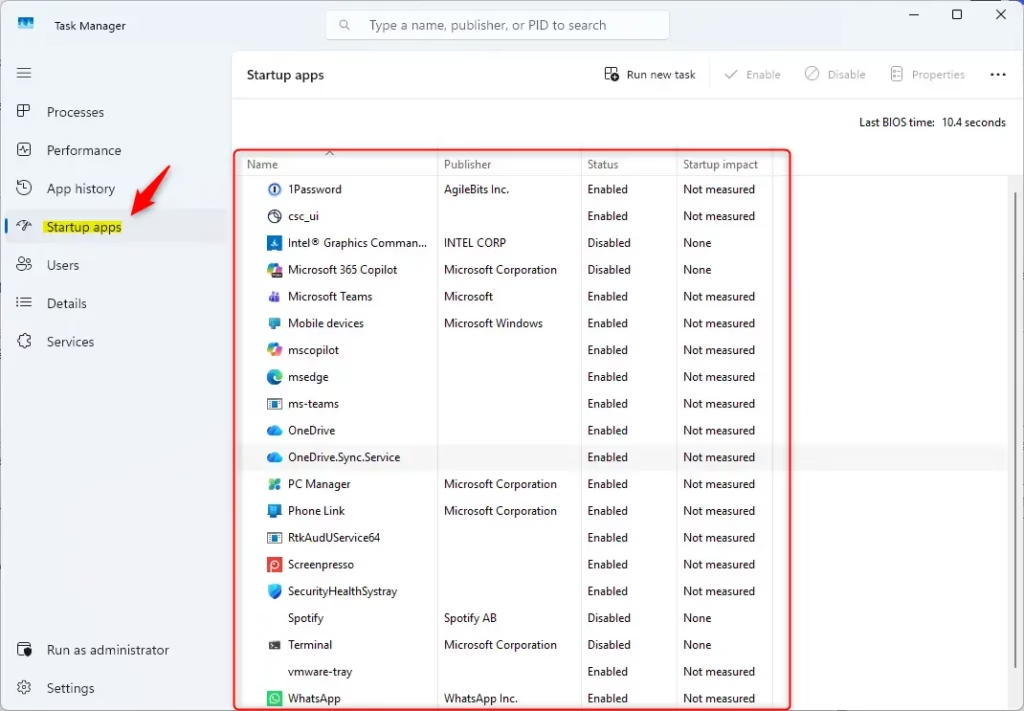
Unnecessary startup programs use up system resources and slow your PC down. Malware also likes to hide by starting automatically with Windows. Disabling what you don't need speeds up boot times, improves performance, and reduces the attack surface.
How to manage startup programs:
- Right-click the Start button.
- Select Task Manager. If you see a simplified view, click More details first.
- Click the Startup apps tab. You should see a list of programs with a Status and a Startup impact column.
- Review the list, paying attention to the Startup impact column.
- Select an app you don't need to start with Windows, then click the Disable button. Its status changes to Disabled, and it won't open automatically at the next sign-in.
Disabling a startup entry doesn't uninstall the program, and you can still open it manually. To reverse it, select the app again and click Enable. You can also manage startup apps in Settings under Apps.
Be careful with programs you don't recognise. Before turning one off, search the internet for its name to see what it does and whether it carries any security risk. This avoids accidentally disabling something important, such as a core Windows component or a driver tool, which could hurt stability.
Protecting Against Phishing and Social Engineering
Technical settings are crucial, but human error is often the weakest link. Phishing and social engineering attacks trick you into revealing sensitive information or downloading malware, and no setting fully protects you if you hand over your password yourself.
11Be Wary of Suspicious Emails and Links
Spotting suspicious emails and phishing links stops criminals from stealing your passwords or installing malware. Clicking a bad link can take you to a fake website that steals your login details. Opening a bad file can put harmful software on the computer. Either one can put your personal data at risk.
Build these habits:
- Check the sender's address carefully, not just the display name. Look for small misspellings.
- Be wary of messages that create urgency, such as threats to close your account or demands for immediate payment.
- Don't click unexpected download links or open attachments you weren't expecting, even from people you know. Their account may have been hacked.
- Never enter your login details on an unfamiliar website. If in doubt, type the site's address yourself or use a bookmark rather than following the link.
- When something looks wrong, delete it or report it as phishing in your email app. If you did click, change your password straight away and run a scan in Windows Security.
Clicking a bad link or attachment can lead to your personal data being compromised, your accounts being taken over, or malware being installed on your PC. A few seconds of caution before clicking is worth it.
Conclusion
Securing your Windows 11 PC comes down to a handful of settings: keep Windows updated, keep Windows Security and the firewall on, and use strong passwords or Windows Hello. Where your edition supports it, add BitLocker encryption. Together with careful browsing, these habits greatly reduce your risk of data loss and malware infections.
Advanced measures such as Core isolation with Memory integrity, BitLocker, and regular app permission reviews add further layers of defense. Remember that online safety relies on awareness as well as technology. Stay informed about new threats, and be cautious with suspicious emails and links.
Proactive steps protect your digital information better than reacting after something goes wrong. Even a simple check, such as confirming the Windows Firewall is on, blocks unauthorized network access. Revisit these settings every few months, since updates and new software can change them.
Have a question about this guide?
Answered by AI from this guide. Good questions may be added to this page — please don't include personal details.
Did this guide fix your problem?

About the Author
Richard
Tech Writer, IT Professional
Richard is a writer at Geek Rewind who turns complex IT tasks into clear, step-by-step guides. He draws on years of hands-on experience in system administration and enterprise IT operations, focusing on Windows, Linux and WordPress: the problems people actually run into, and the fixes that work. His server and WordPress guides come from systems he runs himself. Richard builds and maintains the platform behind Geek Rewind, from its Ubuntu servers and Nginx configuration to its custom WordPress plugins. Many new tutorials start with readers' questions, and he's always glad to answer them in the comments.
No comments yet — be the first to share your thoughts!