How to Rename Your Windows 11 Computer

Renaming your Windows 11 computer changes the network name that identifies your PC on a shared home network or router. The change takes less than two minutes. It makes your device easy to spot when you share files or connect printers, and it doesn’t touch your installed apps, files or user accounts.
You need an administrator account on your PC to make this change. If you are signed in with a standard account, Windows will ask for an administrator password. On a work or school PC, your organization may block renaming, so check with your IT team first.
Open Settings , press Win+I, click the Rename this PC button at the top of the Home page, type your new name using letters, numbers and hyphens only (no spaces, 15 characters maximum), click Next, and restart your computer. The new name appears after the restart.
Why Rename Your Computer?
Changing your computer’s name helps you:
- Make your device feel more personal, instead of keeping a default name like DESKTOP-ABC123
- Find your PC easily on a home or work network, in your router’s device list and in file-sharing and printer dialogs
- Stay organized if you have multiple computers, for example by naming them Office-PC, Kitchen-Laptop and so on
Method 1Rename Your Computer Using Settings
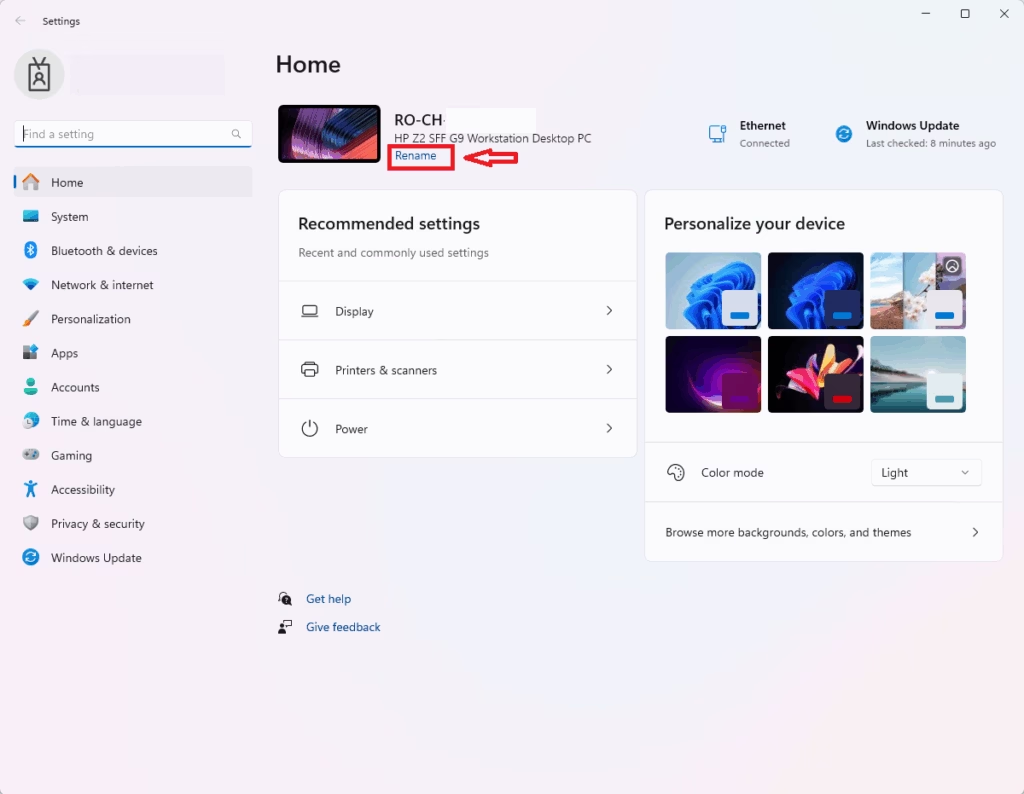
The Settings app is the easiest method and the one most people should use. Press the Win plus I to open Settings . Your current device name is shown at the top of the Home page, with a rename link underneath it. Click it, type your new name, click Next, and restart your PC to finish the change.
- Click the Start menu (Windows icon on the taskbar ) and select Settings. Or press Win+I to open Settings right away. The Settings window opens on the Home page.
- Look at the top of the Home section. You will see your PC’s picture and its current computer name.
- Click the Rename this PC button or link below the name. On some builds the link on the Home page is labeled Rename. You can also find the same button in Settings System About If the button is greyed out or missing, you are probably not signed in as an administrator.
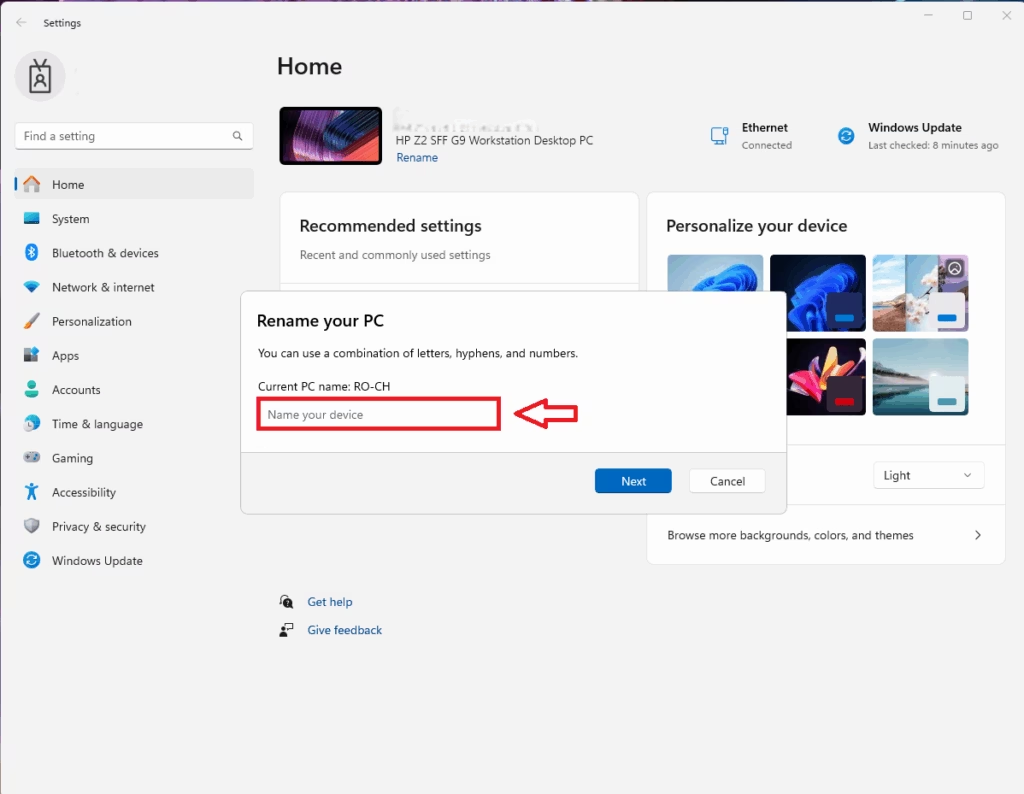
- Type your new computer name in the small window that pops up. Use letters, numbers and hyphens only, with no spaces or special characters. Keep it to 15 characters or fewer, and don’t use only numbers, because Windows can reject those.
- Click Next. Windows then asks whether to restart now or later. Choose Restart now after saving any open work. The new name only applies after the restart. If you pick Restart later, the old name stays until you restart.
After the restart, go back to Settings and check that the new name appears at the top of the Home page. To undo the change, repeat these steps and enter the old name. Your router may keep showing the old name for a few minutes until it refreshes its device list.
Method 2Rename Using System Properties
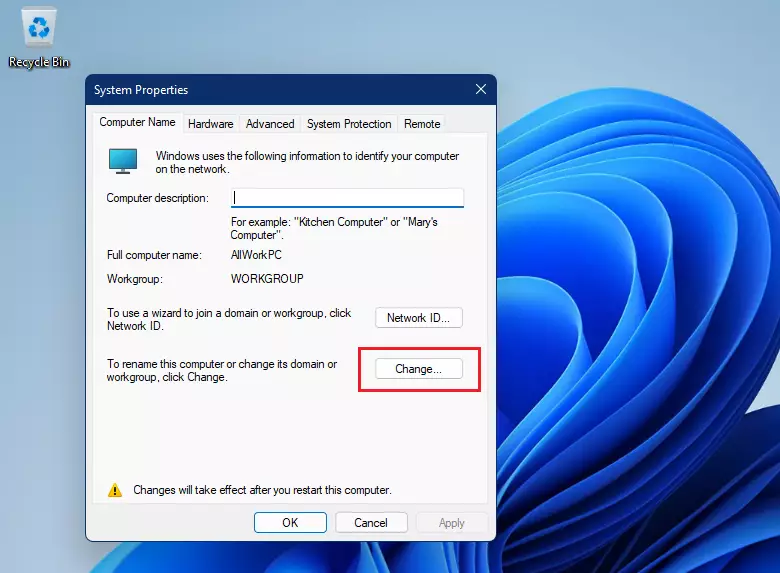
System Properties is the classic control panel dialog, and it works the same on Windows 11 Home and Pro. Press the Windows key plus R to open the Run dialog box, type the command shown in the steps below, and press Enter. Open the Computer Name tab, click Change, type your new name and click OK.
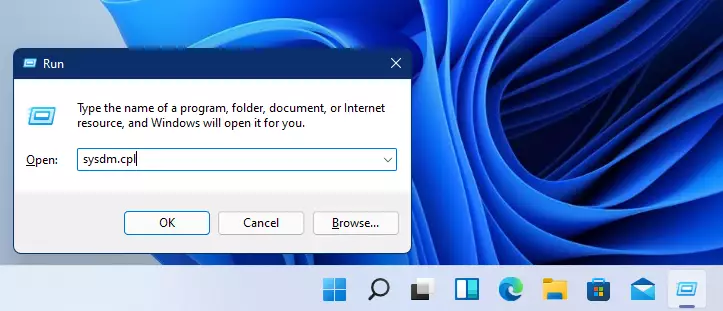
- Press Windows key + R on your keyboard. The Run box appears in the bottom-left corner of the screen.
- Type
sysdm.cplin the Open field and press Enter. This opens the System Properties window. - Click the Computer Name tab if it's not already selected. You will see your current name next to "Full computer name".
- Click the Change... button. If a User Account Control prompt appears, click Yes. The button needs administrator rights.
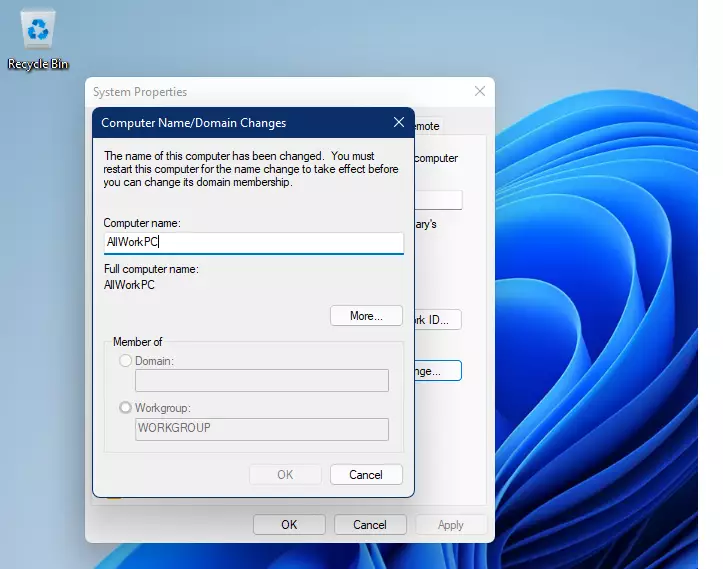
- Enter your desired computer name in the Computer name box of the new window. Use letters, numbers and hyphens only, and avoid spaces.
- Click OK. Windows tells you that you must restart to apply the change. Click OK on that message, then close all the open windows.
- Restart your computer to save the changes. Windows may offer a restart prompt when you close System Properties. If it does, save your work first and choose to restart.
To undo the change, reopen the same window, click Change again, enter the old name and restart.
Method 3Rename Using Command Prompt
You need administrator rights. Open Command Prompt as administrator, type the rename command with your old and new names, and press Enter to update your system hostname. Then restart the PC.
- Click the Start button and type Command Prompt. The app appears at the top of the search results.
- Admin privileges are required. Right-click Command Prompt in the search results and choose Run as administrator. Click Yes if User Account Control asks for permission. The window title should now start with "Administrator".
- Type the following command. Replace Old_Name with your current PC name and New_Name with the new name you want:
Rename-Computer -NewName "New_Name" - For example, if your old name is DESKTOP-ABC123 and you want to rename it to MyPC, type:
Rename-Computer -NewName "MyPC" - Press Enter. If it works, you'll see a message saying the rename was successful. If you get an error or the command isn't recognized, check the spelling of the old name, or use the PowerShell method below instead.
- Restart your computer to apply the new name. The old name stays in use until you do.
If you are not sure of your current PC name, check it in Settings System About before you type the command. To undo the change, run the command again with the names swapped.

Method 4Rename Using PowerShell
PowerShell has a built-in rename command that is shorter than the Command Prompt version, because you don't need to type the old name. Open PowerShell as administrator, run the command with your preferred computer name and press Enter. You must restart your PC afterward for the new name to take effect.
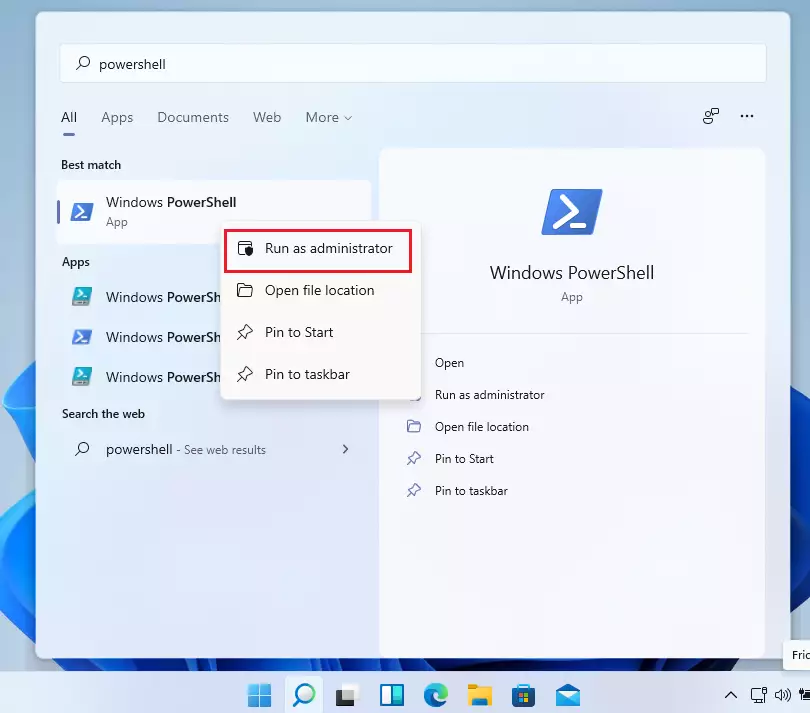
- Click the Start button and type PowerShell. Windows PowerShell appears in the search results.
- Admin privileges are required. Right-click Windows PowerShell and select Run as administrator. Click Yes if User Account Control asks for permission. A blue window opens, and its title bar should show "Administrator".
- Type this command. Replace NewName with the name you want:
Rename-Computer -NewName "NewName" - Here is an example of the command with a real name filled in:
Rename-Computer -NewName "MyNewPC" - Press Enter. PowerShell may print a warning that the change takes effect after a restart. That is normal. Then restart your computer for the change to take effect.
To undo the change, run the same command with your old name and restart again.
Summary
Renaming your Windows 11 computer makes the device much easier to spot on a home network and gives your hardware an identity you choose. Pick the method that fits your comfort level: the modern Settings app, the classic System Properties dialog, or the command-line tools. All of them give the same result.
Why this matters: Renaming your computer makes it recognizable on a local network, in your router's device list and in file-sharing and printer dialogs, and it gives the hardware a personalized identity.
Every method requires a system restart before the new hostname takes effect, so save your work first.
Enjoy your newly named computer!
Was this guide helpful?

About the Author
Richard
Tech Writer, IT Professional
Richard is a writer at Geek Rewind who turns complex IT tasks into clear, step-by-step guides. He draws on years of hands-on experience in system administration and enterprise IT operations, focusing on Windows, Linux and WordPress: the problems people actually run into, and the fixes that work. His server and WordPress guides come from systems he runs himself. Richard builds and maintains the platform behind Geek Rewind, from its Ubuntu servers and Nginx configuration to its custom WordPress plugins. Many new tutorials start with readers' questions, and he's always glad to answer them in the comments.




No comments yet — be the first to share your thoughts!