How to Rename a Printer in Windows 11

Renaming a printer in Windows 11 changes the display label that appears in your print menu. You can swap a confusing factory name like “HP LaserJet Pro M404dn (A1B2C3)” for something clear like “Home Printer”. The change takes effect right away and does not need a restart.
The printer name is the text Windows shows when you pick a device from the list of connected printers. A clear name stops you from sending a document to the wrong machine. The steps below work the same on Windows 11 Home and Pro, and the whole job takes about two minutes.
Open Settings , go to Bluetooth & devices, click Printers & scanners, select your printer, click Printer properties, and type a new name on the General tab. Click OK to save. The new name appears in your print menu right away.
Steps to Rename Your Printer in 🪟 Windows 11
To rename your printer, open Settings, go to Bluetooth & devices, click Printers & scanners, and choose your printer. Then open Printer properties and type a new name on the General tab. This matters most when you have more than one printer connected to your PC or network, because a name like “Office Color Laser” is hard to mix up.
- Open Settings : Click the Start menu (the Windows icon at the bottom of the screen) and select Settings. For a faster route, press the Win+I. The Settings window should open with a list of categories down the left side.
- Go to Printers & scanners: In the Settings window, click Bluetooth & devices on the left. Then click Printers & scanners on the right. You should now see a list of every printer Windows knows about, including virtual ones such as “Microsoft Print to PDF”.
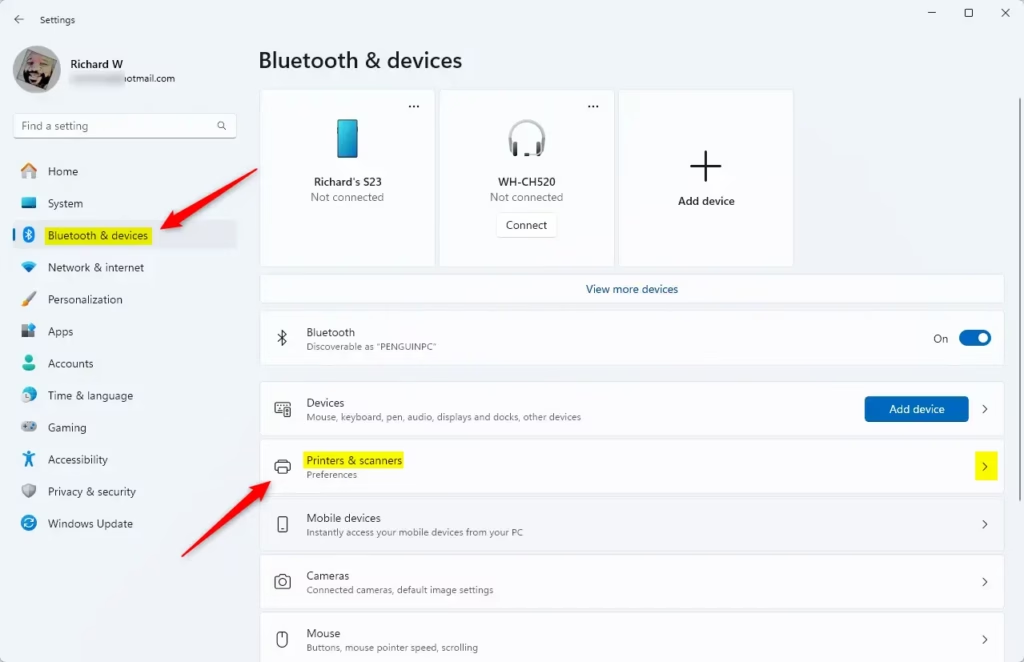
Windows 11 Printers and scanners settings tile in Settings app. - Select your printer: Click the printer you want to rename. Its details page opens, with options such as Set as default, Print test page and Printer properties. If your printer is not in the list, check that it is powered on and connected, then come back to this page.
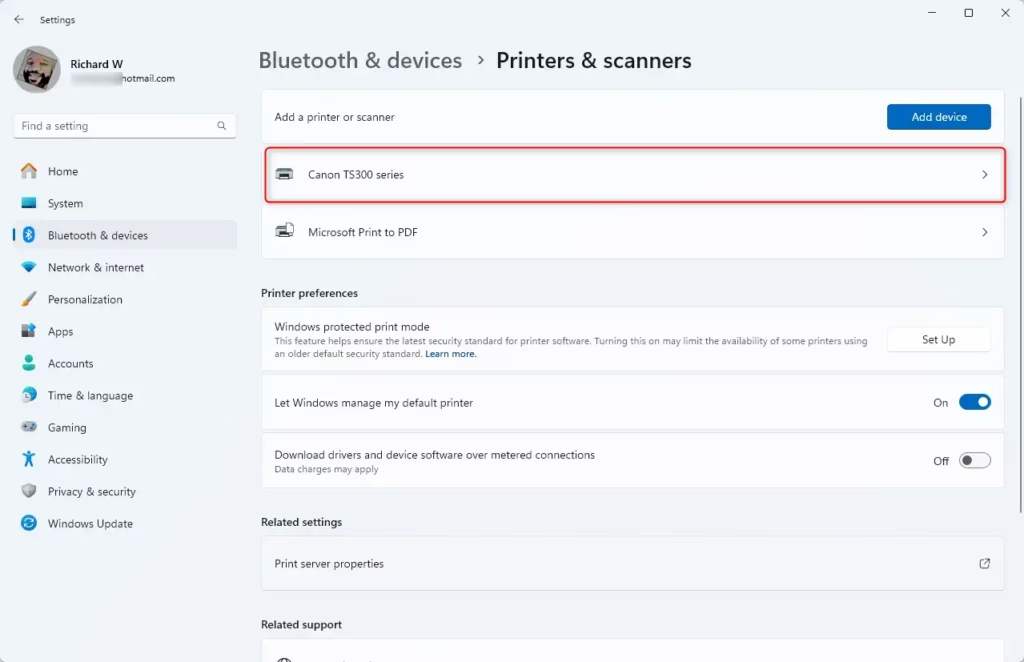
Select printer in Windows 11 - Open Printer properties: On the printer’s details page, click Printer properties. A separate properties window opens with several tabs along the top, such as General, Sharing and Ports.
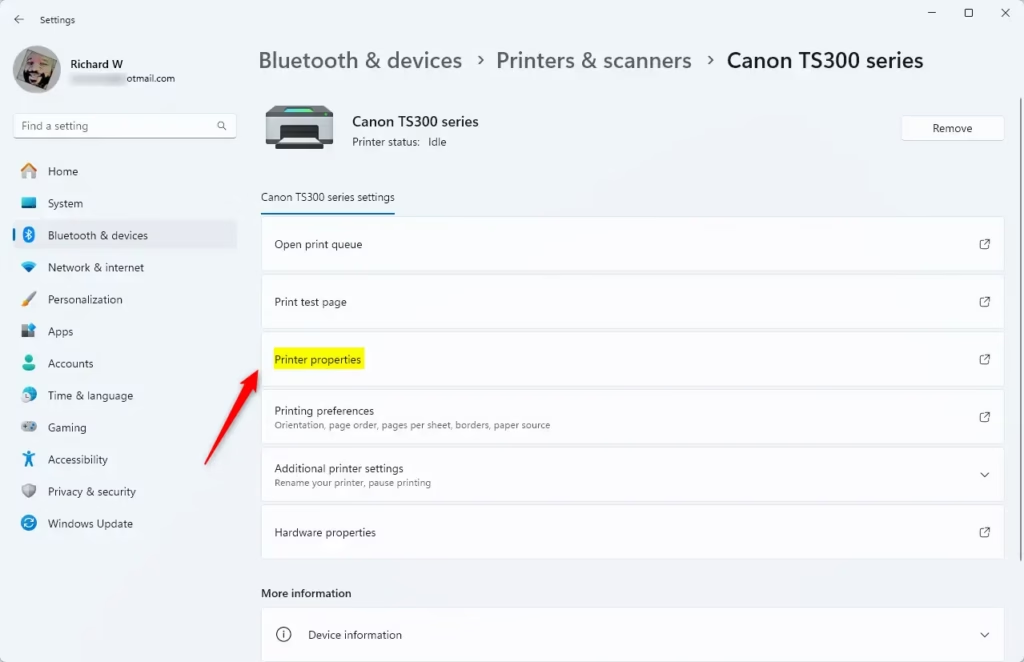
Printer properties option - Rename the printer: In the window that appears, make sure you are on the General tab. Click inside the box at the top where the printer’s current name is shown. Delete the old name and type the new one. Keep it short and plain, and avoid unusual symbols.
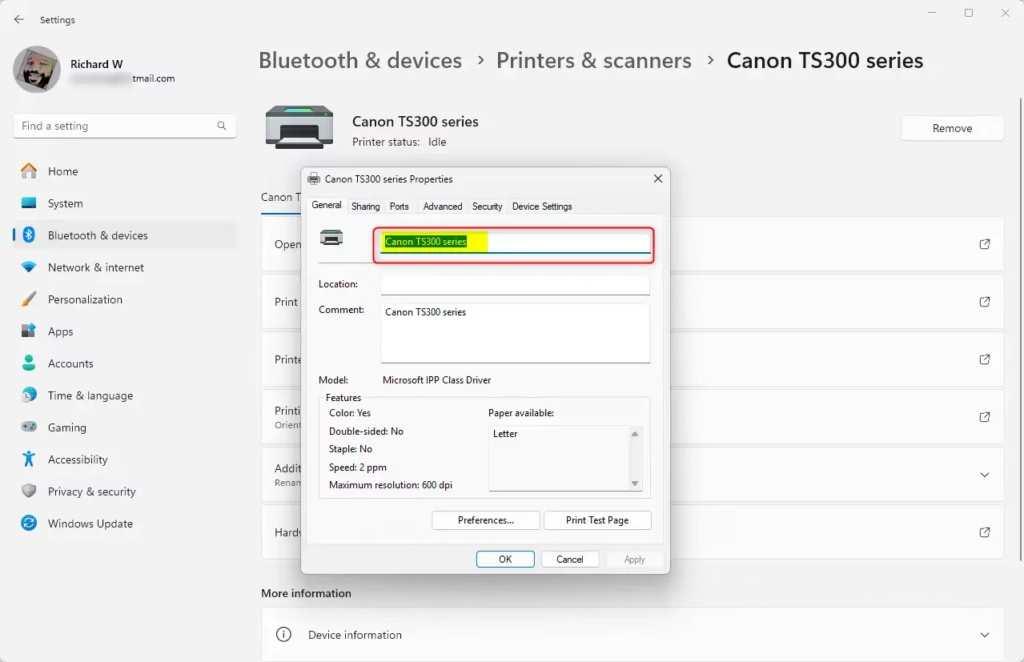
Rename printer in General tab
⚠️ Admin Privileges Required: You may need administrator permissions to change the printer name. If you are signed in with a standard account, Windows may ask for an administrator’s password. If the name box will not accept changes, sign in with an administrator account and try again. - If your printer is shared: If other people use this printer over your network, click the Sharing tab. Change the Share name to match your new printer name so others can find it easily. If the box is greyed out, click Change Sharing Options first, and confirm the Share this printer box is ticked. If the printer is not shared, skip this step. Note that other PCs that already connected to the old share name may need to reconnect to the printer under the new name.
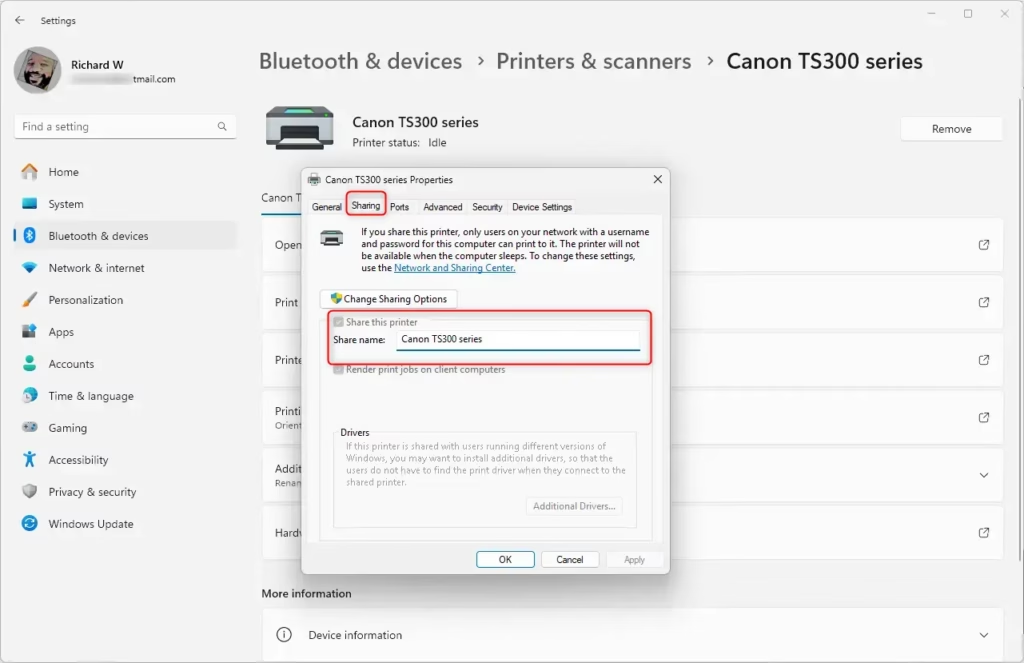
Change shared printer name - When you are done, click OK to save the new printer name and close the window. Back in Printers & scanners, the printer should now be listed under its new name. If a program was already open, close and reopen it, or press Ctrl+P in a new document, to see the updated name in its print list.
The new name shows up in the Printers & scanners list and in the print dialog of your apps whenever you choose a printer. This makes your specific printer much easier to find, especially if you manage several printing devices.
Renaming only changes the label on your PC. It does not affect the printer’s driver, settings or network address.
Why Rename Your Printer?
Giving your printer a custom name makes it much simpler to manage, especially when several printers are connected. A clear, descriptive name helps you pick the right one for each job. That keeps your setup organized and saves you from reprinting pages that went to the wrong machine.
Summary
Renaming your printer in Windows 11 is a quick change that makes your devices easier to manage.
Have a question about this guide?
Answered by AI from this guide. Good questions may be added to this page — please don't include personal details.
Did this guide fix your problem?

About the Author
Richard
Tech Writer, IT Professional
Richard is a writer at Geek Rewind who turns complex IT tasks into clear, step-by-step guides. He draws on years of hands-on experience in system administration and enterprise IT operations, focusing on Windows, Linux and WordPress: the problems people actually run into, and the fixes that work. His server and WordPress guides come from systems he runs himself. Richard builds and maintains the platform behind Geek Rewind, from its Ubuntu servers and Nginx configuration to its custom WordPress plugins. Many new tutorials start with readers' questions, and he's always glad to answer them in the comments.
No comments yet — be the first to share your thoughts!