How to Install a Printer in Windows 11

Installing a printer in Windows 11 connects a local or network printer to your PC in under 5 minutes, using either a USB cable or Wi-Fi . The Settings app does most of the work. It detects the hardware and installs the drivers (the software that lets Windows talk to the printer) automatically.
Most modern printers work as soon as you plug them in or turn them on. If Windows 11 does not find an older printer on its own, you can add it by hand under Bluetooth & devices in Settings. This guide covers both cases, for USB and for Wi-Fi .
Plug the USB cable into your computer’s USB port and turn on the printer. Windows 11 detects it automatically and installs the drivers within seconds—you’ll see a notification when it’s ready. If Windows doesn’t find it, open Settings , go to Bluetooth & devices Printers & scanners, click Add device, select your printer, and click Add device again.
How to Install a USB Printer (Wired Connection)
To install a printer over a wired connection, plug the USB cable into a free port on your computer and turn the printer on. Windows usually detects it within a few seconds and shows a notification near the taskbar clock when the printer is ready. Plug straight into the PC if you can. USB hubs and front-panel ports sometimes cause detection problems with printers.
Once Setup is Complete: The computer recognizes the printer, and you can print documents right away. If you want to confirm it, open any document, press Ctrl+P, and check that the printer appears in the list.
- Plug the USB cable from your printer into a USB port on your computer. Use the cable that came with the printer if you still have it. Make sure the other end is firmly seated in the printer.
- Turn on the printer. Wait until its display or lights settle and stop showing a startup or warming-up state.
- Wait for Windows 11 to find it. Windows usually detects and installs the printer by itself, and you’ll see a notification when it’s ready. This can take a minute if Windows has to download a driver, so an internet connection helps. If nothing happens after a couple of minutes, unplug the cable, plug it back in, and try a different USB port. If that fails, use the manual method below.
If Windows Doesn’t Find Your Printer Automatically
Install the printer manually when Windows 11 does not find it on its own. Open the Settings app, go to Bluetooth & devices, select Printers & scanners, and click Add device to start a fresh search. The steps are the same on Windows 11 Home and Pro.
- Click the Start button (Windows icon) and select Settings. Or press Win+I to open Settings directly. The Settings window should open.
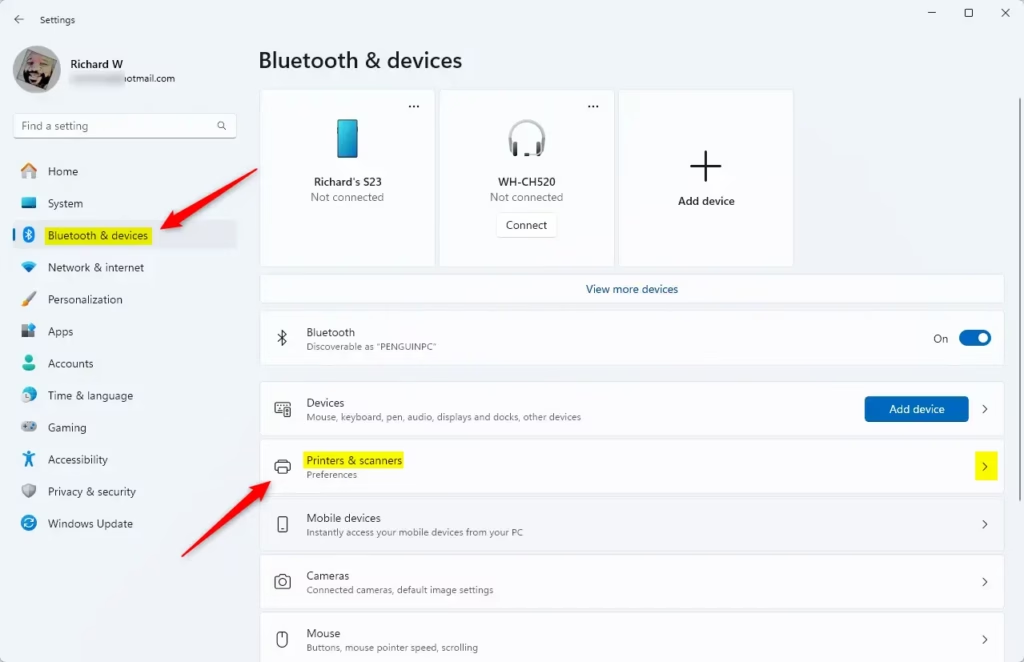
- On the left side, click Bluetooth & devices. The device options for your PC appear on the right.
- Click Printers & scanners. You should see a list of printers already installed on this PC, plus an Add device button at the top.
- Click the Add device button at the top. Windows starts searching, and a “Searching for printers and scanners” message appears while it looks.
Windows scans for any available printers on your network and any connected by cable. When your printer model shows up in the search results, click it, then click Add device to start the installation. Wait until the printer appears in your list of printers before you try to print.
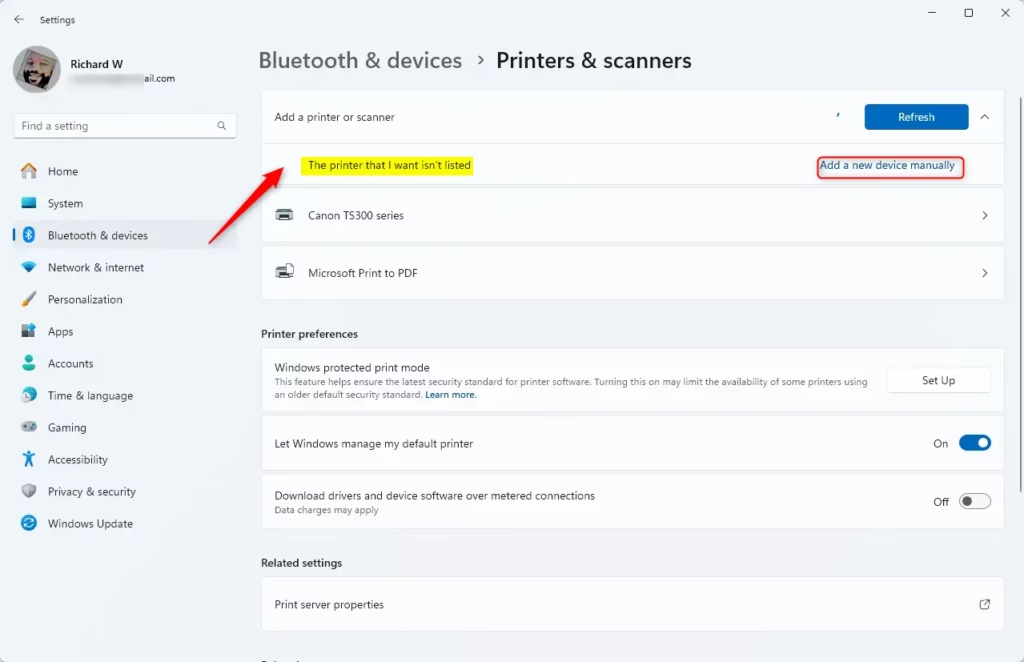
If your printer still doesn't appear: Wait for the search to finish. A link then appears under the results. Work through the steps below, which are meant for older printers and ones Windows cannot identify on its own.
- Click The printer that I want isn't listed. The Add Printer window opens with several options.
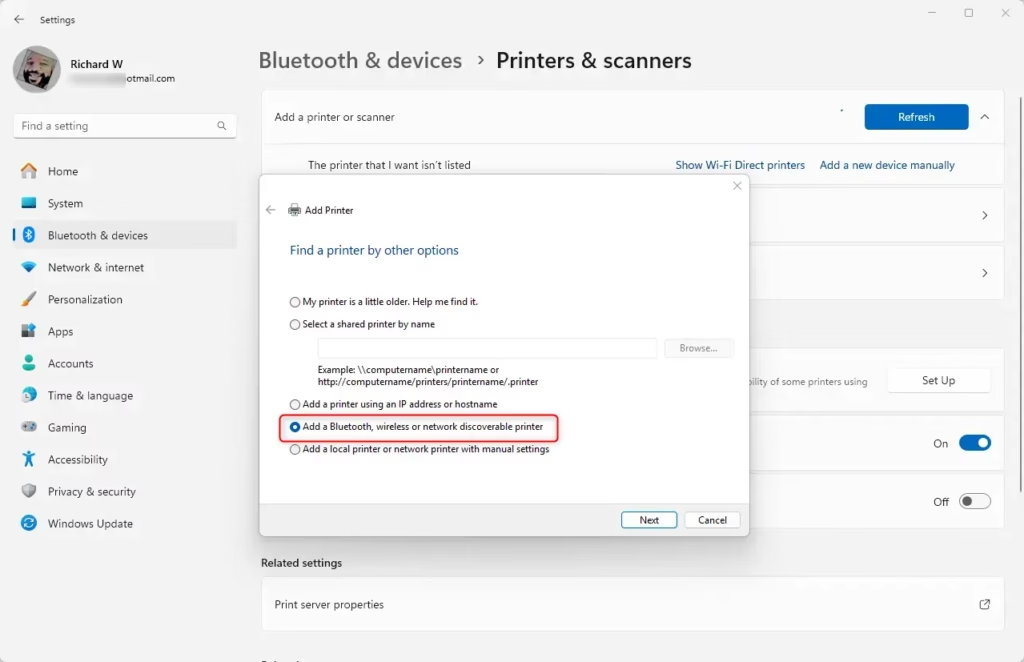
- Select Add a local printer or network printer with manual settings, then click Next.
- Choose the port your printer uses. Most USB printers use a standard USB port, which Windows lists with a name starting with "USB". Click Next to continue to the driver list.
- If you have a driver CD or downloaded a driver file, click Have Disk and browse to where the driver is saved. If you don't have a driver, pick your printer's manufacturer and model from the lists instead. You can also click Windows Update to refresh the list. Downloaded drivers often arrive as a ZIP file, so extract it first and point Windows at the extracted folder.
- Follow the on-screen prompts to complete setup. %%ADMIN_FLAG%% Note: You may need administrator privileges to install printer drivers. On a work or school PC, or from a standard user account, Windows may ask for an administrator's password. When setup finishes, print a test page to check that it works. To do this, open the printer from Printers & scanners, then go to Printer properties and click Print Test Page.
How to Add a Wireless Printer
To install a printer over Wi-Fi, first connect the printer to your home Wi-Fi network using its own control panel or the manufacturer's setup app. Then press Windows key + I to open Settings, go to Bluetooth & devices, and select Printers & scanners so Windows can find and add the wireless printer. The PC and the printer must be on the same network for this to work.
If you ever want to undo this, select the printer in that list and click Remove.
- Open Settings by pressing Windows key + I. Before you go on, check that the printer is on and shows a Wi-Fi connection on its own display.
- Click Bluetooth & devices on the left.
- Click Printers & scanners.
- Click Add device. Windows starts searching.
- Wait for Windows to search your network for wireless printers. This can take 10 to 30 seconds, and found printers appear in the list as the search goes on.
- When you see your printer in the list, click it and then click Add device. Windows installs the driver and adds the printer to your list.
If you don't see your printer: Check the basics first, then fall back to the manual method.
- Click The printer I want isn't listed and follow the manual setup steps above.
- Make sure your printer is turned on and connected to the same Wi-Fi network as your computer. A printer on a guest network, or a PC on a different network name, will not show up in the search.
- Check your printer's manual or the manufacturer's website for instructions on connecting to Wi-Fi. Many printers have a Wi-Fi setup wizard on their display, and some need a phone app for the first connection.
Many printers only support the 2.4 GHz band. If your router broadcasts separate 2.4 GHz and 5 GHz network names, check which one the printer joined. Troubleshooting missing hardware involves consulting the manufacturer's manual for specific network requirements. Download the latest driver (software that helps your PC talk to the printer) from the manufacturer's support site. A fresh driver often fixes a printer that Windows detects but cannot print to.
Summary
The method depends on whether you use a cable or a wireless network. USB printers usually set themselves up when you plug them in. Network printers, and any printer Windows does not detect, are added through the Printers & scanners page in Settings.
- For USB printers: Plug it in, turn it on, and Windows usually handles the rest automatically. Try a different USB port if nothing happens.
- For wireless printers: Make sure both your computer and printer are on the same Wi-Fi network, then use Settings to add the device.
- If automatic setup fails: Use the manual setup option in Settings and browse to your printer driver if needed. You may need administrator rights to install it.
- Need help? Check your printer's manual or the manufacturer's website for driver downloads and troubleshooting tips.
The printer is now ready to use. Print a test page to confirm that everything works before you send a real job.
Was this guide helpful?
0% of readers found this helpful (1 votes)

About the Author
Richard
Tech Writer, IT Professional
Richard is a writer at Geek Rewind who turns complex IT tasks into clear, step-by-step guides. He draws on years of hands-on experience in system administration and enterprise IT operations, focusing on Windows, Linux and WordPress: the problems people actually run into, and the fixes that work. His server and WordPress guides come from systems he runs himself. Richard builds and maintains the platform behind Geek Rewind, from its Ubuntu servers and Nginx configuration to its custom WordPress plugins. Many new tutorials start with readers' questions, and he's always glad to answer them in the comments.



No comments yet — be the first to share your thoughts!