How to Update Device Drivers in Windows 11

Device drivers are software programs that let Windows 11 communicate with your computer hardware, such as graphics cards and Wi-Fi adapters. Updating your drivers fixes bugs, stops random crashes, and keeps your PC running well.
You can update a driver in a few clicks with the built-in Device Manager, or download the latest files straight from your hardware maker. This guide covers three routes: Windows Update , Device Manager, and the manufacturer’s website. It also shows how to restart after an install and how to roll back a driver that causes problems.
Open Settings (Win+I), select Windows Update , then choose Advanced options Optional updates to install any driver updates Windows offers. For a specific device, open Device Manager, right-click the device, and select Update driver Search automatically for drivers. If Windows finds nothing newer, download the latest driver from your hardware maker’s website.
How to Update Drivers in 🪟 Windows 11
Windows 11 usually handles driver updates on its own through Windows Update . Sometimes you need to step in to fix a specific problem.
Common reasons to update a driver by hand:
- A device stopped working or shows a yellow warning triangle in Device Manager.
- Your screen flickers, games stutter, or the display looks wrong after an update.
- Wi-Fi , Bluetooth , or sound keeps dropping out.
- You installed new hardware and Windows did not set it up correctly.
The driver Windows Update offers is not always the newest one. Hardware makers often publish newer versions on their own sites first, which is why the manufacturer method below exists.
All three methods work the same on Windows 11 Home and Pro. You only need an administrator account to install a driver.
Step 1Open System Settings
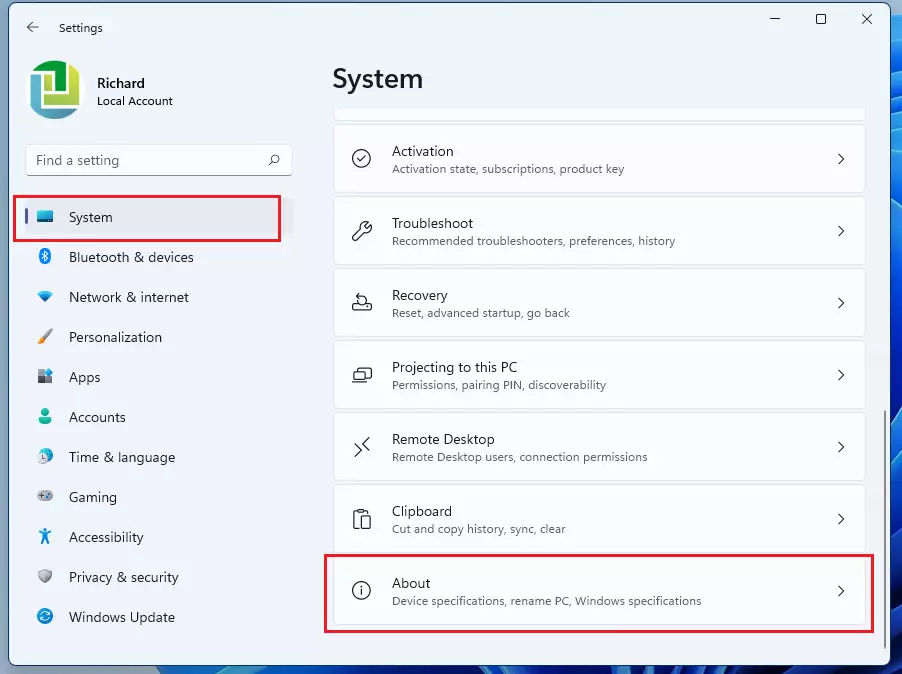
Start by opening the Settings app. You can do it in either of two ways:
- Press Windows key + I on your keyboard.
- Or click the Start button and select the gear icon.
The Settings window opens with a list of categories on the left. Windows Update is near the bottom of that list. The Windows Update steps near the end of this guide pick up from here.

Step 2Navigate to Device Manager
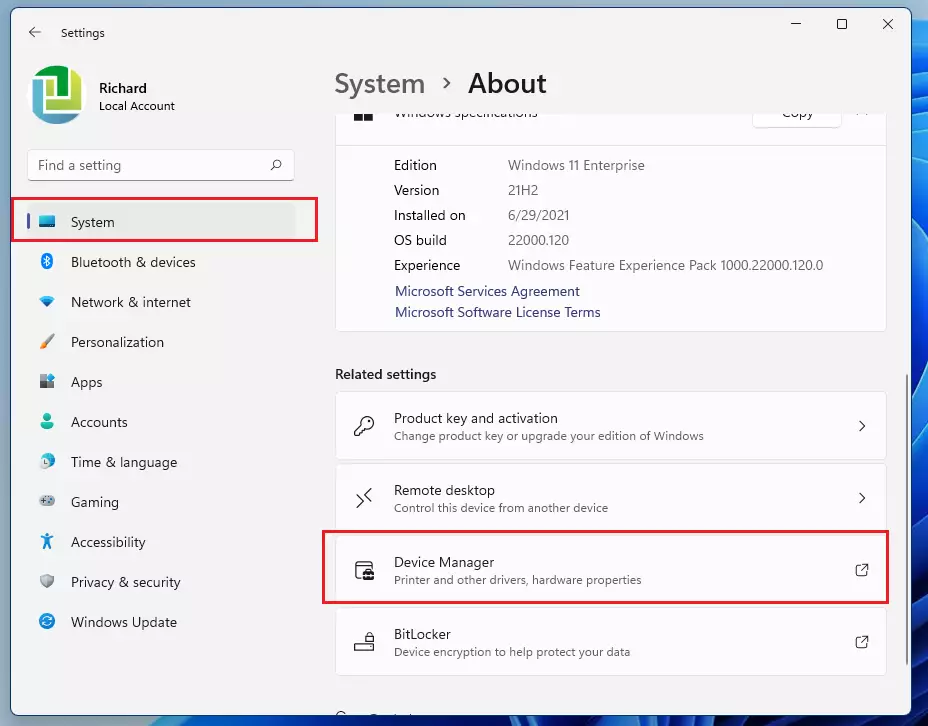
Device Manager is the built-in tool that lists every piece of hardware in your PC and lets you manage its driver. The numbered steps below update drivers in Windows 11 through Device Manager, from opening the tool to restarting the PC. They run across the next few sections, so the numbering carries on.
- Open the Start menu.
- Type Device Manager in the search bar.
- Select the best match from the results. A window opens that lists your hardware in collapsible categories.
You can also right-click the Start button and pick Device Manager from the menu.
A standard account can open Device Manager and look around, but it can't change drivers. If you see a User Account Control prompt, approve it with an administrator account.
Step 3Find Your Device
Now find the hardware you want to update.
- Find the category that matches your hardware. Graphics cards are under Display adapters, Wi-Fi and Ethernet are under Network adapters, and speakers are under Sound, video and game controllers.
- Click the arrow next to the category to expand it. The devices in that category appear underneath.
- Pick the device you want to update. A device with a small yellow triangle has a problem, and it is usually the best place to start.
- Check the current driver version before changing anything, if you want a record of it. Double-click the device and open the Driver tab. It shows the provider, date, and version. Close the window when you are done.
Step 4Search for Updated Drivers
With the device in view, let Windows look for a newer driver.
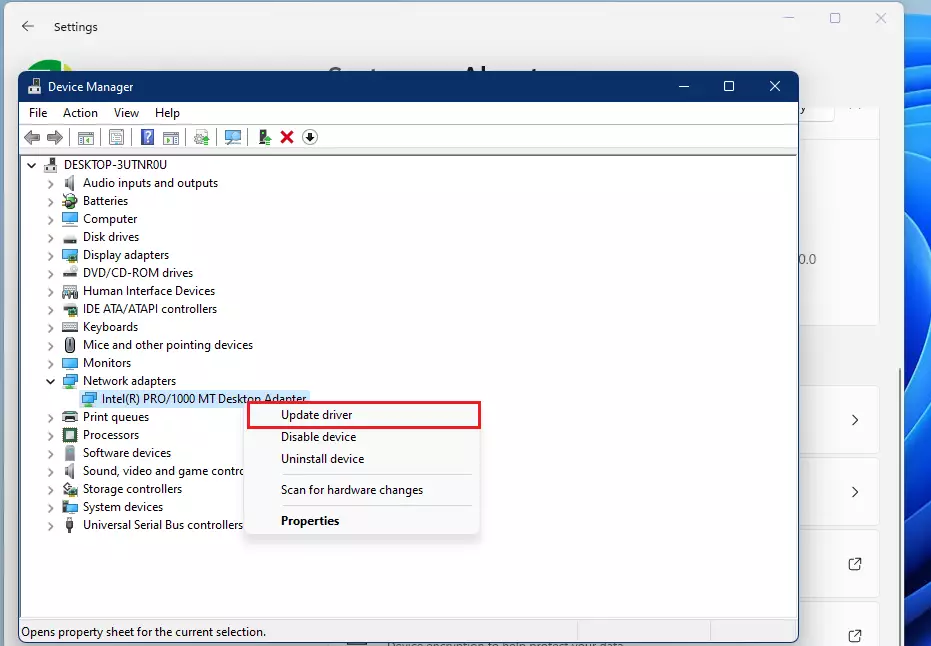
- Right-click your device and select
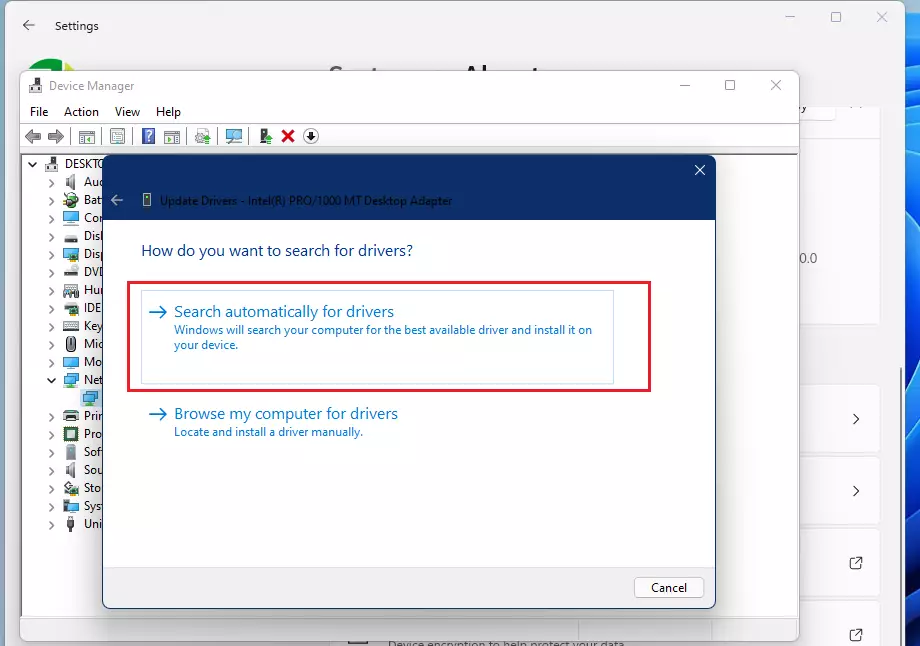
Update driver. A window opens asking how you want to look for drivers. - Choose
Search automatically for drivers. Windows then searches its database for a matching driver. - Wait for the search to finish. If Windows finds a newer driver, it installs it and shows a confirmation. If not, it tells you the best drivers are already installed.
That "already installed" message only means Windows has nothing newer in its own database. The manufacturer's website may still have a newer version, so try the next section if the problem is not fixed. On some builds, Windows may point you to Windows Update instead of installing the driver directly.
Step 5Install Drivers from the Manufacturer
Use only the official site for your device or PC maker. Driver download sites run by third parties often bundle unwanted software.
- Visit the official support page for your device's manufacturer. For a laptop or prebuilt PC, use the PC maker's page. For a graphics card, use the card maker's page.
- Search for your exact model. Pick Windows 11 as the operating system, then download the driver file.
- Extract the file if it is a ZIP. If it is an installer (.exe), run it and follow the prompts. If it installs, you can skip the remaining steps.
- Return to Device Manager if there was no installer. Right-click the device and select Update driver.
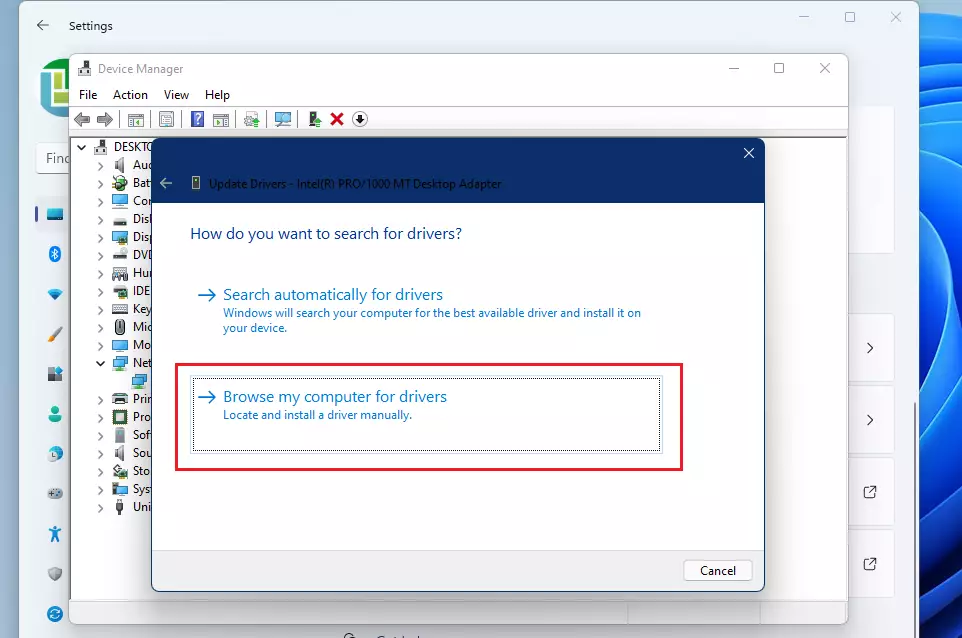
- Select Browse my computer for drivers.
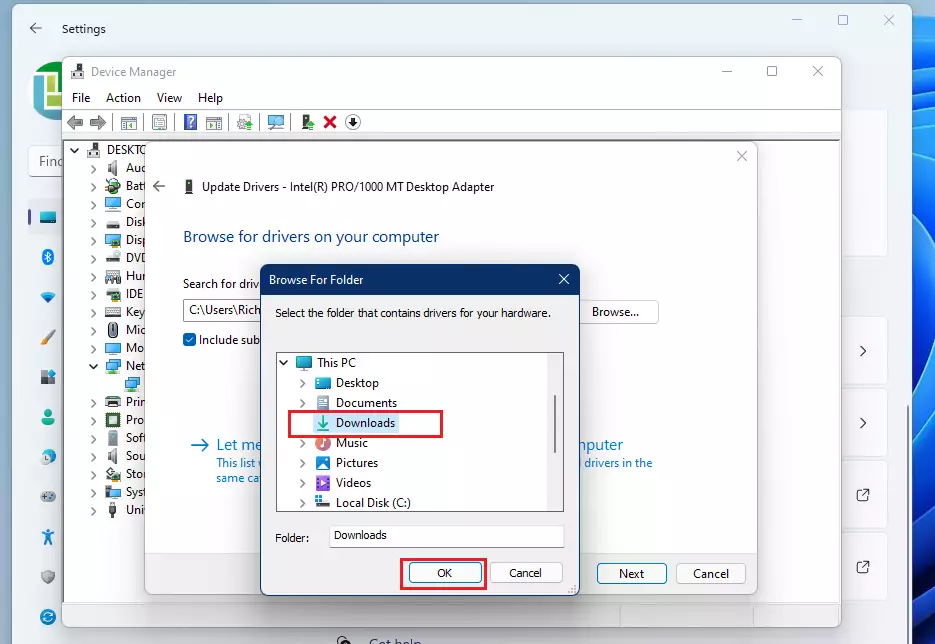
- Click Browse and navigate to your download folder. Make sure Include subfolders is ticked.
- Click Next. Windows installs the driver and shows a message when it is done.
- Click Close.
Step 6Restart Your Computer
Always restart so the new driver files replace the old ones correctly. These steps finish the Device Manager list from the earlier sections.
- Save your open work. Close any programs you don't need.
- Restart the PC with Start Power Restart. Pick Restart rather than Shut down, because a Windows 11 shutdown with Fast Startup on does not fully reload drivers.
- Open Device Manager again after you sign back in, and check the device's Driver tab. The version and date should match what you installed, and the yellow triangle should be gone.
Troubleshooting: What If an Update Fails?
Fixing a bad update in Windows 11 starts with Device Manager (a tool for managing hardware). Follow these steps:
- Open Device Manager.
- Right-click the device causing trouble and select Properties.
- Open the Driver tab.
- Click Roll Back Driver. Choose a reason if asked, and confirm. Windows puts the old working version back.
- Restart your PC.
If that button is greyed out, Windows has no earlier driver saved for that device. This happens with new installs or devices that have never been updated. In that case, uninstall the device completely and install the previous driver manually from the manufacturer's website:
- Click Uninstall Device on the Driver tab.
- Tick Attempt to remove the driver for this device if you see that checkbox, then confirm.
- Restart your PC. Windows may reinstall a basic driver on its own.
- Download the older version from the manufacturer's site. Install it as shown in the manufacturer section above.
Windows Update vs. Device Manager
Windows Update is the most efficient way to update device drivers in Windows 11, because it finds many updates automatically. To check it for driver updates yourself:
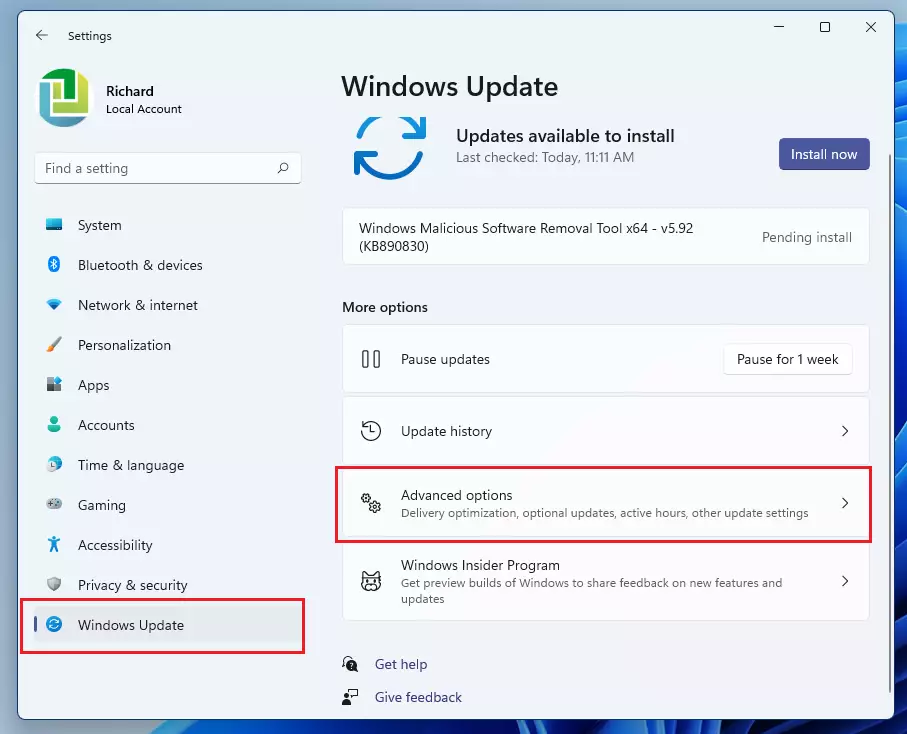
- Open Settings Windows Update
- Click Check for updates. Let any updates install.
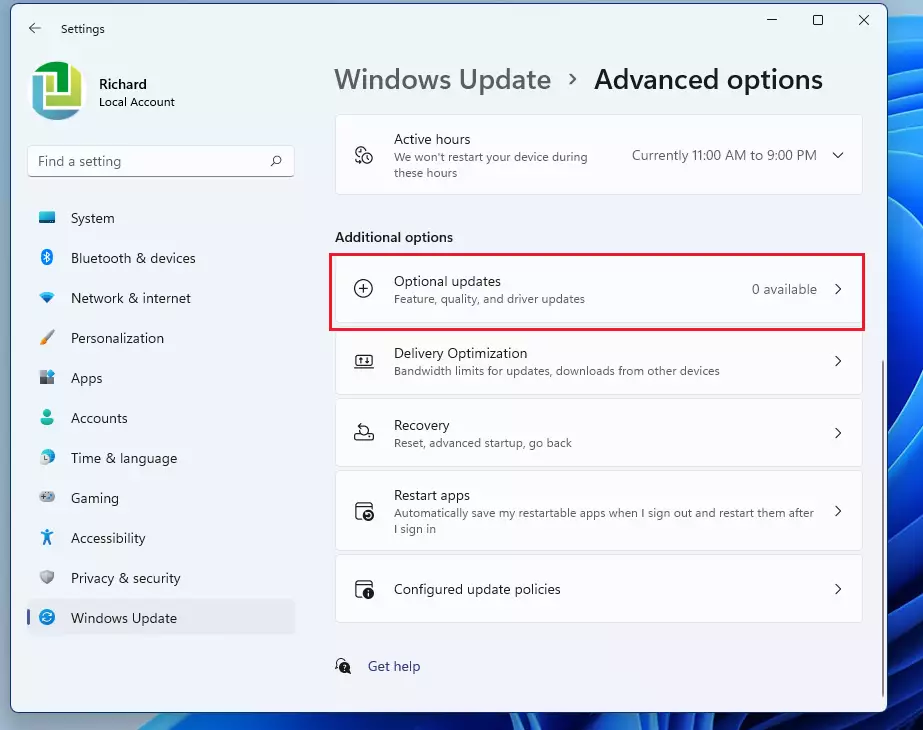
- Click Advanced options, then Optional updates. If this entry is missing, there are no optional updates waiting.
- Expand Driver updates and tick the drivers you want. Click Download & install.
- Click Restart now if Windows asks you to.
Optional driver updates are not installed on their own, so it is worth looking here every so often.
Summary
Staying on top of driver updates keeps Windows 11 hardware running without a hitch. Start with Windows Update, use Device Manager for a single stubborn device, and go to the manufacturer when Windows has nothing newer. If an update makes things worse, you can roll back, so you can try new drivers without much risk.
Have a question about this guide?
Answered by AI from this guide. Good questions may be added to this page — please don't include personal details.
Did this guide fix your problem?

About the Author
Richard
Tech Writer, IT Professional
Richard is a writer at Geek Rewind who turns complex IT tasks into clear, step-by-step guides. He draws on years of hands-on experience in system administration and enterprise IT operations, focusing on Windows, Linux and WordPress: the problems people actually run into, and the fixes that work. His server and WordPress guides come from systems he runs himself. Richard builds and maintains the platform behind Geek Rewind, from its Ubuntu servers and Nginx configuration to its custom WordPress plugins. Many new tutorials start with readers' questions, and he's always glad to answer them in the comments.
[…] How to update device drivers in Windows 11 […]
[…] How to update device drivers in Windows 11 […]
[…] Display adapter driver update issues […]
[…] For example, there might be system update issues, starting up many programs when Windows boots, system drivers issues, and many […]
[…] How to install device drivers in Windows 11 […]
[…] Update device drivers in Windows 11 […]
[…] First, open the Device Manager. […]
[…] How to install device drivers on Windows 11 […]
[…] Device Manager by searching for it in the Start […]
[…] After extracting, you can install drivers using Device Manager. For a simple guide on installing drivers, check out this post: How to install device drivers in Windows 11. […]
[…] Press Windows + R, type devmgmt.msc, and press Enter to open Device Manager. […]