How to Update Video Drivers in Windows 11

Video drivers are the software that lets Windows 11 communicate with your graphics card so games and videos run smoothly. Updating your video drivers can fix visual glitches, improve game performance, and stop random system crashes on your PC.
Most computers get these updates automatically through Windows Update , but you can also install them by hand when you need the newest version right away. This tutorial covers three methods: Windows Update ’s optional updates, Device Manager, and downloading straight from the chip maker. You need to be signed in with an administrator account for all three.
Open Settings Windows Update Advanced options Optional updates Driver updates, check the box next to your video driver, and click Download & install. Windows applies the driver and may briefly flicker your screen during installation. Restart your PC if prompted.
1Update Video Drivers Using Windows Optional Updates
Windows Update has a dedicated section for extra hardware packages. It lets you update video drivers in Windows 11 without visiting external websites. Windows offers manufacturer-approved display software here, separately from the regular monthly patches. It is a reliable first choice when you are troubleshooting display problems or performance drops.
- Click the Start menu (Windows icon) at the bottom-left corner (or in the center of the taskbar , depending on your taskbar alignment).
- Select Settings (the gear icon). The Settings window opens.
- In Settings, click Windows Update on the left side.
- Click Advanced options.
- Scroll down and click Optional updates. If you don’t see this entry, or it shows no count, Windows has no optional packages waiting for your PC right now.
- Click Driver updates to expand the list. Look for a video driver, usually named after your graphics card maker (Intel, AMD or NVIDIA).
- Check the box next to the video driver, then click Download & install. Windows shows the progress next to the entry.
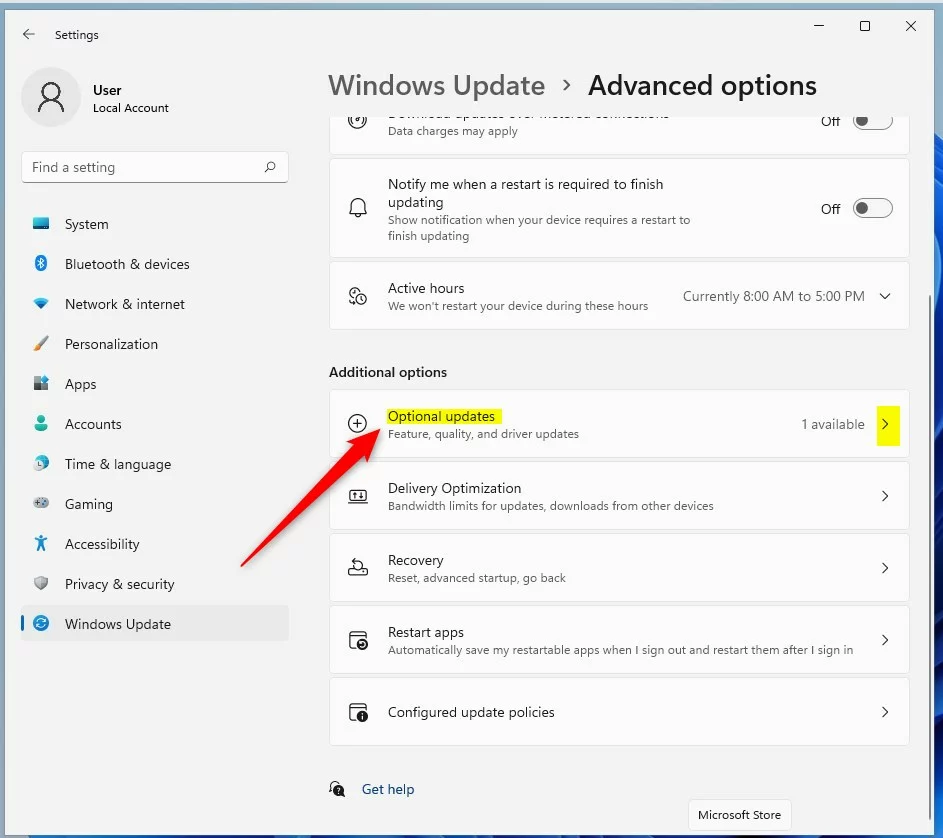
Once you start the install, Windows downloads and applies the display software on its own. Your screen may flicker or go black for a second or two. That is normal while the new driver loads. When the status says the update is finished, restart your PC if Windows asks you to.
If you need the very latest release, use the third method below.
2Update Video Drivers Using Device Manager
Device Manager gives you a direct way to update video drivers in Windows 11 when the automatic tools fail to find the right files. You can force a search for your specific graphics hardware, point Windows at a driver package you already downloaded, or pick from driver versions already stored on your PC.
- Find out which video card your computer has. You can learn how here: How to check graphics card details in Windows 11. Write down the exact name, because you will need it to pick the right download.
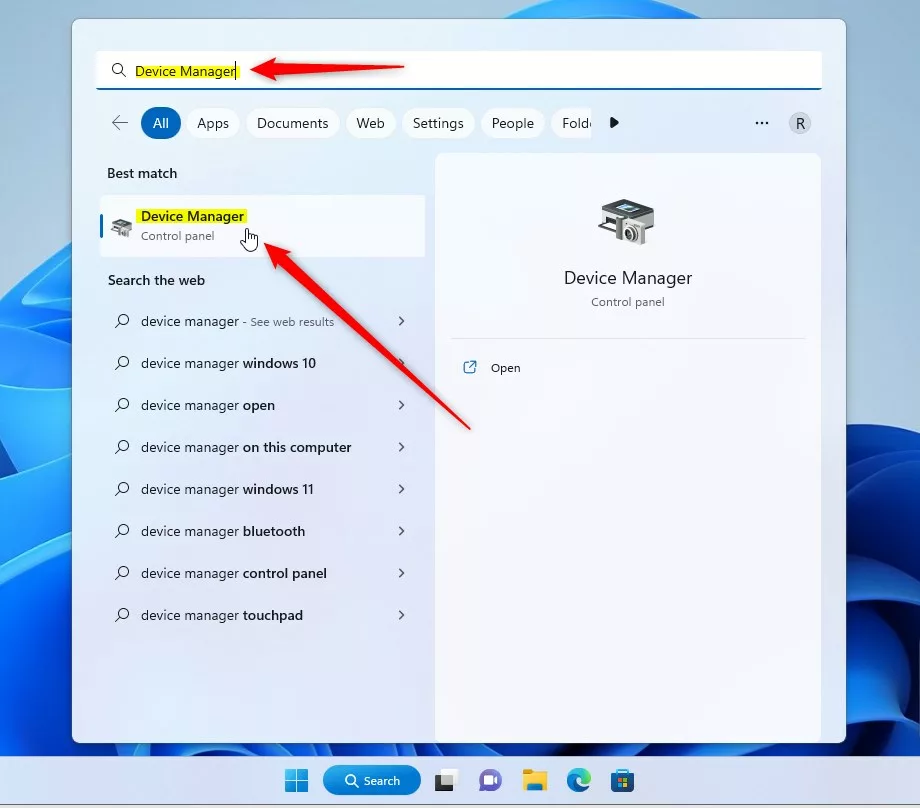
- Click the Start menu and type Device Manager.
- Click the Device Manager app in the search results. A window listing your hardware categories opens.
Next, locate your graphics card in the list:
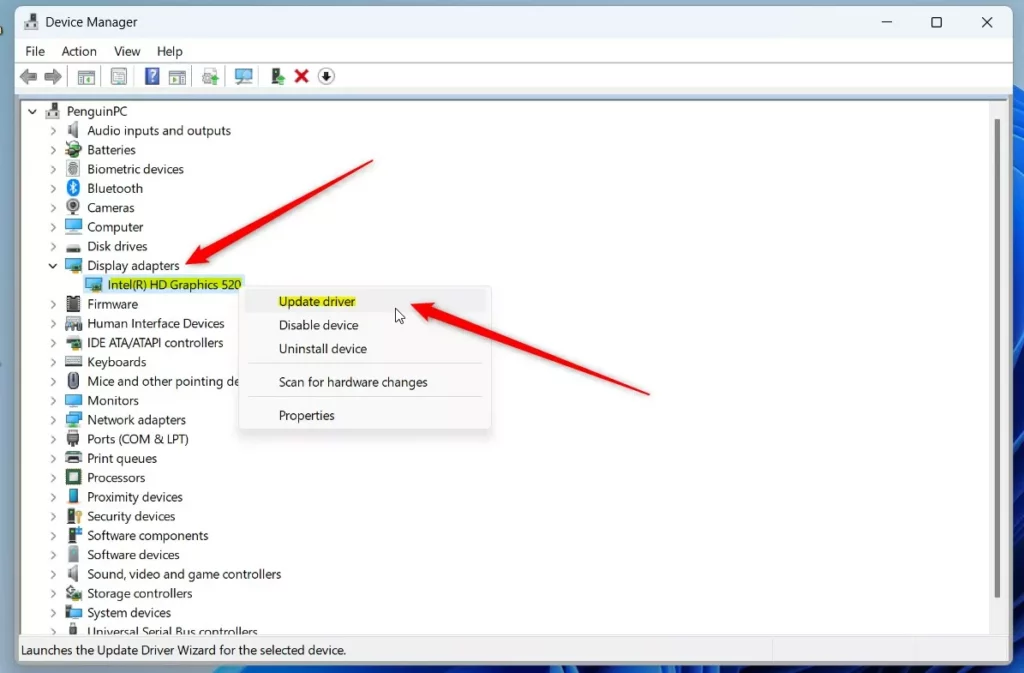
- In Device Manager, click the arrow next to Display adapters to expand it. Some PCs list two entries, such as Intel graphics plus a separate NVIDIA or AMD card. Laptops often do this. Update each one separately.
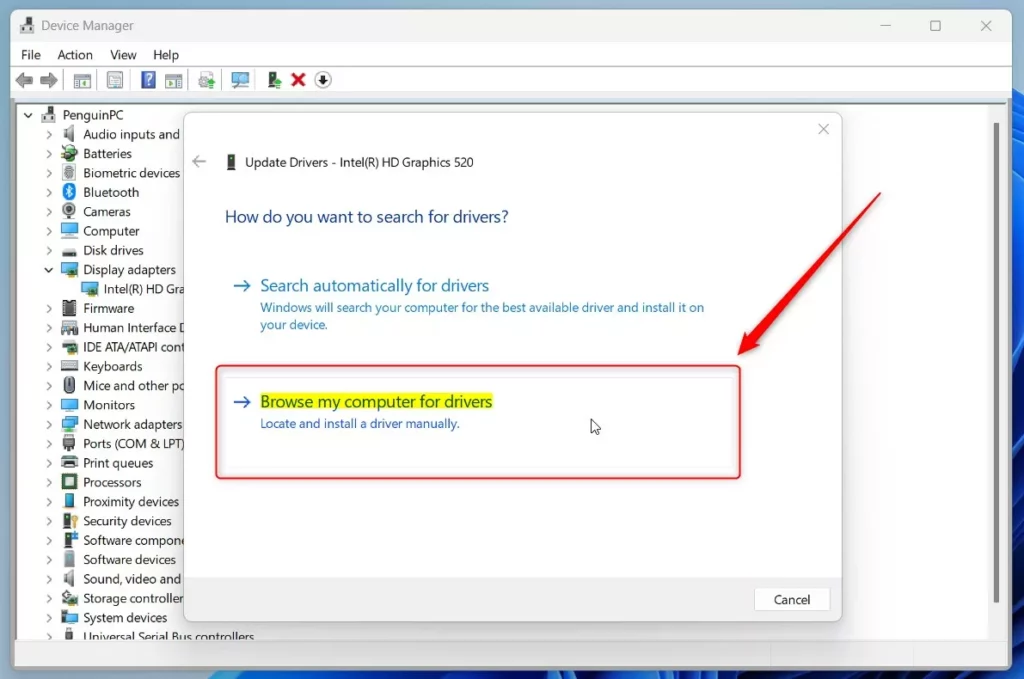
- Right-click your video card name (for example, Intel(R) HD Graphics 520) and select Update driver. A window asks how you want to search for drivers.
Then choose one of the two options:
- Browse my computer for drivers – use this if you already downloaded the driver from the manufacturer's website.
- Search automatically for drivers – let Windows try to find the latest driver online. If it says the best drivers are already installed, that only means Windows found nothing newer in its own sources. A newer version may still exist on the manufacturer's site.
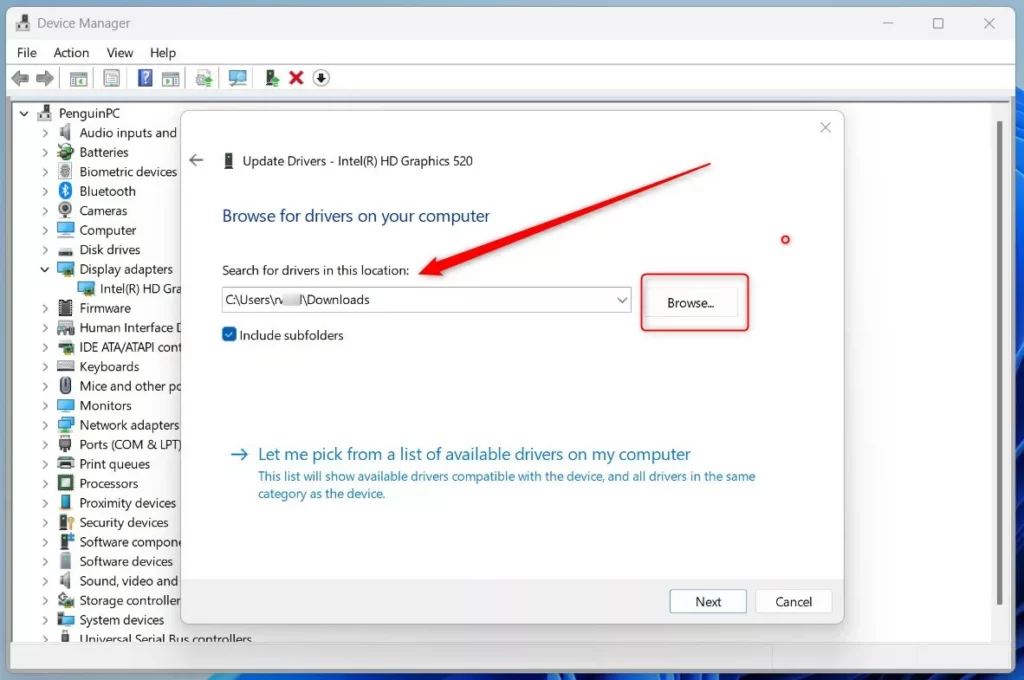
If you chose Browse my computer for drivers, click Browse and select the folder that contains your driver files. If the download came as a ZIP file, extract it first. Make sure Include subfolders is checked, then click Next.
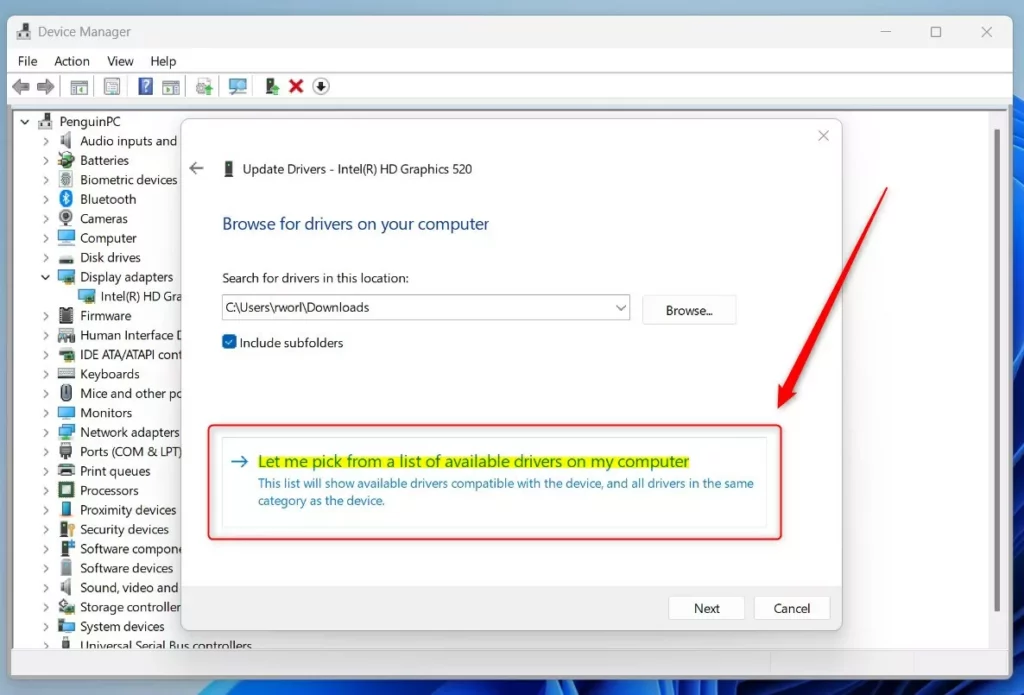
This shows the driver versions already stored locally. It helps when you need to go back to an older, stable version after a newer one causes problems.
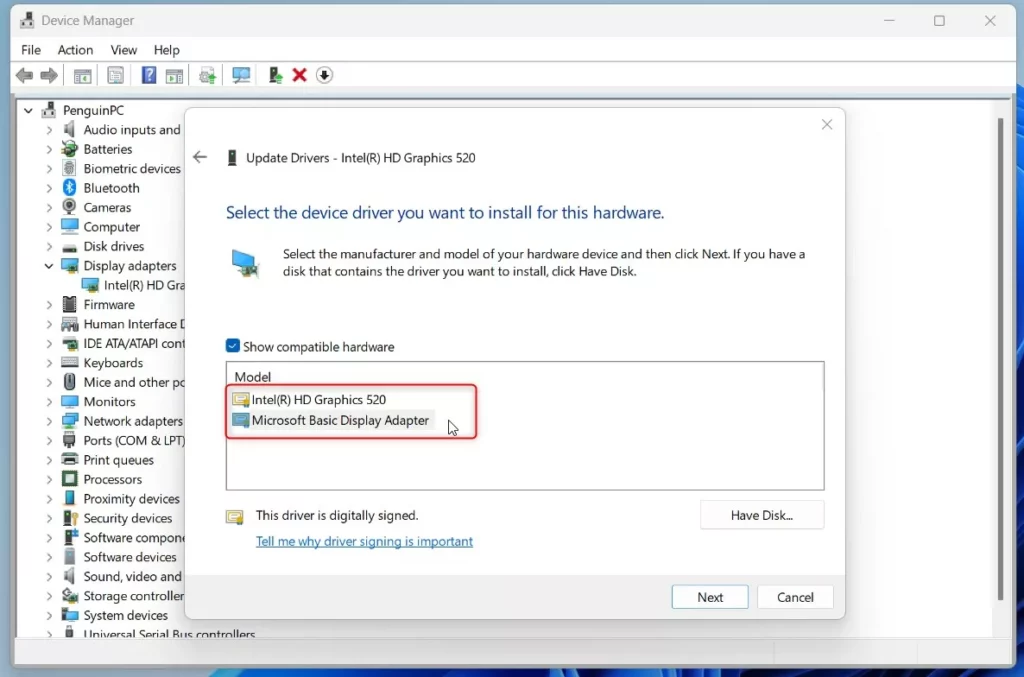
Highlight the version you want and confirm it with the button shown on screen, usually Next (or OK in some dialogs). Windows then writes the driver to your system. The screen may flicker briefly while it does.
If a new driver causes trouble, you can undo it. Right-click the video card in Device Manager, choose Properties, open the Driver tab and click Roll Back Driver. The button is greyed out if Windows has no previous version to return to.
Restart your computer so Windows can load the new drivers fully. Do this even if Windows doesn't ask.
3Download and Install Drivers from the Manufacturer’s Website
Downloading installers straight from the hardware vendor is the best way to update video drivers in Windows 11 when you need the newest bug fixes and performance improvements. Chip makers like Intel, AMD, and Nvidia host the most current packages on their official support pages.
These official sites host signed installation packages:
- Go to the download page for your specific card. Use the exact model name you noted earlier, and choose the Windows 11 64-bit version.
- Download the installer file.
- Run the installer and follow the prompts. Close any games or video editors first, because the screen may flicker or go black briefly during the install.
- Restart your PC when the installer finishes.
On a laptop, the manufacturer (Dell, HP, Lenovo and so on) sometimes supplies its own tuned driver. If the chip maker's installer refuses to run or reports that the driver is not compatible, check your laptop maker's support page instead.
Summary
- Updating your video driver can help fix video or game problems and make your computer run better.
- You can update drivers using Windows Optional updates, Device Manager, or by downloading from the manufacturer's website.
- After updating your driver, restart your computer to make sure the changes take effect.
- If a new driver causes problems, use Roll Back Driver in the video card's properties in Device Manager to return to the previous version.
Have a question about this guide?
Answered by AI from this guide. Good questions may be added to this page — please don't include personal details.
Did this guide fix your problem?

About the Author
Richard
Tech Writer, IT Professional
Richard is a writer at Geek Rewind who turns complex IT tasks into clear, step-by-step guides. He draws on years of hands-on experience in system administration and enterprise IT operations, focusing on Windows, Linux and WordPress: the problems people actually run into, and the fixes that work. His server and WordPress guides come from systems he runs himself. Richard builds and maintains the platform behind Geek Rewind, from its Ubuntu servers and Nginx configuration to its custom WordPress plugins. Many new tutorials start with readers' questions, and he's always glad to answer them in the comments.
[…] Find out how to update your video drivers. […]