How to Check for and Install Optional Updates in Windows 11

This guide explains how to manage Optional Updates in Windows 11. These updates differ from standard security patches. They often include specific hardware drivers or firmware improvements.
Open Settings , go to Windows Update , then Advanced options, and finally Optional updates. Expand the categories, check the desired updates, and click Download & Install.
Why Install Optional Updates?
Windows Update automatically installs important security patches. However, it doesn’t always automatically install certain hardware drivers or optional quality updates. You might need these if your hardware is acting up or if you want the latest performance improvements.
What Happens When You Install Updates?
When you install updates , your computer runs better because they change system files and the software that makes your hardware work.
How to Find and Install Optional Updates in 🪟 Windows 11
Finding and installing Optional Updates in Windows 11 can help keep your computer running its best. These updates often include new features or fixes that aren’t critical but can improve your experience. Checking for and installing them is a matter of following a few steps in the Settings app .
Click the Start menu . Then select the Settings app.

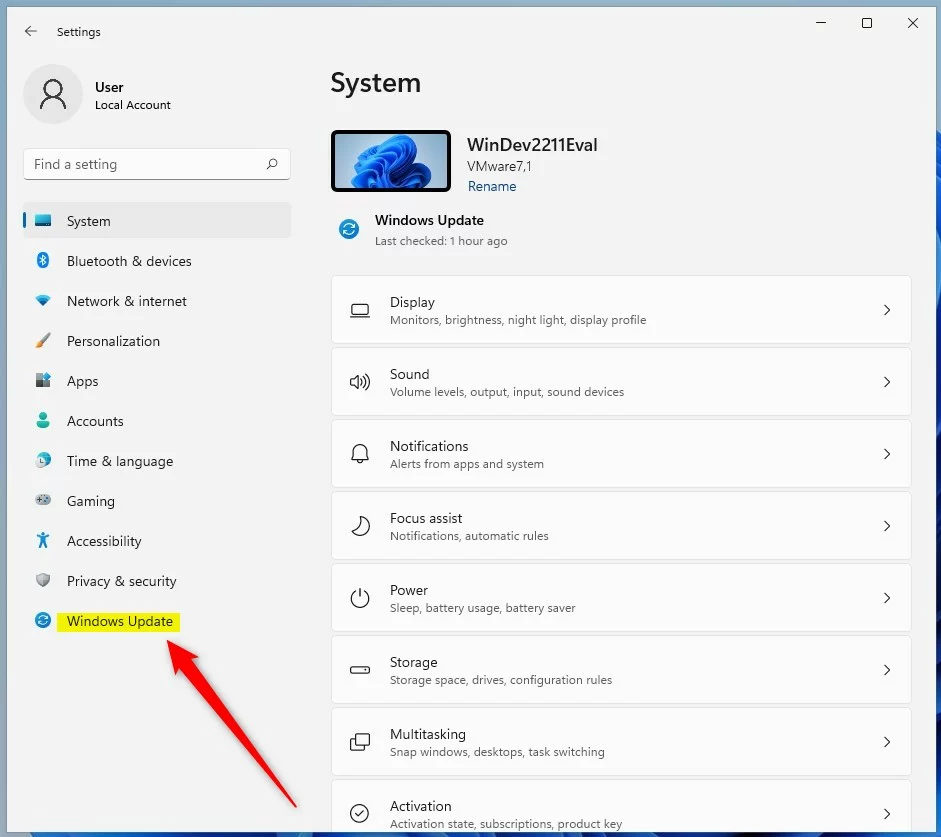
Step 2: Go to Windows Update
In the Settings app, click the Windows Update button on the left side.
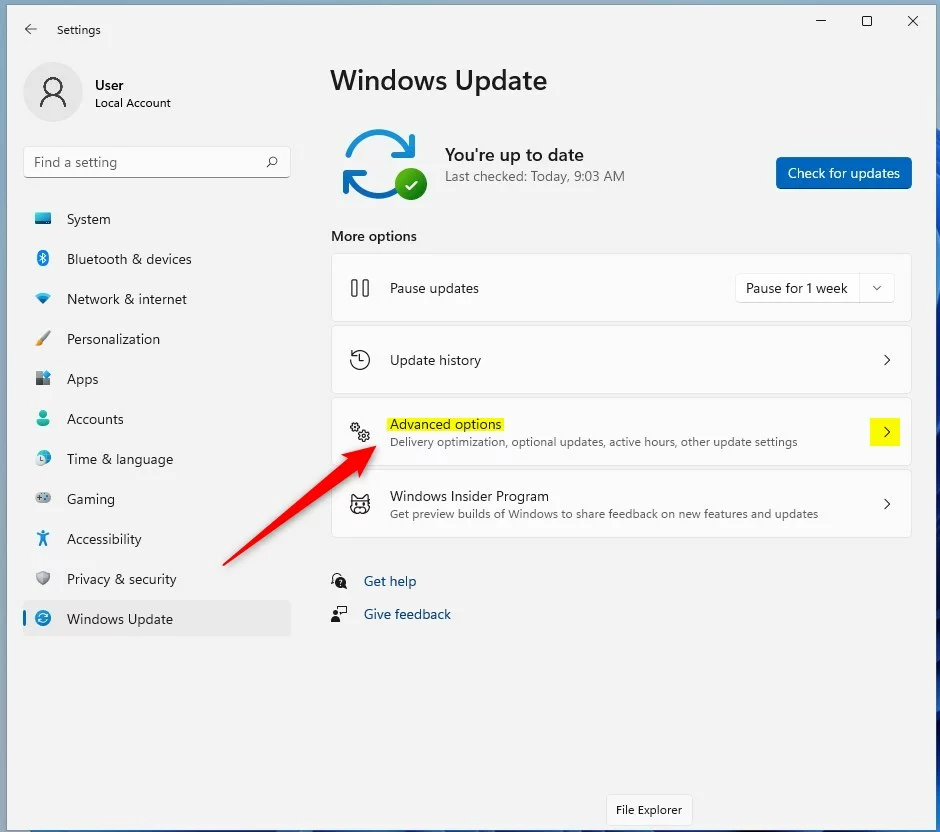
Step 3: Open Advanced Options
On the right, select the Advanced options tile to expand it.
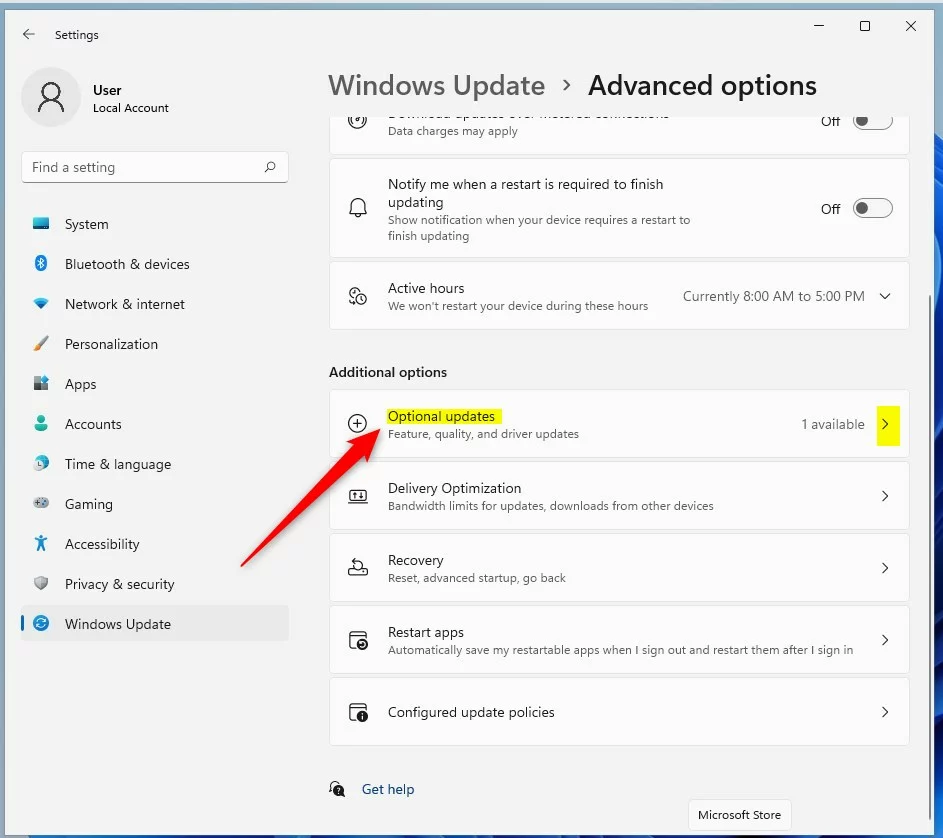
Step 4: Find Optional Updates
Under Additional options, select the Optional updates tile to expand it. Then, choose your updates.
Step 5: Choose Your Updates
Expand the Driver updates or Other updates categories. Then, check the box next to the driver or update you want. Selecting a box will activate the Download & Install button.
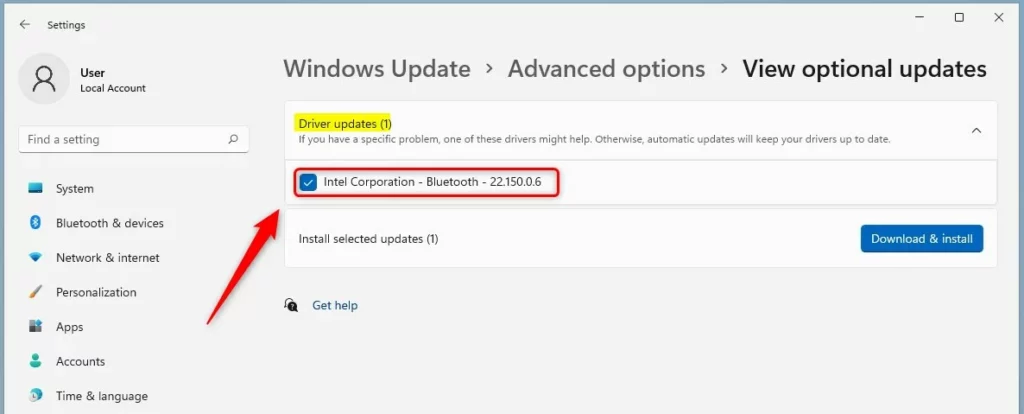
Step 6: Download and Install
Click the Download & Install button. Your device will go back to the Windows Update pane and begin downloading your selected updates.
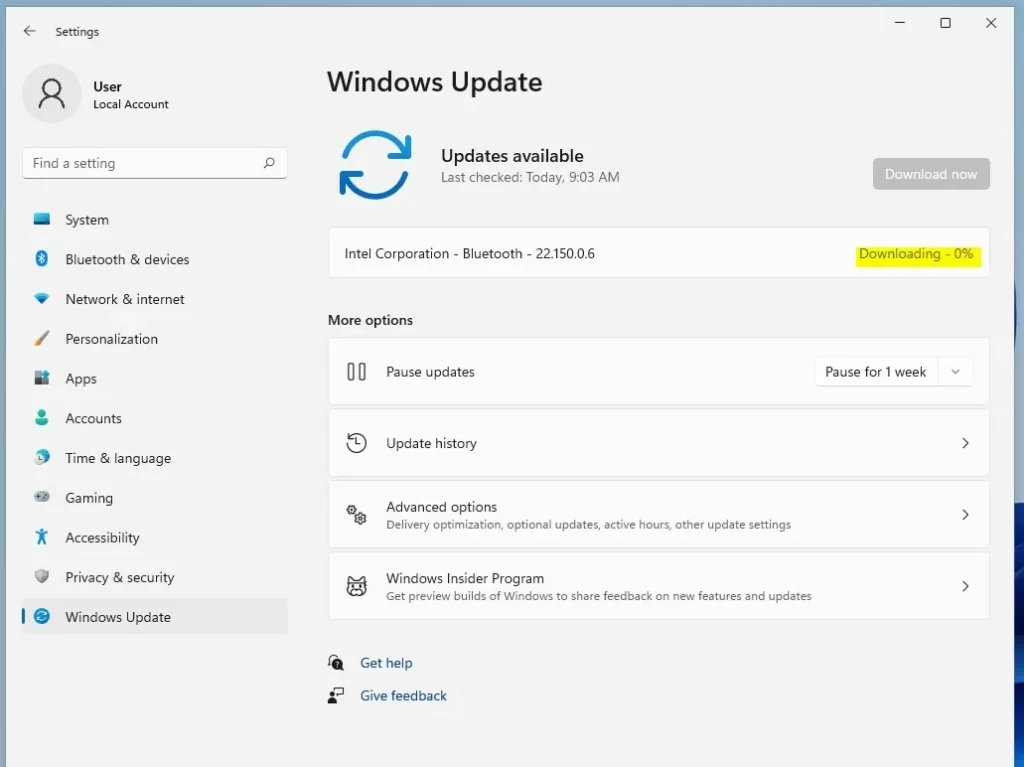
Troubleshooting Driver Issues
If a device stops working on your Windows 11 computer, fixing driver issues often starts with checking Device Manager.
Manual Troubleshooting
If you cannot find a driver, visit the Microsoft Update Catalog to search for specific hardware IDs. This is a more advanced step, used when you need to manually install files directly into system folders, such as C:\Windows\System32.
Summary
Always back up your data first, especially for firmware. If an update causes trouble, you can often roll back drivers using Device Manager.
Was this guide helpful?

About the Author
Richard
Tech Writer, IT Professional
Richard is a writer at Geek Rewind who turns complex IT tasks into clear, step-by-step guides. He draws on years of hands-on experience in system administration and enterprise IT operations, focusing on Windows, Linux and WordPress: the problems people actually run into, and the fixes that work. His server and WordPress guides come from systems he runs himself. Richard builds and maintains the platform behind Geek Rewind, from its Ubuntu servers and Nginx configuration to its custom WordPress plugins. Many new tutorials start with readers' questions, and he's always glad to answer them in the comments.


[…] Windows Optional updates will include video device drivers released with Windows Update. Here’s how to search for and install Optional updates. […]
[…] Learn more about Optional Updates […]
[…] Audio drivers are sometimes hidden in your settings. If you are having trouble with your sound, check for optional updates. Here is how to search for and install them Optional updates. […]