How to Enable or Disable Get the Latest Windows Updates Soon in Windows 11

The Get the latest updates as soon as they’re available switch in Windows 11 lets your PC receive new non-security features and improvements earlier than the normal staggered rollout. Microsoft can release these changes to your device days or weeks ahead of other PCs. The toggle is in the Settings app, under Windows Update .
The setting needs Windows 11 version 22H2 or newer. With it on, Microsoft sends you updates as soon as they finish testing. With it off, you wait for the normal release schedule. Security updates are not affected either way. They arrive on the regular monthly schedule.
Open Settings , select Windows Update , and toggle on “Get the latest updates as soon as they’re available” to receive non-security features ahead of the normal rollout. The change takes effect immediately. This setting requires Windows 11 version 22H2 or newer.
Why Update Your Windows?
Keeping a Windows PC updated matters for stability and security. Updates fix bugs and add improvements, and they usually install on their own without any effort from you. This switch is one of the few places where you get some say in the timing.
What Is This New Update Option?
This setting controls how quickly your PC receives non-security features and improvements. When it is on, your PC can download new patches ahead of the standard rollout. When it is off, you only get those changes after they have had more time in the wild and Microsoft has caught more problems.
Turning it on makes your PC pick up non-security updates sooner than usual. It prioritizes speed for features and improvements. It does not change when critical security patches arrive.
The people who manage workplace or school computers often disable it. Early features can change how a device behaves, and administrators want managed machines to stay stable and predictable. If the toggle is greyed out on your PC, or Settings shows a message such as Some settings are managed by your organization, an administrator has probably set a policy. You will need to ask them to change it, or use a different PC.
How to Turn This Option On or Off
The simplest way to change this setting is through the Settings app. You do not need any advanced tools, and the change applies straight away. You do not need to restart just to flip the switch. Windows may still ask for a restart later, when it installs an update.
In short: open Settings , select Windows Update in the sidebar, and use the toggle next to Get the latest updates as soon as they’re available. The numbered steps below show each screen. To undo the change, follow the same steps and flip the switch back.
- Open Settings . Click the Start menu button and select Settings. Or press
Windows key + Ion your keyboard. - In the Settings window, click Windows Update on the left side.
- On the right side, find the option that says “Get the latest updates as soon as they’re available”.
- Toggle the switch to On to get updates faster. Toggle it to Off to stop.
- Close the Settings window when you’re done.
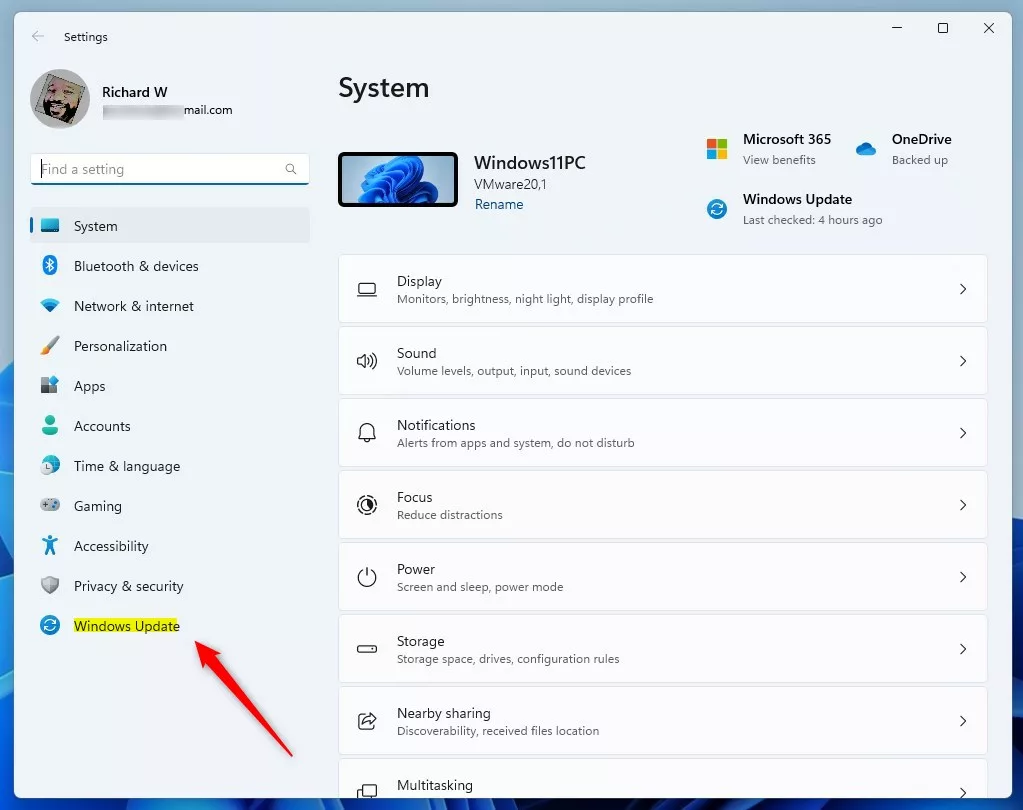
Click Windows Update in the sidebar of the Settings app. The update status and options for your PC should appear on the right.
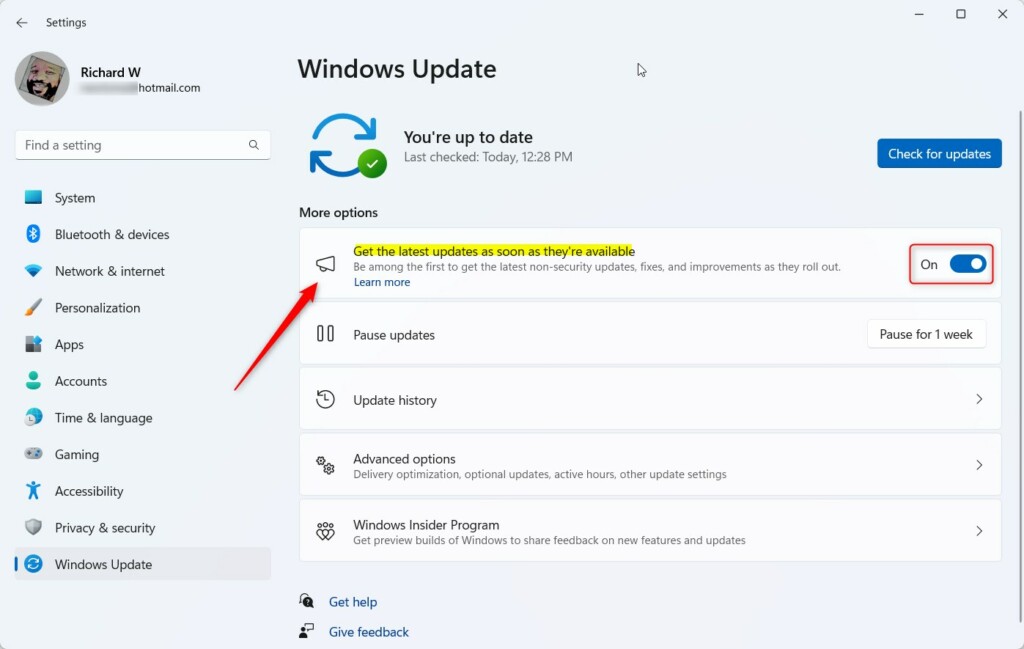
Turn this switch on to get updates faster, or off to go back to the standard schedule. The switch should change state immediately. If you cannot find it at all, check that you are on Windows 11 22H2 or newer.
How to Use the Windows Registry (For Advanced Users)
This is useful if you prefer not to use the Settings app. The registry method needs an administrator account.
Mistakes can cause problems with your PC. Back up first. In Registry Editor you can export a copy with File Export, and creating a system restore point is also a good idea. Then, if something goes wrong, you can restore the backup.
Here’s how:
- ⚠️ Admin privileges required. Open the Registry Editor. Type
regeditin the Start menu search box and press Enter. For more help, see how to open Registry Editor. - Go to this folder path in the Registry Editor:
HKEY_LOCAL_MACHINE\SOFTWARE\Microsoft\WindowsUpdate\UX\Settings - If you don’t see the Settings folder, right-click on UX. Select New Key. Name it Settings.
- Click on the Settings folder. In the right pane, right-click and choose New DWORD (32-bit) Value.
- Name the new value
IsContinuousInnovationOptedIn. - Double-click
IsContinuousInnovationOptedIn. Set the Base to Decimal. Then enter:1to turn the feature ON0to turn the feature OFF
- Click OK and close the Registry Editor.
- Restart your computer to apply the change.
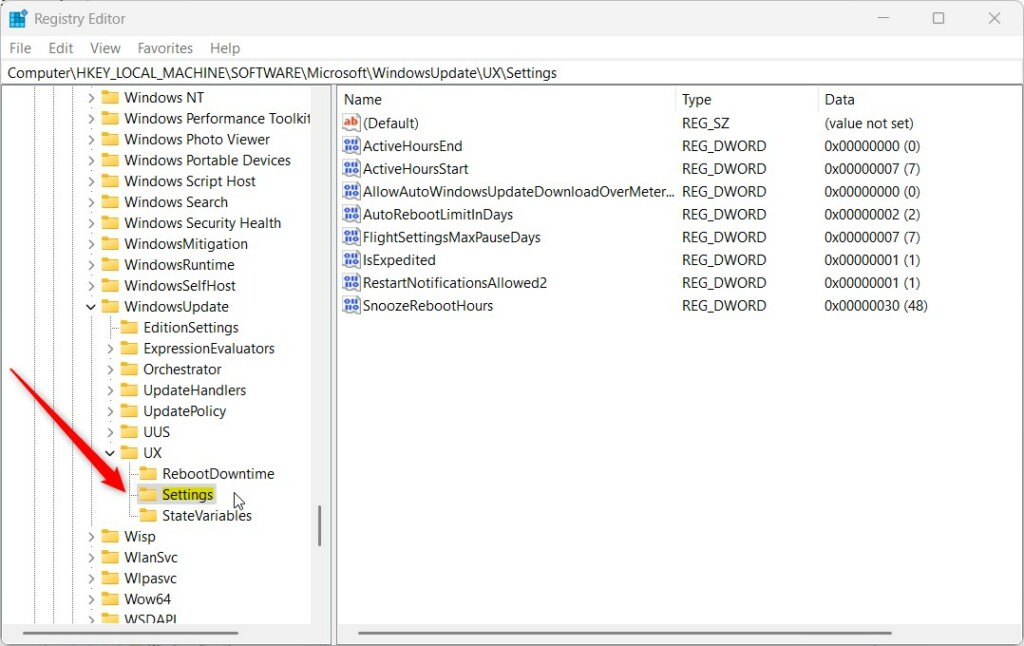
Navigate to this key in Registry Editor. The left pane shows the keys as folders, so expand each one in turn until you reach it. The value you need should then appear in the right pane.
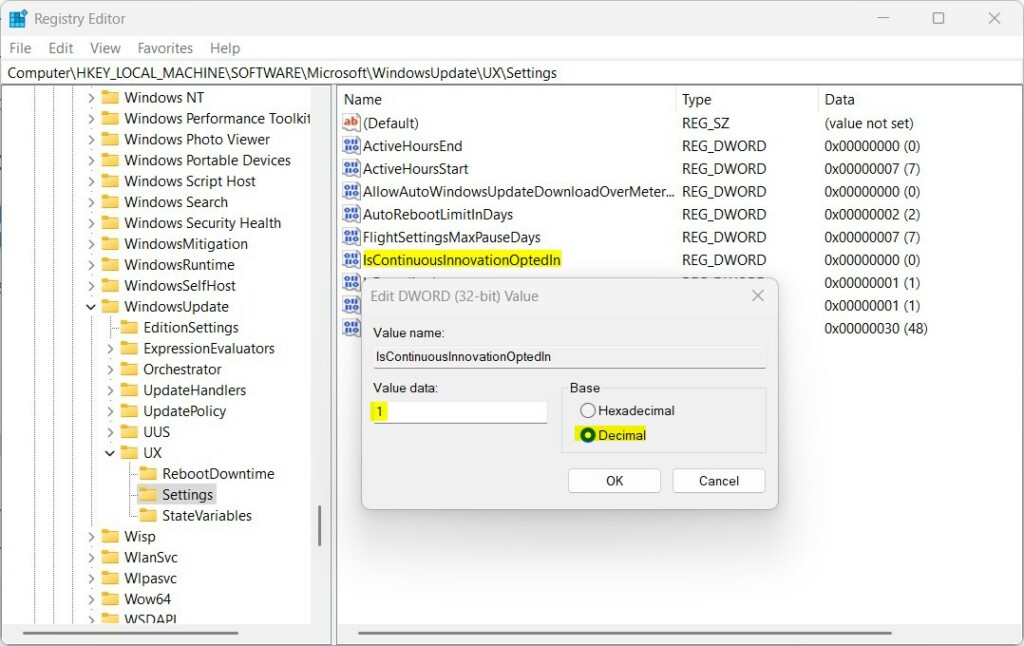
Double-click the value. Under Base, select Decimal. Then, in the Value data box, enter 1 to turn the feature ON, or 0 to turn it OFF. Click OK to save.
Close Registry Editor afterwards. If Settings does not show the new state, close and reopen it, or restart the PC. Remember that a registry change can be overridden if an organization policy manages the setting.
Summary
- You can get Windows 11 updates faster by turning on the new update option.
- Use the Settings app to easily turn it on or off.
- If you prefer, you can change this setting using the Registry Editor. This method is for advanced users.
- Choose the method that works best for you. Keep your PC updated the way you want.
You can control when Windows 11 delivers new non-security features with either the Settings app or the Registry Editor. For most people the Settings toggle is the better choice, because it is quicker and carries no risk to the registry. Use the registry only if you are comfortable with it and have a backup. Either way, you can reverse the change at any time.
Have a question about this guide?
Answered by AI from this guide. Good questions may be added to this page — please don't include personal details.
Did this guide fix your problem?

About the Author
Richard
Tech Writer, IT Professional
Richard is a writer at Geek Rewind who turns complex IT tasks into clear, step-by-step guides. He draws on years of hands-on experience in system administration and enterprise IT operations, focusing on Windows, Linux and WordPress: the problems people actually run into, and the fixes that work. His server and WordPress guides come from systems he runs himself. Richard builds and maintains the platform behind Geek Rewind, from its Ubuntu servers and Nginx configuration to its custom WordPress plugins. Many new tutorials start with readers' questions, and he's always glad to answer them in the comments.
No comments yet — be the first to share your thoughts!