How to Enable Windows Updates in Windows 11 Soon as Possible


Getting Windows 11 updates as soon as possible comes down to one setting. It tells Windows Update to offer you new non-security updates and features as soon as Microsoft starts rolling them out. Windows Update is the built-in service that downloads security patches and feature updates for your PC.
The setting lives in the Settings app , and it can move you ahead of the standard rollout queue. That includes features that arrive with releases such as version 23H2. This guide covers the Settings method first, then the registry method, troubleshooting, and PowerShell.
Enable Windows Updates by going to Settings Windows Update and toggling “Get the latest updates as soon as they’re available” to On. This ensures your PC receives new features and security patches promptly.
Prerequisites
Before you begin, make sure you have a stable internet connection and at least 20GB of free disk space. Feature updates need room to download and unpack, and a full drive is one of the most common reasons an update fails.
Also check whether your connection is metered. A metered connection is one that charges you by data usage. Windows may delay large updates on it to save data. To check, open Settings Network & internet, choose your Wi-Fi or Ethernet connection, and look at the Metered connection switch. If it is on and you can afford the data, turn it off for now. You can turn it back on once the update has finished.
Method 1Using the Settings App
The Settings app is the safest and simplest way to get updates early. You open Settings, go to Windows Update , and turn on one toggle. It works the same on Windows 11 Home and Pro, and you can switch it off again at any time.
The toggle is in Windows 11 version 22H2 and later. If you are on the original 21H2 release, you will not see it. Install the pending updates first, then come back to this page.
- Open the Windows Settings app by pressing the Windows key + I. The Settings window opens with a list of categories on the left.
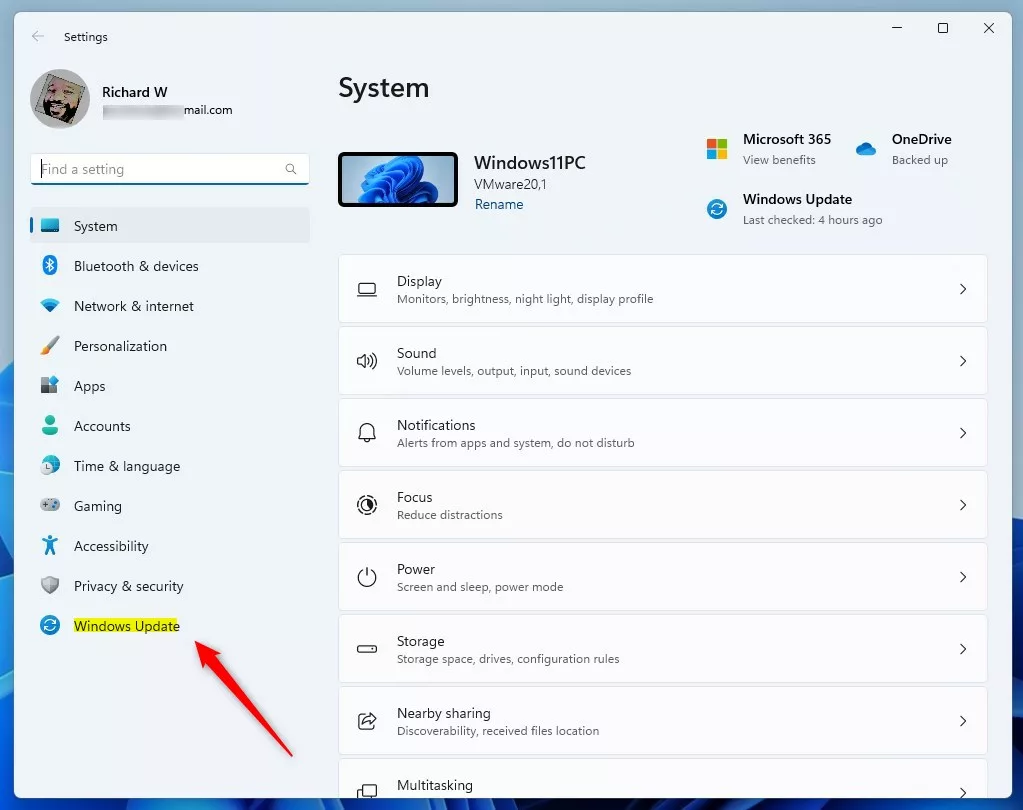
- Click Windows Update at the bottom of the left-hand menu. The right side now shows your update status, the Check for updates button, and several update options.
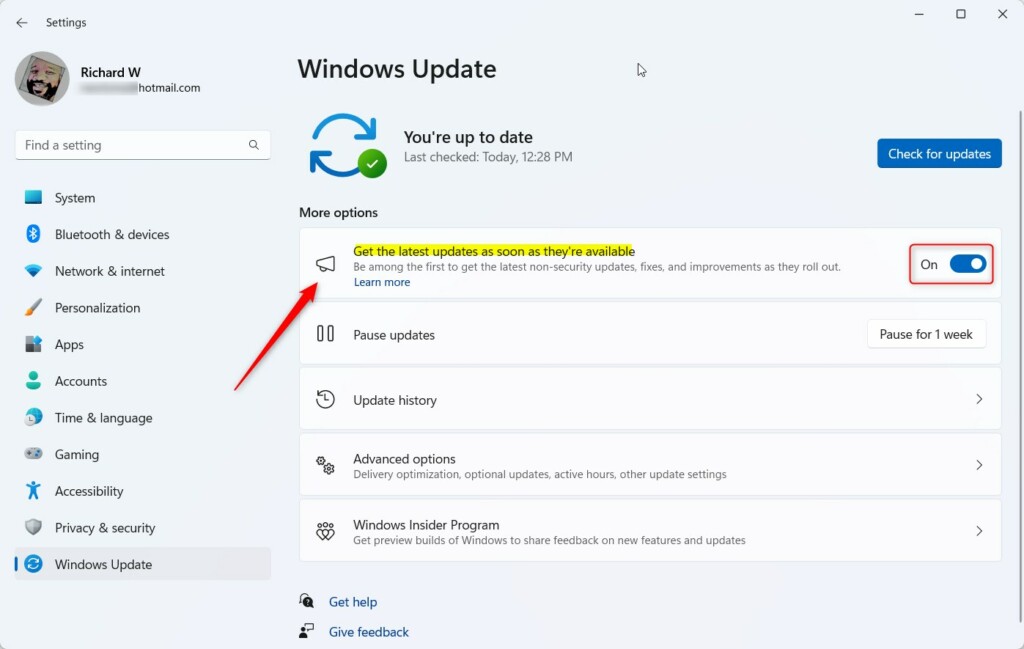
- On the right side, find the tile labeled "Get the latest updates as soon as they're available." It sits near the top of the page, under the update status. If it is missing, you are probably on an older build of Windows 11. Run Check for updates and install whatever is offered.
- Toggle the switch to On to enable it. The switch should now show as on. Click Check for updates to look for anything that is available right away. If the toggle is greyed out or locked, your PC is probably managed by an organization, and your administrator controls update policy. To undo the change later, set the switch back to Off.
Method 2Using the Windows Registry (Admin Required)
You can also change update behavior by editing the system database directly. This is an advanced method. It requires an administrator account and involves adding a specific value in the registry, which tells Windows to check for the newest releases right away. Try the Settings method first. It is the supported route, and a wrong registry edit can cause problems that are harder to track down.
Before you start, create a restore point or export the part of the registry you plan to change. In Registry Editor, you can export a key from File Export
- Open the Windows Registry by typing regedit in the Start menu and opening the result. If a User Account Control prompt appears, click Yes. The Registry Editor window opens with a folder tree on the left.
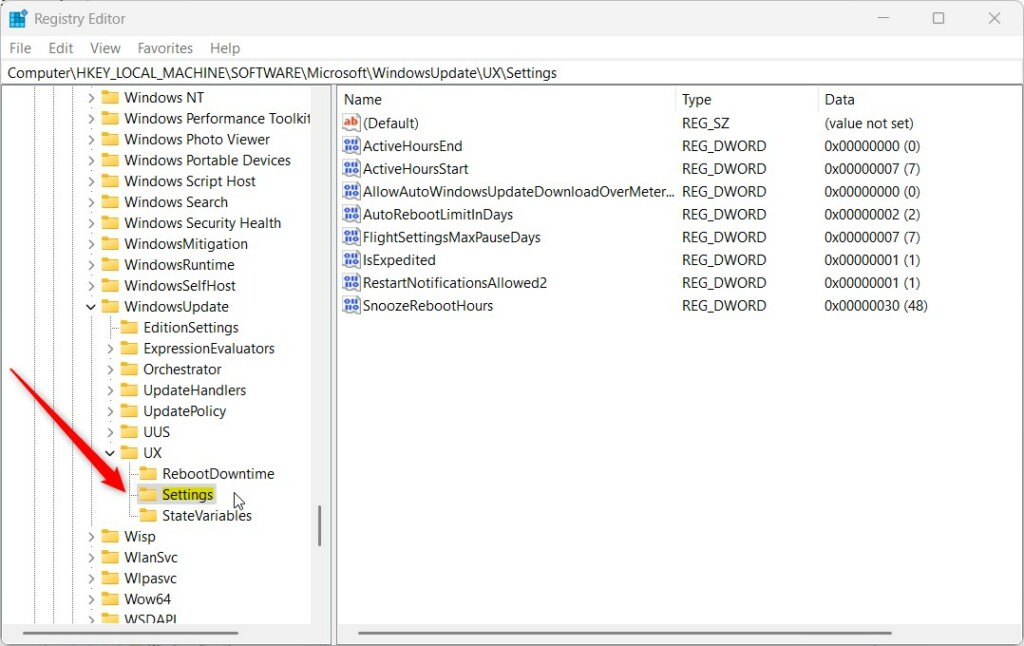
- Navigate to:
HKEY_LOCAL_MACHINE\SOFTWARE\Microsoft\WindowsUpdate\UX\SettingsYou can paste the path into the address bar at the top of the window. The right pane now shows the values stored in that key. If part of the path does not exist, you will need to create the missing key first. - Right-click in the empty space of the right pane and select New DWORD (32-bit) Value. A new entry appears with its name highlighted, ready for you to type.
- Name it
IsContinuousInnovationOptedInand set the value to1. To set the value, double-click the entry, type the number in the Value data box, and click OK. Close Registry Editor and restart the PC so the change is picked up. To undo it, delete the value you created, or set it back to its previous data, and restart again.
Advanced Troubleshooting
If your updates keep failing, start with the official Windows Update Troubleshooter. In Windows 11 you can find it under Settings System Troubleshoot Other troubleshooters. Click Run next to Windows Update and follow the prompts. It resets several update components and often fixes the problem on its own.
If that does not help, clear the update cache. This is the set of downloaded update files Windows keeps in C:\Windows\SoftwareDistribution\Download. Administrator privileges are needed to modify this folder. Deleting the files is safe, because Windows downloads them again the next time it checks for updates. If Windows says some files are in use, stop the Windows Update service from the Services app first, delete the files, then start the service again. Restart the PC afterwards and run Check for updates once more.
Force Updates via PowerShell
To force a Windows 11 update from the command line, open PowerShell as an administrator and run the command Install-Module PSWindowsUpdate -Force. To open it that way, right-click Start and choose the Terminal (Admin) or Windows PowerShell (Admin) entry, then click Yes on the prompt.
This command downloads and installs the PSWindowsUpdate module. The module adds update commands to PowerShell, so you can manually check for and install updates immediately instead of waiting for the standard update schedule. PowerShell may ask you to install a package provider or to trust the repository the module comes from. Read the prompt and answer it if you are comfortable with the source. Installing the module does not install any Windows updates by itself. You still need to run the module's update commands afterwards.
Install-Module PSWindowsUpdate
Get-WindowsUpdate -Install -AcceptAll
Summary
You control how your computer receives updates in Windows 11. The quickest way is the "Get the latest updates as soon as they're available" toggle in Windows Update, which makes your device pick up new enhancements as they roll out. Check that you have enough disk space and that your connection is not metered. If you hit errors, use the Troubleshooter, clear the update cache, or use PowerShell to force the process. Keep your system updated, because security patches are the main reason to stay current.
Related Topics
Was this guide helpful?

About the Author
Richard
Tech Writer, IT Professional
Richard is a writer at Geek Rewind who turns complex IT tasks into clear, step-by-step guides. He draws on years of hands-on experience in system administration and enterprise IT operations, focusing on Windows, Linux and WordPress: the problems people actually run into, and the fixes that work. His server and WordPress guides come from systems he runs himself. Richard builds and maintains the platform behind Geek Rewind, from its Ubuntu servers and Nginx configuration to its custom WordPress plugins. Many new tutorials start with readers' questions, and he's always glad to answer them in the comments.


No comments yet — be the first to share your thoughts!