How to Enable or Disable Windows 11 Updates with Wushowhide.diagcab


Some Windows 11 updates keep coming back, or break a driver or feature, and the standard Settings app gives you no way to skip them. The wushowhide.diagcab tool is a small troubleshooter package that fills this gap. This guide shows how to use it to hide a specific update so Windows Update stops offering it, and how to bring it back later.
Download wushowhide.diagcab from Microsoft, double-click it, click Next, select Hide updates, tick the KB number or driver you want to block, then click Next again. Windows Update will stop offering that update until you unhide it using the same tool.
What is wushowhide.diagcab?
The wushowhide.diagcab utility lets administrators hide or block specific updates from installing automatically. It works on single updates, such as one KB package or one driver, not on Windows Update as a whole.
It may still run on your PC, but there is no guarantee, and Microsoft will not fix problems with it. Download it directly from Microsoft to avoid risky versions bundled on third-party sites. A modified .diagcab file runs with your administrator rights, so the source matters.
Comparison: Pause Updates vs. Hide Updates
| Feature | Pause Updates (Settings) | Hide Updates (wushowhide) |
|---|---|---|
| Duration | Temporary (up to 5 weeks) | Permanent until unhidden |
| Scope | All updates | Specific KB updates or drivers |
| Ease of Use | Built-in Settings | Requires external tool |
How to Use the Tool
Step 1Download the Tool
- Download the file from the official Microsoft archive.
- Save it to your Downloads folder.
Administrator privileges are required to change system update settings using this utility. Sign in with an administrator account before you start. A standard account will be asked for admin credentials, and the tool may not apply your changes without them.
Step 2Open the Tool
- Open your Downloads folder and locate the downloaded file.
- Double-click it to launch the interface.
A troubleshooter window titled Show or hide updates should open with a Next button. If nothing happens, make sure the file ended up as a .diagcab file and not a renamed download. If you are not signed in as an administrator, use the Advanced link in this window and choose to run as administrator. 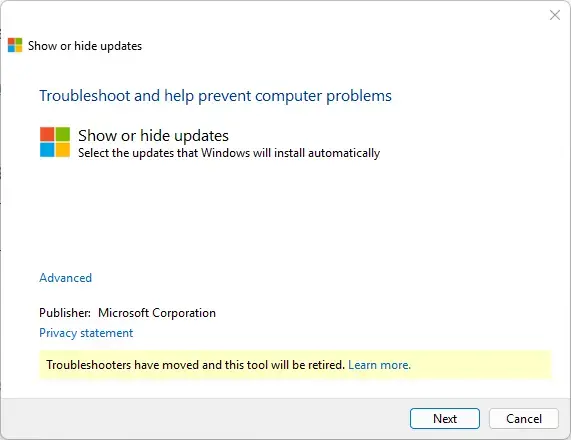
Step 3Choose Your Action
- Click Next and wait while the tool checks for available updates.
- Choose Hide updates to block a problematic file, or select Show hidden updates to restore one you hid earlier.
The next screen lists the updates the tool found. If the list is empty, Windows has nothing pending to hide. 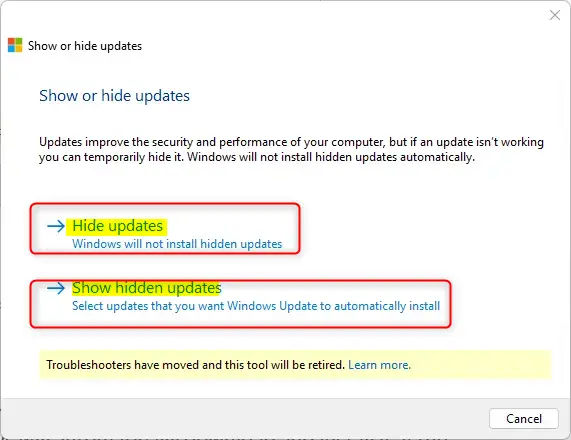
Step 4Select the Update
- Tick the box next to the specific KB number (an identifier Microsoft uses for updates) or driver update you want to handle.
- Click Next.
The tool applies the change and shows a summary saying the problem was fixed or that the update is now hidden. Click Close to finish. If you chose Show hidden updates, the selected update becomes available to Windows Update again, and it will install the next time it checks. Hiding is not permanent in every case. Microsoft may offer a newer version of the same update later, and you may need to hide that too. 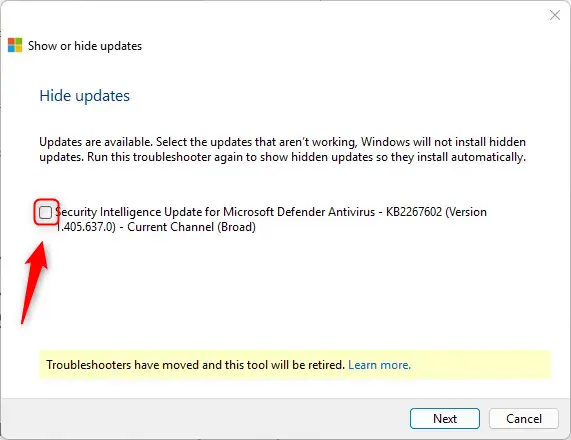
Step 5Remove Existing Updates
If the update is already on your PC, remove it first, then hide it so it does not return.
- Open Settings Windows Update Update history
- Scroll down to Related settings and click Uninstall updates.
- Select the update in the list and click Uninstall.
- Confirm the prompt. Windows may ask for a restart to finish removing the update.
- After the restart, run wushowhide.diagcab again and hide the update.
Administrator privileges remain mandatory for this step. Some updates, such as certain cumulative or servicing stack updates, do not offer an Uninstall option. That is normal. 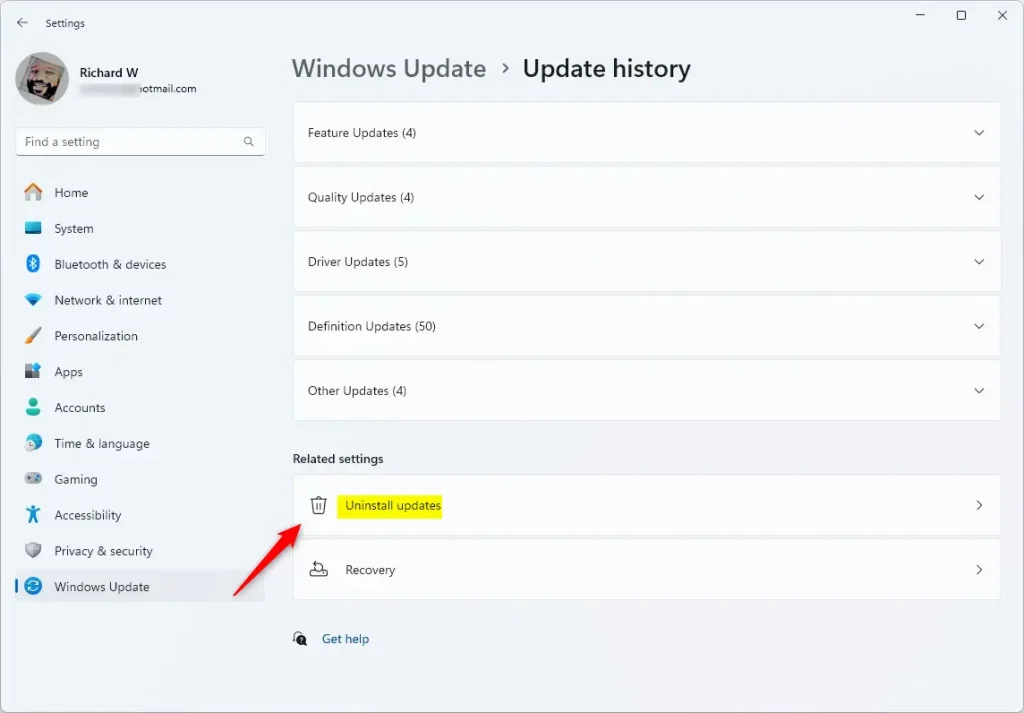
Troubleshooting and Alternatives
If you need to pause updates more broadly, the method depends on your edition. Windows 11 Pro installations support update disabling via the Group Policy Editor. Home editions do not include that editor, so they require registry modifications instead.
Both approaches change how Windows handles updates across the whole system, not just one KB. Back up the registry or create a restore point before editing it. To undo the change, reverse the setting you changed and restart. Keep in mind that blocking updates entirely also blocks security fixes, so use it only as a temporary measure.
Summary
The wushowhide.diagcab tool is a legacy utility for blocking specific Windows 11 updates and managing schedules temporarily. It is useful when one bad update or driver keeps returning, but it is unsupported, so treat it as a short-term workaround. Check for fixed versions of the problem update, and unhide it once the issue is resolved so your PC stays protected.
Was this guide helpful?

About the Author
Richard
Tech Writer, IT Professional
Richard is a writer at Geek Rewind who turns complex IT tasks into clear, step-by-step guides. He draws on years of hands-on experience in system administration and enterprise IT operations, focusing on Windows, Linux and WordPress: the problems people actually run into, and the fixes that work. His server and WordPress guides come from systems he runs himself. Richard builds and maintains the platform behind Geek Rewind, from its Ubuntu servers and Nginx configuration to its custom WordPress plugins. Many new tutorials start with readers' questions, and he's always glad to answer them in the comments.



No comments yet — be the first to share your thoughts!