How to Find Your Downloads Folder in Windows 11

Your Downloads folder in Windows 11 is at 📁C:\
This is the default location where your web browser and apps save files from the internet. Setup files, PDFs and pictures all land in this one system folder, so downloads on this computer are easy to find. Each Windows account has its own Downloads folder, so you will not see another user’s downloads unless you browse to their profile. A browser can also be set to save somewhere else. If a file is not here, check your browser’s download settings. Most browsers also keep their own list of recent downloads in the browser menu. The steps below cover finding the folder, pinning it, adding it to Start, and tuning how it looks.
The Downloads folder in Windows 11 is at 📁C:\
How to locate the Downloads folder in 🪟 Windows 11
Use these steps to open your Downloads folder in Windows 11 from File Explorer .
- Open File Explorer . Click the folder icon on your taskbar, or press the Win+E. A File Explorer window opens, usually on the Home page.

- Look at the left side of the window. You will see a list of pinned folders called Quick access. On Windows 11 22H2 and later, this list sits under Home.
- Click Downloads. The files you have saved from the internet now fill the main pane. If Quick access is not visible or Downloads is not listed, expand This PC in the sidebar and open Downloads there. That is the download folder for this PC under your account. You can also open your user folder, the one named after your account, and double-click Downloads.

How to Pin Downloads to Quick Access
If you want to reach your files faster, pin the folder to the top of your sidebar. Downloads is often pinned already. If you right-click it and the menu offers an unpin option instead, you are done. The exact wording of the menu item can vary slightly between Windows 11 builds.
To undo the pin later, right-click the folder in the sidebar and choose the unpin option. This only removes the shortcut. Your files stay where they are.
- Open File Explorer . Press the Win+E if you do not have it open already.
- Right-click the Downloads folder. You can do this in the sidebar or in the main pane. A context menu appears. If you do not see the pin option, choose Show more options.
- Select Pin to Quick access. The folder now stays in the sidebar, even when you have not opened it recently.
How to add the Downloads folder to the Start menu
Adding the Downloads folder to the Start menu in Windows 11 puts a direct shortcut right next to the power button so you can open your files faster. The setting is in Settings Personalization Start Folders It works the same on Home and Pro, and you do not need to restart. The steps are below.
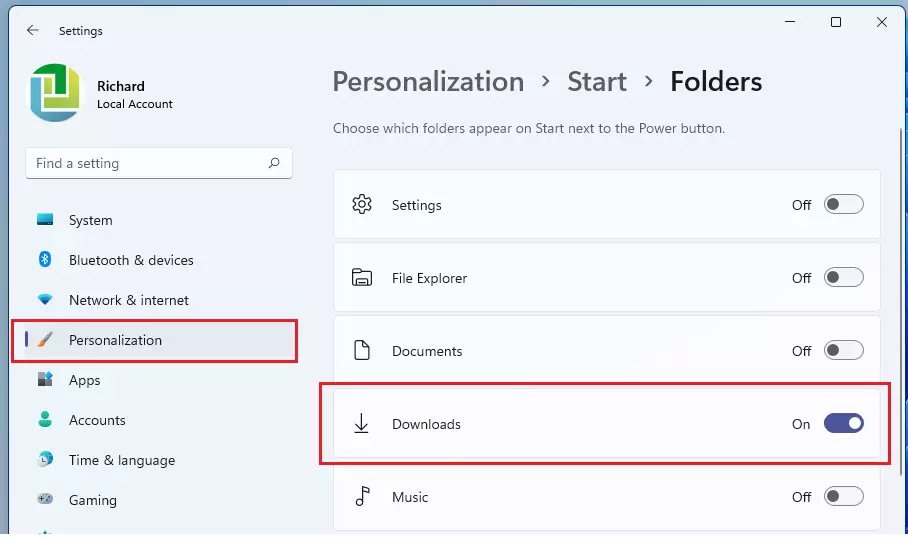
Now, when you click your Start button, you will see a shortcut to your Downloads folder right next to the Power button. If you do not see it, open the Start menu again after a few seconds. To remove the shortcut, return to the same list and switch Downloads to Off.

Troubleshooting and Customization
Why is my Downloads folder grouping files by date?
Windows 11 automatically groups files by date in the Downloads folder to help you spot recent downloads. The headings include Today, Earlier this week and A long time ago. You can turn this off if you prefer a standard list. The change applies only to this folder.
- Open the Downloads folder in File Explorer.
- Right-click any empty space inside the folder, not on a file. A context menu appears.
- Select Group by, then choose None. The date headings disappear and the files show as one list.
To bring the grouping back, repeat the steps and choose Date modified from the same menu.
You can also change the default view settings for other folders. Set up the folder the way you want it first, then follow these steps.
- Click the View menu in File Explorer.
- Select Options, then choose Change folder and search options. The Folder Options window opens. If you do not see Options in the View menu, click the three-dot See more button in the toolbar and look there.
- Go to the View tab in that window.
- Click Apply to Folders and confirm. Your current view settings now become the default for all similar folders.
This only affects folders of the same type as the one you have open, so folders of a different type keep their own view.
If you don't see the Group by option, check that you right-clicked empty space and not a file. On Windows 11 the short right-click menu may hide some items, so choose Show more options to see the full list. If it is still missing, open the View menu at the top of File Explorer and try a different layout, such as Details, then right-click again.
Grouping and Sorting Options
Grouping and sorting options in the Windows 11 File Explorer help you keep your Downloads folder clean by bundling or arranging files by name, date modified, size, or type. Group By collects files into categories, while Sort By puts them in a specific order without separating them into sections.- Windows 11 File Explorer offers powerful ways to organize your Downloads.
- *Group By:** This option lets you bundle files based on categories like Date, Type, or Size. Selecting '(None)' removes this automatic grouping.
- *Sort By:** This arranges your files in a specific order, such as Name, Date Modified, or Size, without bundling them. You can choose ascending or descending order for each.
How to show hidden files within the Downloads folder?
Showing hidden files within the Downloads folder lets you find items that Windows normally keeps out of sight, such as incomplete downloads or configuration files.
- Open File Explorer.
- Click the View menu at the top.
- Select Show, then check the box next to Hidden items. Hidden files and folders now appear in the list, faded slightly so you can tell them apart.
This setting applies to every folder, not just Downloads. To hide them again, clear the same check box. You do not need to restart.
This can sometimes be useful if you are troubleshooting or looking for specific download-related configurations. Leave the files alone unless you know what they do, because deleting a system file can cause problems.
How to reset the folder view
Resetting the folder view in Windows 11 returns your Downloads folder and other File Explorer windows to their default layout if they get messy or hard to read. It changes only how folders look. It does not touch your files.
- Click the Start button and search for File Explorer Options, then open it. The Folder Options window appears.
- Go to the View tab.
- Click the Reset Folders button and confirm when Windows asks. Custom layouts, column widths and grouping are cleared. If the folder still looks the same, close it and open it again.
The Reset Folders option reverts the view settings of the folder type you are working with to the Windows default. If you want to apply your preferred view settings to all folders of the same type, use the Apply to Folders button in the Folder Options window after adjusting your view. You can do the reset first and then set your own layout again.
Folder View Settings
Windows 11 File Explorer has several view options. You can choose from Extra large icons, Large icons, Medium icons, Small icons, List, Details, Tiles, and Content. Each view changes how your files and folders are displayed.
Managing Storage with Storage Sense
If your Downloads folder is getting full, you can use Storage Sense, a feature that automatically frees up space. It works on both Home and Pro.
- Open Settings System Storage The page shows how your drive space is being used.
- Click Storage Sense.
- Turn on Storage Sense to automatically clean up temporary files and free up space on your drive. The page shows how often it runs and what it cleans.
Storage Sense can delete files from Downloads that have not been opened for a set number of days, and the default is usually Never. Review what is in the folder before you pick a time limit. Deleted files may not go to the Recycle Bin, so move anything you want to keep first. To stop the cleanup, switch Storage Sense off on the same page.
Related Topics
- How to manage File Explorer view settings
- Using Storage Sense to clean your PC
- Understanding File Extensions in Windows 11
Summary
- The Downloads folder is the default home for internet files.
- Pin it to Quick Access for faster navigation.
- Use the View menu to change how files are sorted or grouped.
- Enable Storage Sense to keep your drive clean and organized.
Have a question about this guide?
Answered by AI from this guide. Good questions may be added to this page — please don't include personal details.
Did this guide fix your problem?

About the Author
Richard
Tech Writer, IT Professional
Richard is a writer at Geek Rewind who turns complex IT tasks into clear, step-by-step guides. He draws on years of hands-on experience in system administration and enterprise IT operations, focusing on Windows, Linux and WordPress: the problems people actually run into, and the fixes that work. His server and WordPress guides come from systems he runs himself. Richard builds and maintains the platform behind Geek Rewind, from its Ubuntu servers and Nginx configuration to its custom WordPress plugins. Many new tutorials start with readers' questions, and he's always glad to answer them in the comments.
can i import music and write in my folder
It does not match my pc screen