How to Change Folder Layout View in Windows 11 File Explorer

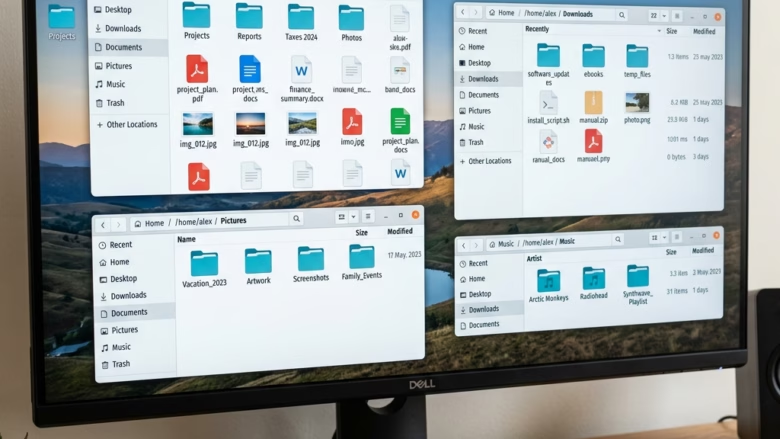
Folder layout view in Windows 11 File Explorer changes how your files and folders look on screen. Windows 11 uses a medium icon view by default, but you can switch to eight other options, like details, list, or extra large icons, to fit your needs.
Changing this view helps you spot the right files much faster, especially when a folder has dozens of items inside. Details view suits documents where you care about dates and sizes. Large icons suit folders full of pictures or videos. The change applies only to the folder you are in, unless you set a default later (covered near the end).
Press Ctrl+Shift+a number from 1 to 8 to jump to a specific folder view: 1 for Extra large icons, 2 for Large icons, 3 for Medium icons, 4 for Small icons, 5 for List, 6 for Details, 7 for Tiles, and 8 for Content. Alternatively, click View on the toolbar and select your preferred layout.
Change Folder Layout View using a Scroll Wheel
You can change the Windows 11 folder view quickly with your mouse scroll wheel, without opening any menus.
- Open any folder in File Explorer .
- Press and hold the Ctrl key on your keyboard.
- Roll the mouse wheel up or down. The view cycles through the icon sizes and list layouts, and you should see the folder contents change as you scroll.
- Release Ctrl once you see the view you want.
Scrolling toward you usually makes icons smaller and scrolling away makes them larger. If you overshoot, just keep scrolling the other way. On a laptop, a two-finger scroll on the touchpad while holding Ctrl does the same thing.
| Layout View | Keyboard Shortcut |
|---|---|
| Extra large icons | Ctrl+ Shift + 1 |
| Large icons | Ctrl+ Shift + 2 |
| Medium icons | Ctrl+ Shift + 3 |
| Small icons | Ctrl+ Shift + 4 |
| List | Ctrl+ Shift + 5 |
| Details | Ctrl+ Shift + 6 |
| Tiles | Ctrl+ Shift + 7 |
| Content | Ctrl+ Shift + 8 |
Change Folder Layout View using Keyboard Shortcut
- Open File Explorer (Win+E).
- Open the folder to change.
- Press Ctrl + Shift together with a number from 1 through 8. This combination jumps directly to a specific view. The folder should change as soon as you press the keys.
The numbers map to the views in the order they appear on the View menu: 1 is Extra large icons, 2 is Large icons, 3 is Medium icons, 4 is Small icons, 5 is List, 6 is Details, 7 is Tiles, and 8 is Content. Click an empty area of the folder first if nothing happens, so the file list has keyboard focus rather than the address bar or search box .
Change Folder Layout View from File Explorer Toolbar
- Open File Explorer (Win+E).
- Open the folder to change.
- Locate the Details or Large icons button in the bottom right corner of the window and click it. The folder should switch to that layout right away.
These two buttons sit on the status bar and only toggle between those two views. For any of the other layouts, use one of the menu methods below. If you do not see the status bar at all, the window may be too narrow, so try making it wider.
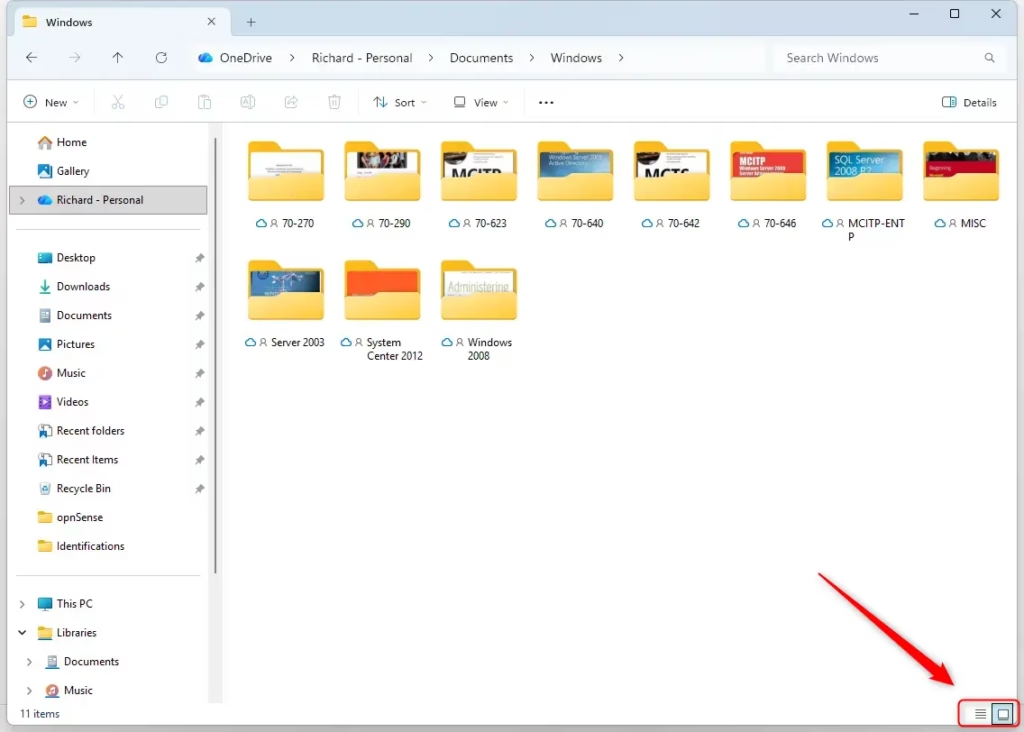
The status bar buttons are the fastest option when you only flip between a detailed list and a picture-heavy view.
Change Folder Layout View from File Explorer Command Bar
- Open File Explorer (Win+E).
- Open the folder to change.
- Click View on the top command bar. A list of layouts opens.
- Select the preferred layout from the list. The folder updates immediately, and the current layout is marked in the list.
This menu shows all eight layouts, so it is the most complete method. The same menu also holds options such as Show for the preview pane and hidden items, which are handy once you are there.
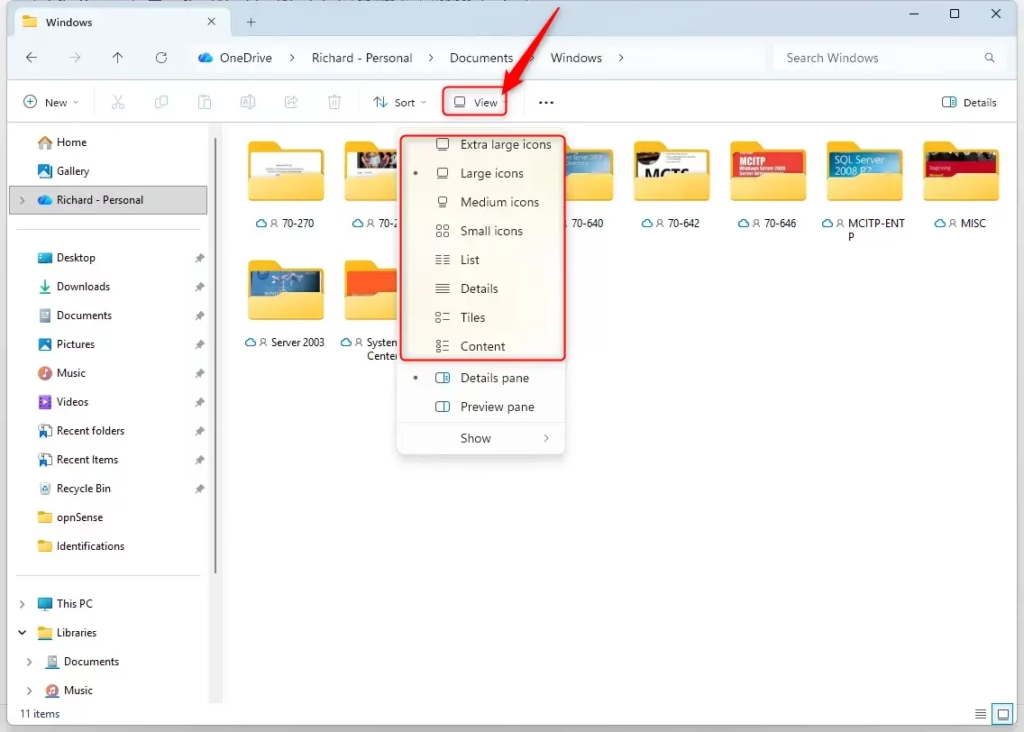
Use this method when you want to see every layout name before choosing.
Change Folder Layout View from Context Menu
- Open File Explorer (Win+E).
- Right-click any empty space inside the folder. Right-click on blank space, not on a file, or you will get the file's menu instead.
- Hover over View. A submenu opens with the layout options.
- Select the preferred layout from the options. The folder changes as soon as you click.
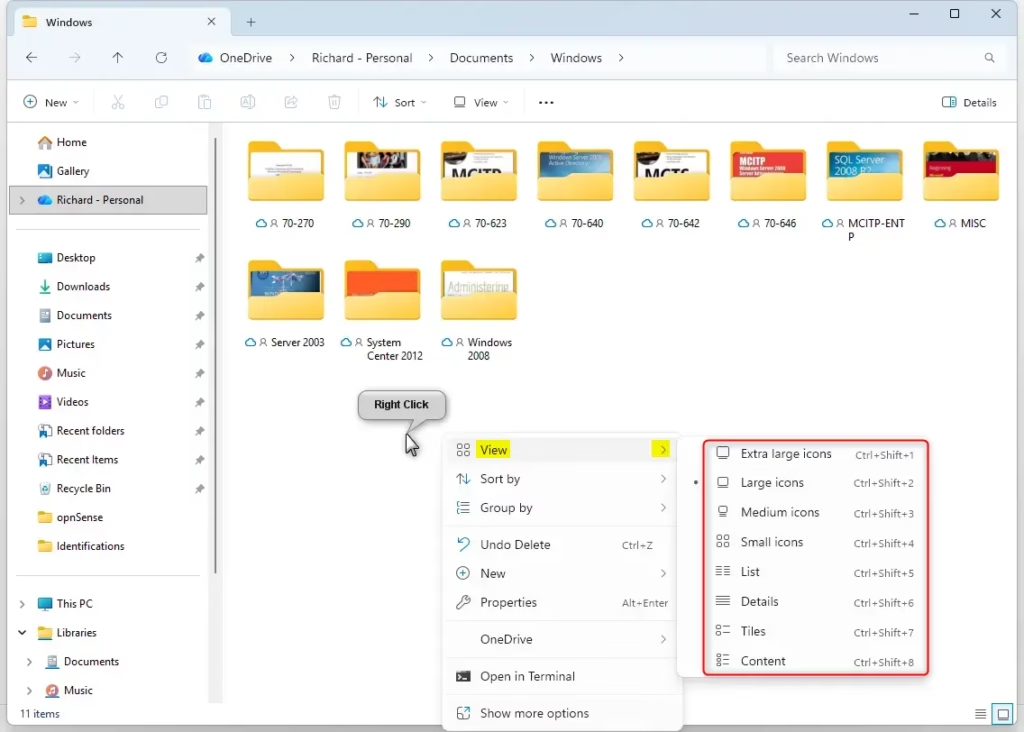
This is quick when your mouse is already over the folder contents, and it needs no trip up to the command bar.
Setting Default Folder Views
Windows groups folders by type, such as General items, Documents, Pictures, Music, and Videos, and this setting applies to every folder of the same type as the one you are in.
- Open a folder and set it to the layout you want.
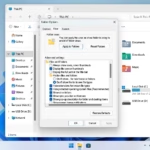
- Click the three-dot menu (See more) on the command bar, then click Options. The Folder Options window opens.
- Go to the View tab.
- Click Apply to Folders.
- Click Yes when Windows asks you to confirm, then click OK.
No restart is needed. If you change your mind, return to the same View tab and click Reset Folders to put the folders of that type back to the Windows default.
Customizing Detail Columns
Column settings only apply in Details view. Switch to it first if you do not see column headers.
- Right-click any column header, such as Name or Date modified. A list of available columns appears.
- Click a column name to add or remove it, for example 'Date Created' or 'File Size'. A tick means the column is showing.
- Click More... at the bottom of that list if you need columns that are not shown, then tick the ones you want.
- Drag a header left or right to arrange the columns in a custom order.
This flexibility improves file management workflows, because you can keep only the details you actually use in front of you.
Summary
Folder layouts change using the mouse, keyboard, or various menu options. Setting default views and customizing columns finishes the organization process. Review the official Microsoft support page for additional details on how these settings persist.
Was this guide helpful?

About the Author
Richard
Tech Writer, IT Professional
Richard is a writer at Geek Rewind who turns complex IT tasks into clear, step-by-step guides. He draws on years of hands-on experience in system administration and enterprise IT operations, focusing on Windows, Linux and WordPress: the problems people actually run into, and the fixes that work. His server and WordPress guides come from systems he runs himself. Richard builds and maintains the platform behind Geek Rewind, from its Ubuntu servers and Nginx configuration to its custom WordPress plugins. Many new tutorials start with readers' questions, and he's always glad to answer them in the comments.


No comments yet — be the first to share your thoughts!