3 Simple Steps to Reset Network Adapters in Windows 11

- 14 steps
- Needs administrator rights
- Includes a restart or sign-out
Network adapters are the hardware parts, such as Wi-Fi and Ethernet, that connect your Windows 11 PC to the internet or a router. A reset clears and reinstalls your network drivers. It can fix stubborn Wi-Fi drops and slow speeds, and it takes just 3 steps.
The reset puts your network settings back to their defaults. Expect to lose saved Wi-Fi networks and passwords, and VPN connections or virtual adapters may need to be set up again. Have your Wi-Fi password to hand before you start. No advanced skills are needed.
Reset network adapters in Windows 11 by opening Settings with Win+I, then going to Network & internet Advanced network settings Network reset and clicking Reset now. Windows removes and reinstalls your network adapters, then restarts after five minutes. You will need to re-enter your Wi-Fi password afterward, and VPN connections may need reconfiguring.
Option 1The Easy Way to Reset Your Network Adapters
Option One uses the built-in Settings app. It is usually the quickest way to reset network adapters, and it resets more than the command in Option Two does. Try it first.
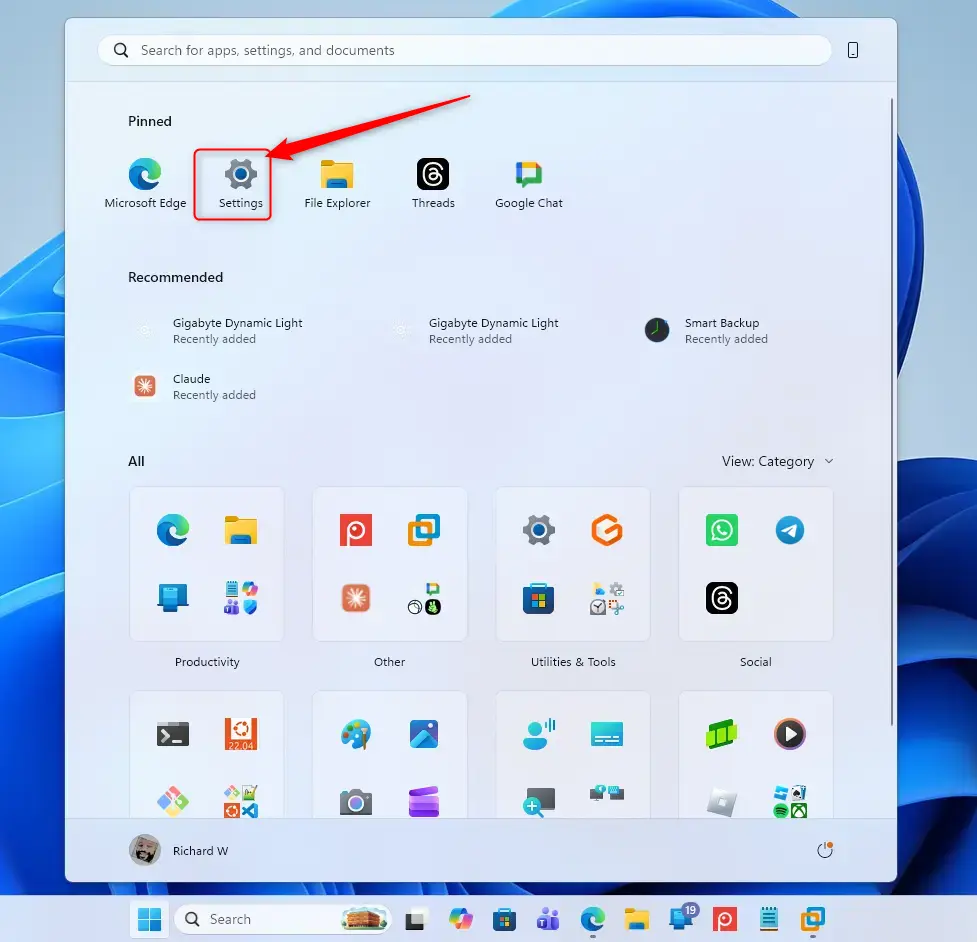
Step 1Open Your Settings
- Press Win+I on your keyboard.
The Settings app opens. If the shortcut does nothing, right-click the Start button and choose Settings instead.
Step 2Go to Network Settings
- Look at the list of options on the left side of Settings and click Network & internet. The right side now shows your connections, such as Wi-Fi and Ethernet.
- Scroll down the right side until you see Advanced network settings, then click it.
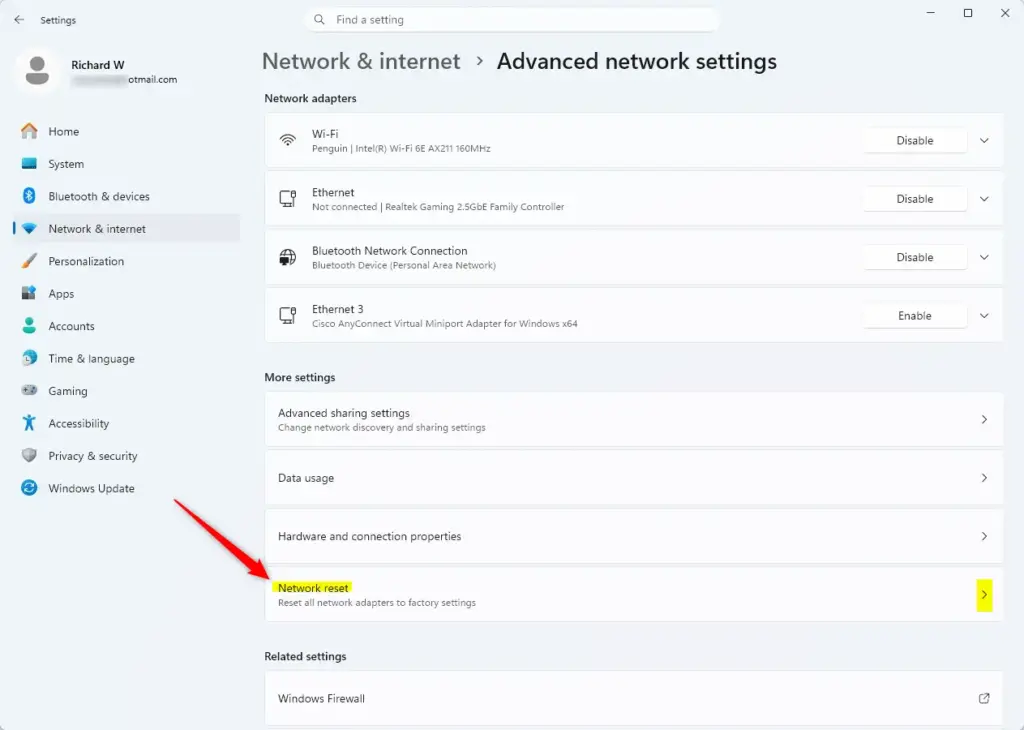
Step 3Find the Network Reset Option
- On the Advanced network settings page, look through the options. You will see adapters listed first, then a section called More settings further down.
- Find Network reset and click it.
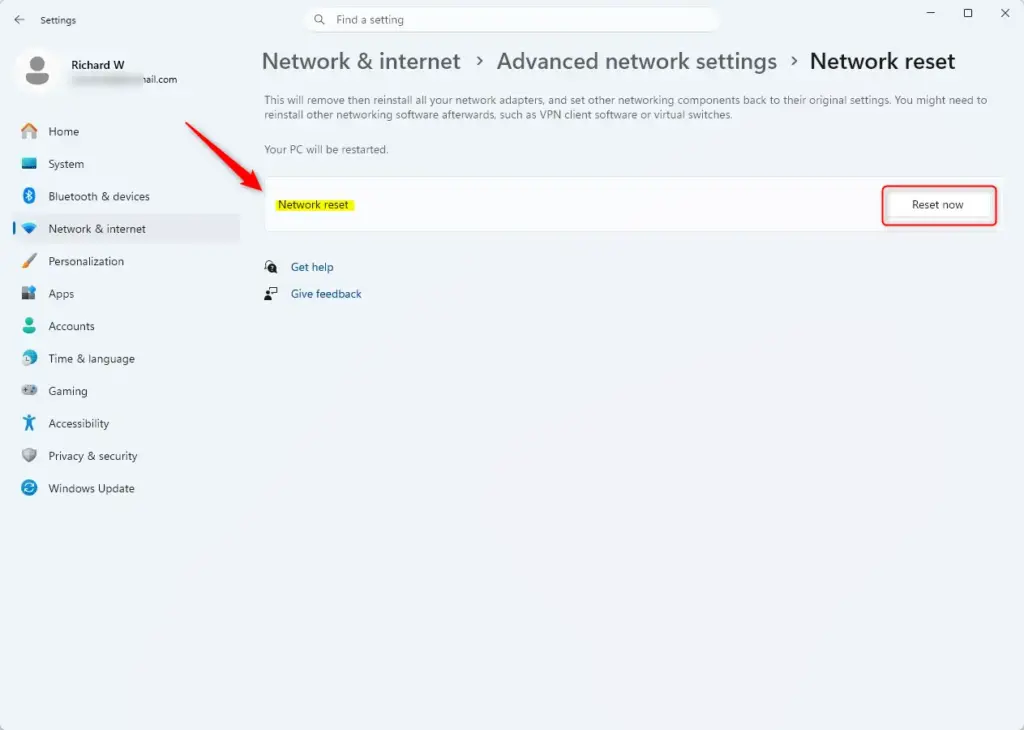
The Network reset page opens. It explains that Windows will remove and reinstall your network adapters and set other networking components back to their defaults.
Step 4Start the Reset
- On the Network reset screen, click Reset now to begin the process.
A confirmation box appears. Nothing has been changed yet.
Step 5Confirm Your Choice
- Read the box. It asks, “Are you sure you want to reset all network adapters?”
- Click Yes to continue.
Windows now starts the reset and shows a notice that it will restart soon. Your network connection drops during this time, which is normal.
Step 6Wait for the Restart
Windows restarts your computer automatically five minutes after you reset network adapters in Windows 11. This applies all changes properly. Save and close your open files during this countdown so you do not lose any work.
After the restart, reconnect to your Wi-Fi network and enter the password again. Ethernet connections usually come back on their own. If you use a VPN client, check that it still works and reinstall or reconfigure it if it does not.
shutdown /aThis cancels the pending restart only. The network reset has already been applied, so the changes take full effect after your next restart. Until then, your connection may not work properly.
Option 2Using the Command Prompt for a Network Reset
Option Two is for those more comfortable with commands, or for when the Settings app is not cooperating. It uses Windows Terminal to reset network adapters. Be aware that it is narrower than Option One. The command resets the Winsock catalog, which is part of how Windows handles network connections. It does not remove and reinstall your adapters.
Step 1Open Windows Terminal as an Administrator
You need Windows Terminal running with elevated permissions to reset network adapters from the command line. Without them, the command fails.
- Open the Start menu and type Terminal.
- Right-click Terminal in the results and choose Run as administrator. You can also right-click the Start button and pick the Terminal (Admin) entry.
- Click Yes if User Account Control asks whether to allow the app to make changes. A Terminal window opens. If you are not signed in as an administrator, Windows asks for an admin password.
That works for this command. If you prefer to use Command Prompt, click the small down arrow next to the plus (+) sign at the top of the Terminal window and select Command Prompt.
Step 2Enter the Reset Command
- Click inside the Terminal window.
- Type or copy and paste the command netsh winsock reset into the window.
Check that the command is typed exactly as shown before you go on.
netcfg -d- Press the Enter key on your keyboard.
Terminal prints a message saying the Winsock catalog was reset successfully and that you must restart the computer to complete the reset. If you see an access error instead, the window is not running as administrator. Close it and reopen it as in the steps above.
Step 3Restart Your Computer
Restarting your computer is required to finish the process when you reset network adapters in Windows 11 from the command line. The new network settings are applied during the reboot, which fixes lingering connection faults. Save your work, then restart from Start Power Restart
Summary
You can reset network adapters in Windows 11 in two ways: through the Settings app or by running a command in the terminal. Either one must be followed by a system restart. Both clear out broken network configurations and restore your connection to its default state. If problems continue after a reset, check your router and your adapter drivers next.
Have a question about this guide?
Answered by AI from this guide. Good questions may be added to this page — please don't include personal details.
Did this guide fix your problem?

About the Author
Richard
Tech Writer, IT Professional
Richard is a writer at Geek Rewind who turns complex IT tasks into clear, step-by-step guides. He draws on years of hands-on experience in system administration and enterprise IT operations, focusing on Windows, Linux and WordPress: the problems people actually run into, and the fixes that work. His server and WordPress guides come from systems he runs himself. Richard builds and maintains the platform behind Geek Rewind, from its Ubuntu servers and Nginx configuration to its custom WordPress plugins. Many new tutorials start with readers' questions, and he's always glad to answer them in the comments.
No comments yet — be the first to share your thoughts!