How to Fix Windows 11 Wi-Fi Connection Issues

Windows 11 Wi-Fi connection issues happen when your wireless card, your network settings, or your router stop communicating properly. Over 60% of these dropped signals stem from old network drivers or broken IP settings. That is why the fixes below start with the simple checks and work toward the more thorough resets.
You can fix most wireless problems in under 10 minutes by resetting your network card or clearing out old connection data. Work through the sections in order. Stop as soon as your connection is stable, because the later fixes change more settings than the early ones.
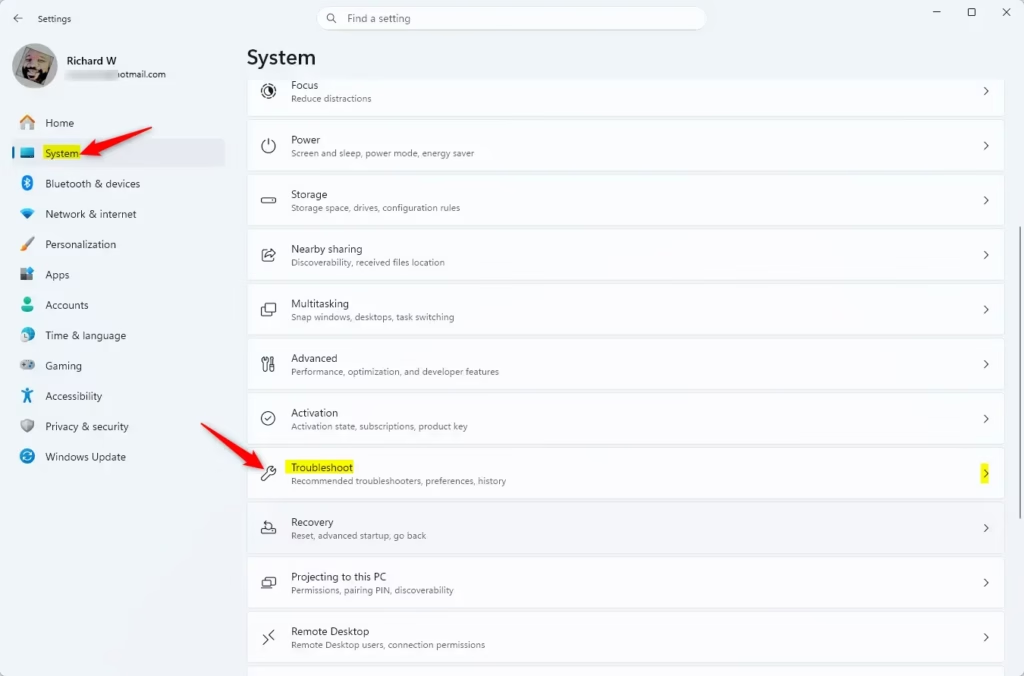
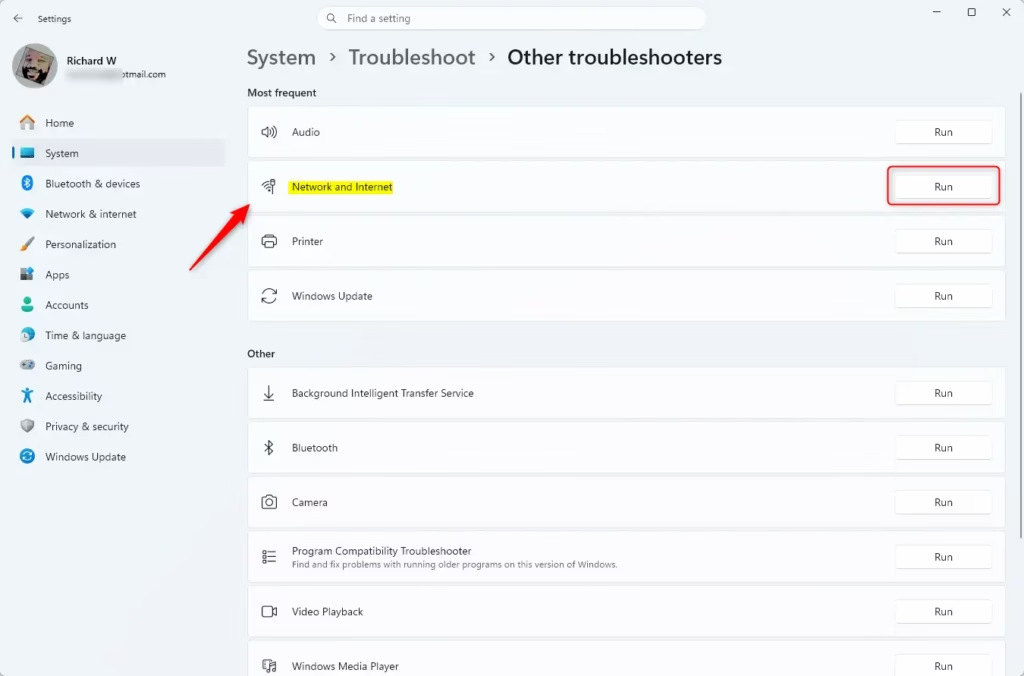
Open Settings System Troubleshoot Other troubleshooters, find Network and Internet, click Run, then follow the prompts to let Windows diagnose and fix your Wi-Fi connection automatically.
What happens when you finish these steps?
Once you complete these fixes, your Windows 11 computer should reliably detect your network, establish a secure handshake with your router, and provide a stable internet connection. You should no longer see the “Limited Access” or “Disconnected” warnings.
1Run the Network Troubleshooter
Windows 11 has a built-in network troubleshooter. It checks your adapter, your IP settings and your connection to the router, and it can often fix problems on its own. It is quick and changes very little, so it is the best place to start.
- Open the Start Menu and select Settings.
- Go to System Troubleshoot.
- Click Other troubleshooters. You will see a list of troubleshooters, each with a Run button.
- Find Network and Internet and click the Run button.
- Follow the prompts and pick the option that matches your problem, such as connecting to a specific website or using a Wi-Fi network. Let it finish.
The tool will report that it fixed something, found nothing, or found a problem it could not fix. If it applies a fix, test your connection before moving on. If it finds nothing, continue with the next section. This tool does not change anything permanently, so there is nothing to undo.
2Check Airplane Mode and Physical Switches
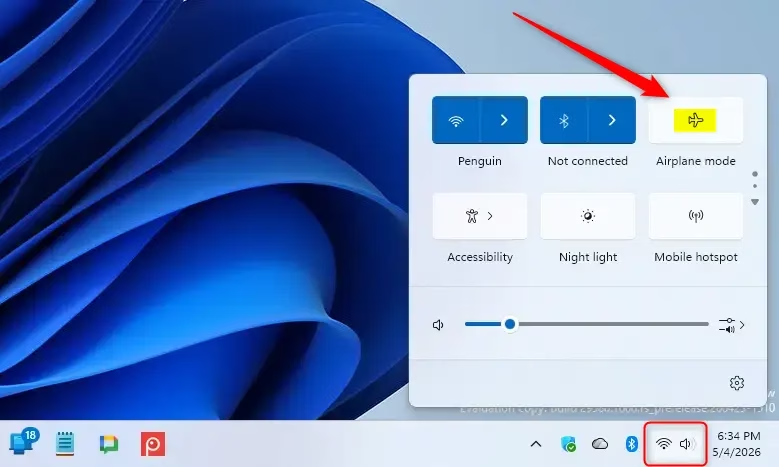
Airplane mode and physical switches are easy to trigger by accident, and they will make Wi-Fi vanish completely. Check the Quick Settings menu in your taskbar to make sure airplane mode is off. Then check the sides and keyboard of your laptop for a physical wireless switch or function key that might have been turned off by mistake.
- Click the Quick Settings icon in the bottom-right corner of your taskbar . This is the group of network, speaker and battery icons. The Quick Settings panel opens.
- Ensure the Airplane mode button is not highlighted in blue. If it is blue, click it once to turn it off, then check that the Wi-Fi button is on.
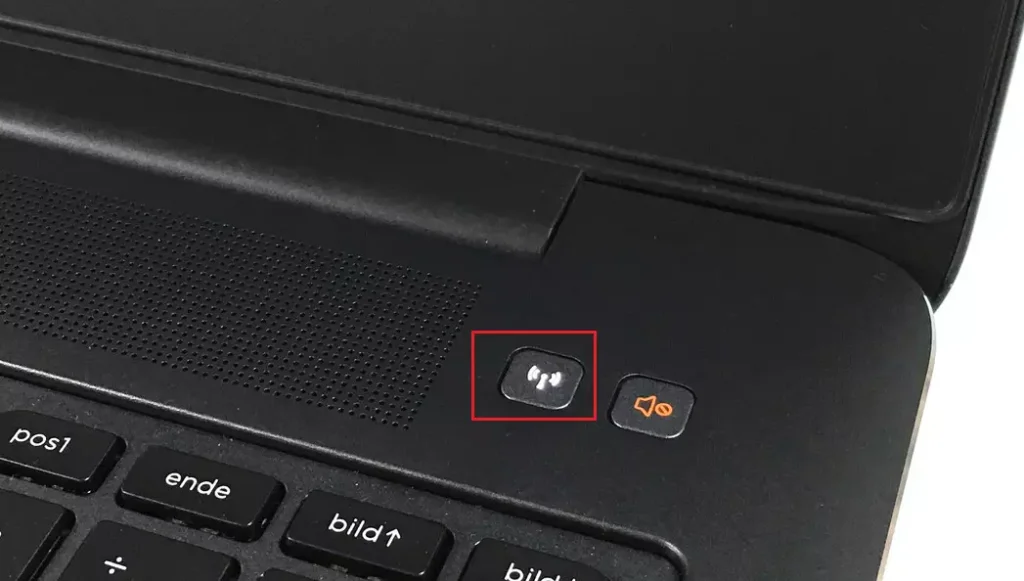
- Check the side of your laptop. Some devices have a physical switch or a function key (like F2 or F12) that toggles wireless hardware on or off. The key often has a small antenna or airplane symbol. You may need to hold the Fn key while pressing it.
If the Wi-Fi option is missing from Quick Settings altogether, the wireless hardware may be switched off or the driver may have failed. In that case, the driver steps later in this tutorial are the next thing to try.
3Generate a Wireless Network Report
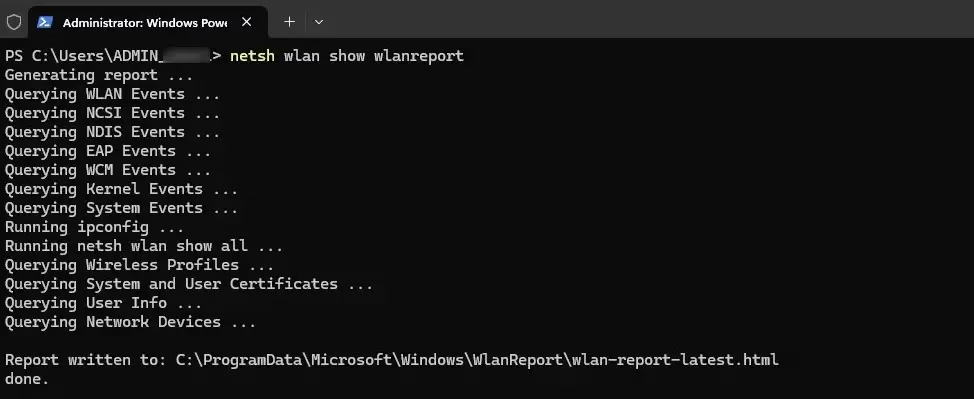
If the drops keep happening and you want to know why, generate a wireless network report. Open Terminal as an administrator and run a single command to create a detailed connection log. The report shows a history of your recent Wi-Fi sessions, connection successes and failures over the last three days. That helps you see whether the drops are random or follow a pattern, and what Windows recorded when each one happened.
- Right-click the Start button and select Terminal (Admin).
- Click Yes if User Account Control asks whether to allow the app to make changes. An elevated Terminal window opens.
- Type
netsh wlan show wlanreportand press Enter. - Wait for the command to finish. It prints a line telling you where the report was saved.
- Open the file path shown in the results to view your report. It opens in your web browser.
Look at the entries where a session ended with an error. The error text and the time of day can help you tell a driver problem from a router or signal problem. This step only reads data and creates a file, so it does not change any settings.
4Flush DNS and Reset TCP/IP Stack (Admin Privileges Required)
If the connection says it is connected but pages will not load, the network data stored on your PC may be stale or corrupted. To flush DNS and reset the TCP/IP stack in Windows 11, open Command Prompt as an administrator and run the reset commands below. This clears the old data and returns your network protocols to their defaults, which fixes many stubborn connection errors.
If you set a static IP address on this PC, write it down first so you can enter it again afterward. Most home users use automatic settings and will not notice any difference.
- Press the Win and type cmd.
- Right-click Command Prompt and select Run as administrator. Click Yes if prompted.
- Type ipconfig /flushdns and press Enter. This clears the stored DNS records.
- Type netsh int ip reset and press Enter. This resets the TCP/IP settings.
- Type netsh winsock reset and press Enter. This resets the Winsock catalog, which controls how apps talk to the network.
- Restart your computer. The Winsock reset does not take effect until you restart.
After the restart, reconnect to your Wi-Fi network and test it. Your saved networks should still be there, but you may need to re-enter a password if it fails to connect.
5Check for Interference and Frequency Standards
Your Wi-Fi might be struggling because of channel congestion. Modern routers use the 802.11ac or 802.11ax standards. If you are on a crowded 2.4GHz frequency, try switching to 5GHz in your router settings to reduce interference. Neighbors’ routers, cordless phones and microwave ovens all compete for the 2.4GHz band.
- Sign in to your router’s admin page. The address and password are usually printed on a label on the router, and the menu names vary by brand.
- Look in the wireless settings for separate 2.4GHz and 5GHz networks, or for a single combined network that you can split.
- Connect your PC to the 5GHz network and test it.
5GHz is usually faster and less crowded, but it covers a shorter distance and does not pass through walls as well. If the signal drops when you are far from the router, go back to 2.4GHz. Also check that your PC’s wireless card supports 5GHz. Most recent ones do, but older cards may not.
6Uninstall and Reinstall the Network Adapter Driver
A corrupted network driver can stop your computer from talking to your Wi-Fi card. To uninstall and reinstall the network adapter driver in Windows 11, use Device Manager to remove the current wireless adapter and restart your computer. When the PC starts again, Windows detects the hardware automatically and installs a fresh driver.
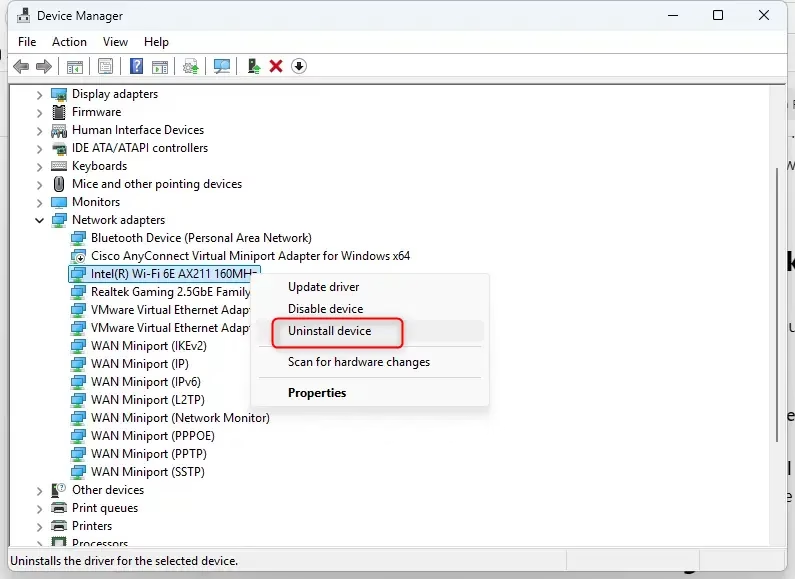
- Right-click the Start button and select Device Manager.
- Expand the Network adapters section. You will see a list of adapters. Your wireless card usually has “Wi-Fi ” or “Wireless” in its name.
- Right-click your wireless adapter and choose Uninstall device.
- Leave the Attempt to remove the driver for this device checkbox cleared if it appears, then confirm. Keeping the stored driver lets Windows reinstall it straight away.
- Restart your PC. Windows will automatically detect the hardware and install a fresh driver.
The Wi-Fi icon should return in your taskbar after the restart. If it does not, open Device Manager again, click the Action menu and select Scan for hardware changes. If the adapter is still missing, download the latest wireless driver from your PC or adapter manufacturer’s website. You may need a wired connection or another device to do that.
7Disable Wi-Fi Power Saving Mode
Windows can switch off your wireless card to save battery, which causes random disconnects, especially after your PC has been idle or when it wakes from sleep. To disable Wi-Fi power saving in Windows 11, open Device Manager, go to your network adapter properties and uncheck the power management setting. This keeps the card running so your connection stays stable while you work.
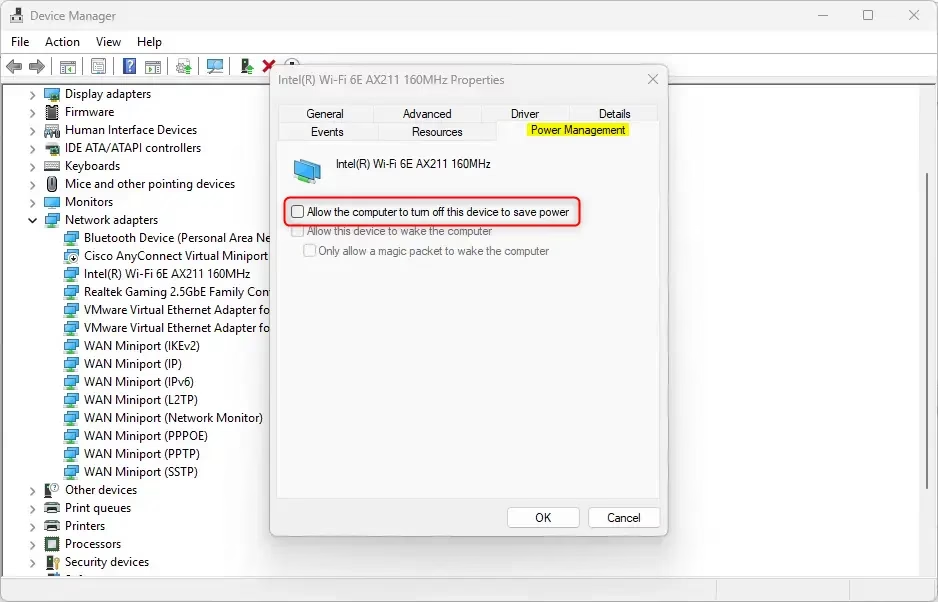
- In Device Manager, right-click your network adapter and select Properties.
- Go to the Power Management tab. If your adapter has no such tab, it does not offer this setting and you can skip this fix.
- Uncheck the box that says Allow the computer to turn off this device to save power.
- Click OK.
The change applies immediately and you do not need to restart. Expect slightly shorter battery life on a laptop. To undo it, return to the same tab and tick the box again.
8Third-Party Antivirus Warning
Some antivirus programs include a firewall that can block your connection. If you have a third-party security suite, try disabling it temporarily to see if your Wi-Fi starts working again. Each product has its own way of doing this, usually through its tray icon or main window.
If the connection returns, the security software is the cause. Turn it back on right away, then check for updates or look in its firewall and network protection settings. Do not leave it disabled, and avoid browsing while it is off. If you rely on built-in Microsoft Defender instead, you do not need to disable it for this test.
Summary
Fixing Windows 11 Wi-Fi connection issues involves checking your hardware switches, resetting your network stack with commands, and keeping your drivers healthy. We covered how to run the troubleshooter, check airplane mode, create a wireless report, flush your DNS, reinstall network adapters, and manage power settings. If the problem returns, the wireless report is the best place to look for a pattern to guide your next step.
Have a question about this guide?
Answered by AI from this guide. Good questions may be added to this page — please don't include personal details.
Did this guide fix your problem?

About the Author
Richard
Tech Writer, IT Professional
Richard is a writer at Geek Rewind who turns complex IT tasks into clear, step-by-step guides. He draws on years of hands-on experience in system administration and enterprise IT operations, focusing on Windows, Linux and WordPress: the problems people actually run into, and the fixes that work. His server and WordPress guides come from systems he runs himself. Richard builds and maintains the platform behind Geek Rewind, from its Ubuntu servers and Nginx configuration to its custom WordPress plugins. Many new tutorials start with readers' questions, and he's always glad to answer them in the comments.
No comments yet — be the first to share your thoughts!